
how to charge a cannon camera the smart, safe, and fast way?
This guide gives a clear step-by-step method for Canon batteries and chargers. You will learn when to use a dedicated charger, USB-C, or a power bank.
We cover model notes like EOS R, 80D, and G7X Mark III, plus LED meanings, typical charge times, and quick troubleshooting. Photos and simple tips make each step easy to follow.
Read on for a short checklist, safety rules, and when to replace a battery. By the end you will know how to charge and care for your Canon battery with confidence.
How to charge a Canon camera (step-by-step)
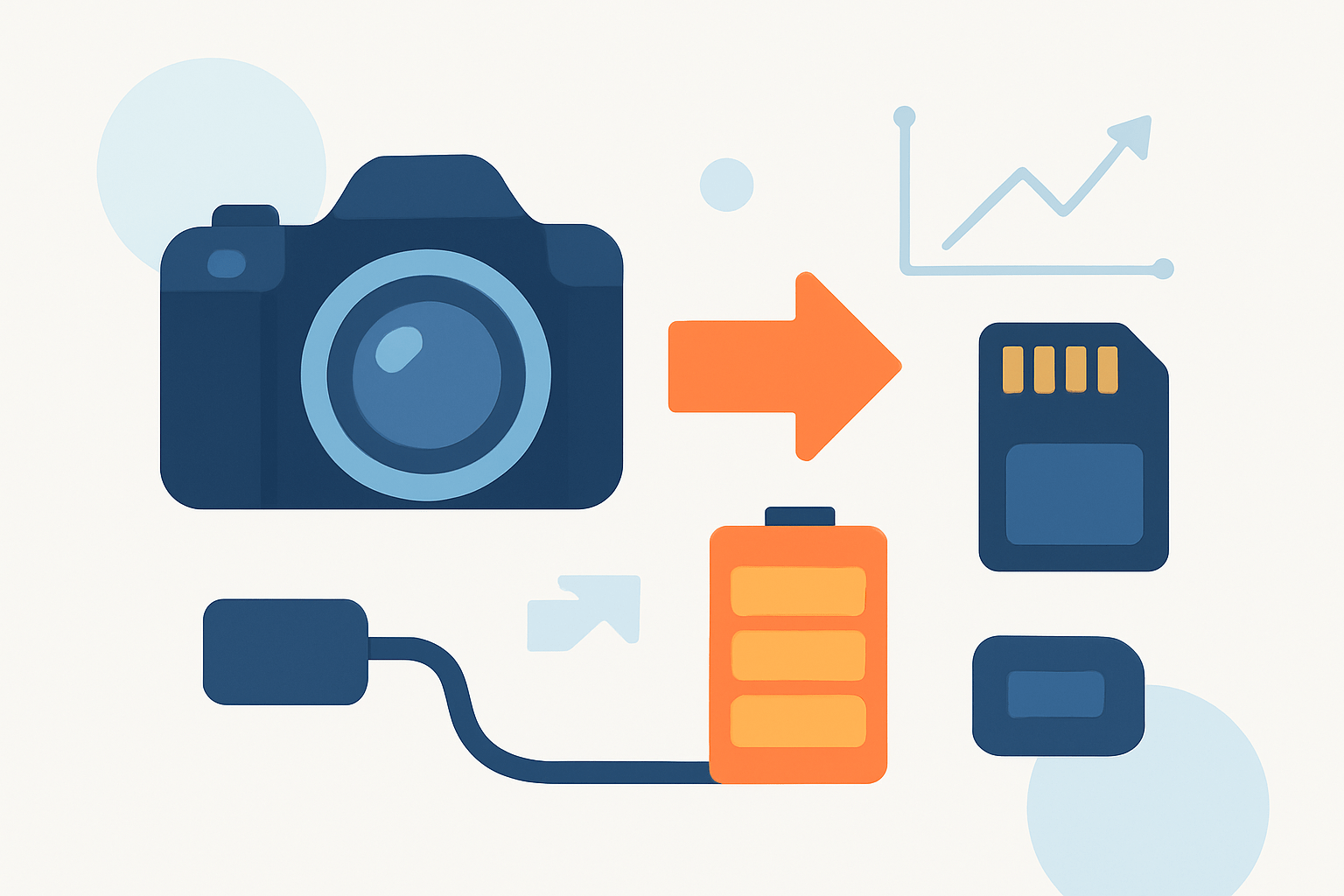
If you are searching for how to charge a cannon camera, here is the fast, reliable method Canon intends. It works for most models and keeps your battery healthy over time.
1. Power off the camera. Even on models that support in‑camera USB charging, switch it off to ensure the port focuses on charging and not powering the electronics.
Do not leave the camera on while charging unless the manual confirms it can charge and run at the same time. This small habit avoids slow charging or heat buildup.
2. Remove the battery from the camera. Open the battery door, slide the latch, and note the orientation so you can put it back correctly later.
If your battery has a protective terminal cover, put it aside now. Photo: removing a battery with door open (alt text: “Canon battery latch opened before removal”).
3. Insert the battery into the dedicated Canon charger. Align the metal contacts and seat it gently; do not force it into place.
For example, LP‑E6 or LP‑E6N packs go into the Canon LC‑E6 family chargers, and NB‑13L packs slide into their matching compact charger. Photo: LP‑E6 in LC‑E6 (alt text: “LP‑E6 battery inserted into Canon LC‑E6 charger — amber light indicates charging”).
4. Plug the charger into a working wall outlet. Check the charger LED: amber or orange means charging and green means fully charged; a blinking pattern often signals an error.
Typical charge time for an LP‑E6 in an official Canon charger is around 2 hours, but it varies with age, temperature, and capacity. Photo: LED close‑up (alt text: “Canon charger LED showing green — battery charged”).
5. Unplug the charger when the light turns green. Remove the battery, replace any terminal cover, and reinsert it into your camera with the same orientation you noted earlier.
Close the door until it clicks and power on to confirm the battery icon shows full. If you removed the battery for a long time, you may be asked to check the date and time.
If you want portable options for trips, this short charging guide explains power banks and adapters you can use safely with compatible models.
Charge via USB and alternative power sources (power bank, USB adapter, external battery pack)
Many newer Canon bodies with USB‑C support in‑camera charging, but older DSLRs usually do not. Always confirm in your manual, because support differs even inside the same series.
Use a good USB‑C cable and a reliable power source. Prefer a USB Power Delivery adapter or a power bank rated for at least 5V/2A, as Canon often recommends these specs for stable charging.
With the camera powered off, connect the USB‑C end to the camera and the other end to your PD adapter or bank. Watch for a charging indicator or access lamp to light up; behavior varies by model.
Some cameras accept USB power only for operation and will not recharge the battery while running. If you must shoot while plugged in, watch the battery icon, as the level may still drop.
For best results on compatible bodies, use a Canon‑recommended PD charger; the EOS R8 documentation for a USB power adapter is a helpful reference for what to look for.
Power banks work well if they are PD‑capable or provide a steady 5V/2A output. Connect the bank to the camera with a quality cable, keep the camera off, and verify the charge light.
External battery packs or DC couplers can power the camera for long shoots, but match voltage and current exactly. Use the correct coupler for your battery type, and never exceed the rated output.
A computer USB port may not deliver enough current and can charge very slowly or not at all. Use a wall PD adapter or a high‑output bank instead for consistent performance.
Model-specific charging notes (EOS R series, EOS 80D, G7X Mark III, older PowerShot models)
Here is the quick rule: if the official manual states USB charging or the USB‑C port supports PD, in‑camera USB charging is likely supported. If not, use the dedicated charger that shipped with your camera.
EOS R series: most models support USB‑C PD charging when the camera is off, but confirm per model and adapter. R8, R6, R5, and newer R bodies generally follow this pattern.
EOS 80D and many older DSLRs: no in‑camera USB charging; remove the LP‑E6/LP‑E6N battery and use the LC‑E6 charger or equivalent Canon charger.
G7X Mark III and newer PowerShots: many support USB charging with the NB‑13L battery installed and the camera switched off. Use a PD‑capable adapter for faster, more stable charging.
Older PowerShots like the SX500 IS: USB is often data‑only. Remove the battery and use the dedicated external charger for safe charging.
When in doubt, confirm the exact behavior in the Canon manual for your specific camera before plugging in new power gear.
Charging indicators, times and common troubleshooting
On Canon wall chargers, amber or orange means charging and green means fully charged. A blinking LED usually indicates an error, such as a bad connection, an overheated pack, or a battery fault.
In‑camera charging indicators vary. Some bodies show a small charge icon on the screen or a steady lamp near the port; others stay dark while charging and only show status when you wake the screen.
Expect about 2 hours for an LP‑E6/LP‑E6N in a dedicated Canon charger, and similar or slightly shorter times for NB‑13L depending on age and temperature. USB charging is often slower than a wall charger, especially from non‑PD sources.
If charging fails, verify the wall outlet or power bank output, and try a different outlet. Swap the cable or adapter, because faulty cables are common.
Clean battery and charger contacts with a dry microfiber and inspect the battery for swelling or damage. If the LED blinks or the pack will not charge, test another battery; replace swollen packs and contact Canon support if problems persist.
If USB charging will not start, turn the camera off, try a PD adapter, and confirm firmware and manual guidance. Photo: charger LED blinking to indicate an error (alt text: “Canon charger blinking — charging error state”).
Safety, battery care and best practices
Store batteries around 40–60% charge in a cool, dry place. Avoid leaving them in a hot car or in freezing conditions, and let a hot battery cool before charging.
Do not leave batteries on the charger for long unattended stretches. Remove them when full to reduce heat and wear.
Replace any pack that swells, leaks, or delivers poor runtime, and recycle it properly. If you use third‑party gear, choose reputable brands with UL or CE certifications and avoid no‑name chargers.
For travel, carry a spare fully charged battery rather than relying on in‑camera charging in the field. Keep loose batteries in carry‑on luggage and check airline rules.
Do charge on stable power and watch indicators; do not force batteries or mix mismatched adapters. With these habits, how to charge a cannon camera becomes simple, safe, and consistent wherever you shoot.
What People Ask Most
How do I charge a cannon camera?
Remove the battery and use the dedicated charger plugged into a wall outlet, or connect the camera with a compatible USB cable if it supports in-camera charging.
Can I charge a cannon camera with a USB cable?
Many modern models let you charge via USB, but always use a good quality cable and a reliable power source to ensure safe charging.
How long does it take to charge a cannon camera battery fully?
Charge time varies by battery size and charger, but most batteries finish in a few hours; watch the charger or camera indicator for completion.
Is it safe to leave my cannon camera charging overnight?
Most chargers stop when the battery is full, but it’s best to avoid leaving devices charging unattended for long periods for added safety.
Can I use my cannon camera while it is charging?
Some cameras work while plugged in, but heavy use may slow charging or cause heat buildup, so avoid intensive tasks during charging.
How do I know if my cannon camera battery is charging correctly?
Look for an LED on the charger or a charging icon on the camera screen; if there’s no change, check the cable, connections, or try a different power source.
What common mistakes should I avoid when charging a cannon camera?
Don’t use frayed cables, avoid charging in very hot or cold places, and don’t mix old and new batteries to prevent poor performance or damage.
Final Thoughts on Charging Canon Cameras
If you came looking for how to charge a Canon camera — and maybe even typed how to charge a cannon camera by accident — this guide walked you through safe options: remove the battery, use a Canon charger, or use USB/PD when your model supports it. I included model notes, indicator meanings, and a short troubleshooting flow, and I added a quick reference code (270) to flag common LED/error patterns. Photographers who want dependable power on shoots will find the step-by-step clarity most useful.
The core benefit is confidence: you won’t be guessing which port or charger to use, and you’ll know when USB will work or when to pull the battery for a dedicated charger. One realistic caution — some older bodies won’t accept in-camera USB charging, and a swollen or damaged cell should be retired. Keep storage and temperature tips in mind to extend runtimes.
We answered the opening question by giving clear how-to steps, USB alternatives, model cues, and simple fixes for common issues, so you’re not left guessing mid-shoot. With these straightforward habits, you’ll spend less time worrying about power and more time making photos.




0 Comments