
Ever wondered which photo printer will make your Mac-shot images look as good on paper as they do on screen?
With so many models, ink types, and paper choices, picking the best photo printer for Mac can feel overwhelming.
Mac integration, color workflows, driver compatibility, and ease of use matter just as much as image quality.
This guide narrows the field to five top photo printers that pair well with macOS, common Mac apps, and popular image editors.
We focus on practical real-world use, not lab specs alone or marketing hype.
You’ll get straightforward advice on matching printers to goals, from portable instant prints to studio-grade output.
Beyond recommendations, we cover essential color-calibration tips to ensure what you see on your iMac or MacBook equals what you print.
You’ll learn how to pick the right color spaces and profiles, and when hardware calibration makes sense for both wide-gamut and standard displays.
These steps cut guesswork and reduce costly reprints.
Cost matters, so we include smart strategies to lower per-print expenses without sacrificing quality or color fidelity.
There are also simple setup tips for macOS, wireless printing, and common troubleshooting steps so you get up and running fast.
If you’re ready to make confident choices and print photos that truly reflect your vision, keep reading.
1. Canon SELPHY CP1300 Wireless Compact Photo Printer

Canon Selphy CP1500 Wireless Photo Printer
Compact wireless photo printer delivering high-quality borderless prints in minutes; portable design and easy smartphone connectivity for instant memories.
Check PriceThe Canon SELPHY CP1300 is a dye-sublimation compact photo printer that produces smudge-free, long-lasting 4×6 prints in about ~47 seconds each. As a working photographer I appreciate that prints are instant-dry and reliably vibrant for a unit this size.
It’s macOS-friendly (macOS 10.12+), supports AirPrint and Wi‑Fi, and also offers USB and SD‑card input. I’ve found setup and wireless printing from Macs and Lightroom to be straightforward and dependable.
Physically the CP1300 is highly portable at under 2 lbs and has a 3.2″ tilting LCD with tactile buttons — no touchscreen, but very usable on the fly. There’s an optional battery (sold separately), which makes it excellent for events and travel, though the lack of a built-in battery is something to plan around.
Image quality punches above its class: vivid colors and good sharpness for a compact printer. Two practical caveats I’ve noted are that brightness adjustments won’t save between prints (annoying for batch work) and the per-print cost is higher due to Canon’s proprietary dye‑sublimation paper and consumables.
If you need a lightweight, fast way to hand out professional-looking 4×6 prints at weddings, markets, or on-location shoots, the SELPHY CP1300 is a great choice. If you need low running costs, larger formats, or higher native resolution, consider alternatives.
- Excellent portability and build quality
- Simple wireless and USB connectivity with Mac
- Instant-dry, smudge-free prints
- Intuitive screen and controls for quick printing
- No built-in battery (sold separately)
- Higher per-print cost due to proprietary paper
2. Epson EcoTank ET-8550 Wide-Format Photo Printer

Epson EcoTank Photo ET-8550 Wide-format All-in-One Supertank Printer
Refillable-ink wide-format photo solution offering stunning color accuracy, low running costs, and versatile scanning, copying and borderless large-format printing.
Check PriceThe Epson EcoTank ET-8550 is a workhorse for photographers who want gallery-quality prints without the perpetual cartridge expense. Its six-ink system (includes photo black) and high-resolution/nozzle technology deliver rich, finely detailed prints up to A3+—ideal when you need larger proofs or wall-ready images.
What makes this printer stand out is the EcoTank refillable bottles: low cost per print and the box includes enough ink for thousands of photos. For high-volume hobbyists and semi-pros that means dramatic savings over time, especially if you print a lot of glossy or mixed-media work.
The machine also offers a large adjustable touchscreen and excellent media handling for many sizes and types, so switching between glossy, matte, or heavier fine-art stock is straightforward. Connectivity is solid (Wi‑Fi, Ethernet, USB), with direct printing from Macs and mobile devices, which simplifies studio workflows and tethered shoots.
Real-world users praise the superior print quality—deep blacks and sharp colors on glossy paper—and note that print speed is reasonable for a quality-focused inkjet, making it suitable for home studios or small businesses. Be aware the initial setup and software can be a bit complex, and drying times are longer than dye-sublimation prints, so plan drying space for batches.
If you prioritize print fidelity, lower running costs, and the ability to produce A3+ images from a Mac, the ET-8550 is an excellent choice. If you need instant-dry prints for immediate handling or want something plug-and-play out of the box, you may find its setup and drying characteristics less convenient.
- High-quality, vivid, finely detailed prints on varied media
- Low running costs via refillable tanks
- Supports A3+ wide formats
- Good wired and wireless Mac support
- Higher upfront cost and somewhat complex setup
- Longer ink drying times vs dye-sublimation
3. Canon PIXMA Pro-200S

Canon PIXMA PRO-200S 13-inch Wireless Photo Printer
Professional-grade 13-inch photo output with vibrant color gamut, fast wireless workflow and archival-quality prints for photographers and studios.
Check PriceThe Canon PIXMA Pro-200S is a dye-based 8-ink printer that I often recommend when vibrant, glossy color is the priority. Its eight-color dye system is optimized for punchy, saturated output, and in my experience it really sings on glossy paper where color depth and smooth gradations matter most.
It offers borderless printing across a wide range of media, from glossy to matte and fine-art stocks, so you can deliver gallery-ready prints without trimming. Print speeds are noticeably quicker than pigment-based alternatives, which helps when you have a stack of client proofs or event shots to turn around.
Connectivity is straightforward for Mac users: wireless support with AirPrint and standard USB connectivity make it easy to print directly from macOS. Do note that some users report occasional Mac driver or connectivity quirks depending on OS version, so check compatibility and keep drivers updated before relying on it for tight deadlines.
Consumable costs are the trade-off: eight individual dye cartridges give impressive color fidelity but raise running costs compared with simpler inksets or refillable systems. Despite that, the standard-quality mode still produces excellent output for most needs, so you can reserve top-quality settings for final prints and save ink on proofs.
For photographers focused on colorful, energetic prints—especially on glossy stock—the Pro-200S is a compelling choice. If you mainly print matte fine-art or need the deepest B/W tones, a pigment-based model might suit you better, but for speed and color impact this Canon is hard to beat.
- Excellent color reproduction on glossy paper
- Relatively fast for photo printing
- Wide borderless media support
- Good Mac connectivity options
- Higher running costs with eight cartridges
- Less impressive on matte or B/W prints vs pigment printers
4. Canon ImagePrograf Pro-310
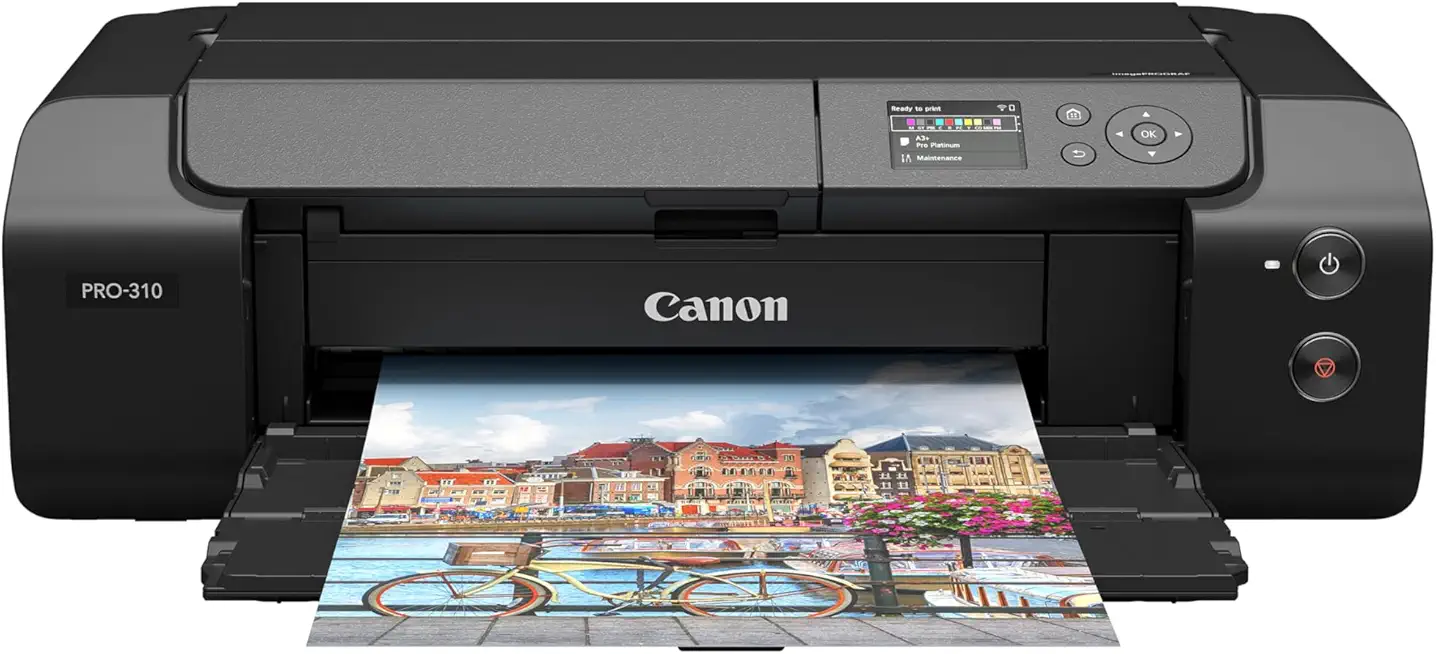
Canon imagePROGRAF PRO-310 13-inch Wireless Photo Printer
Precision 13-inch fine-art printing with deep blacks, expanded color range and superior detail for gallery-quality photographic and fine-art reproductions.
Check PriceAs a fine‑art shooter, the Canon ImagePrograf Pro‑310 feels like a studio workhorse. Its 10‑color pigment ink system delivers professional‑grade prints with exceptional blacks and tonal subtlety that make portraits and monochrome work sing.
It handles oversized and panoramic sheets — nearly 1 meter — through a rear/manual feeder, so you can produce gallery‑ready pieces without outsourcing. Media handling is robust, and the output quality on matte and fine‑art papers is where this printer truly shines.
Connectivity is Mac‑friendly: USB and wireless support plus professional software compatibility mean it integrates into a macOS workflow without gimmicks. The small 3″ non‑touch LCD keeps the focus on print quality rather than flashy controls, though it’s less intuitive for casual users.
Expect slower speeds compared with dye‑based machines; prints take longer but the pigment results justify the pace for archival work. Be prepared for heavier maintenance and higher ink use — ten cartridges add up, so running costs are significant for high-volume printers.
In short, the Pro‑310 is a smart choice if you prioritize longevity, black density, and large‑format capabilities. If you need fast turnaround, minimal upkeep, or the lowest per‑print cost, look elsewhere. For gallery prints, limited editions, and serious archival work, this Canon rewards patience with stunning, durable output.
- Outstanding B/W and color quality on matte/fine‑art papers
- Large‑format and panoramic prints (nearly 1 meter)
- Deep, rich blacks from 10‑color pigment system
- Strong media handling and Mac connectivity (USB/wireless)
- Slower than dye‑based alternatives
- Higher ink costs and more complex maintenance
5. Canon PIXMA G3270 / G3570 MegaTank Series

Canon MegaTank G3270 All-in-One Wireless Inkjet Printer
High-capacity ink tank all-in-one delivering ultra-low cost per page, wireless convenience, reliable everyday printing, scanning and copying for home offices.
Check PriceAs a working photographer who prints at home, I appreciate the Canon PIXMA G3270 / G3570 MegaTank for what it is: a refillable MegaTank ink system that slashes running costs compared with cartridge-based machines. It’s an all-in-one (print/scan/copy), so it doubles as a utility device for client paperwork and quick scans while keeping photo costs low.
Print quality is solid for casual and semi-pro work — the unit handles various papers well, including Canon 10″ photo paper, and produces pleasing, ready-to-share prints without the premium price tag. Users report respectable print speeds geared toward smaller volumes, so it’s great for hobbyists or photographers who print intermittently rather than back-to-back large jobs.
Connectivity is straightforward: Wi‑Fi and app support make it easy to print directly from Macs and smartphones, which fits a modern workflow where I often send images from Lightroom or mobile edits. Keep in mind it lacks advanced conveniences like a touchscreen and automatic duplexing, and media handling is more basic compared with higher-end photo printers, so it isn’t designed as a studio workhorse.
In short, choose the PIXMA G3270 / G3570 if you want very low cost per print, multifunction capability, and decent photo output for occasional prints or small client runs. If you need heavy production, wide-format support, or premium color control for gallery prints, you’ll want to look higher up the ladder.
- Very low cost per print
- Good casual/hobbyist photo quality
- Scan and copy add utility
- Wireless Mac compatibility
- No touchscreen or automatic duplex
- Basic media handling vs high-end photo printers
Color Calibration Tips for Accurate Photo Prints
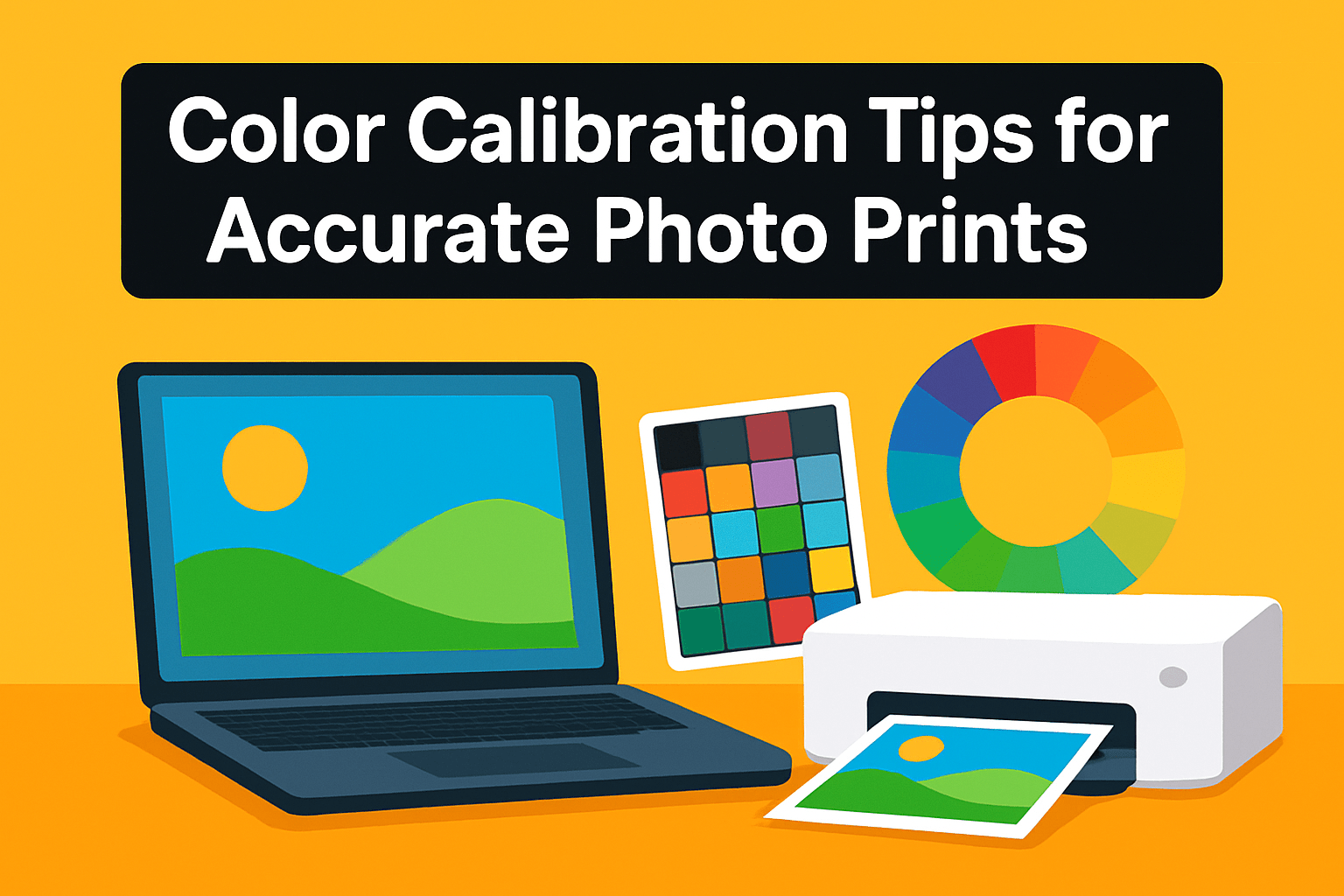
Getting predictable prints starts with a well-calibrated monitor. On Mac, open System Preferences > Displays > Color > Calibrate and walk through the Display Calibrator Assistant. Set gamma to 1.8 and the white point to D50 (5000K) if you’re matching traditional photographic paper; tweak brightness and contrast until a reference image on screen matches a real print held beside it.
Save and activate that profile, and keep a separate profile you use only for printing. Matching your image color space to the workflow matters too—sRGB IEC61966-2.1 is a safe default for most Canon and Epson inkjet workflows unless you’re working in a wide-gamut print pipeline that explicitly requires Adobe RGB or ProPhoto.
Printer profiles are the other half of the equation. Use accurate ICC profiles for each paper and printer combination, and resist trusting automatic color corrections from both the printer driver and Photoshop at the same time. I always soft-proof in Lightroom or Photoshop with the paper ICC profile applied, so I can see and compensate for gamut shifts before I hit print.
Practical, low-tech checks help a lot. Hold a clean sheet of the paper you plan to print on beside your screen and dim the monitor until the white points look similar. This simple step cuts down on the “too bright on screen” problem that produces wasted reprints.
If you want precision and consistency, invest in a hardware colorimeter—devices like the ColorMunki or X‑Rite i1Display pay for themselves quickly for serious work. Recalibrate regularly, profile each paper, and run a quick proof at draft quality before spending ink on the final print.
How to Reduce Photo Printing Costs
Saving money on prints starts long before you press Print. I always nail my color workflow first — use a proper ICC profile for the paper and printer rather than relying on automatic corrections. That single habit cuts reprints dramatically, because what you see on screen will match the paper more reliably.
For drafts and proofs, don’t waste premium settings. Print in draft or standard quality and use cheaper paper while checking composition, exposure, and color. Only commit to the highest quality when you have a final, proofed file.
Make the most of each sheet by arranging multiple images on a page when feasible. Tiling or combining small prints reduces paper waste and lowers the per-image cost, especially for contact sheets, client proofs, or series previews.
Regular maintenance is true thrift in disguise. Keep nozzles clean and run routine maintenance so you avoid clogged heads and misprints that guzzle ink. A little preventative care prevents the frustration — and cost — of failed print jobs.
Calibrate both monitor and printer to minimize surprises. If your screen and printer speak the same color language, you’ll avoid returning to the printer multiple times. That predictability saves ink, paper, and time.
When printing black-and-white work, use grayscale mode when your printer supports it. This switches off color channels and can significantly reduce color ink use while producing cleaner monochrome prints.
Combine these practices: proper profiles, proofing at lower quality, smart layout, and tidy maintenance. Together they create a workflow that’s predictable and economical, letting you spend more on the papers and sizes that truly matter for final prints.
What People Ask Most
What is the best photo printer for Mac?
There is no single best option; the right printer depends on priorities like print quality, supported media sizes, running costs, and portability. Verify macOS compatibility and the available color‑management workflow before choosing.
Which photo printers are compatible with Mac?
Many major brands provide Mac support via native drivers, AirPrint, or vendor apps. Always check the manufacturer’s compatibility notes for your macOS version and available drivers.
How do I set up a photo printer on macOS?
Connect the printer via USB or network, then add it in Printers & Scanners and install the manufacturer’s driver or app if recommended. Select the correct paper type and printer profile in the print dialog before printing.
How do I connect a photo printer to my Mac?
You can connect over Wi‑Fi, Ethernet, or USB, and many models support AirPrint for simple setup. Use the printer’s setup utility or macOS printer settings to complete the connection and test a sample print.
Can I print high-quality photos from a Mac?
Yes, Macs can produce high-quality prints when you send compatible image files and use proper color profiles and print settings. Calibrating your monitor and using accurate ICC profiles for each paper helps ensure predictable results.
How do I color-calibrate a photo printer on a Mac?
Calibrate your display with the built‑in assistant or a hardware colorimeter, then use accurate ICC profiles for each paper and printer combination. Create or load printer profiles in your print workflow to match screen and print appearance.
What file formats and sizes can I print from a Mac photo printer?
Most photo printers accept common formats such as JPEG and TIFF and support a range of paper sizes offered by the device. Check the printer’s supported formats and choose the appropriate file type and paper size in the print settings for best results.
Conclusion for Best Photo Printer for Mac
Choosing the right Mac-compatible photo printer ultimately comes down to print quality, supported sizes and formats, ongoing running costs, portability, and a reliable color workflow that fits your needs.
Before you commit, test your chosen paper and ICC profile, keep your monitor and printer calibrated, and perform regular maintenance to reduce reprints and control costs.
Consider how you work day-to-day—prioritize portability for events, low running costs for high-volume printing, or the highest color accuracy for fine-art output—and pick the balance that matches your priorities.
If you want to sharpen your printing skills and workflows, please explore more articles on our site to learn practical tips and techniques.
Have questions or want to share your experience with a specific printer or workflow? Leave a comment below and we usually reply within a few hours.


0 Comments