

What is memory card — and can the right card save your photos and videos?
This short guide answers what is memory card in plain language. You will learn how it works, the common types, and which speeds and sizes you need.
We use real examples from phones, drones, and cameras to make it clear. You will also get simple buying, testing, and backup tips.
Read on for a quick checklist and clear rules to pick and protect your cards. By the end you will know what to buy and how to keep your files safe.
What is a memory card?
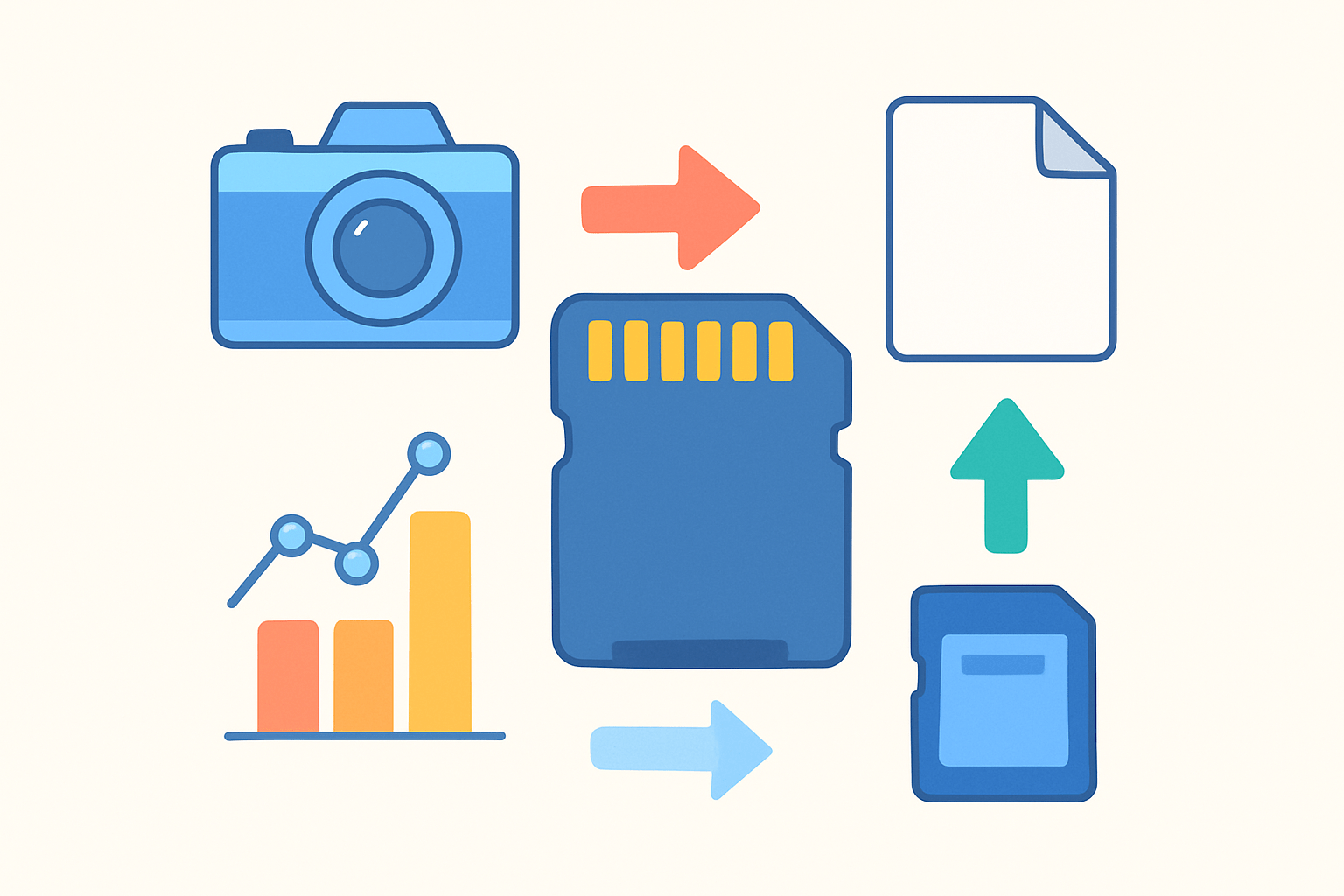
A memory card is a small, removable, non‑volatile flash storage device used to store photos, video, audio, apps, and files in cameras, phones, drones, game consoles, and more. If you are wondering what is memory card in simple words, think of a tiny solid‑state drive you can slip in and out of your device.
When people say SD card, microSD card, memory stick, or flash card, they are usually talking about this same idea. The card holds data even when the power is off, and it has no moving parts. A memory card is rugged, light, and built to travel with you.
In real life, a memory card in a DSLR or mirrorless camera stores RAW and JPEG files from your shoot. A microSD card in a phone or Nintendo Switch expands storage for apps, screenshots, and downloaded games, and it can be moved between devices with an adapter if needed.
Unlike RAM, which clears when you shut down, flash memory keeps your files safe. Unlike a spinning hard drive, there are no fragile platters or heads inside, so it can handle bumps and cold nights in the mountains. That is why creators and travelers rely on them every day when asking what is memory card good for.
How does a memory card work?
Inside the card, data lives in NAND flash cells arranged into pages and blocks. The host device sends a command, the card’s controller decides where to put data, and the bits are written to those cells. Reading is quick, but writing usually requires erasing a whole block before new data can be stored.
This erase‑before‑write behavior is why you might see bursts of speed followed by slower sustained writes. Imagine a notebook where you can only clear a whole section before rewriting it. The controller hides this complexity so you can drag files and press record without thinking about blocks and pages.
The controller also handles wear‑leveling, which spreads writes across the chip so one area does not wear out early. It maps out bad blocks, fixes bit errors with ECC, and uses a flash translation layer to pretend the memory works like a simple linear drive. These smarts keep cards reliable, but every flash cell still has a limited number of program/erase cycles.
You will see terms like SLC, MLC, TLC, and QLC to describe bits per cell. SLC stores one bit per cell and offers the best endurance and speed, but it is expensive. TLC and QLC pack more bits into each cell to lower cost and raise capacity, which is why they are common in consumer cards.
Most consumer cards also use an SLC cache. For a short burst, the card writes like a sprinter, then slows when the cache fills and the controller moves data into TLC or QLC. This is why long 4K video or long burst RAW shooting can drop speed after a while if the card’s sustained write is not high enough.
Speed is not one thing. Sequential performance matters when recording video or copying large files, while random I/O matters when a phone runs apps from the card. For video, the key is sustained write speed so the camera never falls behind and stops recording.
File systems add another layer. SDHC cards usually come with FAT32, which is widely compatible but limits single files to about 4 GB. SDXC cards default to exFAT, which supports huge files, but very old cameras or computers may not understand exFAT without updates.
If you want a primer on the storage under the hood, a flash memory card is essentially a tiny computer with a controller managing those cells. That is why two cards with the same capacity can feel very different in real use. The quality of the controller, firmware, and NAND all shape the experience you get.
What are the different types of memory cards?
The SD family is the most common format you will see in cameras and laptops. Full‑size SD cards slot into DSLRs and mirrorless bodies, and they come in capacity tiers called SD, SDHC, SDXC, and SDUC. The physical shape is the same, but the capacity and file system rules evolve across the tiers.
MicroSD is the tiny version of SD, used in phones, drones, action cameras, and handheld consoles. With a passive adapter, a microSD can work in an SD slot, which is handy for travel. If you are asking what is memory card support for mobile devices, microSD is the answer you will meet most often.
CompactFlash, usually shortened to CF, used to be the pro standard for older DSLRs. It is larger and sturdy, but most new cameras have moved away from it. You may still find CF slots on legacy bodies in rental houses and studios.
CFast came next for some high‑end video gear. It offered higher speeds than CF and was based on a SATA‑like design. Many cinema cameras supported it for a time, especially for compressed 4K workflows.
XQD pushed speed even further and appeared in some pro cameras from Nikon and others. It was fast and robust but has been largely replaced by newer tech. Many cameras that launched with XQD later added support for CFexpress via firmware.
CFexpress is the modern professional format, built on PCIe and NVMe. It comes in Type A, Type B, and Type C sizes, with Type B being the most common in high‑end stills and cinema cameras. This format enables very high write speeds needed for high‑bitrate RAW bursts and 8K video.
Sony’s Memory Stick family lives on mostly in older Sony devices and readers. You might still see Memory Stick PRO Duo in a drawer of legacy gear. For new purchases, SD and CFexpress are the mainstream choices.
Some devices use embedded storage like eMMC or UFS, which is soldered in and not removable. That is not a memory card, but it shares flash technology and similar ideas about controllers and wear. For removable storage you can swap and label, you want SD, microSD, or CFexpress.
Compatibility always comes first. A slot accepts only certain families, and an adapter works only one way, such as microSD into SD, not SD into microSD. Always check your device manual before you upgrade cards.
Form factor, capacity, and speed
Capacity in the SD world follows clear tiers. Original SD went up to about 2 GB, SDHC spans 4 to 32 GB, SDXC covers 32 GB to 2 TB, and SDUC extends that from 2 to 128 TB. MicroSD follows the same capacity steps even though the card is much smaller.
It helps to picture real files. A typical smartphone JPEG is about 3 to 5 MB, so a 128 GB card can hold around 25,000 photos at 5 MB each. A modern camera RAW file might run 30 to 50 MB, so that same 128 GB card fits roughly 2,500 to 4,000 RAW images.
Video eats space faster because it is constant data. At 100 Mbps, which is about 12.5 MB per second, you record around 750 MB per minute. That means a 64 GB card gives you about 80 to 85 minutes, and a 256 GB card lands near 5.5 hours at that bitrate.
If you step up to 200 Mbps, cut those times in half. High‑bitrate or All‑Intra 4K and 8K can hit 400 Mbps or more, so capacity plans must scale. For multi‑camera shoots, it is wise to carry extra cards and rotate them during breaks.
Speed classes are printed right on the label. The original Speed Class uses a C icon and numbers 2, 4, 6, and 10 to show minimum sustained write in MB/s, with Class 10 being 10 MB/s. UHS Speed Class uses a U icon with 1 or 3, where U1 is 10 MB/s and U3 is 30 MB/s sustained.
Video Speed Class uses a V mark such as V6, V10, V30, V60, and V90 to state the sustained write floor. V30 means 30 MB/s sustained, V60 means 60 MB/s, and so on. For 4K, V30 is often the safe entry point, while high‑bitrate 4K or 8K might call for V60 or V90.
Application Performance labels matter if you install apps on a microSD card. A1 targets at least 1500 read and 500 write IOPS, while A2 targets higher IOPS with special features in the controller and driver. Phones that support A2 can feel snappier when loading apps from the card.
Bus type sets the ceiling for how fast the card can go in a friendly host. UHS‑I tops out around 104 MB/s, UHS‑II reaches about 312 MB/s, and UHS‑III doubles that limit again, though it is rare in the wild. CFexpress and SD Express use PCIe and NVMe to leap far beyond those numbers for pro workflows.
You can spot a UHS‑II card by the extra row of pins on the back. Put a UHS‑II card in a UHS‑I camera and it will still work, but it will run at UHS‑I speeds. The opposite is true too, so the slowest link between card, camera, and reader rules the result.
Here is a quick mapping to make choices easy. For everyday photo backups and travel JPEGs, a Class 10 or U1 card is fine. For 4K recording, choose U3 or V30 at minimum, and pick V60 or V90 if your camera offers high‑bitrate or All‑Intra modes.
If you shoot long bursts of RAW with a fast buffer, a UHS‑II SD card or a CFexpress card is usually the better match. For Android app storage, look for A1 or A2 on the label. Always confirm your device supports the bus and the file system before you buy.
Practical tips — choosing, using, testing and caring for memory cards
Buy from trusted brands and authorized sellers to avoid counterfeits. If a high‑capacity card seems too cheap, it probably is. Read recent user reports and confirm a clear warranty and return policy before you commit.
Pick capacity and speed that match your workflow. For smartphones and casual use, 64 to 256 GB works well and keeps costs sane. For action cameras and drones, aim for 64 to 256 GB with V30 or V60 so long videos do not drop frames.
For mirrorless stills and hybrid shooting, 128 to 512 GB makes sense, and UHS‑II or CFexpress may be worthwhile if your camera supports them. For pro video, follow the camera’s official media list and match the recommended V‑class or CFexpress type. If you want a deeper dive, this guide on understanding memory cards is a solid reference to keep bookmarked.
Use more than one card during important work. Label them, rotate them, and follow a simple backup habit: copy to two places before you erase. My routine is shoot, offload to a primary drive and a backup drive, verify the files open, then format the card in the camera.
Format new cards in the device before first use, and use the official SD card formatter on a computer if a card acts strange. Check whether your camera wants FAT32 or exFAT, especially if it is older. If you hit file size limits at 4 GB, you are likely on FAT32 and may need SDXC with exFAT.
Test new cards before a big trip. Use CrystalDiskMark or Blackmagic Disk Speed Test to see read and write speeds, and use H2testw or F3 to verify real capacity. If you see speed drops during a long write, remember the SLC cache behavior and try another reader or host to confirm.
When trouble strikes, stop writing to the card right away. Try a different reader or camera, then attempt recovery with tools like PhotoRec or Recuva, and only then reformat and test. If problems persist and the card is under warranty, contact the maker for replacement.
Care for cards like tiny cameras. Keep the contacts clean, avoid extreme heat, protect them in cases, and never pull a card while the device writes. Use the write‑protect switch on full‑size SD cards when you want to lock files during transfer.
Before any shoot, do a quick run‑through in your head. Confirm the card type your device accepts, choose the right speed and capacity, format in the device, and run a quick test clip or burst. Knowing exactly what is memory card performance your project needs saves stress later.
In short, choose the right format, match the speed to your task, test and back up, and treat the card with care. Memory cards are small, but they carry big moments and big jobs. When you understand what is memory card technology and how it behaves, you gain control over your workflow and your results.
What People Ask Most
What is a memory card and what is it used for?
A memory card is a small, removable storage device used to save photos, videos, music, and other files in cameras, phones, and gadgets.
How do I tell if my camera or phone accepts a memory card?
Look for a small slot labeled for cards or check the device settings to see if it shows removable storage.
Can a memory card hold my photos and videos safely?
Yes, a memory card stores photos and videos like a tiny hard drive, but you should back up important files to another place too.
Is it easy to move files from a memory card to my computer?
Yes, you can insert the card into a computer slot or use a card reader and then copy the files like any other folder.
Will any memory card work in any device?
Not always; some devices only accept certain card shapes or types, and sometimes an adapter is needed to make them fit.
How can I protect my memory card from losing data?
Keep backups of important files, avoid removing the card while saving, and store it away from water and extreme heat.
Can I reuse a memory card many times?
Yes, you can delete and save new files on a memory card many times, but regularly backing up helps prevent accidental loss.
Final Thoughts on Memory Cards
We began by answering “what is a memory card” — a tiny, removable flash device — and showed how picking the right one keeps your gear ready, whether you’re grabbing everyday snaps or long video takes. For example, a 270-shot burst or a long 4K clip will demand different speeds and capacity, and this guide gave straightforward rules to match cards to tasks. That clarity — knowing which speed class, capacity, and form factor suits your camera — is the core benefit: fewer missed moments and smoother workflows for photographers, videographers, drone pilots, and phone users.
Just be realistic: cards wear out, hosts limit speed, and cheap counterfeits or a full SLC cache can bite you during a critical shoot, so test and verify new cards before you trust them. Enthusiast and pro shooters get the biggest payoff from faster, higher-end formats, while hobbyists will find plenty of reliable, budget-friendly choices. With a little prep and the right habits, you’ll feel more confident and ready to capture what matters next.




0 Comments