
How does cvs photo print work — and can you get prints the same day? This quick guide will answer that.
This article shows the three easy ways to print at CVS: the CVS Photo website, the CVS Photo Center app, and the in-store Kodak Picture Kiosk. You will get step-by-step instructions and the exact buttons and choices you’ll see.
You’ll also learn where to upload photos from, which file types and resolutions to use, what paper finishes mean, and how long different products take. Plus we include quick tips for same-day pickup, cropping issues, and basic troubleshooting.
Want fast, clear answers to how does cvs photo print work for your next project? Read on and you’ll know exactly what to do.
Printing photos is easy at CVS with step-by-step online ordering and same-day pick-ups
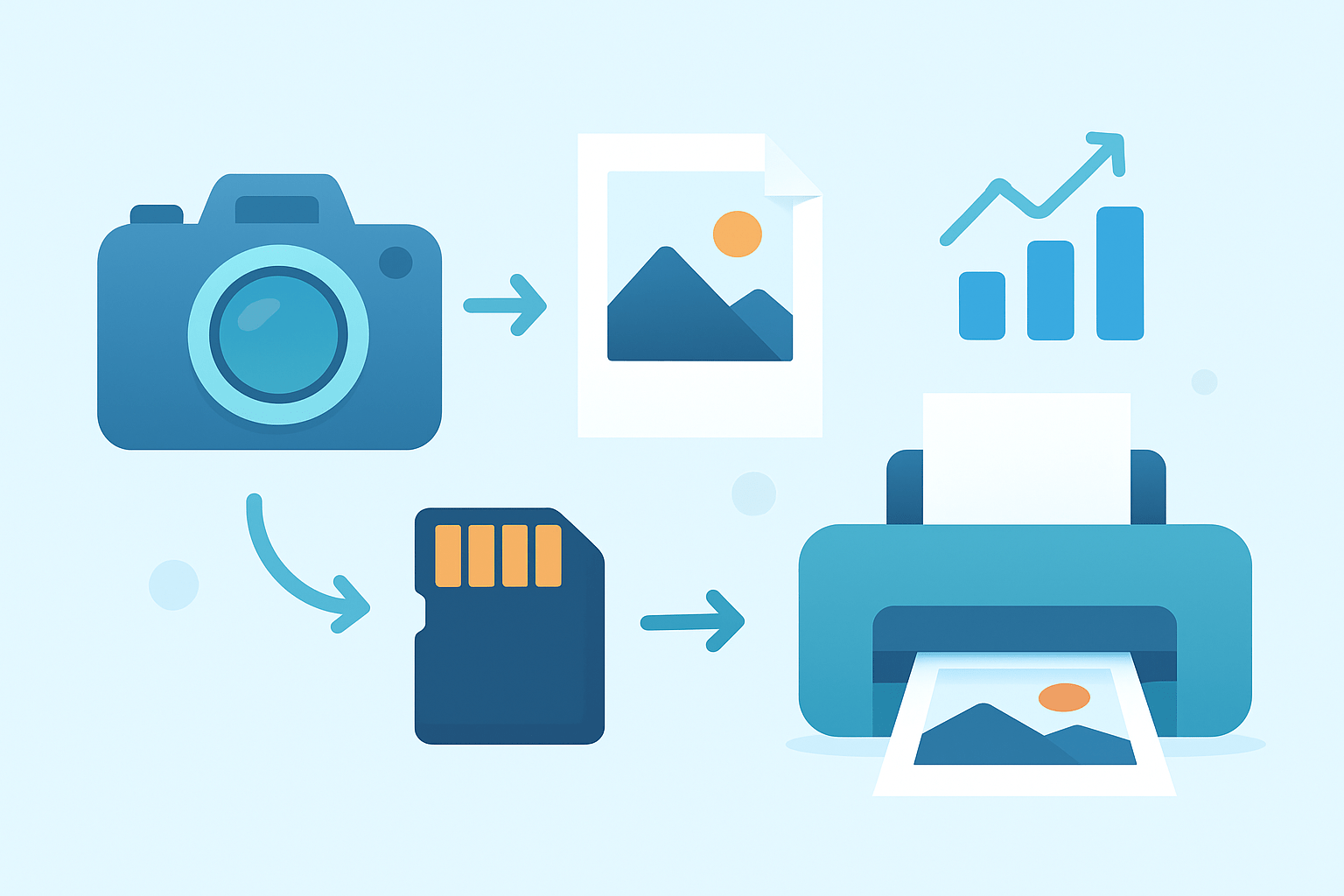
If you are asking how does cvs photo print work, the short answer is that you can print three ways: on the CVS Photo website, in the CVS Photo Center app, or at the in‑store Kodak Picture Kiosk. Each path is simple, fast, and built for same‑day pickup in most stores.
Step 1 for online or app orders is to open the CVS Photo page or the CVS app and tap Photo Center. You can check out as a guest or sign in, then look for buttons like “Order for Pickup,” “1 Hour Pickup,” or “Start Order.”
Step 2 is to add your images. Tap “Add Photos,” then pick from your phone, computer, or linked accounts. The app shows small tags such as “Camera Roll,” “Instagram,” or “Dropbox” so you can choose your source.
Step 3 is product selection. Choose Prints, Cards, Photo Book, or Poster, and then pick your sizes and quantities. For basic prints, you can tap sizes like 4×6, 5×7, or 8×10 on the product grid or visit Photo Prints to jump straight in.
Step 4 is customization. Pick your paper finish and make edits such as crop, rotate, red‑eye fix, or auto‑enhance. The editor often shows a “Crop & Edit” screen and a “Preview” button to confirm framing.
Step 5 is store and speed. Tap “Same Day Pickup” and choose a nearby CVS store, or select “Ship to Home” for delivery. Watch for the “1 Hour Pickup” label when you want the fastest turn.
Step 6 is payment. You can “Pay Online” at checkout or choose “Pay in Store” if you prefer to handle it at pickup. Paying online can speed up the handoff when the order is ready.
Step 7 is review and submit. The app shows a summary with sizes, quantity, price, and store. Tap “Continue,” confirm the order, and you’ll see an on‑screen confirmation plus an email.
Step 8 is pickup. You will get a push alert or email that says “Ready for Pickup.” Take your confirmation email or QR code to the photo counter for quick service.
If you go in‑store, the Kodak Picture Kiosk makes it even faster. Walk up to the kiosk, choose your source like phone, USB, SD card, or social media, and then select your images on the touch screen.
At the kiosk you choose sizes and finish, then crop on the large preview screen. You can pay at the register with your receipt, and some 4×6 or 5×7 prints are produced within minutes, often while you shop.
Small UX notes matter. If your photo ratio does not match the print size, the system auto‑crops; watch the warning lines and adjust the crop. The app preview and the kiosk preview may look a bit different in color and brightness, so always check the final “Preview” before you tap “Apply.”
In one sentence each, here’s a quick comparison. Speed: the kiosk is often the fastest for small prints. Convenience: the app or web lets you pre‑upload so you can place an order from the couch. Control: the kiosk gives a large live preview, while the web editor offers easy edits and templates.
By following these steps, you can see how does cvs photo print work from upload to pickup in a smooth flow. It’s the same idea across methods: select, edit, choose store, and grab your prints the same day.
Upload your favorite photos from social media or your saved images
Most people upload from a phone camera roll, a computer folder, or a thumb drive. You can also pull from an SD card, Facebook, Instagram, or cloud sources like Dropbox after you log in.
Supported sources typically include phone, camera cards, USB, Facebook, Instagram, and Dropbox. The login flow asks you to allow access, and you can unlink accounts later in settings.
For file types, JPEG in sRGB is the safe default and usually prints best. PNG files may be accepted but can convert on upload; RAW files should be exported to JPEG first for consistent color.
Aim for 300 DPI for small prints. As a simple cheat sheet, 4×6 is about 1200×1800 pixels, 5×7 is about 1500×2100 pixels, and 8×10 is about 2400×3000 pixels for crisp results.
Social sites compress images, so try to upload originals when you can. If you must use social media images, check the preview and avoid very large print sizes.
On the app, you’ll grant photo permissions, then tap multiple images to select. Quick edits like crop and rotate are built in, and you can reorder photos before checkout.
If uploads fail, check your connection, file size, and format. Converting to JPEG sRGB solves many issues, and the printing help page can guide you through common errors. This is also where how does cvs photo print work becomes clearer, as most problems stem from files that are too small or in the wrong format.
What kind of paper will my prints be printed on?
CVS prints are produced on lab‑grade Kodak photo paper, often called genuine Kodak paper in store materials. It is designed for rich color, solid blacks, and a familiar photo‑lab feel.
Glossy has vivid color and a shiny surface. It pops for landscapes, sunsets, and high‑contrast images, but shows glare under bright light.
Lustre, sometimes called semi‑gloss, cuts reflections and helps resist fingerprints. It is a favorite for portraits and everyday family photos because it balances color punch with a more refined surface.
Matte has almost no glare and a soft, fine‑art look. It is great under glass and for gift prints that will be handled a lot without showing smudges.
Kiosk prints use photo paper, while specialty items like canvases or framed art use different materials and processes. For most people, lustre is the safest all‑around pick, and it fits the everyday answer to how does cvs photo print work for family albums and frames.
How long will my prints take to develop at CVS Pharmacy?
Kiosk prints are often ready in minutes for standard 4×6 and 5×7 sizes. App or web same‑day pickup orders at many stores show “1 Hour Pickup” for standard prints, though times can vary by location.
Specialty items such as posters, canvases, framed prints, photo books, and cards may take 1 to 7 business days or more. Ship‑to‑home orders follow standard shipping speeds and include tracking options.
Timing depends on store equipment, product type, payment choice, and holiday surges. You’ll get app push alerts or emails, and most stores hold orders for a set pickup window.
If your order is not ready, check the app status, call the store, or head to the photo counter with your confirmation. For more big‑picture expectations on how does cvs photo print work across services, a concise CVS printing guide can be helpful.
Types of products available for printing (prints, posters, cards, books, gifts)
CVS prints the basics like wallets, 4×6, 5×7, and 8×10. You can also order posters and large prints, canvas and framed canvas, photo books and calendars, and greeting cards and photo cards, plus mugs and small photo gifts.
Use high‑resolution images for posters or canvas. For large pieces, 150–200 DPI is acceptable when viewed from a distance, so a 16×20 works well around 2400×3000 pixels and a 24×36 around 3600×5400 pixels.
For cards and books, pick templates that match your photo’s orientation to avoid heavy cropping. Keep important faces away from edges, and allow a little “bleed” so the trim looks clean.
Everyday use is simple. Choose 4×6 for daily snaps, 5×7 or 8×10 for framed portraits, photo books for trips and milestones, calendars and cards for seasonal gifts, and posters for events or wall art.
Prices vary by size and product, and CVS runs weekly photo promos in the app and online. Order ahead when possible, pay online for a faster pickup, and keep your confirmation handy so the flow of how does cvs photo print work stays smooth from start to finish.
What People Ask Most
How does CVS Photo print work?
You upload photos through the CVS app, website, or an in‑store kiosk, choose sizes and finishes, pay, and then pick up in the store or have them shipped to you.
Can I print photos from my phone at CVS Photo?
Yes, you can print directly from your phone using the CVS app or by sending photos to an in‑store kiosk for instant printing.
How long does it take for CVS Photo prints to be ready?
Most standard prints are ready within an hour for in‑store pickup, while specialty items or mailed orders may take longer.
Do I need an account to use CVS Photo print services?
No, you can place a guest order in store or online, but creating an account makes reordering and tracking easier.
Can I edit or crop photos before printing at CVS Photo?
Yes, the app and kiosks include basic editing tools to crop, rotate, and preview your photos before you print.
Are CVS Photo prints good quality for keepsakes or gifts?
Yes, CVS prints are suitable for everyday keepsakes and gifts, and you can pick premium finishes for a more polished look.
Will my photos lose quality when I use CVS Photo print?
Low‑resolution images can appear soft, but high‑resolution files generally print sharply; use the preview to check before ordering.
Final Thoughts on CVS Photo Printing
Whether you go through the CVS Photo website, the Photo Center app, or the in-store Kodak kiosk, the process is built for speed and simple control — even when you need 270 prints for an event. This guide recapped the step-by-step ordering flows, upload sources, paper choices and timing so you can pick the route that fits your schedule and how much editing control you want. For everyday storytellers and busy families, it’s a reliable way to turn digital memories into tangible keepsakes.
Just be realistic about cropping, resolution and occasional store-to-store timing differences — previews and using original files usually prevent surprises, but double-check before you submit. If you’re making books, gifts or bulk prints, planners and phone photographers will get the most value from the options and promos covered here. Enjoy seeing your photos in hand; the little moments look different off the screen, and you’ll have pieces you can share and keep.




0 Comments