
How to calibrate a monitor for photography — are your colors lying to you? This guide shows simple steps, the right tools, and the settings photographers need.
An uncalibrated monitor gives wrong exposure, strange color casts, and prints that don’t match. We’ll explain calibration vs profiling and why accurate skin tones and consistent proofs matter.
You will get a clear step‑by‑step walkthrough, gear recommendations, and choices between hardware and software methods. Visuals, checklists, and verification images are included so you can trust your edits.
Whether you edit as a hobbyist or for clients, follow these steps to save time and get reliable color. Start here and make your monitor show the true image every time.
Why Monitor Calibration Matters for Photography
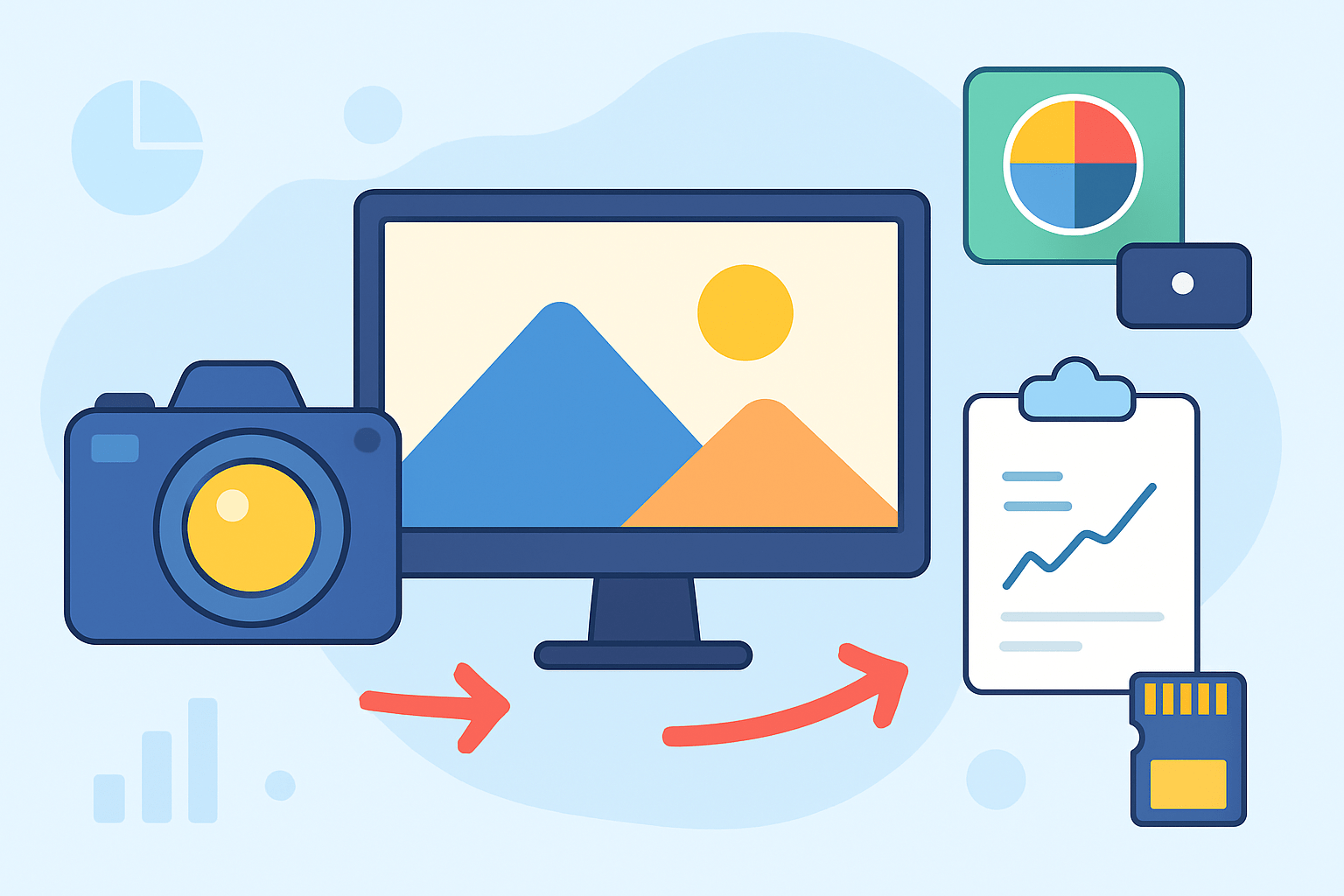
Photography is about control. If your monitor is lying to you, your edits will be off, and your prints will not match what you saw. Uncalibrated screens push exposure, shift colors, and kill consistency, which costs you time and money.
Calibration brings the display to a known baseline. Profiling measures the result and creates an ICC profile that your system uses to display color correctly. You need both parts working together for a dependable workflow.
Accurate color matters most for skin tones, product work, and client proofs. A calibrated display lets you soft-proof prints and trust what you are seeing on screen. This is the foundation for repeatable, professional results.
The science is simple to grasp. White point sets the color of white light, usually D65 or 6500K for screen work. Luminance controls brightness in candelas per square meter, and gamma 2.2 defines how tones transition from shadows to highlights.
Target cheat sheet: D65 (6500K), gamma 2.2, and roughly 100 cd/m² for a dim, editing-friendly room. These targets balance comfortable viewing with accurate tone perception. They also match common photo standards on the web.
Who should care? Anyone who edits photos, from beginner to studio pro. Calibrate after buying a new monitor, changing your workspace lighting, significant OS or GPU updates, or before important jobs.
If you want a deeper visual explanation of monitor calibration, there are excellent primers that show how profiles guide your system. But the core idea stays the same: control the variables so your edits translate.
If you are wondering how to calibrate a monitor for photography in a simple, reliable way, this guide walks you through a practical process. You will learn the key targets, the tools, and a clean step-by-step flow you can repeat.
What You Need: Tools and Workspace Prep
The most important tool is a colorimeter, which reads the light from your screen and guides the calibration. The Calibrite ColorChecker Display Pro (formerly X-Rite i1Display Pro) is fast, consistent, and trusted by pros. The Datacolor SpyderX is quick and easy to use, with a very simple setup that suits beginners.
A spectrophotometer is optional unless you plan to profile printers and papers. Devices like the X-Rite i1Pro series read color more precisely across different display types, but they cost more and are overkill for monitor-only needs. If you mostly edit on screen, a colorimeter is the best value.
For software, vendor apps are straightforward and supported by their hardware. Calibrite and Datacolor tools are guided, stable, and provide verification modes. DisplayCAL is a powerful open-source choice with deep control, but it requires more patience and setup knowledge.
Before you start, warm up your monitor for at least thirty minutes so the backlight stabilizes. Clean the screen so the sensor sits on a dust-free area. Set the display to its native resolution and reset the color settings to default or “Standard,” as your software suggests.
Disable all dynamic features that fight your targets. Turn off True Tone, Night Shift, and auto brightness on macOS. Turn off Night Light, auto brightness, adaptive contrast, and any “eco” modes on Windows monitors and laptops.
Make your workspace steady and neutral. Avoid sunlight on the screen, and keep the room lighting constant with neutral bulbs. If your walls are very colorful, cover the area behind the monitor with something neutral to reduce color bias.
Position the monitor at eye level, and make sure the colorimeter sits flat against the panel. Use the counterweight to keep the sensor aligned in the center of the screen. If your screen is glossy, tilt slightly to avoid reflections during measurements.
Quick pre-check: warm the display, clean the panel, disable night modes, set native resolution, choose Standard or factory color mode, steady your room light, and close any apps that might change screen color. These few minutes will save you from redos.
If you came here to learn how to calibrate a monitor for photography without the fluff, gather these basics first. With the right tools and a stable room, your results will be consistent day after day.
How to Calibrate Your Monitor for Photography (Step-by-step)
Step 1: Warm the monitor for about thirty minutes while you stabilize the room lighting. Your goal is a steady, neutral environment so the meter reads a consistent display. Sit where you normally work and keep that setup unchanged.
Step 2: Set the monitor to its native resolution and select a neutral preset like Standard or sRGB for starting. Disable auto brightness, dynamic contrast, Night Light on Windows, and True Tone or Night Shift on macOS. If your monitor has a factory reset or default color mode, use it as the baseline.
Step 3: Launch your calibration software and choose targets that fit photo work. Use D65 or 6500K for white point and gamma 2.2 for tone response, which match web and most photo workflows. Set luminance near 100 cd/m² for dim rooms, closer to 120 cd/m² if your room is brighter.
Pro tip: Start with sRGB as your profile intent if you mainly export for web or client previews. Choose Adobe RGB only if you have a wide-gamut monitor and a workflow that keeps images in wide-gamut spaces. For advanced editing, ProPhoto RGB can be used in apps, but keep exports in sRGB for broad compatibility.
Step 4: If your monitor supports hardware calibration via an internal LUT, select the hardware mode in your software. This reduces banding and keeps corrections inside the display itself. If not, software LUT calibration through the GPU is fine for most needs.
Step 5: Place the colorimeter on the screen, centered, and let the counterweight hold it flat. The device will flash through colored patches and measure how your screen displays them. Think of it like a thermometer taking readings from your pixels.
Step 6: Follow the prompts to adjust brightness first, and contrast only if asked. Some monitors let you tweak RGB gains to nail the white point; do this slowly to avoid overshooting. If your monitor lacks RGB controls, the software will correct via the LUT.
OS note: After creating a profile, ensure your operating system loads it by default. On macOS this usually happens automatically, while on Windows you may need to set it as default in Color Management and enable LUT loading at startup.
Step 7: Start the profiling sweep and let it run without touching the keyboard or mouse. The software measures many color patches, builds a correction LUT, and writes an ICC profile for your system. This can take 5–15 minutes depending on the method and patch count.
Pro tip: If you see banding or odd transitions after calibration, try a different patch set or use hardware calibration if your monitor supports it. Banding often comes from steep software corrections or limited panel depth.
Step 8: Save the profile with a clear name that includes the date, target, and luminance, like “MonitorName_D65_G2.2_100cd_YYYYMMDD.” Make sure the software sets it as the default profile for that display. Enable profile loading at login so it is active every time you work.
Step 9: Verify with known test images. Use a gray ramp to check for smooth steps without color tints, and a color checker or known skin tone images to judge accuracy. If you have a recent print from a reliable lab, compare it under neutral light to confirm your screen-to-print match.
Quick fix: If everything suddenly looks too warm or too blue after the profile loads, check that no night modes or vendor utilities re-enabled themselves. Also confirm that you selected the right display if you use multiple monitors.
Step 10: Optional but helpful, run a uniformity check if your software provides one. This test compares center and corner brightness and color, revealing panels with strong variation. If differences are large and visible in real work, consider returning or upgrading the monitor.
Step 11: Schedule the next calibration based on how critical your work is. Pros often recalibrate monthly, while enthusiasts can go every one to three months. Log your profile name, date, targets, and room conditions so you can track drift over time.
Callout targets you can stick with: D65 white point at 6500K, gamma 2.2, and 80–120 cd/m² luminance. Choose the low end if you edit in a dim room and the high end for a brighter studio. Consistent room light matters more than chasing a single number.
If you want a clean reference alongside this process, here is a straightforward walkthrough on how to calibrate your monitor. Use it as a second set of eyes while you go through these steps. The more consistent your routine, the more consistent your results.
Advanced note for print-heavy photographers: you can calibrate the display to D50 (5000K) and lower luminance to better match viewing booths and certain proofing standards. This is helpful if your prints always look warmer under real viewing lights. Just keep web exports in sRGB and test thoroughly before changing all your targets.
OS note: On dual-GPU laptops or systems with switching graphics, ensure the LUT loader runs for the active GPU. Some vendor utilities include a tray app that keeps the right LUT in place, which avoids random shifts.
If you asked yourself how to calibrate a monitor for photography with zero mystery, this step-by-step workflow is the heart of it. Measure, adjust, profile, verify, and log. Do it the same way next time, and your color will stay rock solid.
Manual vs Automatic: Choosing Devices and Methods
Colorimeters are the best choice for monitor work because they are fast, affordable, and tuned for display primaries. They are ideal for anyone who edits photos on a single screen or a pair of matched monitors. For most photographers, this is all you need.
Spectrophotometers read color by wavelength and are better for profiling printers and papers. They handle wider device types but are slower and more expensive. If you run a print-heavy studio or make custom paper profiles, a spectro is worth it.
A hardware LUT monitor from brands like EIZO and BenQ lets you load calibration directly into the display. This reduces banding and keeps gradients smooth, especially when big corrections are needed. Software-only calibration is fine on a decent panel when corrections are small.
Vendor software is simple, guided, and supports hardware features like hardware LUT and uniformity compensation. DisplayCAL is a great fit if you want advanced control, more verification options, or unusual targets. Pick the tool that fits your patience level and your gear.
For multi-monitor setups, match white point and luminance first, and accept that small hue differences may remain. Keep the same targets on both screens and calibrate them in the same room lighting. Consistency beats chasing perfection from panel to panel.
Post-Calibration Workflow and Best Practices
Use soft-proofing in Lightroom or Photoshop to preview how your images will print. Set the working space you edit in, then apply the paper and printer ICC from your lab or your own profiles. Toggle the proof to judge gamut clipping and adjust with gentle moves.
For web delivery, convert to sRGB on export to ensure a consistent look across devices and browsers. Some browsers handle ICC profiles better than others, so always check an export on a second device. Keep the calibrated monitor as your primary reference point.
Maintain your calibration by repeating it monthly if color is mission-critical, or every one to three months for general work. Keep a log with the profile name, date, targets, and ambient notes so you can spot drift. If the room lighting changes, recalibrate sooner.
Troubleshooting is simple if you keep a checklist in mind. If the profile is not loading, set it as default in the OS and enable the LUT loader. If colors shift after an update, recheck GPU drivers, night modes, and vendor utilities, then rerun calibration if needed.
Before large print runs, order a small proof set and compare under neutral light. This feedback loop keeps surprises away and protects your budget. If you need a compact refresher after a break, these 10 steps summarize the process you just learned.
Remember why you started: your goal is a trustworthy screen that reflects your creative intent. Mastering how to calibrate a monitor for photography gives you that confidence. Keep the routine simple, keep the room steady, and your color will take care of itself.
What People Ask Most
How do I calibrate a monitor for photography?
Use a calibration tool or software and follow its on-screen steps to set accurate color, brightness, and contrast for photo editing.
Why is calibrating my monitor important for photography?
Calibrating ensures the colors and tones you see on-screen match prints and other devices, so your edits are consistent.
How often should I calibrate a monitor for photography?
Calibrate every few weeks to a few months, or anytime colors start to look off.
Can I calibrate a monitor for photography without special hardware?
You can use free software or built-in display settings for a basic fix, but a calibration device gives more reliable results.
Will calibrating my monitor fix color differences when I print photos?
Calibrating greatly improves on-screen to print matching, but you also need correct printer and paper profiles for best results.
Does room lighting affect how I should calibrate a monitor for photography?
Yes — calibrate in consistent, neutral lighting so the colors you see while editing are accurate.
What common mistakes should I avoid when calibrating a monitor for photography?
Avoid changing settings immediately after calibration, using extreme brightness, or calibrating under varying light conditions.
Final Thoughts on Monitor Calibration for Photography
Calibrating your monitor brings real, practical gains: colors that behave, skin tones that read true, and prints that match what you see on screen, which saves time and keeps clients happier. It also means resisting extremes — don’t pump display settings to crazy numbers (like 270) hoping for punchy images; calibration wins with measured targets. Still, calibration isn’t magic — it won’t fix a worn-out panel or wildly changing room light — but it gives photographers, retouchers, and studios the predictable baseline they need, especially when preparing files for print or client delivery.
Remember that opening question about why your proofs never match your monitor? This guide answered it by explaining calibration versus profiling, walking through the tools and the step-by-step workflow, including targets like D65, gamma 2.2, and luminance guidance, and showing what to check afterward. Keep calibrating on a steady schedule and you’ll find easier color decisions, fewer reprints, more confidence as you shoot and edit, and less time spent guessing whether a file is ready.




0 Comments