
What are iPhoto Events — can they help you find, sort, and share your photos in seconds?
What are iPhoto Events? They are groups that collect photos by import session or date so you can treat a set as one moment. Events make it easy to browse, share, print, and manage whole batches fast.
This article shows how iPhoto auto-groups shots and how to rename, merge, split, or move photos between Events. We’ll also compare Events to Albums and give simple workflows for weddings, travel, and family shoots.
You’ll get best practices for naming, culling, backing up, and migrating to Apple Photos, plus quick fixes for common problems. Clear screenshots and a one-page cheat sheet will help you follow each step.
What Are iPhoto Events?
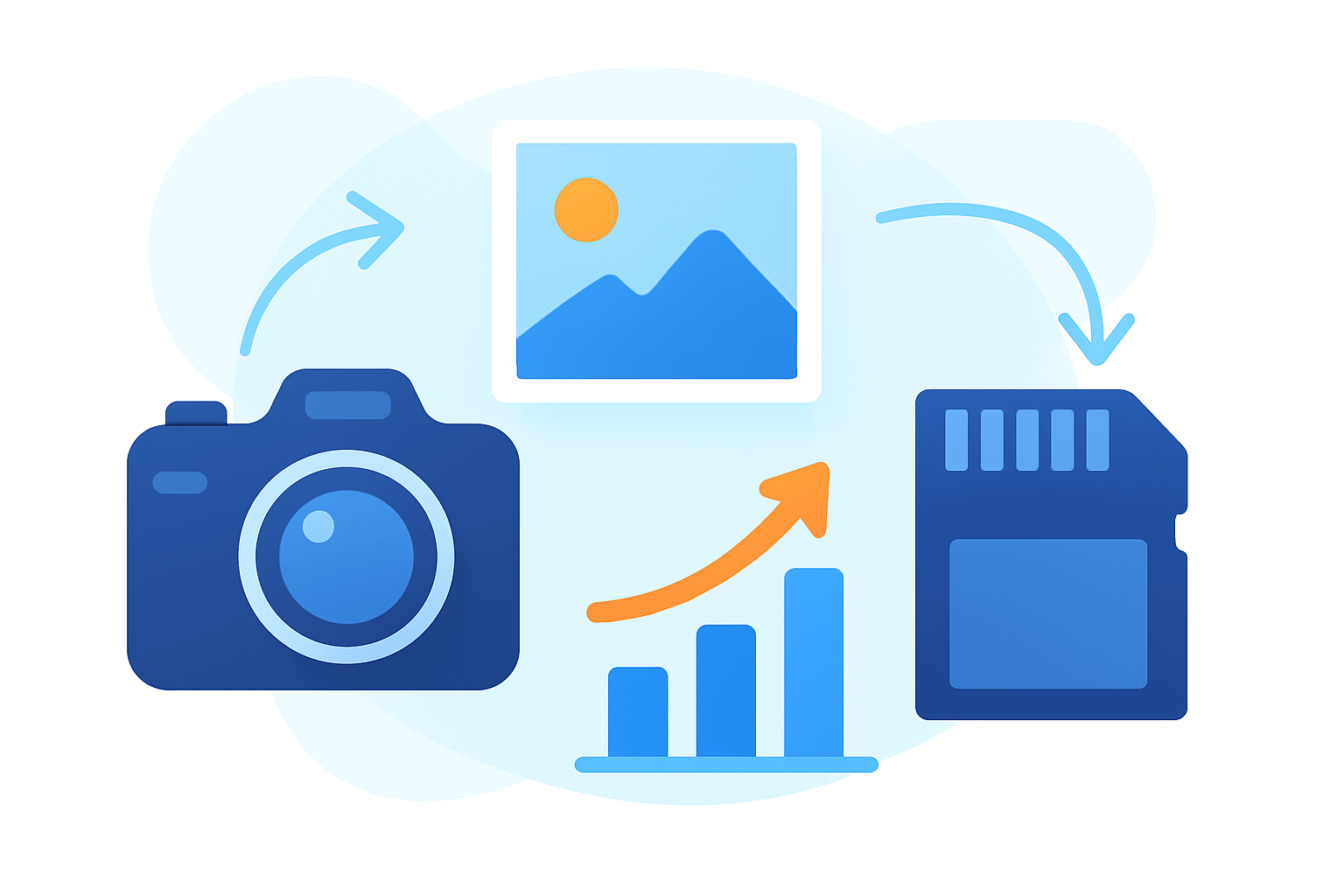
What are iPhoto Events? They are named groups that iPhoto creates to gather photos that belong together by import session or time. Think of each Event as a tidy folder that represents a moment, a day, or a shoot.
Events exist to make big libraries feel human. iPhoto looks at how and when images were captured or imported, then stacks them into a single block you can browse at a glance.
In the Events view you see a grid of stacks, each with a cover photo, an Event name, a date or date range, and a photo count. You can change the cover image, rename the Event, and open it to view every shot inside.
The benefits show up fast. You can scrub chronologically, then run a one-click slideshow, print, or share an entire Event without hunting for files.
If you are asking what are iphoto events, picture shoeboxes labeled by time that iPhoto fills for you. Open the box to see everything from that moment, then close it and move on to the next.
A quick annotated screenshot of the Events grid helps new users spot the name, date, and count fields. For accessibility, use short alt text such as “iPhoto Events view showing stacks with names and dates.”
If you want a short primer on the concept from a third-party perspective, this overview of Events explained is a helpful companion to what you see on screen. It reinforces why Events are faster for casual sorting than digging through folders.
In one line, Events answer the question “Where is that day’s shoot?” by bundling everything from that time into one place. That is why they remain the simplest on-ramp for organizing an iPhoto library.
How iPhoto Events Work
By default, iPhoto creates an Event for each import and may also consider capture time. Images shot within a short time window often land in the same Event, but exact behavior can vary by iPhoto version and settings.
Time gaps matter as well. If there is a long break between shots, iPhoto may split them into separate Events to keep moments distinct.
You can create a new Event manually when the automatic grouping doesn’t match your story. Select the photos, then choose the create-new-event command in the Events menu or the context menu, and confirm the name and date.
Renaming is simple and safe. Click the Event title under its stack or use the Info pane to edit the name, date, or a short description you can search later.
Moving photos between Events is a drag-and-drop gesture most of the time. Select the images, drag them onto the destination Event, and let iPhoto regroup them without duplicating files.
To merge two Events, select both stacks and choose the merge option in the Events menu, then check the combined date range. Menu names changed over the years, so verify the exact label in your version before you click.
Splitting is the mirror move. Open the Event, select the images that belong elsewhere, and use the split or “Create Event from Selection” command to peel them into a fresh Event.
Speed up selection with Shift-click to grab ranges and Command-click to pick specific shots. Right-click for context actions, and confirm keyboard shortcuts in your version because Apple adjusted them across releases.
If you document your workflow, capture small screenshots of create, rename, merge, and split. Keep alt text short, like “Renaming an Event in iPhoto” or “Splitting an Event from selection.”
How Events Organize Your Photos
Events are built around chronology and moments. iPhoto sorts Events by date so your library becomes a visual timeline you can scroll.
Opening an Event is like stepping back into that slice of time. You can move to the next Event to jump ahead in the day, the trip, or the project.
Events also play nicely with metadata. Inside an Event you can add keywords, star ratings, and titles so those photos become easy to find later.
Batch work keeps things fast. Select all in the Event to apply a keyword or a rating in one move, then refine the best images first; Apple’s own guide on how to organize with events mirrors this simple flow.
For a wedding, you might keep one Event for the ceremony, another for portraits, and a third for the reception. Later you can build a curated album that mixes the best images from all three.
On a trip, make one Event per day or city so your story follows the route you traveled. You can then create albums for food, street art, or landscapes that stretch across those Events.
For family life, let birthday parties, hikes, and school plays each land in their own Events. When someone asks for a highlight reel, you can make an album of favorites without breaking the time-based groups.
Events shine when you want speed and a clear timeline, but they can feel rigid for cross-date themes. If you started with “what are iphoto events,” now you know they are the backbone for time, while albums do the cross-cutting.
Events vs. Albums in iPhoto
Events are time or import-based groups that iPhoto builds for you. Albums are manual, curated collections you create for delivery, themes, or storytelling across many dates.
Each photo lives in exactly one Event, but it can appear in many albums without duplication. Albums are virtual buckets, so you can collect your best shots without moving the originals.
Use Events for ingest, first cull, and chronology. Use albums and Smart Albums for client selects, portfolios, and long-running themes that pull from multiple shoots.
A quick rule of thumb helps. If you need the day in order, think Event; if you need the best of a topic from many days, think album.
Pros often keep Events as the raw grouping for every shoot. Then they build albums for proofing, final selects, and exports while leaving the Event structure unchanged.
If you later migrate to Apple Photos, the idea stays similar even if the names change. Photos uses Moments and Collections for time, plus albums and smart albums for curation.
If you are still weighing what are iphoto events against albums, remember that Events answer “when,” while albums answer “what and why.” Use both together and your library stays fast and flexible.
Best Practices for Managing Events (practical how-to & troubleshooting)
Adopt a consistent naming pattern so Events sort and search well. A clear format like “YYYY-MM-DD — Client or Place — Shoot Type” keeps everything tidy and scannable.
Build a simple ingest flow you can repeat. Import, cull immediately, merge or split Events if needed, then tag and rate before you start editing.
Batch tools are your time savers. Select all to apply a global keyword, then add a star or color to your keepers so you can filter fast.
When you import in chunks, small duplicate Events can appear for the same day. Merge them so the whole shoot lives in one place and your timeline stays clean.
Set a monthly cleanup habit. Remove obvious duplicates, consolidate tiny Events, and fill in missing names so searches work later.
Back up your iPhoto Library before big edits or upgrades. Time Machine is great, but also make a manual copy to an external drive for extra safety.
Exporting an Event as a folder is handy for delivery or archive. Choose originals for untouched files or edited versions if you want your adjustments baked in.
To move an entire library to a new Mac, copy the iPhoto Library file and open it on the new machine. Let the app update the library if prompted, and always back up first.
If you plan to migrate to Apple Photos, prepare your Events before you move. Tidy names, merge duplicates, and note any custom slideshows because layout data may not transfer perfectly.
Expect Events to show up in Photos as time-based groupings like Moments or Collections. Your albums and metadata should carry, but back up and test a small library to confirm.
When photos seem missing from an Event, check the iPhoto Trash and look inside the library’s Originals or Masters folders. If needed, run the library repair tool and verify the exact steps for your version.
Duplicate Events or photos usually come from repeated imports. Use a dedupe pass and then merge or split to restore clean boundaries.
If the library feels corrupted, stop and back up, then use the built-in repair options or restore from your last good copy. Confirm menu names and sequences because Apple changed labels across releases.
For a fast cull, skim the Event, add stars to selects, and create an album from those favorites to send to editing. This keeps the Event intact while your edit queue stays focused.
For client delivery, build a clean album from the Event, then export at the requested size and quality. Include IPTC metadata if the client needs captions or credits embedded.
For archiving, export full-resolution originals into folders that mirror your Event names and dates. Store them on at least two drives and verify checksums if the work is mission-critical.
Keep a pocket checklist to stay consistent: Import → Cull → Merge/Split → Keyword/Rate → Album → Backup. Print it or save it as a one-page cheat sheet so you never skip a step.
If you share screenshots of your workflow, use concise alt text like “Creating a new Event,” “Merging two Events,” or “Exporting an Event as originals.” This helps everyone, including screen reader users.
For edge cases and uncommon glitches, it can help to scan a relevant community thread for user-tested fixes. Still, always verify any advice against your iPhoto version and keep a backup before trying repair steps.
What People Ask Most
what are iphoto events?
iPhoto events are groups of photos organized by date, location, or occasion to help you find and manage pictures quickly.
How do iPhoto Events help me organize my photos?
They let you sort photos into named events like a trip or party so you can view related pictures in one place.
Can I edit or delete photos inside an iPhoto Event?
Yes, you can edit, remove, or add photos within an event using the app’s tools without losing easy access to that collection.
Are iPhoto Events the same as albums?
No, events are often created automatically by import or date while albums are custom collections you build yourself.
How can I share an entire iPhoto Event with others?
You can share a whole event at once through the app’s sharing options so others see the complete set instead of picking photos one by one.
Will iPhoto Events break if I move or rename photo files on my computer?
iPhoto events stay intact inside the app, but moving or renaming files outside iPhoto can break event links, so manage photos from within the app when possible.
What is a common mistake people make with iPhoto Events?
A common mistake is re-importing the same photos and creating duplicate events, so check imports and remove duplicates to keep things tidy.
Final Thoughts on iPhoto Events
If you came wondering how to tame a messy photo library, this guide answers it by showing that an Event is a time-based grouping you can use to corral shoots and imports — like a dated shoebox for moments. The utility is simple: with Events you can quickly browse, batch-edit, and package a set of photos; 270 is an example of a numeric tag you might use when naming or sorting groups.
Events give you a clear chronological backbone that speeds culling and keeps raw captures organized, while albums handle curated deliveries. Realistically, they can feel too rigid for cross-date projects or change when you migrate to Photos, so tidy names and back up before major edits; they’re best for casual shooters, travel bloggers, and pros who need a dependable ingest step.
We began by asking what an Event looks like and how it helps, then covered creating, merging, splitting, tagging, and exporting so you can apply the workflows to weddings, trips, or family days. Keep using Events to capture your shooting rhythm, and you’ll find each session easier to manage and more rewarding to revisit.




0 Comments