
How to know if sd card is exfat or fat32 — and avoid a failed file copy mid‑shoot? This quick guide shows fast checks and clear steps so you can know in 30 seconds.
We cover Windows File Explorer, Disk Management, Command/PowerShell, macOS diskutil, Linux lsblk/blkid, Android apps and camera menus. Each method comes with screenshots and copyable commands so you can follow along.
Try a simple copy test with a file larger than 4GB — if it fails, the card is likely FAT32. If your computer shows RAW or asks to format, stop and back up first; we explain recovery tips and safe formatting steps.
We also explain which to choose for photographers: exFAT for large RAW and long video files, or FAT32 for older devices and SDHC cards ≤32GB. Plus you get a quick checklist and trusted tools to convert or format without losing shots.
How to know if your SD card is exFAT or FAT32 (quick answer)
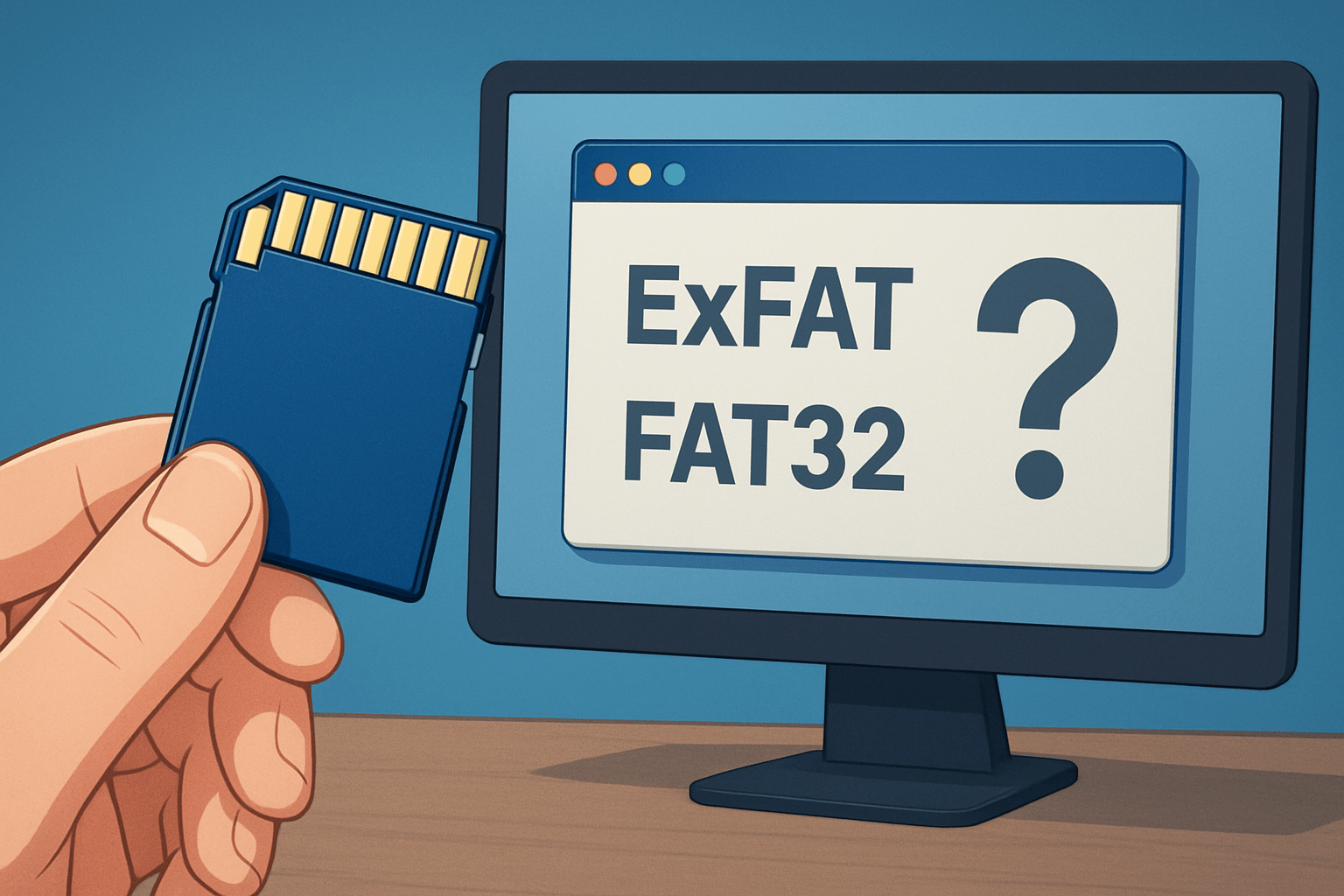
The fastest way is to check the card’s File system in your operating system, run a one‑line command, or try copying a single file larger than 4GB. If the big file copies fine, it is not FAT32; if it fails with “file too large,” the card is FAT32.
If you came searching how to know if sd card is exfat or fat32, start with the simplest path. On Windows use File Explorer Properties, on macOS use Get Info or Disk Utility, and on Linux use lsblk or blkid.
Typical outputs look like this so you can instantly recognize them. Windows Properties shows “File system: exFAT” or “File system: FAT32”; macOS shows “Format: ExFAT” or “MS‑DOS (FAT)”; Linux tools show TYPE=”exfat” or TYPE=”vfat”.
Here is a quick flow to save time when you are in a rush. Check in Explorer or Finder, then run a command if needed, then open Disk Management or Disk Utility, and finally do the >4GB copy test.
One warning before you click anything if the card shows as RAW or your computer asks to format. That usually signals corruption, so back up first and avoid formatting until your data is safe.
Check SD card format on Windows (File Explorer, Disk Management, Command Prompt & PowerShell)
Insert the card and open This PC, then right‑click the removable drive and choose Properties. Read the line next to File system and you will see “exFAT” or “FAT32” in the General tab; screenshot example: “File system: exFAT.”
If you prefer a system overview, right‑click the Start button and open Disk Management. Find your removable volume by size and letter, right‑click it, choose Properties, and the File System field will show exFAT or FAT32; that is your answer.
For a fast command check, open Command Prompt and run “wmic logicaldisk get name,filesystem”. In PowerShell, run “Get-Volume -DriveLetter E” replacing E with your letter, and read the FileSystem property. You can also run “diskpart”, then “list volume”, and look under the Fs column for FAT32 or exFAT.
If your card is readable but you are still unsure, try the size limit test. Copy one video clip larger than 4GB onto the card; if Windows says the file is too large for the destination, the card is FAT32.
When Windows shows RAW or the drive letter disappears, stop and copy off any files you can recover. After backing up, you can try “chkdsk E: /f” to fix basic errors, and if the card is write‑protected make sure the tiny lock switch on the SD adapter is in the unlocked position.
If you are new to removable media, a short refresher on what an SD card is can help you identify the form factor and adapter you are holding. Knowing card type avoids mixing up readers and letters while you check the file system.
Check SD card format on macOS, Linux & Android (Disk Utility, diskutil, lsblk/blkid, apps)
On macOS, select the card in Finder, choose File, then Get Info, and read Format; you will see “ExFAT” or “MS‑DOS (FAT)”. In Disk Utility, pick the card on the left, and look at the Format column or the info panel for the file system.
Terminal gives you a precise line to read. Run “diskutil info /Volumes/CARDNAME” and look for “File System Personality: ExFAT” or “File System Personality: MS-DOS FAT32”.
On Linux, open a terminal and run “lsblk -f” to see the FSTYPE column, which will show “exfat” or “vfat”. If you want a single‑line confirmation, “sudo blkid /dev/sdb1” returns TYPE=”exfat” or TYPE=”vfat”; change sdb1 to match your device.
Android often hides file system details, so results vary by brand and version. Use a USB‑OTG reader with a file manager app, try a utility like DiskInfo or SD Tools, or simply connect the phone to a computer to check; a quick read of SD card types can also clarify naming like SDHC and SDXC while you troubleshoot.
Many cameras show the file system in their card or format menu, and some switch to exFAT automatically on SDXC cards. If your manual is unclear, format in‑camera and then verify the result on your computer using the methods above.
How to format or convert between exFAT and FAT32 safely (Windows limits, third‑party & command‑line options)
Before any formatting, back up your photos and clips to a second drive. You might convert because an older recorder demands FAT32 or because you hit the 4GB file cap and need exFAT for longer takes.
Windows can format small cards both ways with a few clicks. In File Explorer, right‑click the card, choose Format, then pick FAT32 or exFAT; remember that the Windows GUI will not create FAT32 on volumes larger than 32GB.
To make FAT32 on big cards, use trusted tools such as guiformat (FAT32Format), Rufus, or run Linux commands if you are comfortable. On Linux, “sudo mkfs.vfat -F 32 /dev/sdb1” creates FAT32, while “sudo mkfs.exfat /dev/sdb1” creates exFAT; install exfatprogs if required.
After conversion, the most reliable practice is formatting again in your camera so the directory structure matches the device’s expectations. Choose Quick Format for speed; choose Full Format when you suspect bad sectors or you want a deeper surface check.
When you prefer a manufacturer‑recommended utility, the official SD Formatter for Windows and macOS is a safe pick that often resolves quirky behavior. When you are done, rerun your OS check and expect to see “File system: exFAT” or “File system: FAT32,” then perform the >4GB copy test.
FAT32 vs exFAT — differences, limitations and which to choose (photographer‑focused)
FAT32 has a single‑file size limit of about 4GB (4,294,967,295 bytes), and it is common on SDHC cards up to 32GB. exFAT removes that cap and handles large cards and long 4K or RAW video clips with ease.
Pick FAT32 when you need maximum compatibility with legacy devices, TVs, game consoles, or older cameras. Choose exFAT for SDXC cards 64GB and larger, modern cameras, and any workflow that creates files over 4GB.
For real shoots, I format in camera before call time and run a quick write/read test. Label your cards and keep a simple list of which bodies accept exFAT, so you never wonder how to know if sd card is exfat or fat32 mid‑gig.
Here is a real‑world reminder many learn the hard way. I once tried to drop a 6GB 4K clip onto a 32GB FAT32 card and got the “file too large” message, which instantly answered how to know if sd card is exfat or fat32 and pushed me to switch that media to exFAT.
If a device refuses to mount an exFAT card, check for a firmware update and format the card inside the device. If copying fails on FAT32 and you cannot reformat, split the file, but when possible move to exFAT for a cleaner, faster workflow.
What People Ask Most
How can I tell if my SD card is exFAT or FAT32?
To find how to know if sd card is exfat or fat32, open Properties (Windows) or Get Info (Mac) and look at the file system listed.
Can I check if an SD card is exFAT or FAT32 on my phone?
Many Android phones show the file system in Storage settings or when mounting the card, while iPhones usually only read certain formats and don’t always show file system details.
Is there a quick way to tell if an SD card is exFAT or FAT32 without a computer?
Try copying a file larger than 4GB—if it fails, the card is likely FAT32; if it works, it’s likely exFAT.
Will my camera or device work differently with exFAT vs FAT32?
Some older cameras and devices require FAT32, while newer ones support exFAT, so check your device’s compatibility before using or formatting the card.
If I format my SD card, will that change whether it’s exFAT or FAT32?
Yes, formatting sets the file system and you can choose exFAT or FAT32 in the format options, but back up your data first because formatting erases files.
What common mistakes should I avoid when checking if an SD card is exFAT or FAT32?
Don’t assume by label or size—always check the file system in device settings or a computer to avoid accidentally formatting and losing data.
Does the file system affect sharing files between devices?
Yes, exFAT handles large files and works well across modern devices, while FAT32 has wider legacy support but limits individual file size.
Final Thoughts on Checking and Managing SD Card Formats
Whether you’re testing a 270‑GB card or a tiny SDHC for an afternoon shoot, this guide was meant to get you from uncertainty to clarity fast — often with a 30‑second check using File Explorer, diskutil/lsblk, or a simple copy test for files larger than 4GB. You’ll now recognize lines like “File system: exFAT” or “Format: MS‑DOS (FAT)” in the OS, run a quick command, and follow a clear path to format or convert when needed. That practical confidence is the core benefit you’ll carry into every shoot and backup session.
One realistic caution: formatting erases data, so don’t hit Format until you’ve backed up anything important — and if a card shows RAW or behaves oddly, treat recovery and backups before reformatting. Also remember Windows’ GUI won’t offer FAT32 for large volumes, so you may need a trusted tool or a Linux command to make that conversion safely.
Photographers and videographers juggling mixed cameras, large RAWs or long video files will get the most from these steps, since they’ll avoid failed transfers and surprise incompatibilities on set. As promised at the top, the quick checks and exact commands here give you repeatable, low‑stress ways to confirm and fix card formats. You’ve got the know‑how now — go make the shots without that extra tech worry.




0 Comments