
What photo ratio for Instagram will make your photos stand out in the feed?
This quick guide gives the short answer up front and exact export settings next. You’ll get clear numbers and easy rules to follow.
You’ll learn the feed ratios (1:1, 4:5, up to 1.91:1), the Stories/Reels size (9:16), and the exact pixel exports at 1080 px width. I also cover safe areas, carousel rules, and simple fixes for unwanted cropping.
Find ready-made Lightroom/Photoshop presets, a printable cheat-sheet, and side-by-side visuals to compare crops. By the end you’ll know exactly what photo ratio for instagram to use for any shot and how to export it perfectly.
Instagram post sizes
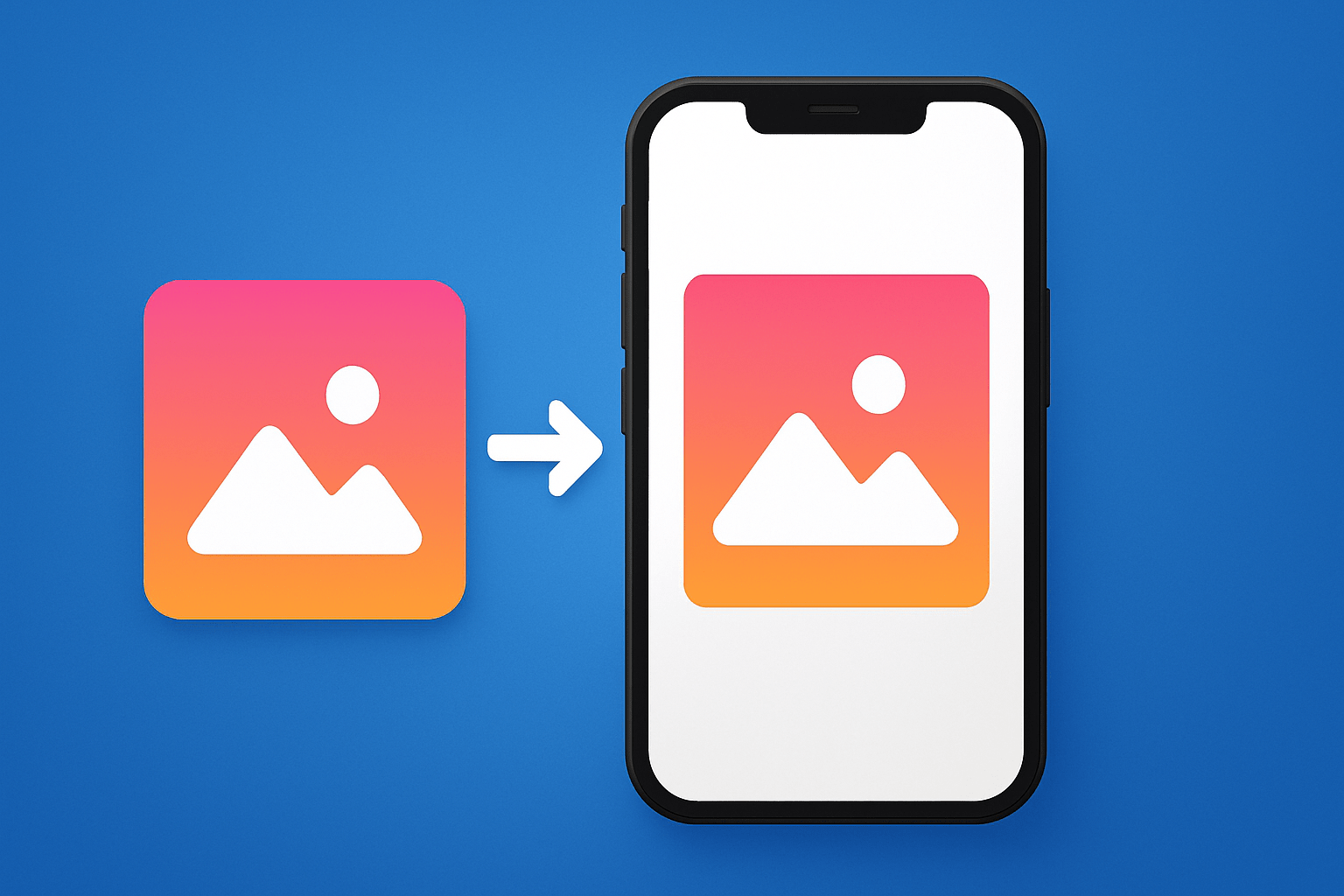
Quick answer: the Instagram feed accepts three aspect ratios for photos — square (1:1), portrait (4:5), and landscape (up to 1.91:1). Export at 1080 px width and set the height so it matches one of those ratios for the cleanest results.
If you are asking “what photo ratio for instagram,” start here. Square is 1:1 at 1080 x 1080 px, portrait is 4:5 at 1080 x 1350 px, and wide landscape is up to 1.91:1 at 1080 x 566 px. A quick PNG cheat‑sheet and a downloadable export preset will make this painless.
Square 1:1 at 1080 x 1080 px is classic and safe. It gives your profile grid a clean, consistent look, which is perfect for products, food, and minimal scenes.
Portrait 4:5 at 1080 x 1350 px is the tallest Instagram will show in the feed. It takes up more vertical space, which helps portraits, fashion, and street scenes stop the scroll.
Landscape up to 1.91:1 at 1080 x 566 px is ideal for sweeping views. Instagram also supports 16:9 at about 1080 x 608 px if you prefer a cinema look from your camera or drone.
There is a simple rule to get pixel heights from a 1080 px width. Use height = 1080 * (heightRatio/widthRatio). For example, 4:5 becomes height = 1080 * (5/4) = 1350 px, and 1.91:1 becomes height ≈ 1080 * (1/1.91) ≈ 566 px.
Carousels work best when every slide uses the same aspect ratio. Pick either all 1:1 or all 4:5 so viewers do not get jarring jumps or awkward crops between swipes.
Remember your grid preview is always a square. Even if your post is 4:5 in the feed, the profile thumbnail crops to 1:1, so keep the main subject centered or leave safe margins near the edges.
Picture the same photo three ways to see the impact. A dancer framed 1:1 feels balanced, at 4:5 you see full head‑to‑toe energy, and at 1.91:1 you feel the stage and lines sweep across the frame. For a quick refresher on sizes, this image size guide is handy when you are prepping a batch.
Use simple genre rules when you are unsure. Portraits usually win at 4:5, landscapes look natural at 1.91:1, and product shots shine at 1:1 for a tidy grid. If you have a wide panorama, crop a strong hero at 4:5 and add the full scene as a multi‑slide carousel.
How Instagram image sizes work
Instagram processes every upload through a pipeline. The app resizes to standard widths, recompresses as JPEG, converts to sRGB, and enforces the aspect ratio rules.
The allowed feed range is width:height between 1.91:1 and 4:5. If your image falls outside that range, Instagram will auto‑crop to fit or add letterboxing if you force a fit with padding.
Exporting at 1080 px wide hits the platform’s sweet spot. Larger files get downscaled and recompressed anyway, which can soften detail and add artifacts if you push them too hard.
Aspect ratio also affects how much screen space you claim. A 4:5 photo fills more of the viewport and can lift engagement on mobile, while landscape looks cinematic but occupies less height.
Your profile grid behaves differently from the feed. Thumbnails are 1:1 squares, while the post view shows the full aspect, so place faces and logos where both views will survive the crop.
I recommend adding a lead visual that shows the crop behavior with annotations. If you manage multiple platforms, bookmark a reliable reference on social media image sizes to keep every format straight.
Instagram Stories and Reels
Stories and Reels are vertical at 9:16 with a recommended size of 1080 x 1920 px. Export at that exact frame to avoid fuzzy scaling and unexpected trimming.
The interface puts overlays at the top and bottom, so treat those zones as unsafe for text and logos. Leave about 200–250 px clear at the top and bottom, and keep important elements in the central band.
Reels are vertical, but the cover you choose also shows as a square on your grid. Design the cover so the critical subject fits within a centered 1:1 safe zone, and test how it looks on the profile before posting.
If you upload a still as a cover, keep the canvas at 1080 x 1920 px. Compose it with a square center in mind so the grid preview looks clean and the full Reel still reads well.
A simple visual mock helps here. Imagine a vertical frame with a bright central box that marks the safe area, and two tiny examples below that compare a cluttered cover versus a clean one with the title inside the safe zone.
Preventing Unwanted Cropping: Why Does IG Crop My Photos?
The main culprits are out‑of‑range aspect ratios, mixed ratios inside a carousel, the automatic 1:1 grid crop, and compression that slightly shifts edges on upload. The fix starts with control before you ever open the app.
Pre‑crop to the correct aspect ratio in your editor and set precise pixel dimensions. Do not rely on the in‑app cropper if your composition is critical, because small taps can move the frame.
If you must preserve the whole image, place it on a background to fit 1:1 or 4:5. White, blurred, or brand‑color padding keeps the entire subject while maintaining a consistent grid.
For panoramas, slice the image into a carousel of equal‑ratio tiles. Another approach is to post a bold 4:5 hero first and follow with a two or three‑panel swipe that reveals the wider scene.
Keep every carousel slide exactly the same dimensions and ratio by using a template. When rescuing a 3:2 photo, choose 4:5 and crop from top and bottom, or use a square‑fit background to avoid clipping the subject.
Shoot with extra headroom and footroom if you plan to crop for Instagram later. If grid thumbnails worry you, keep faces and key details near the center so the 1:1 preview does not cut them off.
Consider adding a simple before‑and‑after visual in your workflow notes. One shows a tight crop that trims hair or hands, and the next shows a planned 4:5 with safe margins that survives both feed and grid.
Photo Editing and Resizing Tools for Perfect Instagram Posts
Use tools that match your pace. Lightroom Classic or Capture One are great for batch exports, Photoshop and Affinity Photo are perfect for precise retouching, and Canva, Snapseed, Instasize, BulkResizePhotos, and Kapwing make mobile edits fast.
Here is a reliable Lightroom export preset you can copy: File type JPEG, Quality 80, Color space sRGB, Resize to Long Edge 1080 px or set exact 1080 x 1350 for 4:5, Resolution 72 ppi, Output Sharpening set to Standard for Screen. PPI does not affect web display, so pixel dimensions are what matter.
In Photoshop, go to Image Size and set width to 1080 px for feed photos or use exact dimensions for 4:5 and 1:1. Convert to sRGB, then use Save for Web with JPEG quality around 60–80 and preview for banding before saving.
On mobile, export straight from Lightroom Mobile or a dedicated editor rather than taking screenshots. Set the long edge to 1080 px, pick the aspect ratio crop you want, and avoid saving and re‑saving the same JPEG multiple times.
If you see heavy banding in skies or gradients, add a small amount of film grain before export. Sometimes lowering the JPEG quality slightly changes the compression pattern and reduces visible artifacts.
Turn this into a kit you can reuse. Include downloadable Lightroom and Photoshop presets, a printable cheat‑sheet with square, 4:5, 1.91:1, and Story dimensions, plus a link to a simple aspect‑ratio converter for quick math.
Run a quick pre‑post checklist in your head: confirm pixel dimensions, sRGB color space, JPEG around 60–80 quality, screen sharpening, one consistent ratio for carousels, and safe areas checked for Stories and covers. This keeps your posts sharp, on‑brand, and free from bad crops.
For more sizing context while you work, you can also reference this guide to Instagram sizes when creating export presets. With these settings, you will never need to ask what photo ratio for instagram again, and your feed will stay clean and consistent.
As your style evolves, keep testing your ratios with side‑by‑side visuals of the same image at 1:1, 4:5, and 1.91:1. That simple habit answers what photo ratio for instagram in a way your eye and your audience can feel immediately.
What People Ask Most
What photo ratio for Instagram should I use for feed posts?
Use square or a taller portrait format so your photo fits the feed and looks balanced; portrait images usually take up more screen space and draw attention.
What photo ratio for Instagram works best for Stories and Reels?
Use a full-screen vertical format so the image fills the phone display and looks natural in Stories or Reels.
What photo ratio for Instagram helps keep a consistent grid look?
Stick to square images for a clean, uniform grid so your profile row looks even and organized.
What photo ratio for Instagram tends to get more engagement?
Taller portrait photos that fill more of the screen usually get more eyeballs and engagement than tiny or wide images.
What photo ratio for Instagram should I use to avoid unexpected cropping?
Preview and crop your image to the platform’s common formats before posting so nothing important gets cut off.
What photo ratio for Instagram is best for landscape photos?
Use a wider format so the scene reads well, but check how it appears in your grid since wide photos can look smaller on the feed.
What photo ratio for Instagram do beginners often get wrong?
Beginners often upload images without previewing and end up with awkward crops, so always check and adjust framing before posting.
Final Thoughts on Instagram Post Sizes
Getting your Instagram images right isn’t just about pixels — it’s about making sure your work appears as you intended, holds attention, and keeps your profile looking cohesive. Even if you export from 270 ppi files, remember ppi doesn’t matter for Instagram; pixels do, so export at 1080 px width and match the heights for 1:1, 4:5, or 1.91:1 to preserve composition. This guide is for photographers, creators, and small brands who need predictable results across feed, grid, and stories.
Keep in mind Instagram still recompresses and can crop anything outside the allowed ratios, so pre-crop, use safe margins, and batch-export consistent slides for carousels. We started with the quick answer — the three aspect ratios and the 1080-pixel rule — and walked through how the platform processes images, story/reel safe areas, and practical export presets so you’ll spend less time fixing posts. You’ll be able to plan shots and exports with confidence and enjoy cleaner, more intentional feeds as you share your work.


0 Comments