
Why does my camera stop recording automatically — right when the action matters?
You’ll learn the most likely causes and quick tests to find the problem. We cover file-size and time limits, SD card speed and errors, overheating, power or settings issues, firmware bugs, and accidental stops.
You will get a short troubleshooting checklist and simple fixes to try now. We also explain when to use AC power or an external recorder, how to pick the right card speed, and how to merge split files if needed.
Read on to find the exact cause and follow step-by-step fixes so you can record longer without surprises.
Why does my camera stop recording automatically?
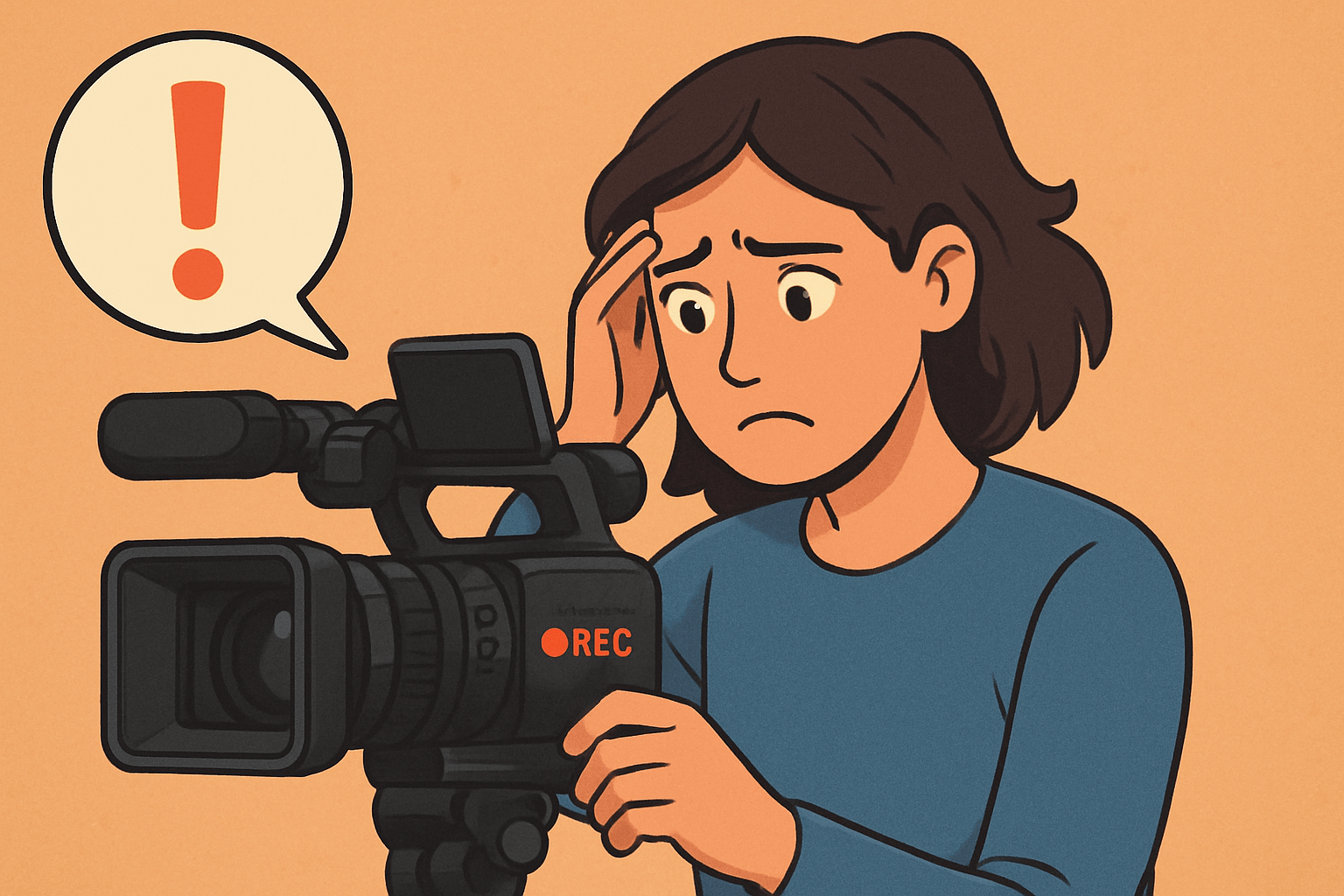
If you are asking “why does my camera stop recording automatically,” the usual causes fall into a few buckets. Recording-time or file-size limits, file-system rules and SD card speed, overheating, power or settings, firmware bugs, and accidental button presses cover almost every case.
Start with a quick test. If the camera always stops at the same duration, like near 29 minutes 59 seconds, or at a repeatable file size, you are likely hitting a built‑in limit or file-system behavior.
If the stop time changes between takes or the body feels hot, think heat. Overheating protection can cut clips at random times and shorten each attempt as the session goes on.
Watch the screen when it stops. Messages that say card error, busy, temperature, or power will point straight at the cause, and different brands use similar wording.
Check the simple things first. Make sure the card is not full or locked, the battery is charged, and the resolution and bitrate are not too high for your media.
Run a clean test workflow. Format the card in the camera, record at a lower bitrate, and try a second known‑good card. This narrows whether the issue is media, settings, or the camera itself.
Finally, write down the exact stop time and any codes you see. Those details make it much faster to fix the problem or explain it to support.
Common reasons for automatic recording stop
File-size or recording-time limits usually present as very consistent clip lengths. If your clips always stop near a fixed time stamp or the resulting files cluster around the same size, a limit is being hit rather than a random fault.
File-system restrictions can also end a take. FAT32 has a 4 GB ceiling, so some older bodies stop outright, while others seamlessly split into sequential files without losing frames.
SD card speed is a top offender. A card that cannot sustain the camera’s write rate triggers busy messages, frame drops, or sudden stops once the internal buffer fills. Swap to a fast, fresh, in‑camera formatted card to confirm.
Buffer overflow happens when the encoder pushes data faster than the card can accept it. You will see recording run fine for several seconds, then halt as the buffer tops out and the camera throws a warning or silently stops.
Power issues can look random. A weak battery, auto power‑off timers, or a loose dummy battery can cut recording even if the meter shows bars. Try AC power or a high‑capacity genuine battery to isolate this.
Incorrect mode or settings can sabotage a shoot. Being in stills mode, time‑lapse, or having a movie record limit enabled in menus will stop video at preset intervals. Accidental touches on the shutter or a gimbal remote can end a take without an error.
Firmware glitches do happen. A rare bug or corrupted settings can interrupt video in odd ways. Restoring defaults and updating to the latest firmware often clears those hiccups.
Card integrity matters. A corrupted index, a locked write switch, a nearly full card, or counterfeit media can all mimic camera faults. If your camera stops recording to SD only with certain cards, the card is the likely culprit.
Thermal protection sits behind many variable stops. As the sensor and processor heat up, recording shortens, then halts with a temperature icon or a brief warning. The next section explains how to handle heat safely.
File size limits and recording time restrictions
Older and some current cameras that format cards as FAT32 cannot write a file larger than 4,294,967,295 bytes, roughly 4 GB. Many models split video into numbered files at the limit, while a few stop recording outright to maintain compatibility.
Newer bodies favor exFAT, which supports very large files. Even so, some cameras still split long takes to protect against corruption or for cross‑platform playback, so you may see a continuous recording saved as multiple parts.
The familiar 29:59 cap is a design choice with historical roots in regulations. Some cameras still enforce a hard stop around thirty minutes, regardless of card size or heat, and then let you start again immediately.
You can tell file-size limits from time limits by what stays constant. A fixed duration points to a record-time cap, while a consistent file size points to the file system and bitrate combination.
If you see the message “Movie recording has stopped automatically,” it can be a limit, card, or heat. Many owners have seen that exact wording, as in Canon’s community threads where clips stopped automatically under certain settings.
To stitch split files, join them in your editor or use FFmpeg’s concat. A simple approach is to create a list.txt of the parts and run: ffmpeg -f concat -safe 0 -i list.txt -c copy output.mp4. This avoids re‑encoding and keeps sync.
Match bitrate to card speed before you roll. Required MB/s equals bitrate Mbps divided by 8, so 100 Mbps needs 12.5 MB/s, 200 Mbps needs 25 MB/s, and 600 Mbps needs 75 MB/s sustained.
For guidance, V30 cards are fine for most 4K long‑GOP profiles, V60 or V90 are safer for high‑frame‑rate 4K and All‑Intra, and CFexpress handles very high bitrates or RAW and ProRes. Always verify exact requirements in your camera manual.
Camera overheating and its effect on recording
Continuous capture stresses the sensor and processor, especially at 4K, high frame rates, RAW, or ProRes. Compact mirrorless bodies shed heat slowly, so the firmware stops recording to protect the electronics when a threshold is reached.
Heat‑related stops rarely line up to a clean time mark. You may get a temperature icon, shorter clips as the session goes on, or a shutdown without file splitting patterns seen in limit cases.
Reduce heat load to extend record time. Lower resolution or bitrate, avoid heavy codecs, keep the body out of direct sun, and give it airflow or short cool‑down breaks between takes.
External recorders can help by offloading encoding and giving you bigger media. AC power or a regulated dummy battery removes battery swaps, but still respect temperature warnings.
Do not bypass thermal protection with hacks. Even phones show similar behavior when stressed, with some users reporting that video stops within seconds under certain conditions, so treat overheating signals seriously.
Solutions for continuous recording on DSLRs and mirrorless cameras
Start by reproducing the issue with intent. Record a test and note the exact stop time, file size, and any on‑screen message so you can match the pattern to a cause.
Rule out media with a known‑good card. Use a high‑speed, genuine card, format it in the camera, and try again with the same settings to see if the fault disappears.
Drop the stress if it persists. Lower resolution or bitrate, reduce frame rate, and try a less demanding codec to check whether the camera can now sustain a long take.
Stabilize power early in your tests. Use AC power or a reliable dummy battery, turn off power‑saving timers, and minimize accessories that draw power from the camera’s port.
Firmware matters more than many think. Back up settings, reset to default, install the latest official firmware, and test again to clear rare glitches and improve media compatibility.
Watch temperature like a hawk on long shoots. Shade the camera, add airflow with a small fan, and schedule breaks. If stops continue, use an external recorder to offload heat and bypass internal codec limits.
If your camera always stops near 29:59, accept it as a model characteristic. Plan around it with an external recorder, staggered takes, or a multi‑camera setup so you never lose coverage.
If files are split rather than stopped, merge them in post. Many editors drop sequential parts onto a timeline cleanly, or you can use FFmpeg concat with a text list to rebuild a single clip without re‑encoding.
Choose cards by the numbers, not just labels. For example, a 200 Mbps profile needs 25 MB/s sustained, which a solid V30 can usually handle, but a 400 Mbps All‑Intra stream needs 50 MB/s and fits V60 or better; very high‑bitrate RAW benefits from V90 or CFexpress.
Pick reliable models and match slots. For UHS‑I bodies, a reputable V30 like a 128 GB card from a pro line is a strong baseline; for UHS‑II, a V60 or V90 card from a known brand gives headroom; for cameras with CFexpress, choose the type (A, B, or C) the slot supports.
Protect yourself from bad media. Buy from trusted sources, test new cards with verification tools, and format in the camera before every important recording to refresh file structures and reduce fragmentation.
Trim background workloads to keep buffers clear. Disable Wi‑Fi and Bluetooth if not needed, avoid using in‑camera stabilization modes that increase processor load when heat is already high, and keep HDMI overlays minimal when feeding a recorder.
Use a simple mental flowchart when trouble strikes. If the stop is always at a fixed time, it is a design limit; if it varies and the body is warm, manage heat; if you see card or busy messages, lower bitrate or upgrade the card; if power icons flash, switch to AC or replace the battery; if none apply, reset and update firmware.
Treat warranty and safety with care. Avoid unofficial hacks that remove limits or thermal thresholds, because they can void coverage and risk damage in hot environments.
When the question returns—why does my camera stop recording automatically—remember that a structured test isolates the cause fast. Match the symptom to the pattern, apply the fix above, and you will get clean, continuous recording without surprises.
What People Ask Most
Why does my camera stop recording automatically?
It usually stops because the memory card is full, the battery is low, the camera overheats, or a time limit/auto-shutdown setting is active.
Could a full memory card make my camera stop recording automatically?
Yes, when the card fills up the camera will stop to protect files, so check free space and delete or swap cards before filming.
Can my camera’s battery or overheating cause it to stop recording automatically?
Yes, low battery or high heat can trigger an automatic stop to prevent damage, so keep batteries charged and let the camera cool between long takes.
Does a camera’s auto power-off or time limit setting cause it to stop recording automatically?
Yes, many cameras have built-in recording limits or power-saving modes that stop recording, so check and adjust your timeout or recording duration if possible.
Will using a different memory card help if my camera keeps stopping automatically?
Often yes; switching to a higher-capacity or faster card can help, but make sure the card is compatible and formatted in the camera first.
How can I prevent my camera from stopping recording automatically?
Free up or swap cards, fully charge batteries, change sleep/record limits in settings, and avoid overheating by giving the camera short breaks during long shoots.
Are there myths about why my camera stops recording automatically that I should ignore?
Yes, don’t assume it’s always a hardware failure—most stops are due to settings, storage, battery, or heat and can be fixed with simple checks.
Final Thoughts on Camera Recording Stops
If you’ve been asking “Why does my camera stop recording automatically?”, this guide gives a clear path from quick diagnosis to lasting fixes — covering file-size caps, SD write-speed problems, thermal shutdowns, and power or setting quirks. Even a small detail like a card label or error code such as 270 can steer your troubleshooting, and the diagnostic flow we walked through will get you to a likely cause fast. One practical caution: don’t try to defeat thermal protection or install unofficial firmware, since that can damage electronics or void your warranty.
What you gain here is a compact toolkit: a checklist to isolate the issue, quick tests (swap cards, use AC power, lower bitrate), and durable workarounds like external recorders, faster media, or adjusted shooting patterns for long takes and streaming. Shooters who film long-form video, live events, tutorials, or heavy 4K projects will benefit most, though casual creators will still get fast fixes to avoid interruptions. By mapping symptoms to causes and fixes, the piece answered the opening question with concrete steps and a troubleshooting order you can follow on the next shoot.
You’re now armed with practical steps and realistic expectations, so future sessions should be smoother and more predictable. Keep experimenting within safe limits, and you’ll be ready for longer, cleaner recordings on your gear.



0 Comments