
You’re staring at a hard drive full of moments and don’t know how to turn them into something you’ll actually share. If you’re asking how to make photo book that feels like a real story, this guide will help. You won’t need fancy gear or a design degree to start.
You’ll learn to pick a clear theme, pace pages for rhythm, and choose formats that cut layout headaches. That means faster workflows, fewer surprises at proofing, and print-ready files that actually match your screen. A common myth we’ll bust is that stuffing the book with every photo makes it better.
This piece is great for beginners and hobbyists making travel, family, or portfolio books, and for pros who want cleaner showcases. You’ll walk away with concrete choices about image counts, sequencing, and simple print prep. There’s one layout mistake most people miss—keep reading because the fix is simpler than you think.
Selecting and Organizing Photos for a Coherent Story
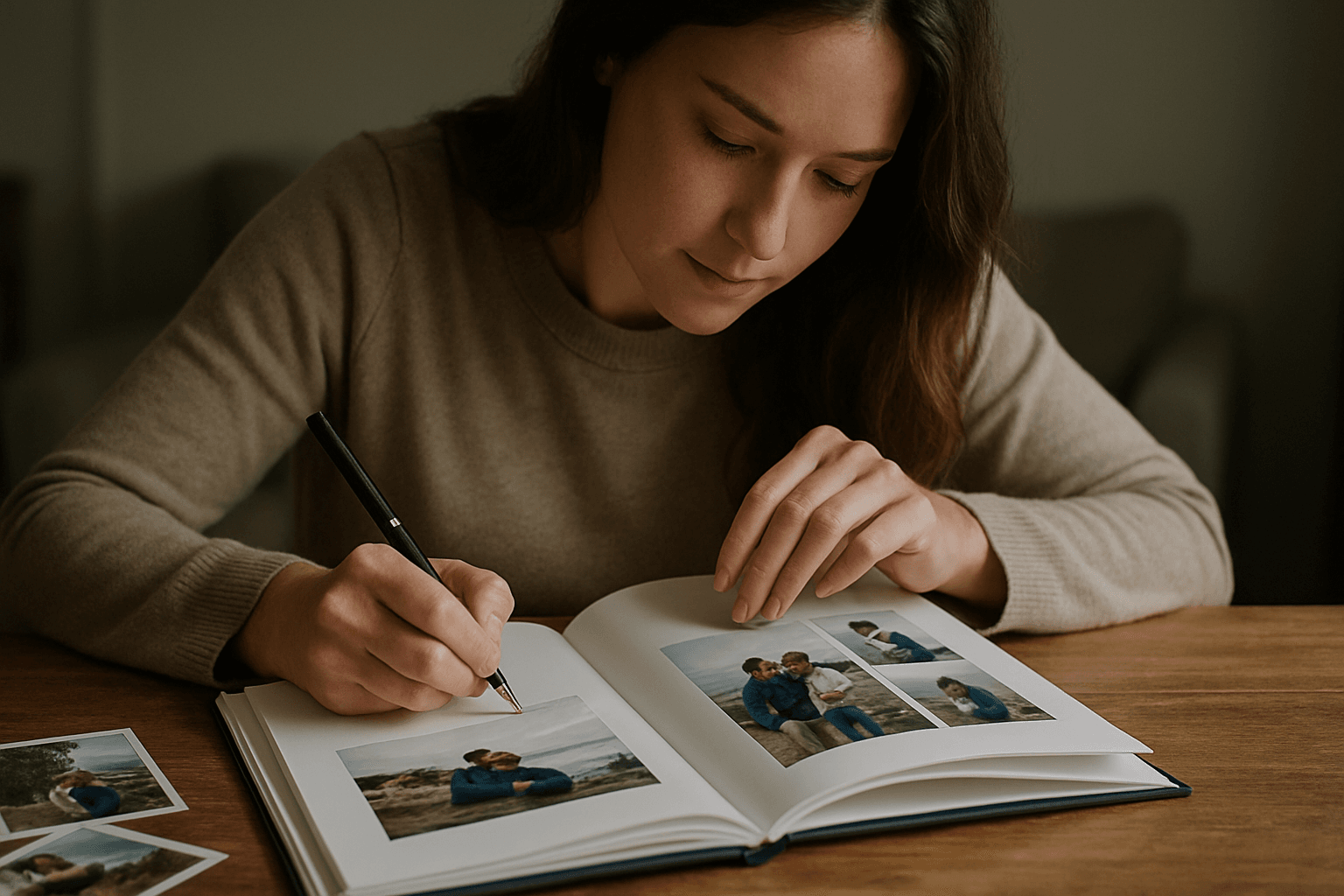
Start by choosing a theme that anchors everything—a road trip, a year in the life, or a single milestone. A clear theme answers the question of how to make photo book magic from everyday images.
I aim for 50–100 final images and pace the book at about four photos per page. That rhythm leaves breathing room for hero images and avoids visual fatigue.
Many services let you upload up to 1,000 photos, but I over-upload only to curate later. I remove duplicates, near-misses, and anything that doesn’t advance the story or mood.
Sequence for flow: open with an establishing shot, build with details and close-ups, then finish on a strong closer. Keep edits consistent so color, contrast, and crop styles feel like one voice.
Choosing Book Format, Size, and Cover Design
Pick a size that fits your story and shelf. 8.5 x 11 inches suits sprawling landscapes, while 6 x 9 inches feels intimate for family or travel journals.
Pages usually come in multiples of four because printers bind in “signatures.” Plan your page count early so you’re not scrambling to add or remove spreads at checkout.
Hardcover feels archival and lies flatter with heavier papers; softcover is lighter and budget-friendly. Flat-lay albums open fully, making panoramas shine without losing detail in the gutter.
These choices shape layout decisions. Full-bleed spreads demand flat-lay; thick covers need room for spine text; and smaller books reward simpler grids and larger type.
Software and Tools for Layout Design
Choosing tools is about control versus speed. Pro apps give precision, while beginner tools offer templates and drag-and-drop simplicity.
Adobe InDesign excels at fine typography and grids. Lightroom’s Book Module streamlines photo-to-book workflows, and Canva or Microsoft Word/PowerPoint make template-based design approachable.
Decide by time, comfort, and output needs. If you’ll reprint often, a consistent tool and file structure save headaches down the road.
Beginner-friendly Tools (Canva, Word, PowerPoint)
Templates get you moving fast, and auto-layout helps maintain clean margins and spacing. Try Canva photo book templates for quick, cohesive grids and simple text styles.
Export a high-resolution PDF, and check “crop marks” and “bleed” if offered. I’ve even used a phone-to-print workflow; a quick test print catches typos and color surprises.
Professional Tools (InDesign, Lightroom)
Lightroom’s Book Module adds autofill, smart collections, and metadata-driven captions that pull dates or locations. The Lightroom photo book guide walks you through the whole process step by step.
InDesign is my precision tool: master pages, styles, and grids keep everything consistent. Preflight checks ensure fonts, images, and color profiles are print-ready.
Editing and Customizing Layouts: Text, Captions, Backgrounds, Embellishments
Place captions where the eye lands naturally—beneath the image or in a consistent corner. Keep captions short, and aim for legible sizes around 9–12 points.
Use one or two fonts max to avoid visual noise. Pick a clean sans-serif for captions and a friendly serif or bold sans for titles.
Backgrounds should support, not steal the show. Stick to white, black, or soft gray; textures and heavy patterns can make pages feel busy.
Let metadata do the heavy lifting for captions, like dates or locations. Picture a balanced page: generous margins, a single hero photo, and a tiny note—calm beats clutter every time.
Technical Print Preparation: Color Profiles, Bleed, Trim, Margins, and File Formats
Printers usually prefer CMYK files, unless they specify sRGB for in-house workflows. Ask your printer and set your document profile before placing images.
Bleed is the extra image area that extends past the final page edge; trim is where the guillotine cuts. Keep important details inside a safe margin to avoid accidental chops.
A common setup is 0.125 inch bleed and at least 0.25 inch safe margin. For flat-lay, watch the gutter; even minimal bulge can eat text.
Export as a high-resolution PDF with embedded profiles and fonts. Follow your printer’s specs, such as PDF/X-1a or PDF/X-4, to avoid last-minute rejections.
Image Resolution and Photo Quality Optimization
For crisp prints, aim for 300 dpi at the final print size. If your service recommends different DPI, follow that guidance for consistent results.
Crop to consistent aspect ratios to avoid surprise trims. Leave quiet space near edges, and add a touch of output sharpening at print size.
Fix exposure and color before layout; it saves rework later. Batch-sync edits so your book feels cohesive from page one to the end.
Printing Options: Online Services, Local Print Shops, and Handmade Methods
Online services are fast and convenient, local shops offer personal guidance, and handmade methods give artisan charm. Your choice balances control, quality, and budget.
Mixbook shines for customization and image quality. Shutterfly offers multiple creation paths, plus designer help; explore their perfect photo book tips when planning ideas.
Vistaprint is value-oriented and offers flat-lay pages with fewer upgrade choices. If you’re weighing how to make photo book decisions, order small test books first.
Comparison of Major Online Services
Mixbook gives the deepest template flexibility and solid color reproduction. You’ll pay a bit more for upgrades, but the finish options are worth it for keepsake projects.
Shutterfly’s strength is choice: quick auto-books, manual design, or a designer service. Vistaprint lowers cost, though paper and cover upgrades are comparatively limited.
Handmade Methods and Basic Binding Techniques
At home, I score folds with a crease tool, mount prints with double-sided tape, and clamp edges while glue cures. A dummy copy helps confirm margins and page order.
Try simple pamphlet stitching or Japanese stab binding with pre-punched holes. Mind paper grain direction and allow for spine bulk to keep pages turning smoothly.
Cost, Page Count, and Turnaround Times
Cost tracks page count, paper weight, and cover type. Double-sided printing and premium papers raise price; flat-lay, foil, and vellum add-ons do too.
Delivery varies by speed: economy up to 14 business days, standard up to 8, express up to 3. Holiday peaks extend timelines, so pad your schedule.
To save, trim pages, pick standard paper, and skip fancy finishes. I often proof a small version first; it catches issues without draining the budget.
Step-by-Step Workflow: From Image Import to Final Print (Real-World Case Study)
I import everything, then star-rate to shortlist the story. For how to make photo book flow, I keep only images that earn a purpose on the page.
Next, I edit for consistent color and contrast and export print-ready files. Depending on the project, I build in Lightroom, Canva, or InDesign.
I set CMYK, bleed, and margins, then place full-bleed hero spreads and quiet grids. Metadata captions fill in dates, and a preflight check catches missing fonts or low-res files.
Finally, I export a high-res PDF and upload to the service. I review the on-screen proof, order a test copy, and note tweaks for the final run—repeatable, reliable, done.
What People Ask Most
How do I choose the best photos for a photo book?
I start by choosing a clear theme and culling for strong images that support that story. I aim for consistency and sequence the images for good pacing, usually keeping the total around 50–100 photos.
What software is easiest for designing photo books?
For ease I use beginner-friendly tools like Canva, Microsoft Word, or PowerPoint because they offer templates, auto-layout options, and simple PDF export. They let me get a polished layout quickly without a steep learning curve.
Can I use Lightroom to create a professional photo book?
Yes—Lightroom’s Book Module is great for streamlined photo-to-book workflows with autofill and metadata-driven captions. For more precise typography and print-ready control I turn to InDesign.
What are the standard sizes for printed photo books?
Common sizes include 8.5 x 11 in and 6 x 9 in, and pages are usually printed in multiples of four because of printing signatures. Cover choice (hardcover, softcover, or flat-lay) also affects layout and design decisions.
How do color profiles affect photo book printing?
Color profiles determine how colors reproduce on paper, so I export print files in CMYK (cyan, magenta, yellow, black) unless the printer specifies otherwise. I also set bleed and safe margins to avoid trimmed or misaligned elements.
How many photos should I include in a photo book?
I typically recommend 50–100 images for a coherent story and comfortable pacing, with roughly four images per page as a guideline. Upload limits vary by service (some allow up to 1,000), so check your chosen provider.
Is it possible to make a photo book at home without professional printing?
Yes—you can create books at home using simple binding methods like creasing tools, double-sided tape, or basic stitching for a handmade look. I always make a dummy copy first to test page order, margins, and alignment.
Final Thoughts on Crafting Your Photo Story
If you searched for how to make photo book, the real prize is turning a jumble of shots into a clear, emotional sequence rather than chasing every layout fad or upgrade. That change in mindset—seeing pages as a paced narrative—makes a book worth revisiting, and it’s especially useful for hobbyist photographers and memory-keepers. You’ll get the most from this advice if you care about pacing, image quality, and the story between frames.
Be realistic about trade-offs: paper choices and color profiles can alter expectations, and some design tools take time to learn, so you’ll likely refine more than you perfect on the first go. If you began the article overwhelmed by thousands of images, the guide was built to address that exact pain point by helping you narrow options and choose formats that let the narrative stand up in print. That practical framing turns indecision into a manageable plan.
Trust your eye, start with a modest scope, and expect to iterate with proofs—small changes teach faster than endless tweaking. The approach here favors steady refinement over paralysis, so let early versions show what works on the page. Make something, learn from the results, and keep shaping the book until the sequence matches the memory you want to preserve.




0 Comments