
Ever wonder which camera will make your Facebook Live broadcasts look like they belong on a polished channel and keep viewers glued to the screen?
Do you want crisp video, reliable autofocus, and audio that doesn’t distract viewers, even when lighting is far from ideal?
This guide cuts through marketing noise to show five practical camera choices that fit different budgets and streaming styles.
From plug-and-play webcams that work out of the box to compact travel-friendly cameras and mirrorless models with cinematic depth, the options vary.
I cover easy setups for beginners and pro-level gear for creators who prioritize image quality, and I explain where the trade-offs live.
You’ll see how each choice balances clarity, low-light performance, and streaming convenience, so you can pick what’s most important for your streams.
Every camera recommendation includes real-world performance notes, clear pros and cons, and the ideal user scenario based on hands-on testing and user feedback.
I’ll also walk you through buying criteria so you spend wisely, from connectivity and sensor size to audio options.
Practical streaming tips and a short FAQ round out the guide to help you avoid common setup mistakes.
Whether you stream from a home office, a studio, or on the road, this roadmap helps you match gear to goals and scale your setup as your audience grows.
Expect straightforward, tested advice you can use today, with no confusing jargon and realistic trade-offs.
Ready to upgrade your Facebook Live streams and make every broadcast look intentional?
1. Logitech C922 Pro Stream Webcam

Logitech C922 Pro Stream Webcam 1080p
Crystal-clear 1080p streaming with smooth 60fps, built-in stereo mic, and optimized low-light performance.
Check PriceThe Logitech C922 Pro Stream Webcam is a compact, reliable tool for Facebook Live that punches above typical laptop cameras. It records 1080p at 30fps or 720p at 60fps, includes built-in dual microphones, and offers auto light correction plus background replacement for quick, polished streams.
In real-world use the C922 delivers sharp, consistent video with reliable autofocus and pleasing color in moderate lighting. If your content involves a lot of movement — gaming or energetic presentations — the 720p at 60fps mode gives noticeably smoother motion than standard 30fps webcams.
Setup is genuinely painless — plug-and-play on most computers — and I like the flexible mounting options and tripod-ready mount for proper framing. The auto light correction helps when your room lighting isn’t perfect, so you spend less time fiddling with exposure during a live session.
Keep a couple of practical caveats in mind. Low-light performance is average compared with higher-end cameras, so invest in a simple key light for evening streams. Also, while the built-in dual mics are functional for casual streaming, they won’t match a dedicated external microphone; use an external mic if clear, professional audio matters to your audience.
- Instant setup on most computers
- Sharp 1080p at 30fps or smooth 720p at 60fps
- Good handling of moderate lighting changes
- Tripod-ready mount and background replacement
- Average low-light performance
- Built-in mics not studio quality
2. Logitech BRIO 4K Ultra HD Webcam
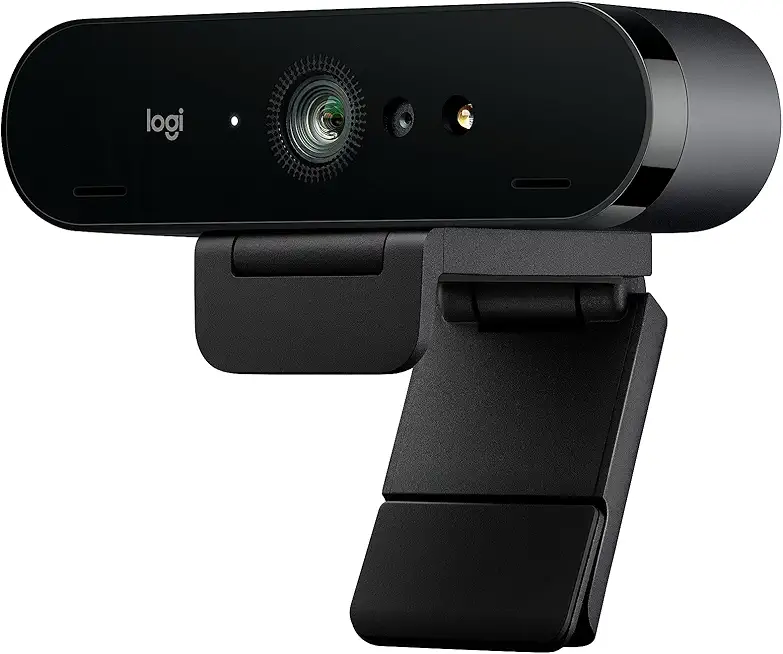
Logitech Brio 4K Webcam
Ultra-high-definition 4K video, HDR, and Windows Hello support for professional-grade video conferencing and content creation.
Check PriceAs a photographer who streams product demos and webinars, I appreciate the Logitech BRIO 4K Ultra HD Webcam for its sheer image clarity. It shoots 4K Ultra HD at 30fps, giving crisp detail that really makes skin tones and texture pop on Facebook Live.
HDR and auto light correction are practical features, not gimmicks; they help balance highlights and shadows so you don’t lose detail when studio lights are uneven. In real-world use the BRIO performs consistently across varied lighting, with HDR preventing blown highlights and crushed shadows in high-contrast scenes.
Setup is straightforward—plug-and-play for most systems—and it includes useful features like background replacement and Windows Hello facial-recognition login. The secure privacy shutter is a simple touch that I value when I’m not live or when I switch to shooting behind-the-scenes footage.
For professionals, educators, and advanced creators the BRIO is a strong choice: you get true 4K detail and strong color fidelity without the complexity of a full mirrorless rig. Just be mindful that to reap the full 4K benefits you’ll need excellent lighting and a good upload connection.
If you stream casually or on a tight budget, the BRIO’s higher price can feel like overkill—its strengths shine when image quality matters. For anyone prioritizing professional-looking Facebook Live video, though, it’s a reliable, feature-rich webcam that reduces the need for heavy post-processing.
- True 4K Ultra HD detail at 30fps
- HDR balances highlights and shadows
- Background replacement and Windows Hello
- Secure privacy shutter and auto light correction
- Full 4K benefits require excellent lighting
- Higher price; may be overkill for casual users
3. Sigma fp Mirrorless With USB Webcam Mode

Sigma fp Mirrorless Full-Frame Camera
Compact full-frame mirrorless body delivering cinematic image quality, flexible video formats, and modular creative control for professionals.
Check PriceThe Sigma fp is a compact full-frame mirrorless that punches well above its size for Facebook Live. It records 4K video and offers a USB webcam mode, which reduces the need for capture cards and makes streaming much simpler in a small studio setup.
Image quality is the main draw — the full-frame sensor delivers broadcast-quality depth, clarity, and dynamic range, and the camera’s color science is regularly praised by photographers and creators. You’ll also get strong low-light performance compared with typical webcams, so cleaner images in dimmer rooms.
Its modular design is a real advantage if you like to build a tailored rig: the body is compact and fits tight spaces, and you can add only what you need for a given shoot. That said, the fp has no in-body stabilization and no viewfinder, so you’ll want a tripod or gimbal for steady framing and a good external monitoring solution for precise composition.
Be honest about who this serves best — it’s aimed at experienced creators and professionals who want cinematic quality in a portable package for studio or controlled-environment streaming. Beginners may find the complex menu system intimidating, and there’s no built-in microphone, so plan on using an external audio source for broadcast-ready sound.
- Full-frame sensor — exceptional image quality & dynamic range
- 4K video with USB webcam mode — simpler streaming setup
- Versatile modular design — build only what you need
- Strong low-light performance
- No in-body stabilization — needs tripod/gimbal
- No built-in microphone — external audio required
4. Canon PowerShot G7 X Mark III

Canon PowerShot G7 X Mark III
Pocketable premium shooter with bright lens, fast burst, and livestream-ready features for creators on the move.
Check PriceThe Canon PowerShot G7 X Mark III is a compact, travel-friendly camera built around a large 1-inch sensor and a fast lens, and it records sharp 4K video — a combination that gives you pleasing background blur and solid detail for Facebook Live streams. As a photographer, I appreciate how that sensor size punches above typical webcams for subject separation and color rendition, especially in daylight and well-lit interiors.
The flip-up touchscreen is a real win for solo creators. Framing yourself is effortless, and the control is intuitive for quick adjustments between takes. Users also note the built-in microphone input, which lets you pair a proper mic and dramatically improve audio — an often overlooked factor for live broadcasts.
Streaming directly to platforms like YouTube and Facebook is supported via Canon’s companion app, but it requires a connected smartphone. That workflow keeps the camera portable but can feel clunkier than USB webcam modes on other cameras, so plan for an extra device in your setup.
In short, the G7 X Mark III is mostly a great fit if you’re a mobile content creator, vlogger, or streamer who values compact gear and superior image quality over the absolute best low-light performance. If you do a lot of streaming from dim venues or need a simplified plug-and-play USB solution, you might find its low-light edge and smartphone-dependent streaming workflow limiting.
- Lightweight and travel-friendly
- Flip-up touchscreen for solo creators
- 1-inch sensor + fast lens = good bokeh and sharp 4K
- Mic input for better audio
- Live streaming requires connected smartphone/companion app
- Weaker extreme low-light performance than larger-sensor cameras
5. Elgato Facecam Streaming Webcam

Elgato Facecam MK.2 Full HD Webcam
Professional-grade 1080p sensor with optimized optics and instant plug-and-play settings for flawless live productions.
Check PriceThe Elgato Facecam is built for streamers who want clean, reliable video without fuss — it shoots 1080p at 60fps and ships with Elgato Camera Hub for precise image control. Its premium all-metal build feels solid on a desk and the camera is clearly aimed at a studio-style, “set-and-forget” workflow.
Image quality is one of its strengths: reviewers praise natural skin tones and a sharp image, and the wide aperture plus fixed focus delivers a pleasing depth of field for static setups. At 1080p/60fps you get smooth motion for energetic presentations or quick head movement without the bandwidth demands of 4K.
Where the Facecam really helps is in the software. Camera Hub provides granular control over exposure, white balance and sharpness so you can dial in a consistent look without wrestling with OBS filters or complex camera menus. That makes it simple to get a polished, repeatable appearance every stream.
There are trade-offs to consider: the camera uses fixed focus and has no autofocus or optical zoom, so you must position it carefully and keep your subject at the intended distance. The fixed lens and studio orientation also limit flexibility for dynamic multi-angle setups, and it sits above basic webcams in price.
- Sharp 1080p at 60fps
- Natural skin tones and crisp image
- Elgato Camera Hub for granular control
- Premium all-metal build, set-and-forget
- Fixed focus—requires careful placement
- No autofocus or optical zoom; less flexible
Key Camera Features to Consider
When picking a camera for Facebook Live, start with resolution and frame rate that match your content. For most streams 1080p at 60fps gives a smooth, professional look without overwhelming your upload bandwidth. 4K can look gorgeous but only if your lighting is excellent and viewers have the connection to appreciate it.
Sensor size matters more than headline megapixels. A larger sensor improves low-light performance and gives that pleasing background separation that makes faces pop on screen. If you often stream from dim rooms, prioritize sensor size and lens aperture over a higher-resolution spec.
Lens quality and aperture shape the image more than you think. A bright lens (lower f-number) helps in mixed lighting and creates natural subject isolation, while low-distortion optics keep faces from looking stretched in tight spaces. For single-person streams, a flip screen or articulating monitor is a small feature that saves a lot of framing headaches.
Connectivity and workflow are crucial—don’t buy a camera that complicates your setup. Native USB webcam modes or clean HDMI outputs simplify streaming; if those aren’t available, factor in the cost and latency of a capture card. Also check for software control or app support so you can tweak exposure and white balance without digging into camera menus mid-stream.
Audio is often more important than tiny improvements in video fidelity. A good external mic and proper placement will make your stream far more watchable than a marginal bump to 4K. If your camera has a mic input or supports live audio embedding, take advantage of it.
Finally, think about stabilization and portability based on how you move. Static studio streams benefit from set-and-forget fixed-focus or well-calibrated autofocus, while roaming presenters need optical stabilization or a gimbal. Whatever you choose, run a private test stream—lighting, audio, and connectivity reveal more than specs ever will.
Tips to Improve Stream Quality
Before you go live, run a proper rehearsal. Use a private stream or a test account and check camera, microphone, and internet stability. Watch for dropped frames, audio clipping, and color shifts so you can fix them before viewers arrive.
Lighting makes the single biggest difference. Aim for a soft key light slightly above eye level and a gentle fill to remove harsh shadows. If you only have one source, bounce it off a white wall or use a diffuser to avoid contrast that webcams struggle with.
Keep your camera steady and at eye level. A tripod or small desktop mount will stop fidgety framing and keep focus consistent. Frame yourself slightly off-center, leave some headroom, and lock exposure and white balance when you can so the image doesn’t hunt during the stream.
Audio often matters more than video. Choose an external mic—a lav or small condenser—for clear voice pickup, position it close (6–12 inches) and monitor levels with headphones. Use a pop filter or foam windscreen for plosives and run a quick soundcheck to dial out hiss or room echo.
Network and software settings are the last mile. Prefer wired Ethernet, match your encoder bitrate to your upload speed, and keep your frame rate sensible (30 or 60fps depending on motion). Keep power for cameras and phones constant to avoid overheating or shutdowns, and watch your stream health in OBS or Facebook’s dashboard so you can adapt on the fly.
What People Ask Most
What camera is best for streaming on Facebook Live?
It depends on your needs and budget; choose a camera that balances ease of use, reliable image quality, and good audio options. For most people, a simple plug-and-play webcam is easiest, while creators who want a cinematic look may prefer an interchangeable-lens camera.
Can I use a DSLR for Facebook Live?
Yes, DSLRs can be used for live streaming and often deliver strong image quality. They may require extra setup or accessories to connect continuously and to handle audio, so check compatibility before streaming.
Do I need a webcam for Facebook Live?
No, a dedicated webcam is not required; smartphones and standalone cameras can also stream directly or via capture tools. Webcams are the simplest option for quick setup and reliable plug-and-play use.
Can I use my smartphone for Facebook Live?
Yes, smartphones are a convenient and capable option for Facebook Live, especially for on-the-go streaming. Use a stable mount, good lighting, and an external microphone if you want clearer audio.
How do I connect an external camera to Facebook Live?
External cameras can be connected through the camera’s built-in streaming features, a USB webcam mode, or a capture device that feeds video into your computer or streaming app. Once connected, select the camera source in Facebook or your streaming software and test the feed before going live.
What camera settings give the best video quality for Facebook Live?
Set exposure and white balance for natural-looking image and keep focus steady for a clear picture. Prioritize consistent lighting and use an external microphone or proper audio input for better overall quality.
Is a mirrorless camera better than a DSLR for Facebook Live?
Mirrorless and DSLR cameras both have strengths; mirrorless models often offer more compact bodies and modern video features, while DSLRs may have other practical advantages. Choose based on ergonomics, lens options, and the specific features you need for streaming.
Conclusion for Best Camera for Facebook Live
Whether you’re upgrading from a laptop camera or stepping up to cinematic mirrorless gear, this round-up frames the right trade-offs—budget, portability, image quality, and ease of streaming—so you can match a camera to your Facebook Live goals.
Use the buying criteria and streaming tips above to prioritize what matters most for your setup—lighting, audio, connectivity, and whether you need a simple plug‑and‑play solution or a more flexible, studio-style camera.
If you want to deepen your skills, explore more guides and gear write-ups on the site to refine your workflow, lighting, and audio for stronger, more consistent live broadcasts.
Have questions about a specific setup or want personalized advice? Leave a comment below and we usually reply within a few hours to help you fine-tune your stream.


0 Comments