
Which photo slide show software can turn your photos into a cinematic video in minutes?
This guide explains photo slide show software in plain English and is updated for 2026. You will learn which features matter for TV, web, social, and live events.
We profile four pro tools, give a side-by-side comparison, and test exports and performance. You will also get a step-by-step workflow for weddings, corporate shows, and social posts.
Follow our quick buying checklist and run an easy trial with 20–50 photos to find the best fit for your needs. No jargon — just practical tips to build a great slideshow fast.
Essential features to look for in slideshow software
Choosing the right feature set in photo slide show software is the difference between a forgettable flipbook and a polished story that sings. Your choice should match where the show will play, how quickly you need to work, and the level of control you want over the final look.
Think first about the destination. Slideshows for a living room TV, a conference projector, Instagram Reels, and a memorial service each ask for different pacing, resolution, and audio needs, so your tools must fit the job.
Fast, reliable importing saves hours on large projects. Look for a clean media library and true drag-and-drop so you can dump folders of images, along with videos if needed, and get organizing right away instead of wrestling with dialog boxes.
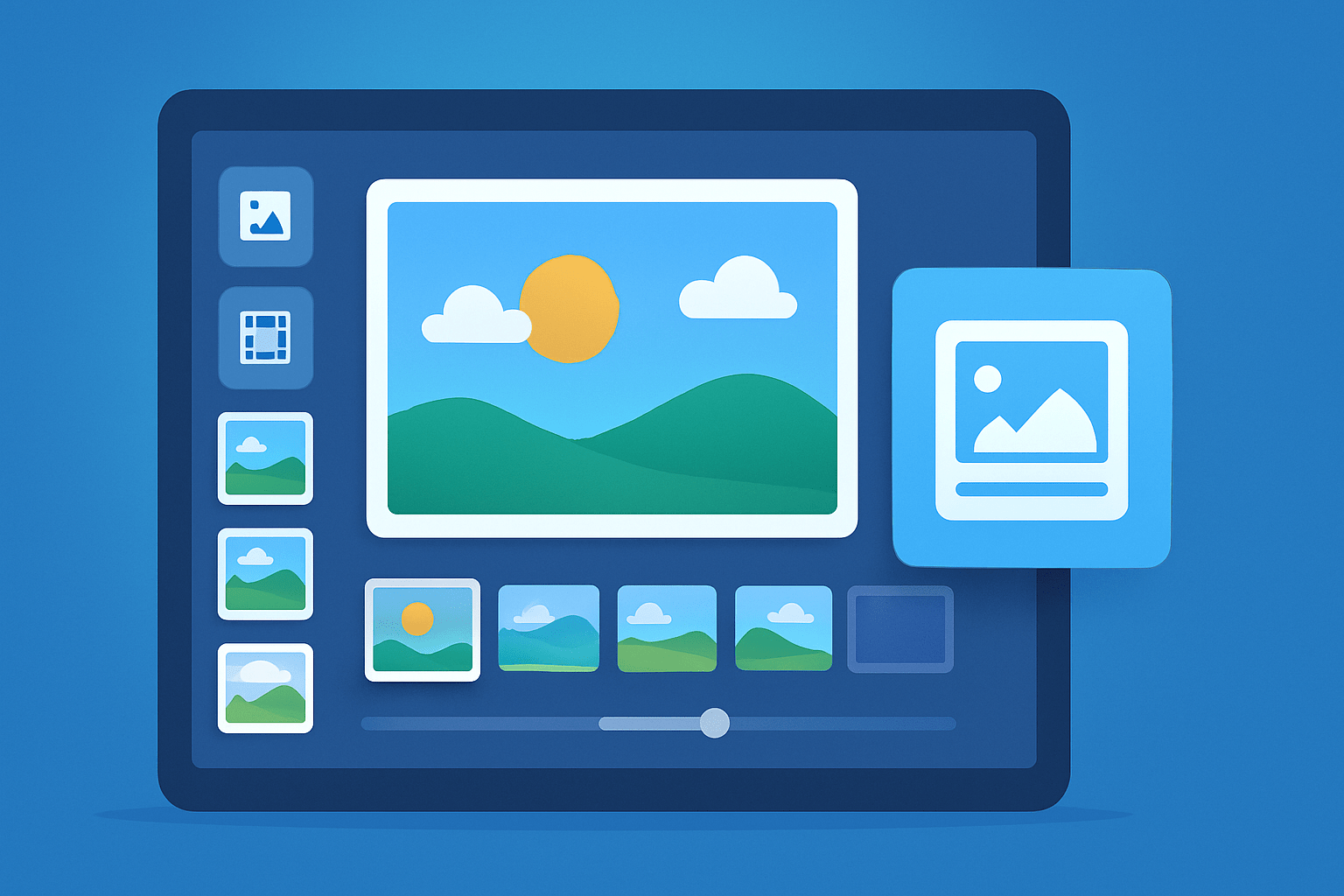
A timeline or storyboard view makes editing feel natural. Good apps let you nudge timing with the keyboard, ripple-trim between slides, and zoom the timeline so the beat of your music lines up with photo changes without guesswork.
High-quality export is non-negotiable. You want MP4 with H.264 or H.265 and MOV options, plus a clear choice of 720p, 1080p, and 4K so you can match the output to TV, web, or a large projector without surprise softening or banding.
Audio support turns pictures into a performance. Make sure you can add multiple music tracks, record quick voiceovers, and control ducking so narration sits above the soundtrack, with fades that start and end cleanly.
Basic image fixes inside the editor keep your workflow tight. Cropping, straightening, exposure tweaks, and simple color correction mean you can polish a handful of pictures without opening a separate photo editor for every small change.
Smooth motion is the secret sauce. A Ken Burns effect or keyframe-based panning and zooming brings stills to life and guides the viewer’s eye, and the best tools let you adjust speed and easing so the movement feels natural, not jumpy.
Templates and transitions should enable, not overpower, your story. A deep library is helpful, but the ability to customize duration, direction, and style will keep your show from looking like every other preset on the internet.
Watch for watermarks and trial limits before you invest time. If the free or trial version stamps your work or restricts export to small sizes, you need to know that up front so you are not forced into a last-minute redo the night before an event.
Some tools add advanced motion and even 3D layers. If you want titles that sweep in depth, multi-plane parallax, or camera paths that orbit a scene, confirm the software supports it and test a short sample to judge render quality.
Large projects demand batch-friendly brains. Seek out software that handles hundreds of photos, keeps memory under control, and offers batch duration changes or global color filters, so you can adjust an entire act with two clicks.
RAW support and GPU acceleration matter when quality and speed are priorities. RAW lets you pull detail from tricky exposures without leaving your slideshow timeline, and GPU export can cut render time dramatically on modern machines.
Cloud sync and collaboration are helpful for teams or remote clients. A web-based editor, shared project links, or cloud media folders can keep everyone aligned, but balance that convenience with privacy expectations for sensitive events.
PPT export and HTML5 embedding make sense for interactive displays. PowerPoint-friendly output or a self-contained HTML player can help museums, lobbies, and trade shows run a loop all week without needing a dedicated video player.
AI auto-creation can jump-start a story. Smart tools can group faces, detect highlights, and propose timing to the beat, but you should still fine-tune pacing, transitions, and titles so the show reflects your taste and the occasion.
Interoperability is more than file type; it is also codec and device quirks. MP4 is the container, H.264 or H.265 is the codec, and not every TV supports every combination, so match both to the screen and test on the actual device.
If your destination is social, presets simplify life. Square for Instagram, vertical for Stories and TikTok, and a faithful 16:9 for YouTube will prevent letterboxing and protect the composition you carefully framed.
Mind the legal and privacy details that ride along with your edits. Use licensed or royalty-free music, keep receipts organized, and be selective with cloud storage if your show includes private family moments or corporate secrets.
As a quick rule of thumb, your minimum kit should include MP4 export, adjustable slide timing, clean audio fades, keyframe or Ken Burns motion, and no watermark in the paid version. If you want a broader view of tools, browse the best slideshow apps roundups to see how mobile and desktop choices stack up.
Top 4 Professional Slideshow Makers
If you want a pro-grade result without fighting the interface, start by testing four focused options. Each one balances speed, control, and export quality a little differently, so run a small project in each and see which timeline feels like home.
Before you start, check the latest version number, supported platforms, and trial restrictions on the vendor site. Confirm whether export quality is capped or watermarked during trials so you can plan your test without surprises.
PhotoStage Slideshow Pro is a workhorse known for straightforward timelines and reliable exports. It handles big photo sets and supports multi-track audio, voiceover, and a wide choice of MP4 and MOV outputs, making it a versatile fit for events and online delivery.
It runs on mainstream desktops and typically offers a consumer-friendly license with an upgrade path, plus a limited free tier for non-commercial use in some regions. The big pros are stability on long shows and a simple learning curve, while the con is a conservative interface that feels utilitarian. It is best for wedding photographers, schools, and anyone managing long family archives who value speed and predictability over flashy effects.
AquaSoft SlideShow focuses on precision and advanced visuals without losing sight of export quality. Its timeline allows layered objects, keyframe animation, and controlled motion paths, and its output options are excellent for 1080p and 4K master files.
It is typically available for Windows with tiered editions, and trials often include full features with export limits, which you should verify before a client job. The big pros are creative depth and professional templates, while the con is a steeper learning curve for new users. It is ideal for documentary-style storytellers and corporate users who want control over timing and movement down to the frame.
CyberLink MediaShow is a fast organizer with slideshow creation baked in, designed to move you from import to a shareable show quickly. It shines at media management, basic edits, and quick templates that let you build a presentable piece in less time.
Availability can vary and the product has evolved within the vendor’s media suite over the years, so check whether it remains a standalone or if the same features now live in a broader photo or video editor. Its main pros are speed and simplicity, while cons include lighter advanced animation and, depending on the version, a dated interface. It suits families and small teams who prioritize quick, clean shows over deep motion design.
SmartSHOW3D stands out for cinematic movement and depth, giving still images a layered 3D feel with camera paths that glide through a scene. Prebuilt animated templates offer fast results, and the program still allows heavy customization for power users who love to tinker.
It is Windows-focused with several editions, and trials typically restrict export or add a watermark, so schedule time to test that behavior. The pros are its unique 3D engine and stunning results on big screens, while the con is higher complexity and longer render times when effects stack up. It is best for advanced creatives, showreels, memorials with dramatic motion, and anyone who wants a cinematic look out of stills; for more options in this tier, scan curated lists of professional slideshow software to see comparable feature sets.
Side-by-side comparison of the programs
A side-by-side comparison helps you decide quickly by focusing on the essentials instead of marketing copy. Think in terms of platform support, price and trial limits, maximum export resolution, motion options, batch handling, and whether the trial stamp will block a real-world test.
Use consistent scoring to make sense of strengths and trade-offs. Feature completeness, learning curve, value for money, and performance are easy to rate on a five-point scale, and even rough scores will show you which app belongs on your machine first.
On feature completeness, AquaSoft and SmartSHOW3D land near the top thanks to keyframes, layered titles, and advanced motion, while PhotoStage follows with a solid, practical toolkit. MediaShow trails for pro effects but remains a quick pick for fast, template-driven shows that do not need heavy animation.
On learning curve, PhotoStage is the easiest to grasp, MediaShow is also friendly, while AquaSoft and SmartSHOW3D take longer but reward patience with control. This matters if you are training a team or handing the project to a volunteer the week of the event.
Value for money depends on the features you actually use. If you need deep motion and 4K masters, the pro-focused apps justify their price, but if you need clean 1080p and simple fades, a lighter tool delivers better value; scan well-reviewed free slideshow software too if your needs are basic.
Performance and export speed hinge on GPU acceleration and how the app manages many photos. PhotoStage is dependable on long timelines, AquaSoft and SmartSHOW3D need more power when effects stack up, and MediaShow is fast on simple projects with fewer layers and minimal motion.
If you want data instead of impressions, run a simple test on your own machine. Import 50–100 JPGs, add a two-minute song, drop a few pans and titles, and export a 1080p MP4, then compare import time, timeline responsiveness, and render duration to see which app fits your deadline and hardware.
For quick takeaways, choose PhotoStage for long, high-photo-count shows; MediaShow for fast, decent social-ready outputs; SmartSHOW3D for creative work with advanced motion and 3D; and AquaSoft for teams and pros who want precise control and top-tier export quality without leaving the slideshow editor.
What is finally the best software for slideshow presentation?
There is no single best choice because “best” depends on your needs, your audience, and your deadline. A wedding tribute with voiceover calls for different tools than a square, fast-cut reel for Instagram, so match the tool to the mission and your comfort level.
Best overall for balanced power and ease: PhotoStage Slideshow Pro. It is quick to learn, handles long timelines without drama, and exports high-quality MP4 files that look great on TVs and the web, which makes it a dependable first install for most users.
Best free and easiest for beginners: a cloud or built-in photo app such as Google Photos, Apple Photos, or Microsoft Photos. These tools are simple, usually watermark-free, and perfect for quick family shows, though they are lighter on motion control and pro-level export settings.
Best for professionals and advanced effects: SmartSHOW3D. Its 3D camera paths, layered titles, and cinematic templates can transform stills into dynamic sequences, and the control over timing and movement rewards careful editors who want a signature look.
Best for social media creators and quick templates: a cloud design platform such as Canva. It offers modern layouts, easy text styles, and social presets that make vertical or square exports painless, though you should watch for premium elements that can add watermarks in free tiers.
Best for long shows and large photo archives: AquaSoft SlideShow. Its robust timeline, precise keyframes, and reliable 4K export make it a strong pick for documentaries, corporate retrospectives, and family histories that stretch well beyond 15 minutes.
To decide in about five minutes, confirm your platform and hardware, define your output target and aspect ratio, estimate project size and photo count, list the effects you must have, and set a budget. With that short checklist, you will know exactly which trial to download and what to look for in the interface.
When you trial, work with 20–50 representative photos, not stock pictures. Build a one to two-minute sequence, add a music track and a voice line, export to your target device, and confirm there is no watermark, the audio fades cleanly, and the picture looks sharp on the actual screen.
Creating a slideshow for special occasions
Occasions carry emotion and expectation, so pacing and tone matter as much as effects. Weddings, memorials, anniversaries, and company milestones ask for patience, clarity, and a structure that keeps the audience present in the story.
Start by planning the story before touching the timeline. Decide whether you are going chronological, by theme, or by mood, and set a duration target, usually between three and eight minutes for most events so the room stays engaged.
Curate ruthlessly and keep only the frames that move the story forward. For a five-minute show, expect roughly 60–90 photos depending on your average slide duration, and maintain variety by mixing wide scene-setters with detail and faces.
Edit photos first to reduce friction later. Apply basic crop, exposure, and color fixes, keep the originals backed up, and export edits into a dedicated project folder so your slideshow software does not have to chew through heavy RAWs during playback.
Use pacing as your heartbeat. A baseline of 2.5–4.5 seconds per photo works for most shows, with longer holds for portraits and key scenes, and occasional faster sequences to build energy and keep attention alive.
Keep transitions and motion subtle so the story stays center stage. Simple fades and short wipes feel professional, and gentle Ken Burns moves add life without dizziness; reserve flashy effects for rare moments you really want to accent.
Audio is your glue, so choose one or two tracks that match mood and length. Normalize levels, aim for peaks around -3 to -6 dB to avoid clipping, and time slide changes to the beat, with ducking under narration when you need the words to land.
Titles and captions should be short and readable. Use a large, high-contrast sans-serif, keep placement consistent, and resist the urge to add a paragraph of text on any slide so the audience stays with the images and the voice.
Export for the destination you planned at the very start. For TVs and USB playback, use MP4 with H.264 at 1080p or 4K and avoid exotic codecs; for presentations, carry an MP4 and a folder of slide images or a PPT export if your client needs it loaded into their deck; for social, choose square or vertical presets to fill the frame.
Always do a full test run on the target display. Check color, brightness, and letterboxing, verify that the volume lands comfortably in the room, and bring a backup on a USB drive, a cloud link, and a lower-resolution copy for older devices that struggle with high bitrates.
TVs and external displays can be fussy, so prepare accordingly. Format drives to exFAT when you can to avoid file size limits, know that many smart TVs prefer MP4 with H.264 at moderate bitrates, and test casting versus direct HDMI because colors and audio sync can differ.
If exports fail or drag on too long, dial back complexity without killing quality. Reduce export resolution, enable proxies, update your GPU driver, close other apps, and consider splitting a very long show into chapters you render and then combine to lower crash risk.
Design principles still apply even when the show is simple. Keep typography consistent, use image corrections with a light hand, verify that you have rights to the music, and do not let busy transitions or cramped captions pull attention from the people in the photos.
Keep a small technical cheat-sheet in your project notes. As a baseline, use MP4 with H.264, 1080p at 8–12 Mbps for web and 4K at 25–40 Mbps for TVs, with default photo timings of 3–4 seconds and 6–10 seconds for key portraits or title cards that deserve a longer hold.
Round out your process with a few professional habits. Test your export on the final device before the event, confirm trial versions do not add watermarks if you are using new software, normalize audio with one to two-second fades on music, and lock your aspect ratio from the start so letterboxing or cropping does not creep in at the end.
If you are still weighing tools, remember that photo slide show software should get out of your way and help you tell a story. The right app will import quickly, keep timing flexible, move smoothly, and export cleanly, and if it also protects your privacy and respects your music licenses, you will be ready for any room and any screen.
For very large projects, organize by chapters and render sections separately. This approach makes revisions easier, lets you swap a segment without rerendering the full show, and gives you safe fallback files if the last export misbehaves minutes before guests arrive.
Finally, write down the exact settings that worked so you can repeat success under pressure. Note your export codec, resolution, bitrate, audio peaks, and whether GPU acceleration was enabled, and store that note with your media so the next show takes half the time with none of the guesswork.
What People Ask Most
What is photo slide show software?
Photo slide show software is a tool that arranges your photos into a timed presentation with transitions and effects.
How can photo slide show software help me with family events?
It helps you create a polished, shareable slideshow of memories for weddings, birthdays, or reunions.
Is photo slide show software hard for beginners to learn?
Many programs are made for beginners with simple drag-and-drop interfaces and ready-made templates.
Can I add music and captions with photo slide show software?
Yes, you can usually add background music, titles, and captions to make your slideshow more engaging.
Do I need special photo formats to use photo slide show software?
Most software accepts common formats like JPEG and PNG, so you can use photos from phones or cameras without extra steps.
Can I share slideshows created with photo slide show software online?
Yes, many programs let you export slideshows as video files ready for social media or email sharing.
What are common beginner mistakes when using photo slide show software?
Beginners often use too many effects or long transitions, so keep edits simple and focus on the photos themselves.
Final Thoughts on Photo Slide Show Software
Good slideshow software gets your photos, music, and motion into a polished, reliable video without wasting hours—it’s the difference between a forgettable sequence and a meaningful presentation that plays smoothly on any device. As a quick reality check, try exporting a 270 photo test to see import speed, timeline responsiveness, resolution handling, and whether a trial adds watermarks. Just be realistic about limits: free trials often cap resolution or add watermarks, and very large projects can strain older machines, so photographers, event planners, and social creators will get the most value when they match tool power to project size and delivery method.
We opened by asking which features matter for TV, web, and live events, and the guides above walked through must-haves, pro options, and workflows to answer that plainly. That means you can choose software that balances speed, image quality, and creative motion so your story reads as cinematic rather than confusing. You’re ready to craft memorable shows that look and sound great for years to come.




0 Comments