

What’s the best way to turn a shelf of beloved paperbacks into searchable, space-saving digital files without mangling the spines? Whether you’re archiving family memoirs, preparing research, or freeing up shelf space, the right scanner changes the workflow and preserves detail. This article compares five top book scanners and gives practical, photographer-tested guidance for getting clean, usable scans reliably.
I evaluated a range of approaches — handheld wands, overhead rigs, and office feed-style scanners — with an eye for everyday usability rather than specs-speak. Speed, OCR accuracy, handling of bound pages, and workflow ergonomics were the priorities. You’ll learn which compromises make sense for different volumes, budgets, and preservation goals, and for quick versus thorough projects.
Inside, expect side-by-side comparisons that highlight real-world pros and cons instead of marketing fluff. You’ll get clear recommendations for who should choose each style: students, archivists, librarians, photographers, or casual digitizers. There are also practical walkthroughs on settings, file formats, and basic post-scan cleanup and naming conventions.
Crucially, this guide includes safety tips for fragile and antique books — simple steps that reduce stress on bindings while preserving legibility. I’ll explain when a non-contact overhead scan is the wiser move and when a flatbed still earns its keep. Read on and you’ll be ready to digitize with confidence and care, without wasting time or damaging materials.

NETUM NT-1698W 2-in-1 1D Laser Barcode Scanner (2.4G Wireless/USB, Handheld, Rechargeable)
1. CZUR ET Max (ET26 Pro) Review
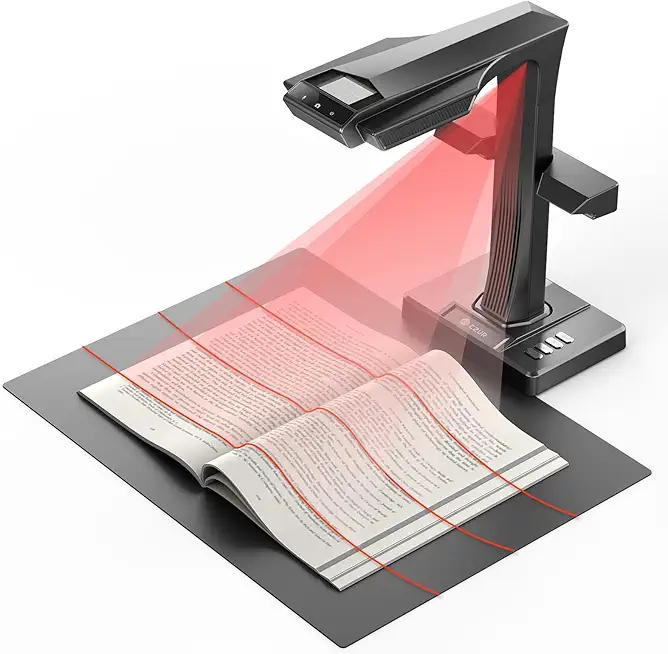
CZUR ET MAX 38MP A3 Book Scanner (USB/HDMI)
Ultra-high 38MP A3 overhead book digitizer with HDMI/USB output, glare-free cradle, rapid scanning and accurate OCR for large-format documents and archives.
Check PriceThe CZUR ET Max (ET26 Pro) is one of those rare scanners that feels designed for real-world book work rather than lab conditions. Its upgraded 38MP camera delivers detailed scans, and the laser-based curve-flattening technology does a credible job reducing distortion on bound pages. Magnetic side lights further help by cutting glare on glossy paper, so I spend less time chasing reflections when shooting delicate or shiny pages.
Performance-wise it’s impressive: the unit scans at about 1 second per page, which makes it a solid choice for large batches. The foot pedal lets you go hands-free and keeps a steady rhythm during long sessions—ideal when you’re digitizing entire runs or library donations. In practice it excels with bound, thick books where overhead capture is safer than forcing a book flat.
OCR is handled by an ABBYY-based engine, producing searchable and editable outputs that save hours in post. Be aware, though, that some languages (for example Thai) aren’t supported yet, so double-check language needs before committing. Also, if you’re chasing the absolute highest-fidelity scans for art or photo reproduction, or you predominantly scan flat single documents, this isn’t the specialist tool; dedicated flatbeds still have the edge there.
- 38MP image quality with fine detail
- Effective laser curve flattening
- Foot pedal improves workflow efficiency
- ABBYY-based OCR for searchable/editable outputs
- Large physical footprint
- Not a true flatbed/document scanner; image quality can lag dedicated scanners
2. IRIScan Book 5 (Handheld Scanner) Review

IRIScan Express v4 8ppm Portable Document Scanner (USB)
Compact 8 pages-per-minute portable document digitizer with USB plug-and-scan, reliable duplex capture, simple OCR and easy file export.
Check PriceAs a photographer who often needs to digitize notes and reference pages on the go, the IRIScan Book 5 stands out for sheer portability and simplicity. It’s a wand-style handheld scanner that reaches up to 1200 dpi and writes scans directly to microSD, producing JPEGs or single- and multi-page PDFs without a computer tether.
Image quality is surprisingly good for a device this small; color accuracy is solid and the OCR can handle surprisingly small text, down to about 8 pt. That makes it useful for searchable notes, snippets from journals, or reference images where you need editable text rather than museum-grade fidelity.
In real use it’s very convenient: lightweight, easy to handle, and ideal for students, researchers, or anyone scanning on location. Battery life is modest at roughly 100 scans per charge, and the small LCD preview means you’ll want to double-check files on a laptop if exact framing or detail matters.
So who should buy it? If you need quick, occasional scans while traveling or working between locations, this is a very practical tool. If your workflow demands high-volume throughput, archival-grade fidelity, or large batch jobs, look elsewhere. For everyday mobile scanning and accurate OCR on small fonts, the IRIScan Book 5 is a handy, mostly reliable companion.
- Lightweight and easy to handle
- Direct microSD storage without laptop
- Accurate OCR (including small fonts)
- Good color accuracy
- Limited battery life (~100 scans per charge)
- Small preview screen restricts verification
3. CZUR Shine Ultra Pro Review

CZUR Shine Ultra Pro 24MP A3 Book Scanner (USB, 440 DPI)
High-resolution 24MP A3 overhead digitizer delivering 440 DPI clarity, fast capture, automated page flattening and smart OCR for pristine archival scans.
Check PriceThe CZUR Shine Ultra Pro is a purpose-built overhead book scanner that feels designed with archivists and researchers in mind. Its workflow leans on practical features rather than chasing ultra-high-resolution photography, which makes it a strong choice for medium-volume digitization projects.
One standout is the finger-cut removal feature — it intelligently removes fingers that hold pages open, saving a lot of manual retouching when you batch-process. The included black mat and lighting accessories also help produce more consistent contrast and reduce background clutter, which speeds up cleanup and OCR reliability.
Resolution is slightly lower than top-tier photo-focused scanners, but it’s adequate for research-grade scans and text reproduction. The automatic page-correction in the software flattens and straightens pages with minimal input, so you spend less time fixing perspective or skew in post.
In practice, I’ve found it particularly useful for scholars and archivists working with larger bound texts where speed and cleanliness matter more than pixel-level fidelity. It handles moderate volumes reliably and produces files that are friendly for OCR and cataloguing workflows.
There are trade-offs: it isn’t suited for high-end photo reproduction or tasks demanding extreme sharpness. Also, tightly bound pages can still show some distortion that the software can’t fully correct, so very delicate or super-tight spines may need extra care.
- Automatic finger-cut removal reduces manual edits
- Includes black mat and lighting accessories
- Adequate resolution for research-grade scans
- User-friendly software with automatic page correction
- Some distortion on tightly bound pages
- Less sharp than higher-end CZUR models
4. NETUM Book Scanner T101 Review
NETUM NT-1698W 2-in-1 1D Laser Barcode Scanner (2.4G Wireless/USB, Handheld, Rechargeable)
Versatile 2-in-1 handheld 1D barcode reader with 2.4G wireless and USB connectivity, fast laser decoding, long battery life and ergonomic design.
Check PriceThe NETUM Book Scanner T101 is a flatbed-style book scanner with autofocus and smart OCR. It’s designed for seamless A4/A3 scanning and promises reliable clarity right out of the box. As a working photographer, I appreciate how a flatbed approach keeps pages steady and exposure consistent.
In practice the T101 delivers crisp scans and strong text recognition. Autofocus reduces the need for constant manual adjustments, so you get sharp files with less fuss. The smart OCR produces searchable text that speeds post-processing and archive work.
This model is clearly aimed at students, small offices, and home users who need straightforward, accurate scanning. Setup is simple and operation is intuitive, so you can be scanning in minutes rather than wrestling with menus. Support for larger page sizes (A3) makes it useful for oversized documents and posters as well as typical book pages.
There are limits to be aware of. The T101 lacks advanced book curve correction, so scans of tightly bound or very thick books will show distortion near the spine. For preservation-grade work or heavy, bound volumes you’ll want a scanner with curve-flattening or an overhead cradle. For general document and book scanning though, the NETUM T101 is an excellent, practical choice that balances ease of use with solid image and OCR performance.
- Autofocus enhances ease of use
- High OCR accuracy
- Supports larger page sizes (A3)
- Simple setup and operation
- Lacks advanced book curve correction
- May struggle with very thick bound books or unusual sizes
5. Fujitsu Image Scanner fi-800R Review

Fujitsu fi-800R Sheetfed Scanner (600 dpi optical)
Robust sheetfed document capture solution with 600 dpi optical resolution, high-speed duplex feeding, reliable paper handling and enterprise-grade image processing.
Check PriceThe Fujitsu Image Scanner fi-800R is a compact, fast document scanner built for productivity. It features return-scan and U-Turn scan technologies and includes active skew correction to help produce straightened scans right out of the feeder.
In practical terms it’s a workhorse for offices. Users report it’s favored in business environments for rapid scanning of documents, and it’s especially good when you need reliable, aligned output without constant manual correction.
Connectivity is USB-only, so setup is straightforward but limited if you need wireless or networked scanning. Also, it isn’t designed for bound-book curve flattening, so expect some challenges when digitizing thick, tightly bound books or when you need archival-quality book reproductions.
As a photographer who occasionally digitizes printed proofs, I appreciate the fi-800R for routine office tasks and mixed-use scanning. It’s best for professionals and offices digitizing mainly loose documents with occasional book pages, rather than for high-resolution image reproduction or delicate archival book work.
- Fast scan speeds for productivity
- Return-scan and U-Turn scan technologies speed workflow
- Active skew correction for aligned scans
- Compact and reliable for office use
- USB connection only (no wireless)
- Not tailored for bound book curve flattening
Using a Book Scanner Effectively
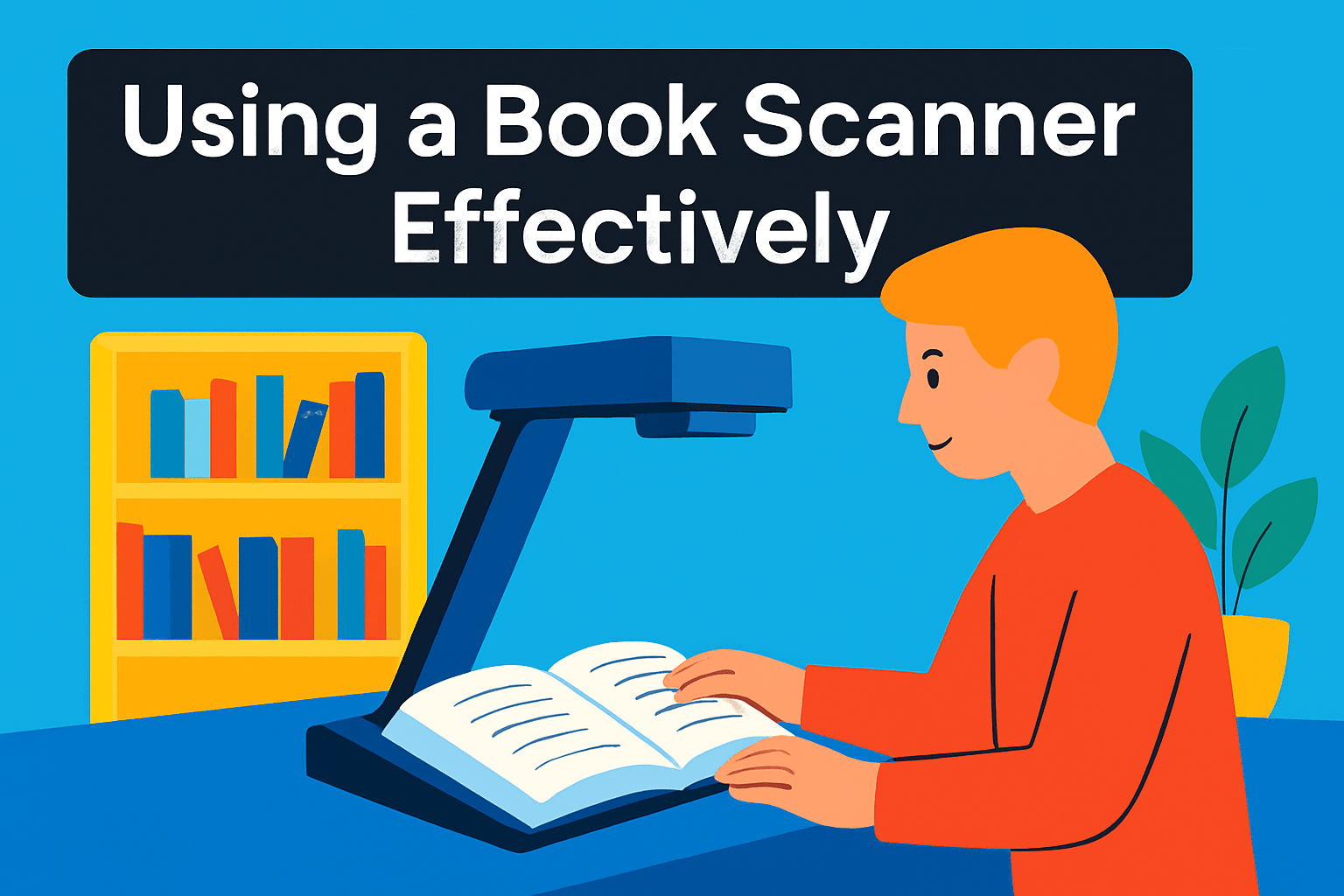
Think of scanning like photographing a page: light, steadiness, and framing make or break the result. Work in a clean, dust-free area and give the page a quick blow or brush before you start. If you’re using an overhead scanner, watch for glare on glossy pages and adjust lights or use the scanner’s magnetic side lights to tame hotspots.
Set your resolution and color mode to match your goal. For OCR and text-heavy books 300 dpi is usually sufficient; for archival or photo-rich pages push to 600 dpi or higher. Remember higher DPI means larger files and slower processing, so balance fidelity with storage and workflow needs.
Respect the book’s binding. Never force a spine flat; use a V-shaped cradle or the curve-flattening feature on overhead models. Even small adjustments to the book angle often reduce distortion without stressing the binding. For delicate volumes, prefer non-contact overhead scanning and higher DPI to avoid repeat handling.
Keep your scans consistent. Use the same crop, white balance, and exposure settings across a run so pages match when stitched into a PDF or converted by OCR. Periodically review a sample batch rather than waiting until the end to catch focus, alignment, or lighting issues early.
Post-processing is where a lot of value is added. Crop edges, correct perspective, and gently boost contrast to improve legibility while avoiding heavy filters that obscure details. Run OCR soon after scanning so you can spot recognition errors while raw images are still available.
Name and organize files as you go. Use a predictable scheme—author_title_chapter_page or date_project_page—to make retrieval painless. Export an OCRed searchable PDF for reading and keep lossless masters (TIFF) if you’re preserving originals.
For high-volume jobs, ergonomics matter. Use a foot pedal if available, keep a comfortable cadence, and take breaks to maintain accuracy. Small habits—labeling, backups, and routine checks—save hours and protect the work you’ve just digitized.
Tips for Scanning Fragile or Antique Books
Working with fragile or antique books is part conservation, part photography. Before you do anything, take a slow look through the volume. Note brittle pages, tears, loose sections and any active mold or staining; if it looks unstable, consult a conservator before scanning.
Handle with clean, dry hands or wear nitrile gloves to avoid transferring oils. Use a soft brush or a gentle burst of canned air to remove surface dust. Never force a book flat; instead support it in a V-shaped cradle or adjustable-angle book holder and keep the spine angle comfortable—usually between 90° and 140°—to minimize stress.
Prefer non-contact overhead capture when possible. An overhead scanner or camera on a steady tripod lets you avoid pressing on the paper. Use a remote release or tethered capture to eliminate vibration and keep every frame consistent.
Light the page evenly to avoid hotspots and shadowing along the gutter. Diffused, cool-balanced light and side lighting set to the same color temperature will give truer colors and reduce glare on glossy plates. If reflections are a problem, small polarizing filters on a camera or repositioning the lights will often solve it.
Capture at high enough resolution that you won’t need to re-handle the book later. For text and mixed content, 300–600 DPI equivalent is usually fine; for detailed plates or manuscript work, push higher. Save master files in a lossless format and create smaller PDFs for everyday use.
Stabilize torn or curled pages with archival weights or polyester strips rather than tape. If a page cannot be safely exposed, skip it and document the omission. Keep a log of handling notes, scan settings and any conservation actions so future researchers know what was done.
Finally, be patient. Fragile books reward a careful, methodical approach. Take your time, protect the object first, and the scans will follow.
What People Ask Most
What is the best scanner for scanning books?
The best scanner depends on your needs, such as book type, volume, and desired image fidelity. Choose a model that balances handling, image quality, and workflow for your typical projects.
Can you scan a book with a flatbed scanner?
Yes, flatbed scanners work well for single pages and smaller books and produce consistent, high-quality captures. For tightly bound or fragile books, take care to avoid stressing the spine or choose a less-contact method.
What scanner is best for OCR when scanning books?
Scanners that produce clear, high-contrast text and include reliable OCR software are best for text recognition. Overhead and flatbed models can both work well when images are sharp and well-lit.
How do I scan a bound book without damaging the spine?
Avoid forcing the book flat and use supports such as cradles or shallow V-shaped beds to reduce strain on the binding. Use gentle handling, non-contact capture when possible, and software curve correction to minimize pressure on the spine.
Is an overhead book scanner better than a flatbed for books?
Overhead scanners are often better for thick or fragile books because they require less contact and can capture pages faster. Flatbeds can be preferable for loose pages or when very even, high-fidelity contact scans are needed.
How do I choose the best scanner for digitizing books?
Consider volume, book sizes, fragility, desired image quality, and whether OCR or archival preservation is the priority. Match features like non-contact capture, curve correction, and software workflow to your main use cases.
What settings produce the best quality when scanning books?
Select a resolution and color mode that suit your goal, use stable, even lighting, and choose file types that preserve detail without excessive compression. Crop, correct distortion, and run OCR as needed to create clear, searchable files.
Conclusion for the Best Book Scanners
This comparison and practical guidance are meant to leave you confident in choosing a scanning approach that fits your workload, the types of books you handle, and your desired image quality and preservation goals.
Whether you prioritize speed, portability, or careful preservation, matching your scanner and method to volume, binding type, and fidelity needs will deliver the best results with the least risk to your materials.
Follow the preparation, handling, and post-scan tips to protect fragile pages, improve OCR accuracy, and keep your digital files organized and searchable.
If you want to deepen your scanning skills and workflows, explore more articles on the site to learn practical techniques and refinements that suit your projects.
Have questions or want help choosing a setup for your specific collection? Leave a comment below and we usually reply within a few hours.




0 Comments