
What’s the best slide scanner for PC when you’re staring at a shoebox of slides that hold birthdays, vacations, and family history? Turning those analog frames into dependable digital files requires more than a quick USB plug‑in. Marketing claims can blur the picture; the real decisions hinge on image fidelity, speed, software, and whether your computer will actually play nice with the hardware.
This guide strips away the hype and helps PC users compare five popular slide scanners across typical workflows. We examine real‑world strengths and drawbacks, how each behaves under common desktop operating systems, and which film formats are supported or left out. Think of this as a practical roadmap that frames trade‑offs between archival quality, throughput, and ease of use without drowning you in jargon.
Whether you prioritize archival‑grade detail, quick batch digitization, or something simple you can run from your laptop, the aim is the same: make the best choice for your PC setup. We point out the compatibility considerations that actually affect scanning day‑to‑day, from driver support to file‑format options and software workflows. That way you can focus on preserving images, not wrestling with drivers or confusing menus.
You’ll also find plain‑language tips for matching scanners to 35mm, medium‑format and oddball film types, plus notes on workflow speed versus final image quality. Use these insights to shortlist contenders and confirm compatibility before you buy, so your chosen scanner works smoothly with your PC and helps you get slides into digital files reliably.
1. Epson Perfection V800 Photo

Epson Perfection V800 Photo Scanner
High-resolution flatbed scanning with deep color, exceptional detail, and dust/scratch removal for photographers and archivists.
Check PriceThe Epson Perfection V800 Photo is a workhorse for photographers and archivists who need a versatile, high-quality flatbed scanner. It handles 35mm, medium format, and large format transparencies up to 4×5 inches, so you can scan everything from slides to medium-format negatives without swapping devices.
Image quality is strong for a flatbed: it offers up to 6400 dpi, delivers excellent shadow detail, and smooth tonal gradation that preserves subtle film characteristics. The scanner’s Digital IC technology helps remove dust and scratches during capture, which cuts down on post-scan cleanup for archival projects.
If you’re scanning batches, the V800 supports batch scanning of multiple slides and uses an LED light source, so there’s no warm-up time and throughput is reasonably efficient. The adjustable film holders accommodate different film thicknesses, making it simple to switch between mounted slides and loose strips.
It ships with SilverFast SE, an intuitive package with advanced tools that many users praise for film work, though the bundled EpsonScan is less capable by comparison. Expect reliable, consistent results across film types, which is why many professionals prefer the V800 for mixed-format archives.
Be realistic about the trade-offs: the unit is fairly bulky and needs a good amount of desk space, and maximum-resolution scans can be slow for very large batches. There are occasional software compatibility hiccups with newer operating systems, so check drivers or consider third-party scanning software if you upgrade your PC.
- Up to 6400 dpi resolution
- Fast scan speed with no warm-up (LED light source)
- Digital IC technology removes dust and scratches
- Adjustable film holders for different film thicknesses
- Bulky; takes considerable desk space
- Bundled EpsonScan less powerful for film than SilverFast
2. Epson Perfection V850 Pro

Epson Perfection V850 Pro Scanner
Professional-grade flatbed with fast, dual-resolution scanning, improved dynamic range for superior film and print reproduction.
Check PriceThe Epson Perfection V850 Pro is a workhorse for photographers who need archival-quality scans and color fidelity they can trust. It’s built like a studio tool—robust, dependable, and designed for heavy-duty use, so it holds up when you feed it lots of film.
It handles film sizes up to 4×5 inches and can even take larger transparencies without frames, which makes it a smart choice if you shoot medium or large format. That flexibility saves time because you don’t need special scanners or awkward stitching workflows for bigger pieces.
Image quality is where the V850 Pro shines: expect exceptional detail and accurate color reproduction from slides and negatives. The scanner includes anti-Newton ring glass to reduce moiré and color shifts, and additional film holders give you more format flexibility and better handling of different film thicknesses.
Workflow-wise, professionals will appreciate the consistent, reliable results even with challenging film types and the availability of professional-grade software options for more control. Scanning is generally faster than consumer models, so you can move larger projects along without sacrificing quality.
There are trade-offs to consider. The V850 Pro is fairly large and requires real desk space. Setup and configuration can be fiddly if you’re new to film scanning, and maximum-resolution passes can slow you down on massive collections. Still, for serious photographers who prioritize quality, it’s hard to beat.
- Higher image quality and faster scanning times
- Additional film holders for format flexibility
- Anti-Newton ring glass reduces moiré and color shifts
- Consistent, reliable results with challenging film
- Bulkier; needs significant desk space
- Setup and configuration can be complex for beginners
3. Plustek OpticFilm 8200i SE

Plustek OpticFilm 8200i SE 35mm Film & Slide Scanner with SilverFast SE Plus 9
High-resolution 35mm film and slide digitizer delivering precise color, sharp detail, and bundled professional scanning software.
Check PriceI’ve used the Plustek OpticFilm 8200i SE on a range of 35mm slides, and it’s a favorite among both amateurs and pros who want very high-detail scans. The standout spec is its advertised resolution—exceptional detail and clarity up to 9600 dpi—which really helps when you need to extract every bit of information from a frame.
What makes everyday work easier is the infrared channel that automatically detects and removes dust and scratches. That saves a lot of time in post, especially with older or imperfect slides. The scanner is also built for speed, so you can move through large slide collections without feeling bogged down.
The bundled software is intuitive and focused on film-scanning features, so you get useful tools without wrestling with a steep learning curve. If you rely on a PC, note that Plustek lists official support for Windows 7–11 (64-bit only), and Plustek generally supports macOS 10.7–14.x if you work on a Mac.
There are a few trade-offs to consider. The 8200i SE tends to sit at a higher price than mid-range options, so it’s an investment if you don’t need archival-level resolution. Setup and configuration can also be fiddly for beginners, so budget time to dial in settings before you start a big batch.
- Up to 9600 dpi
- Infrared dust & scratch removal
- Fast scanning for large collections
- Intuitive bundled software
- Higher cost compared with mid-range options
- Setup and configuration can be complex for beginners
4. Plustek OpticFilm 8100

Plustek OpticFilm 8100 35mm Film & Slide Scanner with SilverFast SE Plus 9
Compact 35mm scanner offering reliable digitization, accurate colors, and user-friendly software for quick slide-to-digital conversion.
Check PriceAs a working photographer I appreciate the Plustek OpticFilm 8100 for what it is: a dependable 35mm-dedicated scanner that delivers excellent image clarity. It’s built to pull fine detail from vintage slides, which makes it a solid choice if you’re scanning family archives or small-format film collections.
The standout spec is its high resolution — up to 7200 dpi — which gives you plenty of headroom for tight crops and large prints from small slides. In practice that resolution, combined with the scanner’s optical quality, preserves texture and subtle detail better than most simple consumer units.
Plustek bundles intuitive software that includes dust-removal and color-restoration tools, so you can get useful results straight away without hunting for third-party apps. The unit’s durable design and included carrying case make it easy to move between studios or shoots, and users report consistent results across different film types.
That said, this is a dedicated 35mm scanner aimed at quality rather than speed. Expect relatively slow throughput — around 1 minute per slide on average — so it’s not the best pick if you have thousands of frames to process quickly. Beginners should also be ready for a little setup and configuration to get optimal scans.
Overall, the OpticFilm 8100 is mostly good for photographers who prioritize archival quality, detail retention, and useful software tools, rather than raw scanning speed. If you want a reliable, well-built scanner that handles vintage slides with care, it’s definitely worth considering.
- High resolution — up to 7200 dpi
- Intuitive software with dust removal & color restoration
- Reliable, consistent results across film types
- Durable design; includes carrying case and software bundle
- Relatively slow — ~1 minute per slide
- Setup and configuration can be complex for beginners
5. Kodak Slide N Scan Digital Film Scanner
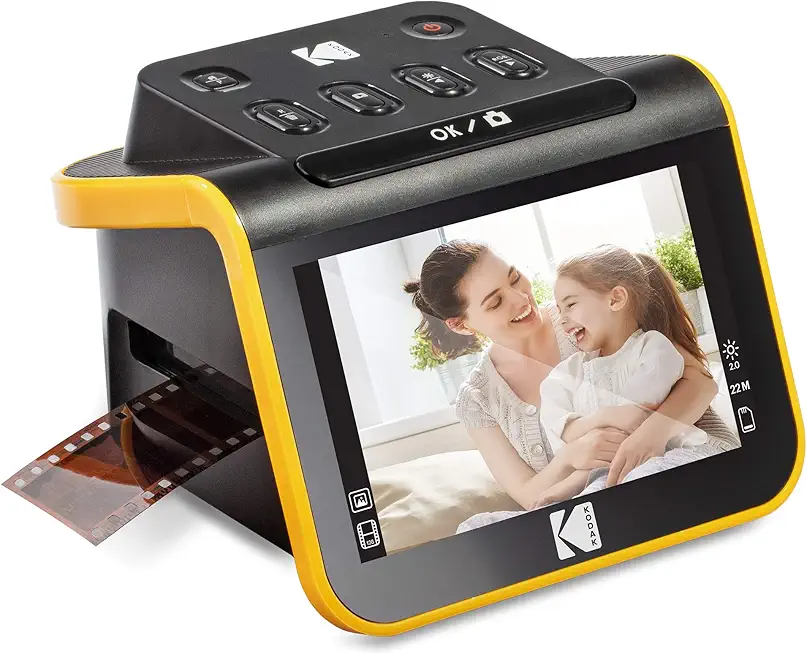
KODAK Slide N SCAN Film & Slide Scanner
Easy one-touch conversion of slides and negatives to high-quality digital images; portable, fast, and ideal for home archiving.
Check PriceAs a photographer who’s scanned hundreds of slides, I appreciate the Kodak Slide N Scan for its simplicity and speed. The built-in 7-inch LCD screen makes previewing and basic edits quick and foolproof, so you can check results without booting a computer.
The continuous feeding system is genuinely useful when you’ve got large boxes of slides to convert. It speeds up throughput and reduces the tedium of one-at-a-time feeding, which is great for family archives or client proofing sessions.
It handles a range of formats — 50mm slides, 135, 110, and 126mm films — with adapters, so you won’t need specialized gear for odd formats. Setup and operation are straightforward, and the unit even works without a computer, making it a solid pick for beginners or anyone who wants a quick digital copy without fuss.
Keep in mind this isn’t a professional-grade scanner. Scan quality isn’t as high as dedicated film scanners; you may notice some color and sharpness compromises if you’re aiming for archival or print-quality results. Also, the onboard workflow—while convenient—can limit heavy batch workflows that depend on direct PC transfer.
For casual users, families, or photographers who need fast, simple digitization, the Kodak Slide N Scan is a very practical tool. If you need archival-grade scans for large-format prints or professional retouching, you’ll likely outgrow it, but for speed, format flexibility, and ease-of-use it’s hard to beat at this price and convenience level.
- Built-in 7-inch LCD screen for preview and basic editing.
- Continuous feeding system for faster throughput.
- No need for a computer or complex software.
- Supports multiple film formats with adapters.
- Scan quality not as high as professional-grade scanners; some color/sharpness issues.
- Built-in screen can limit workflows that require transferring many scans to a PC.
Operating System Compatibility
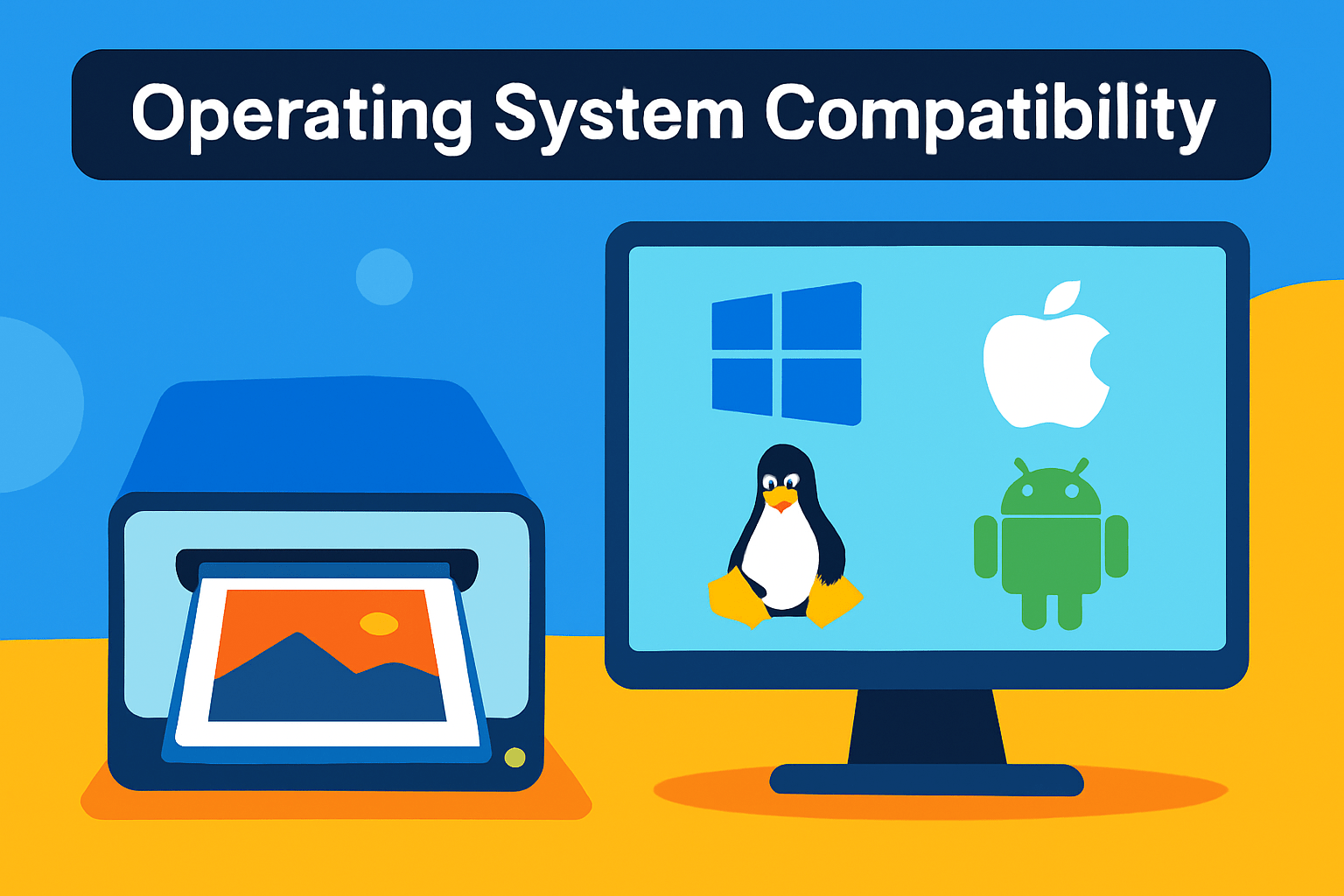
Operating system compatibility is one of those boring-but-critical things that will either make scanning painless or turn a weekend project into frustration. In my experience most dedicated slide scanners are aimed squarely at Windows users, and you should assume drivers are for 64‑bit Windows 10 and 11 unless stated otherwise. Always check the manufacturer’s driver page for your exact Windows build—some Plustek models, for example, list support from Windows 7 up through 11 (64‑bit).
If you work on a Mac, don’t panic. Many higher‑end scanners do ship macOS drivers that run on both Intel and Apple Silicon machines, and some models explicitly list support through recent macOS releases. The Kodak Slide N Scan, for instance, is Mac compatible and needs no extra software on the computer side. Still, verify whether the driver is native or requires Rosetta; native support will simply be less fiddly.
Linux users will find native drivers rare. That’s where third‑party software like VueScan becomes invaluable—VueScan supports thousands of scanners across Windows, macOS, and Linux and often acts as a practical driver replacement. If you’re on Linux, prioritize models known to work with VueScan or that offer confirmed Linux drivers before buying.
Finally, a few practical notes from the field: if manufacturer software hasn’t been updated in years, expect hiccups on the latest OS—VueScan is a reliable fallback. Keep firmware and drivers up to date, test with trial software before committing, and consider having a small Windows machine or virtual machine handy if a scanner’s support is Windows‑only. A little compatibility homework up front saves hours later and keeps your archive workflow smooth.
Film Format Support
When you choose a slide scanner, start by asking what film you’ll be doing most of. If your boxes are full of 35mm slides, a dedicated 35mm scanner will usually give the best detail and color for that format. These machines are optimized for single-frame capture and tend to extract more micro-contrast from tiny negatives.
If you work with medium‑format or larger transparencies, think flatbed. Flatbeds with a transparency unit handle 120 and large film sizes without the fiddly adapters. They’re also better at capturing large, delicate originals and are the practical choice when scans need to preserve tonal range across bigger negatives.
Don’t overlook oddball formats. Some models—especially consumer-friendly ones—include adapters for 110, 126 and similar cartridges. That convenience saves a lot of time when you’re digitizing family archives. Still, always check the specs: not every dedicated scanner supports those mounts.
Speed and workflow matter. Dedicated film scanners typically scan one frame at a time for maximum quality. Flatbeds let you capture several frames at once, which speeds throughput. A few high‑end film machines offer magazines or trays for batch slide scanning if you have hundreds to process.
Color negative and black‑and‑white films are generally handled by the same scanners. What changes is the software: good scanning tools will provide color‑correction profiles for negatives and tailored tone curves for B&W. Pay attention to software options when you need archival fidelity.
Finally, match resolution to the format. For 35mm, you’ll rarely benefit from extreme dpi—roughly 3200 dpi is a sensible baseline because grain limits usable detail. Medium and large formats, however, do gain from higher resolutions. In short: choose a dedicated 35mm scanner for single‑format image quality, pick a flatbed for multi‑format flexibility, and confirm adapters and batch options before you buy.
What People Ask Most
What is the best slide scanner for 35mm slides for use with a PC?
The best choice depends on your priorities such as image quality, speed, and budget. Choose a model known for dedicated 35mm film handling and confirm that drivers and scanning software are available for your PC.
Which slide scanners offer the highest resolution for scanning slides to a computer?
Higher-end dedicated film scanners generally deliver the greatest apparent detail for small film formats. Check sample scans and user feedback to evaluate real-world performance rather than relying on marketing claims.
How do I choose the best slide scanner for my PC (features to look for)?
Prioritize operating system compatibility, supported film formats, included software, and dust and scratch correction options. Also consider build quality, workflow features like batch scanning, and the availability of third-party software support.
Are dedicated film/slide scanners better than flatbed scanners for PC scanning?
Dedicated film scanners often produce better results for small formats like 35mm, while flatbeds offer greater versatility for medium and large formats. Choose based on the film sizes you scan most and the balance you need between quality and flexibility.
Can I connect a slide scanner directly to my PC via USB and scan to digital files?
Most modern slide scanners connect to a PC by USB and use bundled or third-party software to create digital files. Always verify driver availability for your operating system before purchasing.
Which slide scanners provide the most accurate color reproduction for archival scans?
Scanners paired with reliable optics, good software, and color management tools tend to produce the most faithful color. For archival work, use consistent scanning workflows and color profiles to maintain accuracy over time.
What resolution and file formats should I use when scanning slides to a PC?
Choose a resolution appropriate to how you plan to use the images, and keep master scans in a lossless format for long-term archiving. Use common delivery formats for sharing or web use while retaining originals for preservation.
Conclusion for PC Slide Scanners
This comparison pulls together the practical strengths and trade-offs you’ll want to weigh when choosing a slide scanner for PC use: dedicated 35mm units often favor detail, flatbeds offer multi-format flexibility, and throughput, software and build all influence real‑world results.
Before you buy, double‑check driver and OS support for your machine and confirm the film formats you plan to scan, and consider third‑party software like VueScan if the manufacturer tools don’t support your setup.
Let your primary needs — whether archival image quality, batch speed, or multi‑format handling — guide the choice rather than chasing the highest quoted resolution alone.
If you found this comparison useful and want to sharpen your scanning and workflow skills, explore more of our how‑to guides and reviews on the site to build confidence and technique.
Have questions or want advice about your specific collection or setup? Leave a comment below and we usually reply within a few hours.



0 Comments