
How to make comparison video that helps people choose the right product fast? This guide gives a clear, step-by-step method you can follow.
You will get the full workflow: plan, script, capture, organize, edit, side‑by‑side setup, audio and color, review, export, and publish. Each step includes checklists and time estimates.
Find tool picks for mobile and pro editing, plus two editor walkthroughs and screenshots. Downloadable shot‑lists, logging sheets, script templates, and export presets are included.
I also cover fairness, disclosure, captions, and simple SEO tips to help your video get views. Read on and you’ll be ready to shoot, edit, and publish a clear comparison video.
How to Make a Comparison Video: Step-by-Step Guide
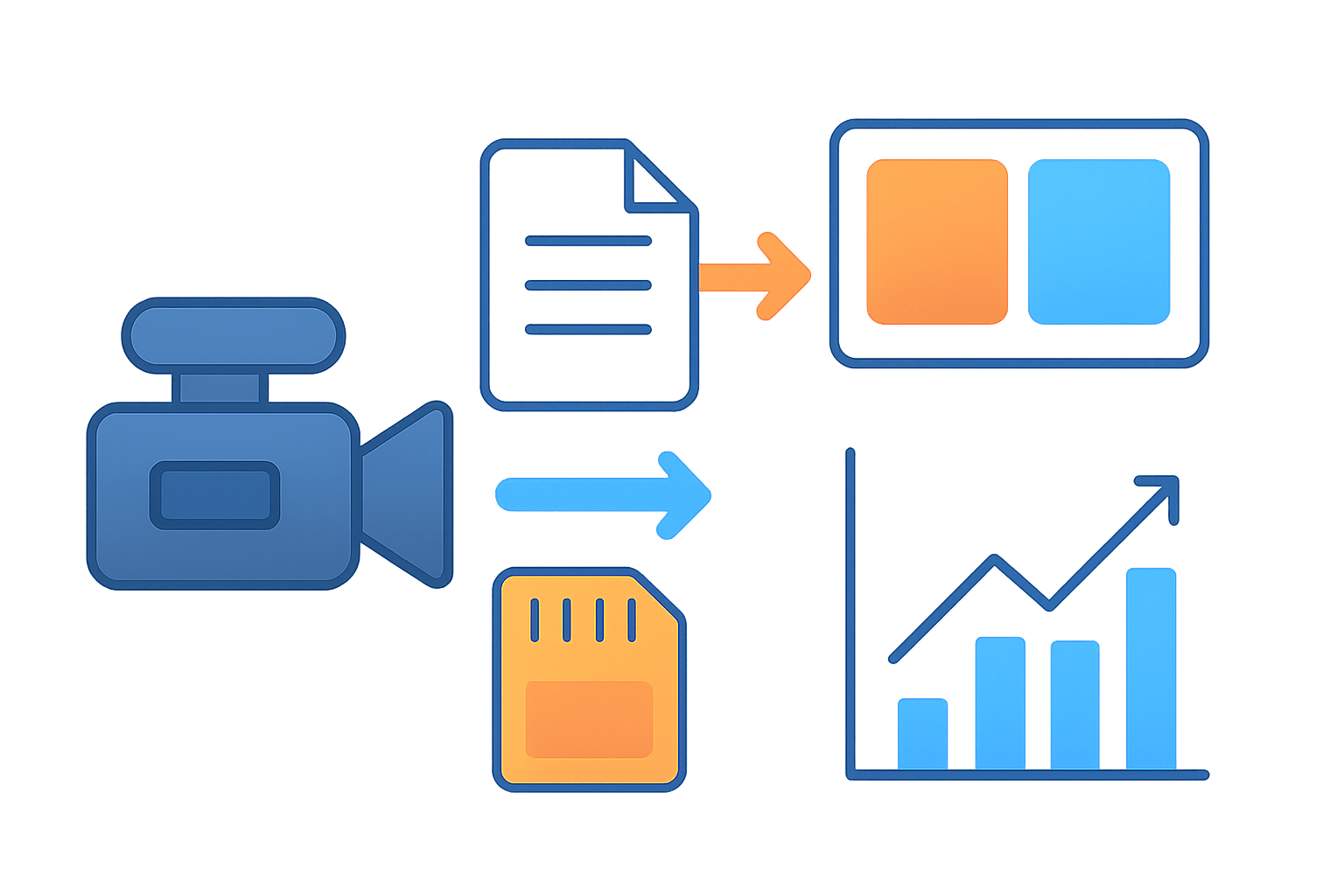
Here is the simple workflow you’ll follow: Plan, script, capture or source footage, organize files, edit, build the side-by-side, polish audio and color, review, export, and publish. If you want to know how to make comparison video the right way, this sequence keeps you fast and fair.
Start by defining your goal and audience. Decide the exact decision a viewer should make after watching, like which phone camera is cleaner in low light or which plan gives better ROI.
Pick the format and platform before you shoot. Choose between YouTube 16:9 long-form, TikTok or Reels 9:16 short vertical, or a mixed Instagram carousel plus reel flow.
Select two or three items to compare and lock the metrics in advance. Keep three to five tests like speed, battery, image quality, durability, or price so the story stays focused.
Write a short script and shot-list that opens with a hook, shows your tests, explains the method, and ends with a clear verdict and CTA. Grab the downloadable shot-list, logging spreadsheet, and checklist mentioned in this guide to save time.
If you want a quick start, try an online editor and a free comparison maker to block out your split-screen and labels. You can still refine later in desktop software once your structure is set.
Capture footage with consistent settings so your tests are fair. Match resolution, frame rate, white balance, exposure, lens distance, and background for every item.
Use a pre‑flight checklist before hitting record. Confirm batteries, cards, manual white balance, locked exposure, identical framing, a slate or clap for sync, and ambient noise levels.
When you import, label everything clearly. Use a structure like Project/RAW/ProductA/Take_01 and Project/RAW/ProductB/Take_01, add proxies for 4K, and log test metrics in a sheet for reproducibility.
Build the timeline with each product on its own track and sync with a clap or waveform. Create a split-screen, add a clean divider, and place concise labels and metric readouts near each clip.
Add narration on one track so the story is unified, then sprinkle light SFX and music. Balance loudness to about −14 LUFS and keep music under the voice, roughly −12 to −18 dB.
Review for clarity and fairness, then ask two test viewers what confused them. If anything feels biased or unclear, adjust the script, labels, or tests and show your raw numbers on screen or in the description.
Export with platform-friendly presets like MP4 H.264 or HEVC and AAC 48 kHz audio. Use about 8–12 Mbps for 1080p and 35–45 Mbps for 4K, then write metadata with timestamps, method notes, and a punchy thumbnail.
Keep simple checklists at each stage so you don’t miss basics. Use a filming checklist, an editing checklist, and an export checklist with aspect ratio, captions, bitrate, and thumbnail steps.
Plan realistic timelines so you don’t rush. A 20–60 second social comparison can take 2–6 hours, while a 6–10 minute YouTube breakdown usually needs 1–3 days.
If you are still learning how to make comparison video, start with a one-minute test project. Use the one‑page comparison video checklist included with this guide and build from there.
Choosing the Right Topic for Your Comparison Video
Good topics start with audience intent you can see in search. Look for “X vs Y”, “best for”, and “vs review” queries, then check suggestions and trends to confirm demand.
Scan top results to spot gaps you can fill. Maybe no one measured thermals, or all the thumbnails are cluttered, or nobody showed a direct outdoor test.
Match the topic to your viewers so they get what they came for. Professionals want deeper testing and raw files, shoppers want fast verdicts, and lifestyle audiences want bold visuals.
Narrow the scope so the video stays clean and decisive. Compare two or at most three items and pick three to five tests that clearly map to the buying decision.
Choose an angle that frames your story from the start. Lead with best value, best for photography, the fastest performer, most durable, or a dramatic before and after.
Examples that work well are a smartphone camera shootout in daylight and low light, a before and after home office makeover, budget versus premium headphones, or two software tools face to face. Keep the tests visual and repeatable so viewers trust your verdict.
Be open about sponsorships or affiliate links and disclose them in the video and description. State your testing conditions, any biases, and what you could not control so the audience can judge fairness.
Validate your idea before filming by checking search volume and related queries. Watch a few top-ranked videos all the way through, then plan how your version will be clearer, fairer, or faster.
For more structure on stories that convert, this short product comparison guide can help you lock your angle. Use it to sharpen the hook and the verdict so the message lands in seconds.
Gathering and Organizing Your Content
Start with scripts and a simple storyboard so you know exactly what to capture. Plan where the side-by-side will appear, where labels sit, and what the audience must read on a phone.
Use this 15–30 second social script template to move fast. Hook with a bold claim, set the test in one line, show the split-screen result immediately, then state the winner and one reason why.
Use this 5–8 minute YouTube script skeleton to keep momentum. Open with the key finding, summarize the items and method, run three to five tests with quick results, then close with the verdict and a clear CTA.
Storyboard the key frames that must be visible in your split-screen. Mark the start frame to sync, note the crop you’ll use, and write the label text you’ll place near each side.
Film with consistent camera settings across items so you don’t introduce bias. Match resolution, frame rate, white balance, exposure, lens, distance, and background for every test.
Capture a wide overview, then close-ups, details, and UI or screencast if it’s software. Record extra B‑roll for transitions and reaction shots if it fits your story.
Use soft, even light and stabilize with a tripod or gimbal so both sides look clean. Keep the background matched to reduce distractions and make differences stand out.
Record a clean voiceover separately if you can and grab a short ambient sample. Good audio carries the edit and makes your comparisons feel professional.
Source visuals legally if you need extra shots. Check licenses for manufacturer assets, stock footage, and Creative Commons material, and credit where required.
Organize files with a consistent folder and naming system you can repeat. Use something like Project/RAW/ProductA/Take_01 and log timecodes, take numbers, and measured metrics in a shared sheet.
Create proxies for large files to keep the edit smooth and back up your project. Keep a spreadsheet of raw test data and link it in the description so your audience can verify results.
Here is a quick worked example from a smartphone camera test I shot. I scripted a one-line hook, captured matched daylight and low-light scenes at 4K 24 fps, and logged exposure and white balance to keep things fair.
I shot for three hours including B‑roll and voiceover, then edited in one day with a split-screen for each test. The video opened with the key result in the first 20 seconds and linked to the raw test album for transparency.
Pro tip: always show your methodology and the raw numbers somewhere viewers can find them. It builds trust and makes your verdict land with less pushback.
Selecting the Best Video Editing Software
Your editor should handle multi-track timelines, precise scale and position controls, masking or easy cropping, and split-screen layouts. You also need keyframing, nested timelines, color grading, audio mixing, proxy workflows, and export presets.
If you want speed and mobile-first publishing, try CapCut or a simple web tool. They make vertical formats and fast templates easy for social comparisons.
Beginners can work well in iMovie, Filmora, or Clipchamp. These tools keep the interface simple while still supporting basic split-screens and titles.
DaVinci Resolve is a strong free option for intermediate creators. Its color tools help you match two clips so your comparison stays honest.
For professional work, use Premiere Pro or Final Cut Pro and add After Effects for motion graphics. You’ll get the most control for masking, tracking, and data-driven overlays.
Choose based on the project and deadline. Short social edits belong in fast tools, while long YouTube breakdowns and sponsored deliverables deserve full desktop control.
Test editors before you commit by trying free versions and verifying 4K and proxy support. Set project presets for 16:9, 9:16, and 1:1 and save a template timeline with your divider and labels.
Here is a short Premiere Pro walkthrough you can follow. Go to File then New then Project, pick your scratch disks, and create a sequence that matches your final aspect ratio.
Import clips via File then Import, place Item A on V1 and Item B on V2, and scale or crop each so they share a consistent perspective. Add a thin white or black bar with the Graphics panel, place labels, drop markers to sync start frames, then export via File then Export then Media.
Now a quick CapCut walkthrough to mirror the same result. Start a New project, set Canvas to 16:9 or 9:16, add the first clip to the main track, then add the second as an overlay.
Open Mask and choose Split, rotate to vertical or horizontal and feather slightly, then adjust positions so both sides line up. Add text labels, use Match Cut to place beats for sync, and Export with the proper preset.
Save your split-screen as a reusable template so every new comparison starts faster. Use the export preset recommendations included with this guide to keep quality consistent.
If you are brand new, brush up on video basics before you dive into multi-track editing. A little foundation makes the split-screen steps much easier.
Adding Side-by-Side Effects for Comparison (Editing for Clarity & Engagement)
Side-by-side shots let viewers compare without guessing, which is why they work so well. If space is tight, use picture‑in‑picture, or if you want drama, try a slider reveal for a before and after.
Prepare your clips with matching resolution and frame rate so playback stays smooth. Crop or scale each to the same field of view and match perspective by aligning anchor points in the frame.
Place each clip on its own track and position them left and right or top and bottom. Add a slim divider and keep a safe margin so nothing touches the edges on mobile.
Sync the start frames using markers or a clap so every action lines up. If you need to grade or speed-ramp, nest each side first so the timing doesn’t drift.
Choose the right variation for your story. Use a static split-screen for direct face-offs, a wipe slider for transformations, and picture‑in‑picture when a close-up needs to sit over a wide shot.
Overlay animated timers, counters, or battery percentages when numbers matter. Keep animations subtle so the viewer’s eye returns to the comparison fast.
Make labels readable on a phone with large font, high contrast, and few words. Place metric badges beside each side and include a pinned note or link to the raw data.
Add captions and a full transcript because many people watch without sound. Respect safe areas, especially in 9:16 where UI elements can cover your text.
Keep the audio simple with one narration track and minimal panning. Aim for about −14 LUFS and keep background music well under the voice so clarity wins.
Use motion zooms, slow-motion, or a freeze-frame to highlight the exact moment differences appear. Keep lower-thirds consistent and use one color for winner badges throughout.
Export to MP4 using H.264 or HEVC with AAC 48 kHz audio so it plays everywhere. Use roughly 8–12 Mbps for 1080p and 35–45 Mbps for 4K, or a trusted platform preset to make it easy.
Match your aspect ratio to the platform with 16:9 for YouTube, 9:16 for TikTok and Reels, and 1:1 or 4:5 for Instagram feed. If you plan to repurpose, design graphics that fit both vertical and horizontal layouts.
Design a thumbnail that shows the comparison clearly in one glance. Try a bold split image with “X vs Y” text on the divider, or two large product cutouts with a big number marking the winner.
Title formulas that work include “X vs Y — Real Camera Test (Which One Wins?)” and “Budget vs Premium — Is the Upgrade Worth It?”. Put “X vs Y” in the first 60 characters and add a short method line in the description with timestamps.
For SEO, include the main keyword and related phrases like split screen video tutorial and product vs product comparison video in your metadata. Add a short description template that lists items, tests, method, raw data link, and chapters.
Common mistakes include mismatched framing and lighting, tiny unreadable labels, busy graphics that hide the subject, unclear or unfair test conditions, and muddy audio. Keep it clean, consistent, and transparent so viewers trust what they see.
Track performance after publishing by watching average view duration, retention curves, CTR, and comments asking for other face-offs. Repurpose your best moment into a 15–30 second highlight reel for Reels or TikTok within a day.
Disclose sponsorships and affiliate links in the video and description, and license your music and third‑party footage. Add a short fairness statement about testing so new viewers know you care about honesty.
If you are teaching yourself how to make comparison video, build a reusable workflow with checklists and templates. Download the one‑page comparison video checklist mentioned in this guide and keep it pinned next to your desk.
What People Ask Most
What is a comparison video and why should I make one?
A comparison video shows two or more options side by side so viewers can decide which fits them best. It helps build trust and makes buying or choosing easier.
How do I start when learning how to make comparison video?
Pick clear items to compare and decide the main points your audience cares about. Write a short script and plan the shots before you record.
What basic gear do I need to make a comparison video?
A smartphone or camera, simple lighting, and clear audio are enough to begin. Good framing and steady shots matter more than expensive gear.
How long should a beginner comparison video be?
Keep it short, around 2–5 minutes, and focus on the key differences. Shorter videos hold attention and get to the point faster.
How can I show differences clearly in a comparison video?
Use side-by-side shots, on-screen labels, and consistent tests to highlight contrasts. Finish with a quick recap of pros and cons.
What common mistakes should I avoid when making a comparison video?
Don’t skip planning, be overly biased, or cram too many details into one video. Keep the presentation fair, simple, and focused.
How do I make my comparison video useful and trustworthy?
Be honest, show real examples, and explain when each option is best. A clear summary at the end helps viewers make a decision.
Final Thoughts on Making Comparison Videos
A good comparison video helps people choose by making differences obvious and trustworthy, and this guide walked you through the full Plan → Script → Capture → Organize → Edit → Side-by-side setup → Audio & color → Review → Export → Publish workflow. You’ll see that even a short social clip can take 2–6 hours and a fuller, YouTube-ready project may add up to about 270 minutes of focused work, but the result is a clear, repeatable piece that proves its conclusions. This approach gives creators, reviewers, and educators a practical blueprint to produce fair, data-backed comparisons their audiences can trust.
Be realistic about the trade-offs: matching lighting, framing, and testing conditions takes discipline, and shortcuts can make results feel biased even if they save time. We answered the opening question—how to make a comparison video—by supplying checklists, templates, editor walkthroughs, and export guidance so you can plan and execute each step without guessing. Keep experimenting, keep documenting your methods, and you’ll build clearer, more persuasive comparisons that help viewers decide with confidence.


0 Comments