
How to open camera raw — want to edit your photos with full control before they hit Photoshop?
You will get a quick answer to how to open camera raw and clear step-by-step methods. Learn to open Camera Raw in Photoshop, from raw files and non‑raw files, use the Camera Raw Filter, and convert layers to Smart Objects.
The guide includes annotated screenshots, a short GIF, and a simple troubleshooting checklist. It also shows non‑destructive tips so you can re-edit settings later.
Follow the short steps and you’ll be editing raw files faster and with more control. Menus can change by Photoshop version, so we note Windows vs macOS differences where needed.
How to Open Camera Raw in Photoshop
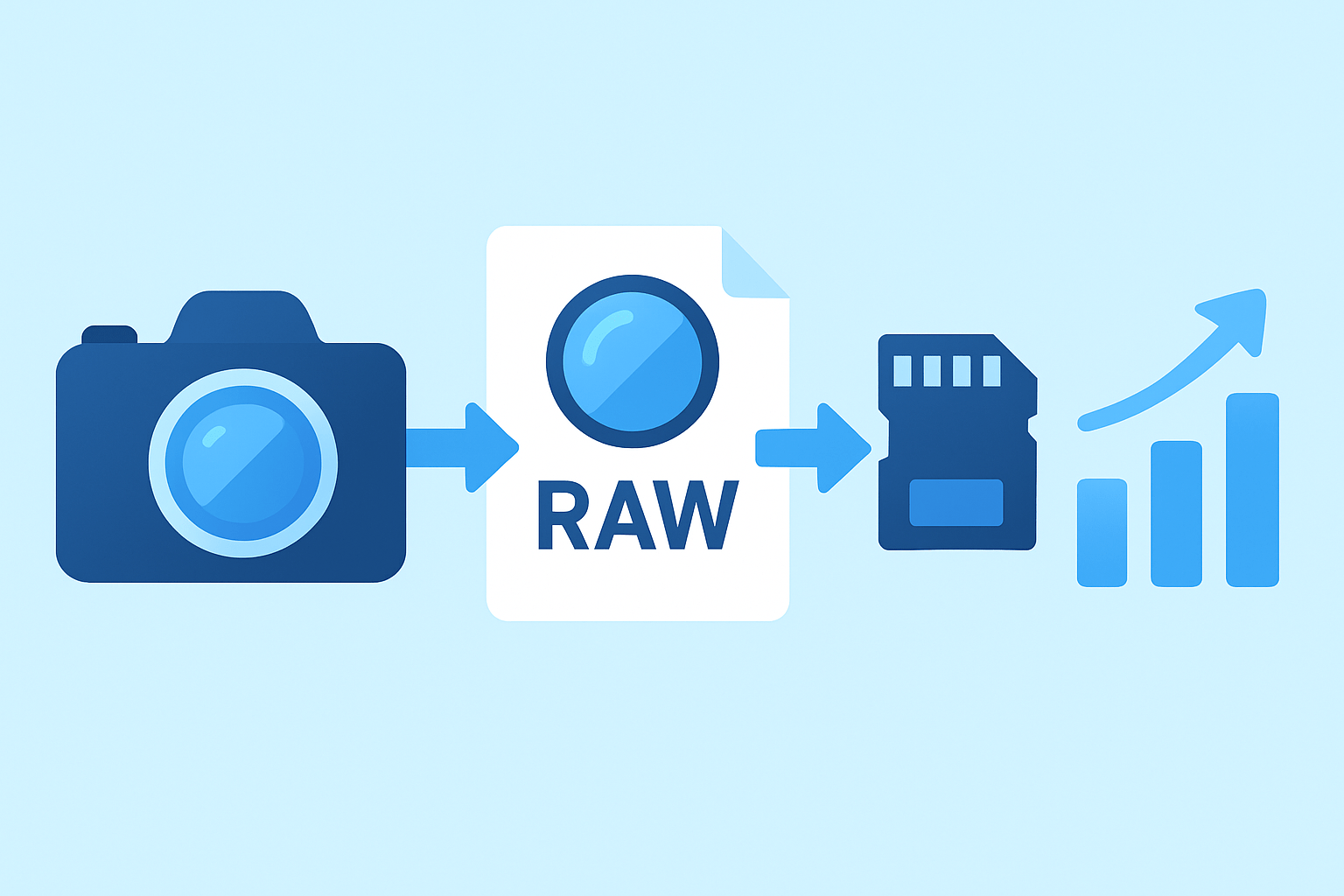
Quick answer: open a RAW file in Photoshop using File > Open and it will launch Adobe Camera Raw first. To edit an existing layer inside a PSD, go to Filter > Camera Raw Filter and convert the layer to a Smart Object for non‑destructive edits.
The fastest method is simple. 1) Open Photoshop. 2) Choose File > Open. 3) Pick a RAW file like .CR2, .CR3, .NEF, .ARW, .RAF, .RW2, .ORF, or .DNG. Camera Raw opens automatically for adjustments, then you click Open or Open Image to send it into Photoshop.
When the Camera Raw dialog appears, make basic tweaks, then decide how you want to enter Photoshop. Use Open to commit the settings, or use Open Object to place the image as a Smart Object so you can re-open Camera Raw later with a double‑click on the layer thumbnail.
You can also launch from Adobe Bridge if you prefer browsing thumbnails first. Select one or many images in Bridge, then right‑click and choose Open in Camera Raw or use the File menu in Bridge to do the same. The multi-image Camera Raw view shows a filmstrip so you can edit, sync, and open several photos in one go.
If your document is already open in Photoshop, select the layer you want to adjust and choose Filter > Camera Raw Filter. If the layer is a Background and locked, unlock it first by clicking the lock icon, or convert it to a Smart Object so the filter stays editable. The filter gives you the Camera Raw toolset inside Photoshop for quick tonal and color work.
On macOS you will see Photoshop > Settings or Photoshop > Preferences in the menu bar, while on Windows look under Edit > Preferences for related options. Keyboard tips also differ: use Cmd on Mac and Ctrl on Windows, for example Cmd+O or Ctrl+O for Open. Menu wording can vary slightly between Photoshop versions, so verify names if something looks different in your build.
If Camera Raw doesn’t appear, update both Photoshop and the Camera Raw plugin in the Creative Cloud app. If a new camera is not recognized, convert your files to DNG using Adobe DNG Converter and try again. If images open directly into Photoshop, confirm they are true RAW files and not TIFFs or PSDs with a RAW-like name, and review file associations in your OS.
If you’re brand new, skim a short overview first so the interface makes sense; this guide on Camera Raw basics is a helpful foundation. Once you see where the tools live, learning how to open Camera Raw becomes second nature.
Opening Camera Raw with Raw Files
RAW photos open straight into Camera Raw by design. Photoshop hands them to the plugin first, so you can set white balance, exposure, and lens corrections while the sensor data is still at maximum flexibility.
Most popular RAW types are supported, including NEF, CR2, CR3, ARW, RAF, RW2, ORF, and DNG. When a new camera launches, always update Camera Raw before a shoot or import so you are covered for fresh file formats.
For a single file, double‑click it from Finder or File Explorer with Photoshop as your default editor, or choose File > Open in Photoshop. Camera Raw will appear first, and after edits you can press Open Image, or pick Open Object if you want a re-editable Smart Object inside your PSD.
For batches, open Adobe Bridge and navigate to your folder. Select multiple RAW files, then choose Open in Camera Raw; the filmstrip along the left or bottom lets you move between frames, sync settings, or apply presets to all selected shots in one sweep. This is the fastest way to do consistent edits across a set.
Presets and Sync are your best friends in the multi-image view. Create a simple look, click Sync to push it to other images, or set a preset with your lens corrections and color profile so every import starts clean. It’s the easiest way to speed up your workflow before detailed retouching.
Do your core technical corrections here. Set the white balance, exposure, contrast, highlights, and shadows, then enable lens profile corrections and remove chromatic aberration in the Optics panel. If noise is visible, a light touch in Detail helps before you move into Photoshop.
Decide how you want to move forward into Photoshop. Use Open Image for a standard pixel layer, or Open Object to retain full Camera Raw access later by double‑clicking the layer thumbnail and adjusting again. Open Object is perfect when you expect to fine‑tune color after retouching.
If you see “file not recognized,” update Photoshop and the Camera Raw plugin first. When that fails for a brand‑new camera, convert to DNG and reopen. If a file jumps straight to Photoshop instead of Camera Raw, confirm it wasn’t previously exported to TIFF or PSD, and review this Adobe page on open and save to compare your steps with Adobe’s flow.
Opening Camera Raw with Non-Raw Files
JPEG and TIFF files can also open in Camera Raw, which is useful when you want RAW-like sliders for quick color and tonal fixes. Many photographers prefer this for fast, consistent edits across mixed formats.
You can set Photoshop or Bridge to open supported JPEGs and TIFFs automatically in Camera Raw. In Photoshop, open Preferences and find Camera Raw preferences, then enable the options to open supported JPEGs or TIFFs; on macOS the path appears under Photoshop in the top menu, and on Windows under Edit > Preferences. Names move around between versions, so check your version’s wording and confirm the JPEG and TIFF handling section is active.
If you don’t want to change preferences, use Bridge as a launcher. Right‑click any JPEG or TIFF and choose Open in Camera Raw, or use the Bridge File or Tools menu to do the same. You get the full Camera Raw interface without touching global preferences.
Inside Photoshop, you can open the JPEG or TIFF normally, then choose Filter > Camera Raw Filter for the same tools. For best results, convert the layer to a Smart Object first so you can re-open the filter and avoid quality loss from repeated edits.
Change preferences when you import JPEGs or TIFFs all the time and want Camera Raw by default. Use the Camera Raw Filter when you only need occasional ACR edits or when you are mid‑retouch and want a quick grade on a single layer.
Keep an eye on image modes and bit depth if the filter is disabled. Convert to RGB Color and 8 or 16 Bit/Channel via Image > Mode if you opened a 32‑bit HDR or a CMYK document that grays out the filter. Some specialty TIFF compressions or unusual bit depths may block Camera Raw from opening; resave the file as a standard TIFF or PSD and try again.
If “Open in Camera Raw” is missing in Bridge, update Bridge and the Camera Raw plugin through Creative Cloud. If a JPEG or TIFF still refuses to open in ACR, open it in Photoshop, convert the layer to a Smart Object, and apply Camera Raw Filter there. This keeps your workflow moving while you sort out preferences later.
Camera Raw Filter in Photoshop
There are two ways you meet Camera Raw: the dialog that appears before a RAW file enters Photoshop, and the Camera Raw Filter that runs on layers inside Photoshop. The filter gives you those familiar sliders after compositing, retouching, or type work is in place.
To apply it safely, convert your target layer to a Smart Object first. Then go to Filter > Camera Raw Filter, make your adjustments, and click OK; the filter appears beneath your layer as a Smart Filter so you can reopen and tweak settings anytime.
Re-editability is the big win here. Double‑click the Camera Raw Smart Filter to bring the dialog back, change a slider, and you are done without adding new copies or degrading pixels. The Smart Filter also comes with a mask, which is perfect for targeted control.
Use the filter for a finishing grade or for selective tone and color after retouching. Mask the Smart Filter to limit the effect to skies, skin, or background, and stack multiple Camera Raw instances if you want separate looks for different parts of the image. It’s a flexible, non‑destructive way to keep your PSD tidy.
A practical photographer’s flow looks like this. Start with RAW in Camera Raw for base exposure and white balance, jump into Photoshop for cleanup and composites, then apply the Camera Raw Filter as a final grade on a Smart Object. This sequence is fast and retains control at each step.
If Camera Raw Filter is grayed out, check Image > Mode and switch from 32‑bit or CMYK to RGB at 8 or 16 bits per channel. Make sure the layer isn’t hidden or locked, and confirm GPU drivers are current if performance feels sluggish.
If you want extra handholding on the sliders and local tools, a short beginner tutorial can be a great primer. Once you know how to open Camera Raw in both places, you can decide whether the filter or the pre-open dialog is the better moment to grade.
Converting Layers to Smart Objects for Camera Raw
Smart Objects are the secret to non‑destructive Camera Raw work on non‑RAW layers. They let you reopen Camera Raw Filter settings, mask them precisely, and preserve your original pixels for later changes.
To convert, select the layer, right‑click it and choose Convert to Smart Object, or use Layer > Smart Objects > Convert to Smart Object. If the layer is a locked Background, click the lock to unlock it first, then convert so the filter can attach as a Smart Filter.
Many editors like to create a merged copy before grading. Press Shift+Ctrl+Alt+E on Windows or Shift+Cmd+Option+E on macOS to make a “stamp visible” layer at the top, then convert that new layer to a Smart Object and apply Camera Raw Filter. This keeps your layers intact below while you grade on a single, re-editable object.
You can also bring outside files in as Smart Objects. Choose File > Place Embedded to pack the pixels into the PSD, or Place Linked to keep file size smaller and reference an external file you can update later. Embedded grows your PSD more, while Linked saves space and can be refreshed if the source changes.
Smart Objects have big benefits for versioning. You can toggle the Camera Raw Smart Filter on and off, duplicate the Smart Object for alternate grades, and paint on the Smart Filter mask to localize the effect. The trade‑off is a larger file and a bit more GPU demand, so be mindful with huge documents.
Two pro examples will make it click. After retouching, create a stamp visible layer, convert to a Smart Object, and add a Camera Raw Filter for the final color grade; this keeps your base work untouched. Or open from Camera Raw with Open Object so the RAW becomes a Smart Object; double‑click the layer later to reopen Camera Raw and adjust the original RAW settings.
If you can’t reopen your filter, the layer may have been rasterized or flattened after applying it. Avoid Rasterize on Smart Objects you plan to keep editable, and do not Merge Down onto them if you need the filter later. If something goes wrong, step back in History or revert to a saved version and try again.
Once you adopt Smart Objects, you will stop worrying about “when” and focus on “how to open camera raw” at the right stage for the job. It turns your edits into flexible choices rather than permanent moves, which is exactly what a modern, non‑destructive workflow should feel like.
What People Ask Most
How to open camera raw?
Open a RAW photo in Photoshop or Bridge and the Camera Raw dialog should launch automatically, or choose Filter > Camera Raw Filter to open it manually.
How do I open Camera Raw in Photoshop?
Open a raw file directly in Photoshop or select Filter > Camera Raw Filter to launch the Camera Raw editor from an open image.
How to open Camera Raw files in Lightroom?
Import your raw photos into Lightroom and go to the Develop module to edit them with Lightroom’s raw tools.
Can I open Camera Raw as a filter on JPEG or PNG images?
Yes, in Photoshop you can use Filter > Camera Raw Filter to apply Camera Raw edits to JPEGs or PNGs.
Why won’t Camera Raw open my photos?
Often the file type isn’t supported or the Camera Raw plugin is out of date, so try updating Photoshop/Camera Raw or converting the file to a supported format.
Do I need to install anything extra to open Camera Raw?
No, Camera Raw is included with recent Photoshop versions, but you may need to update the Camera Raw plugin to support newer camera files.
How to open Camera Raw for multiple photos at once?
Select multiple raw files in Adobe Bridge or Photoshop and choose Open in Camera Raw to edit them as a batch.
Final Thoughts on Opening Camera Raw in Photoshop
Even if you only open 270 files a year, learning the simple paths into Camera Raw pays off fast. We showed the quickest route (File > Open or Bridge) plus the in‑Photoshop Camera Raw Filter and the Smart Object workflow so you can edit without destroying pixels. That mix gives you raw-like control across single files, batches, and layered comps, making it ideal for photographers and retouchers aiming for consistent, edit-friendly results.
By keeping Camera Raw and the Camera Raw Filter in your toolkit you’ll keep more tonal and color control while preserving originals, though be mindful of file compatibility, color modes, and the need to convert certain files or use Smart Objects to keep edits reversible. The guide answered that opening question by giving the fastest one-line instructions, mapping raw and non‑raw paths, and walking through Smart Object conversion so you can reedit later. Keep experimenting — each image teaches you one small improvement.




0 Comments