
How to put pictures on a cd? Want a quick, simple way to save and share your photos on a disc?
This guide shows exactly what you need and how to prepare your images. You will get clear steps for Windows and Mac, plus tips on disc types and backups.
Follow the short checklist and troubleshooting tips to avoid errors. Read on and you’ll burn a clean, compatible photo CD in minutes.
What You’ll Need Before Starting
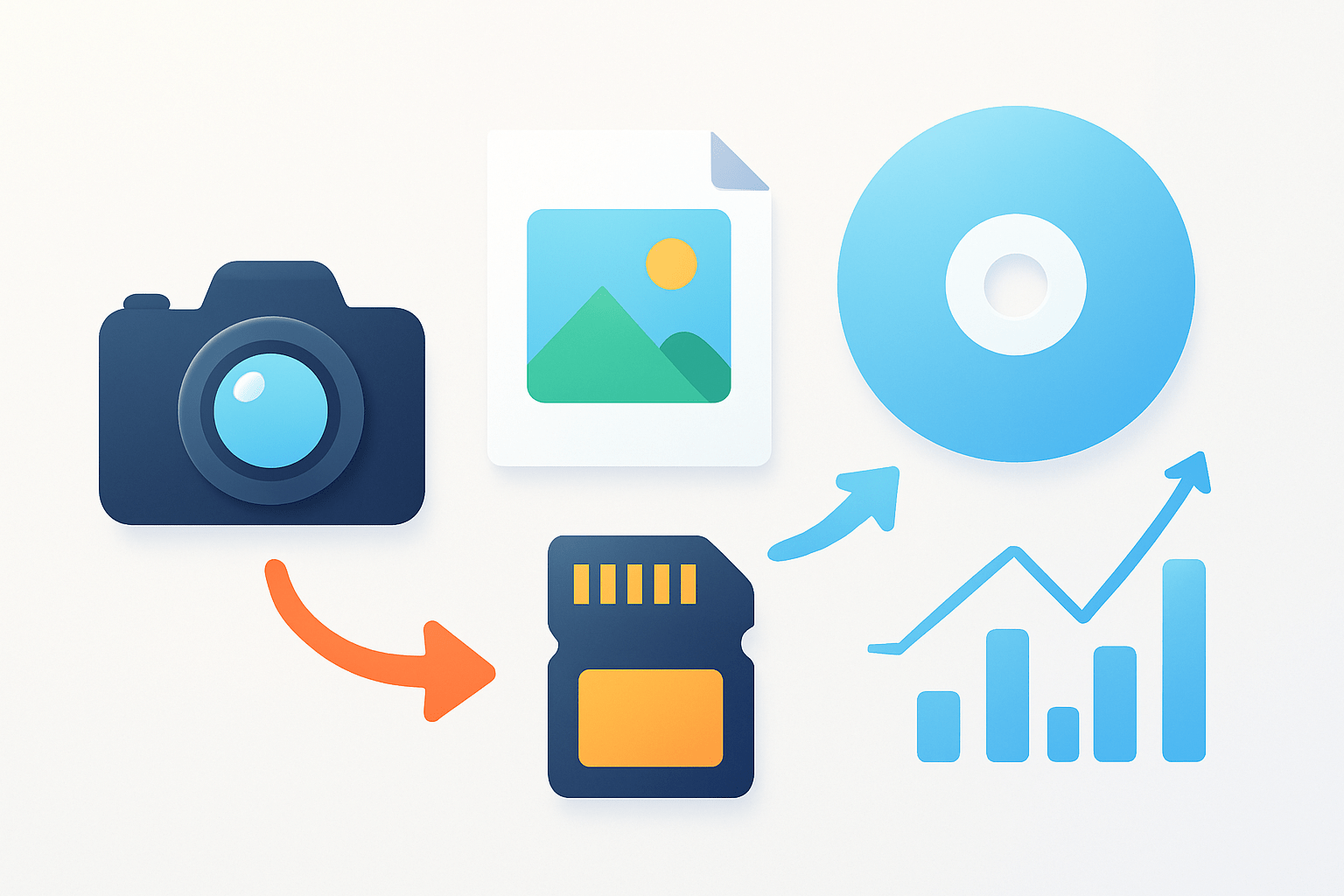
Before you learn how to put pictures on a cd, gather the few things you need. This makes the burn smooth and avoids last‑minute errors.
Choose the right blank disc first. A CD‑R holds up to 700 MB and works on the most devices, so it is the safest pick for sharing.
A CD‑RW can be erased and reused, but some older computers and players reject it. If you have many photos, a single DVD‑R or DVD‑RW with 4.7 GB may be better.
Make sure your computer has a burner. On Windows, open This PC and check if your drive says DVD RW or CD‑RW; if it only says DVD‑ROM or CD‑ROM, it cannot burn.
On a Mac, the disc will appear on the Desktop when you insert a blank; if your Mac has no slot, use a USB CD/DVD burner. External burners are cheap and easy to plug in.
Windows 7, 10, and 11 can burn photos using File Explorer. macOS can burn with Finder, and both support simple data discs that open on most computers.
Built‑in tools are fine, but third‑party apps add control and verification. On Windows, CDBurnerXP and BurnAware are reliable; on Mac, Roxio Toast or the free Burn app works well.
Always keep a backup of your originals before burning. Store them on another drive or in the cloud so a failed disc does not cost you your photos.
Use good‑quality blank discs and a soft‑tip permanent marker for labels. Avoid adhesive labels because they can unbalance the disc or peel in the drive.
For the best compatibility, choose the Mastered option when burning in Windows. Live File System can act like a USB stick but fails on many older players and some computers.
Here is a quick mental checklist you can follow: back up originals, select photos, estimate size, pick disc type, prepare a single burn folder, insert disc, burn, verify, then label and store. Keep this sequence in mind as you work.
If you are choosing between CD, DVD, USB, and cloud, think about capacity and convenience. You can learn more by skimming these storage choices from a trusted photography resource.
One last note on longevity: CDs are not perfect for long‑term archiving. Keep multiple backups and plan to migrate your files every few years.
Preparing Your Photos for Burning
A few minutes of prep prevents failed burns and messy discs. It also helps when you later search for a specific image.
Create a clean folder structure on your computer first. Use names like Family Trips, then add dated folders such as 2026‑05‑15 to keep things in order.
Go through the selection and remove duplicates. Also exclude accidental RAW files if you only want viewer‑friendly images.
JPEG is the best format for most people. Convert RAW to JPEG for sharing, and keep your RAW originals safe on another drive.
For screens, resize the long edge to about 1920 to 2048 pixels. Set JPEG quality near 80 to 90 percent to save space while keeping the picture crisp.
If the disc is for prints, keep higher resolution. You may need a DVD or multiple CDs if the files are very large.
Estimate how many photos fit before you burn. On Windows, right‑click your folder and choose Properties; on a Mac, select the folder and press Command‑I for size.
Do quick math with the total size. A 700 MB CD‑R can hold about 175 photos if each averages 4 MB; at 2 MB per photo, you could fit around 350, and at 6 MB, roughly 116.
Use clear filenames so relatives or clients can browse easily. Keep EXIF metadata if you want date and camera info to show up later.
Export or convert everything to the sRGB color space for consistency. That avoids strange color shifts on devices that do not handle wide gamuts.
Optionally, create a simple index or HTML gallery inside the folder. Tools like IrfanView or jAlbum can make a basic page so viewers can click through easily.
Place all final items into one burn folder. This single folder approach keeps the burn step clean and reduces the chance of missing files when you start how to put pictures on a cd.
Tip: Use CD‑R for best compatibility, especially if you share with schools, offices, or older computers. This small choice prevents many playback issues later.
Step-by-Step Guide to Burning Photos to a CD in Windows
These steps work on Windows 7, 10, and 11. The screens look slightly different, but the process is the same.
Step 1: Insert a blank CD‑R into your burner, internal or external. Wait a moment for Windows to detect it.
Step 2: Open File Explorer and navigate to your prepared folder. Select the files or the entire folder you want to write.
Step 3: Right‑click the selection, choose Send to, and pick your CD/DVD drive. In the Burn a Disc dialog, give the disc a short and clear title.
Step 4: Choose With a CD/DVD player to make a Mastered disc. Avoid Like a USB flash drive unless you must add files later and do not need wide compatibility.
Step 5: Click Next, then open the drive in File Explorer and press Burn to disc or Finish burning from the ribbon. Pick a moderate speed such as 4x to 16x and start the burn.
Step 6: If Windows asks to finalize or close the disc, accept it. Finalizing ensures other computers can read your photos.
Step 7: When it finishes, remove and reinsert the disc. Open a few photos to confirm they display correctly and check the file count matches your source.
If AutoPlay appears when you insert the blank, you can choose Burn files to disc and follow the same prompts. If AutoPlay is off, just use File Explorer instead.
If you want verification or many copies, use a dedicated app. In CDBurnerXP or BurnAware, choose New Data Disc, add your folder, pick the speed, check Verify after burning, and click Burn.
These apps also create ISO images for later duplication. That is handy when you need identical discs for clients or an event.
If your photos show in a temporary burn area but the disc looks empty on another computer, the session was not closed. Reopen the burn window and choose Finish burning to finalize it.
Use CD‑R instead of CD‑RW for gifts, submissions, and archives. CD‑RW causes more compatibility issues on older hardware.
If you prefer to learn by watching, this short video walkthrough pairs nicely with the steps above. Play it once, then do your own burn while pausing as needed.
Follow these steps and you will master how to put pictures on a cd on any recent Windows machine. Keep your speed moderate and verify to avoid surprises.
How to Burn Photos on a Mac
macOS makes data discs with Finder, so you do not need extra software. The process is quick and consistent.
Step 1: Insert a blank CD‑R and wait for it to appear on the Desktop. Open a Finder window to see it in the sidebar too.
Step 2: Prepare a folder with your edited and resized photos. Drag that folder or the files into Finder so they are ready to burn.
Step 3: Select the folder or files, then choose File and Burn “FolderName” to Disc. You can also right‑click the folder and choose Burn.
Step 4: Enter a clear disc name and pick a moderate speed. Click Burn and let Finder write and finalize the disc.
Step 5: When the disc ejects, reinsert it and preview several images. This quick check confirms a clean burn and readable files.
If your photos live in the Photos app, export JPEGs first. Use File, Export, Export X Photos, choose size and quality, then burn the exported folder via Finder.
For more control or slideshows, consider Roxio Toast or the free Burn app. They can also create ISO images so you can duplicate the same disc later.
Finder finalizes discs automatically, which improves compatibility. Still, test the disc on another computer if you plan to share it widely.
Stick to standard JPEGs in a simple folder structure. That keeps the disc cross‑platform and avoids confusion for people who open it on Windows.
Label the disc with a soft‑tip marker and store it in a case. A little care helps the disc last longer and look professional.
Troubleshooting Common Burning Errors
Even careful burns can hiccup. These quick checks solve most issues fast.
If the drive does not recognize the blank disc, try another disc from a different pack. Clean the drive lens and test the disc in another computer if possible.
If burning starts but fails midway, lower the speed and try again. Close other apps, use a better quality disc, and update your drive’s firmware or drivers.
If the disc shows files on your PC but looks empty elsewhere, it likely was not finalized. Reopen your burner, choose Finish burning or Close session, and test again.
If the disc reads on the computer but not on a standalone player, you may have used Live File System. Reburn as a Mastered disc so the player can see the files.
If some photos look corrupted or missing, use software with Verify after burning. Compare file counts and open random images to confirm the disc is sound.
If you have no optical drive, plug in an external USB CD/DVD burner. Another option is to create an ISO on one computer and have a duplication service make copies.
Automated verification is great, but add a manual check. Open five to ten random photos and scroll quickly to catch any unreadable files.
For batches, write one perfect disc and keep an ISO image. Use that ISO to make clones so every client gets an identical copy.
Tip: Burn at a lower speed if you see errors. Slower writes often give cleaner, more compatible discs.
Here is a quick “if this, then that” guide in plain words. If Windows offers two options, pick Mastered; if you need to add later and only use the disc on one new PC, Live File System is fine.
If Explorer shows a “to be written” list but nothing appears on another machine, finalize. If a DVD or CD player will not read your disc, rebuild it as a finalized data disc.
If you are unsure about an app’s steps, skim this clear saving photos to disc guide for a second viewpoint. It reinforces the same best practices and can help you spot what you missed.
Prevent problems by using reputable media, choosing moderate speeds, and finalizing every disc. Label immediately, then store in cases away from heat and sunlight, and keep digital backups elsewhere.
Finally, remember why you learned how to put pictures on a cd in the first place. A careful burn, a quick verify, and safe storage let your memories travel and endure.
What People Ask Most
How do I put pictures on a CD using Windows?
Open File Explorer, drag your photo files to the CD drive, then choose “Burn to disc” to create a readable CD.
How do I put pictures on a CD using a Mac?
Insert a blank CD, open Finder, drag photos to the disc, then choose File > Burn to write the pictures to the CD.
Is it easy to learn how to put pictures on a CD?
Yes, the basic steps are simple and built into most Windows and Mac computers, so beginners can learn quickly.
Do I need special software to put pictures on a CD?
No, most computers have built-in burning tools, though third-party apps can add extra features if you want them.
Will my pictures lose quality when I put them on a CD?
No, burning copies the original files, so image quality stays the same unless you edit or compress the files first.
Can I view pictures directly from the CD on any computer?
Most computers with a CD drive can open picture files from a disc, but some modern devices no longer include CD drives.
What mistakes should I avoid when I put pictures on a CD?
Always test the burned CD and keep a backup copy, and avoid handling or scratching the disc to prevent data loss.
Final Thoughts on Burning Photos to CD
Gathering your hardware, blank discs, and burning software up front is the simplest way to avoid surprises — even if you’re working with 270 photos you’ll know whether a single CD will hold them or if you need a DVD or extra discs. That upfront checklist is the real win: fewer failed burns, faster workflow, and a disc that’s easy for others to open.
We walked through prepping images (naming, resizing, sRGB), step‑by‑step burns for Windows and macOS, and smart choices like using CD‑R and verifying after burning. One realistic caution: optical media aren’t a perfect archival solution, so keep originals backed up and plan to migrate files over time.
This guide answers the opening question — how to put pictures on a CD — by giving clear prep steps, exact UI choices (Mastered vs Live File System), and troubleshooting so you can finish with readable discs. For hobbyists, photographers, and anyone sharing memories offline, you’ll be set to make tidy, readable discs and preserve the moments with confidence.




0 Comments