
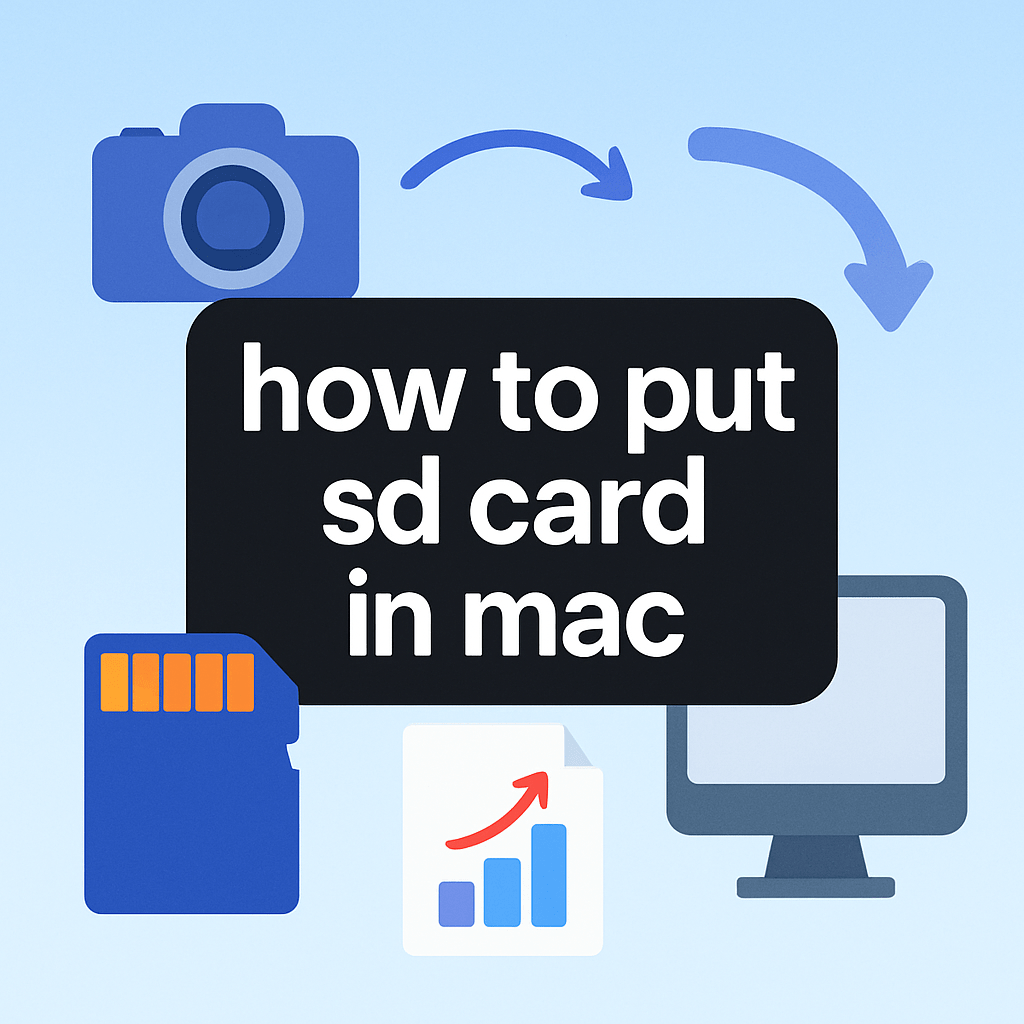
How to put SD card in Mac? Want a quick, simple way to get your photos and files onto your Mac?
This guide gives a one-line quick answer. It has clear numbered steps to insert SD card in Mac, mount SD card on Mac, and fix cards that are not showing up on Mac.
You’ll learn about built‑in slots, adapters, and USB‑C card readers. It also covers formatting and safe ejection so you don’t lose files.
Follow short checklists and troubleshooting tips for fast results. Warnings appear before any formatting or Terminal steps.
Step-by-step guide: How to put an SD card in a Mac

Quick answer: if you need how to put sd card in mac fast, find the slot or connect a reader, insert the card with contacts correctly oriented, wait for it to mount, and always eject before removing.
1. Identify your Mac’s setup. Check if it has a built-in SD slot, or if you need a USB-C/USB-A card reader or hub.
2. For a full-size SD in a built-in slot, hold the card with metal contacts facing down, or toward the hinge on some models. Push gently until it seats or clicks.
3. For microSD, place the card into a full-size SD adapter with contacts aligned. Then insert the adapter into the Mac’s slot the same way.
4. For external readers, plug the reader into your Mac first. Insert the card into the reader and wait a few seconds for the card to appear.
5. Confirm it mounted in Finder’s sidebar or on the Desktop if enabled. If not visible, open Disk Utility to check the card’s status.
You do not need to shut down your Mac to insert or remove a card. Do not force the card; if it resists, the orientation is likely wrong.
Eject safely every time. Use the eject icon in Finder’s sidebar, right-click the card on the Desktop, or press Command+E in a Finder window.
For model-specific slot details and card types, see Apple’s guide to the SDXC card slot. It explains size and speed compatibility across Macs.
How to connect the card to your Mac (built‑in slot, adapters & USB‑C card readers)
Some iMac and MacBook Pro models include an SD slot, while many modern MacBooks do not. If your Mac lacks a slot, use a USB-C card reader for the cleanest, most reliable connection.
Choose a direct USB-C reader over a cheap all-in-one hub when speed or reliability matters. USB-A readers still work with an Apple adapter, but the extra dongle can throttle speed and add wobble.
Look for readers and cards with UHS-I or UHS-II and honest read and write speed ratings. Pair them with USB 3.1/USB-C or Thunderbolt interfaces, and prefer bus-powered, well-reviewed brands.
Seat microSDs fully in their SD adapters and double-check the adapter’s lock switch is off. For critical transfers, avoid stacking through hubs; plug the reader straight into the Mac.
If you regularly connect cameras, drives, or readers, Apple’s help page on other storage devices is a solid reference. It covers power, formats, and connection behavior on macOS.
Troubleshooting: SD card not recognized / not showing up on Mac
Work down this quick list. Reinsert the card, try a different port, switch to another reader, or test the card in a camera or phone to rule out the card itself.
Try a known-good card in the same reader. Reboot your Mac to refresh USB and storage services. Many “SD card not showing up Mac” issues clear after a simple restart.
In Finder, open Settings or Preferences and enable External disks for both Desktop and Sidebar. This ensures a mounted card actually appears where you expect.
Open Disk Utility and look for the card in the left list. If the volume is greyed out, select it and click Mount, then run First Aid; reformat only after backing up data elsewhere.
Advanced users can try Terminal commands: diskutil list to find the identifier and diskutil mountDisk /dev/diskN to mount. Be careful, as wrong commands can affect other drives.
If problems persist, reset NVRAM/PRAM and the SMC, and update macOS and any reader firmware. Swap readers and adapters before attempting data recovery, since readers fail more often than cards.
For deeper walk-throughs and port-specific quirks, this guide to mounting an SD card can help. If nothing works and the card clicks or heats up, stop and seek recovery help.
Check card format compatibility & preparing the SD card (FAT32, exFAT, NTFS)
For cross-platform use, exFAT is best and has no 4 GB file limit. FAT32 works with older devices but limits single files to 4 GB; NTFS is read-only on macOS without third-party drivers, while APFS and HFS+ are Mac-only.
Back up first if you plan to reformat. Use Disk Utility, click Erase, choose a Format and a Scheme, then name the card; select GUID for Macs, or MBR if a camera manual requires it.
Reformat only when the card is corrupt or incompatible and repair failed. Import your photos or copy files off the card before erasing, because formatting permanently deletes data.
Cameras may prefer FAT32 or exFAT depending on age and video bitrate. Test short clips before a big shoot to confirm file size limits and stability.
Practical tips & safe handling (quick dos & don’ts)
Always eject before removing to prevent file corruption. Use Finder’s eject icon, right-click eject, or Command+E in a window.
Do not force cards and avoid touching the metal contacts. Keep cards in cases, and check the adapter’s lock switch if the card suddenly becomes read-only.
Use the right speed class for 4K or high-bitrate video and choose reputable brands. A fast reader plus a UHS-II card can cut import time dramatically.
Import with Photos, Image Capture, or a Finder copy, then rename the card for easy tracking. Now you know how to put sd card in mac safely, and how to mount an SD card on Mac without hassles.
What People Ask Most
How to put SD card in Mac?
Insert the SD card into your Mac’s SD card slot with the label facing up and the metal contacts going in first, or use a USB/USB-C card reader if your Mac has no slot.
What if my Mac doesn’t have an SD card slot?
Use a USB or USB-C SD card reader and plug it into your Mac, then insert the SD card into the reader so it appears like an external drive.
How do I import photos from an SD card to my Mac?
Open the Photos app or Finder, select the SD card, then drag images to your Mac or use the Import button in Photos.
How can I safely eject an SD card from my Mac?
Click the eject icon next to the SD card in Finder or drag its icon to the Trash, then wait for it to disappear before removing the card.
Why is my Mac not recognizing my SD card?
Try reconnecting the card or reader, test the card in another device, and restart your Mac — the card may need reformatting or the reader might be faulty.
Can I use an SD card to expand storage on my Mac?
Yes, you can store files on an SD card and access them like an external drive, but it’s best for extra or temporary storage rather than running apps.
Is it safe to leave an SD card plugged into my Mac all the time?
It’s usually safe, but leaving a card inserted can increase wear and risk of accidental data loss, so eject it when not in use and keep backups.
Final Thoughts on SD Cards and Your Mac
You can rely on a simple approach — whether your card or camera says 270 or not — to get photos and files onto a Mac quickly and predictably. Photographers, travelers, and creators moving media will find it saves time and removes guesswork.
That quick one-line answer at the top covered the fastest insert-and-mount steps, while the guide also explains adapters, mounting, formats, and basic fixes. Caution: back up before erasing or running Terminal commands, and don’t force a stuck card to avoid data or hardware loss.
This is best for people who shoot, edit, or transfer lots of photos and videos, and for anyone who wants predictable transfers. Keep the simple steps and safe habits in mind, and you’ll get back to editing fast with less stress.




0 Comments