
What is filter failed on printer? Is it stopping your print jobs with a confusing error?
This article explains what that message means and why it often happens on macOS. You will learn the common causes and simple fixes.
Follow step-by-step troubleshooting from quick checks to reinstalling drivers and reading CUPS logs. The guide includes screenshots, checklists, and safe commands with clear warnings.
Try each fix in order and test after every step. By the end you will know if it is a software issue, how to fix it, or what info to give support.
What is Filter Failed Error on Printer?
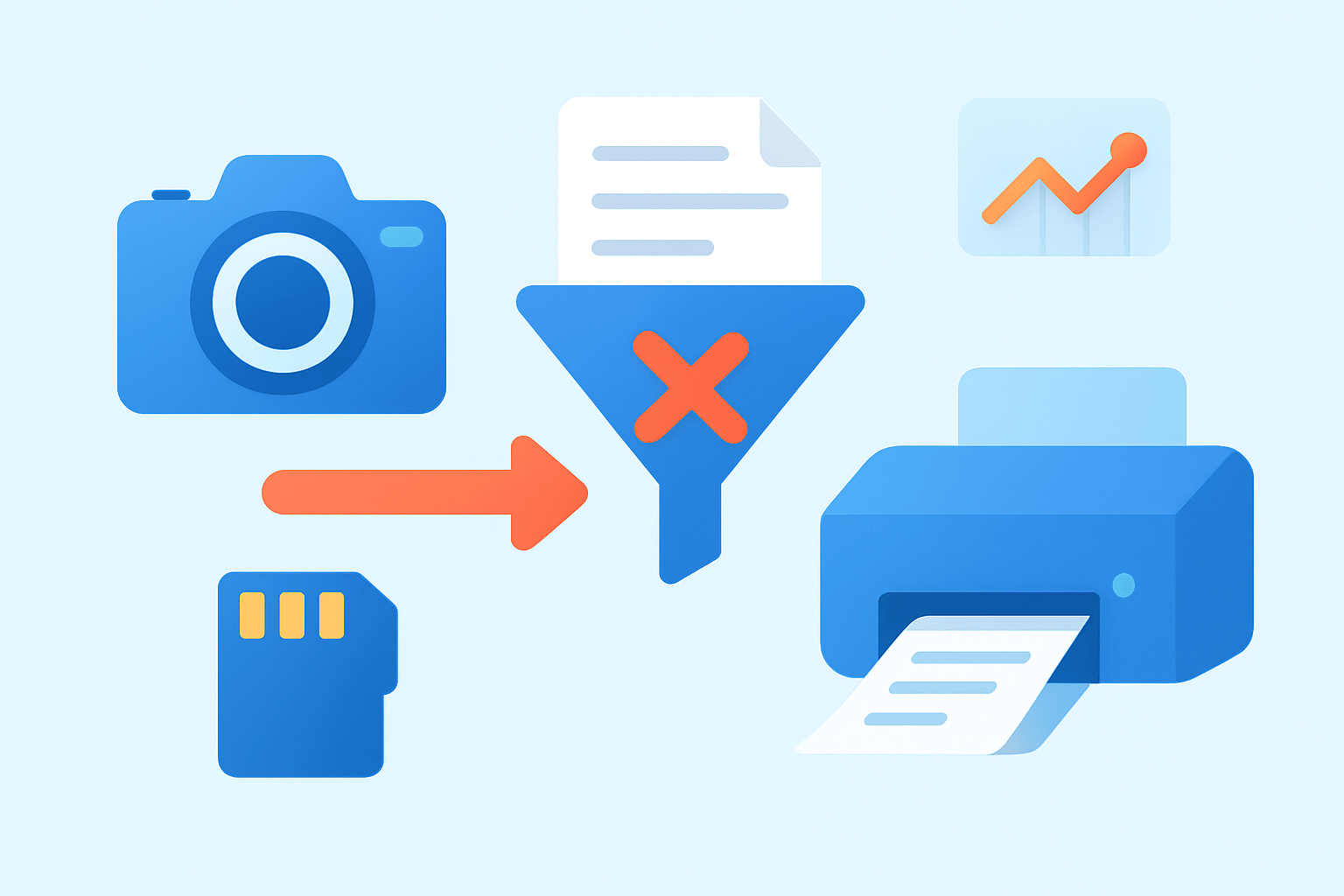
TL;DR: A “Filter failed” message means the print filter, the software piece that turns your file into the language your printer understands, crashed or returned an error. It is almost always a software, driver, or compatibility issue, most often seen on macOS.
If you wonder what is filter failed on printer, think of the print path as a chain. Your app sends the job to a print filter, the filter talks to the driver/PPD, the CUPS spooler queues it, and finally the printer receives it. If the filter in the middle breaks, the job stops and macOS shows “Filter failed.”
On macOS, Apple’s printing system is CUPS. Filters typically live in /usr/libexec/cups/filter and in vendor folders like /Library/Printers/ and /Library/Printers/PPDs. The PPD (PostScript Printer Description) tells the system which options your model supports, while filters and backends do the heavy lifting of conversion and transport.
The error can appear in several ways. You might see “Filter failed,” “ERROR: Filter failed with exit status 1,” “Stopped — Filter failed,” or “Printer paused — Filter failed.” Sometimes the queue simply stalls and the job disappears after a second, which also points to the filter crashing.
People run into this most when printing PDFs, especially complex ones or those opened in Adobe Acrobat. It also happens with Word documents that have heavy graphics, or very large photos. The issue can show up over USB or AirPrint, and it is common right after a macOS upgrade when old drivers no longer match the system.
In many cases, the printer is fine and nothing is physically broken. The filter error is software talking to software, so your fix is to update, swap, or reset the software pieces in that chain. The good news is you can usually fix it at home in a few minutes.
The simple takeaway is this: the error almost never means your hardware died. It means something in the print pipeline crashed, and you will fix it by updating the driver, changing the app, re-adding the printer, or cleaning the print system.
Causes of Filter Failed Error
The most common cause is a corrupt, missing, or incompatible printer driver or filter. If the vendor filter binary cannot run or crashes, CUPS reports “Filter failed,” and the queue stops or auto-pauses.
macOS updates often expose older, unsupported, or 32-bit leftovers from vendor installers. After a major OS upgrade, an old filter may no longer load, and the system falls back to the generic stack with errors.
Permissions or executable-bit problems on the filter files can also trigger this. If a filter in /usr/libexec/cups/filter loses its execute bit, the system cannot run it, and the job fails immediately.
Application-specific conflicts are very common. Adobe Acrobat uses its own print engine and can trip on transparency, fonts, or color profiles, while the same PDF prints fine from Preview or Chrome.
Problematic document content can crash filters too. Heavy vector art, odd embedded fonts, complex transparency, or extremely large images can overflow the filter’s memory or hit unsupported features.
A stuck print queue or CUPS database corruption can present as random “Filter failed” errors. Clearing jobs and restarting CUPS often clears hidden state that causes new jobs to crash at start.
Connectivity and firmware issues matter as well. A flaky USB cable, a Wi‑Fi drop, or old printer firmware can trigger mid-job failures that look like filter errors from the Mac’s point of view.
Printer sharing and remote spoolers can add permission issues. If a shared queue uses credentials that changed, the upstream job might fail with a generic filter message downstream.
To diagnose, compare patterns. If every app and every file fails, suspect the driver or filter. If only Acrobat fails, the app is the likely culprit; if only one document fails, the content needs simplifying or flattening.
Some brands lean on vendor drivers more than others. HP and Canon often install full driver suites, Epson models sometimes need vendor filters for advanced features, and many newer printers work best with AirPrint. For model-specific help, you can also read focused notes like Epson filter failed to see patterns unique to a brand.
How to Fix Filter Failed on Mac Printer (step-by-step troubleshooting flow)
Start with the basics before you dig deep. Quick checklist: restart your Mac and printer, clear the print queue, try printing from Preview, update drivers or macOS, and reset the printing system only if needed.
Step 1: Do quick checks. Power cycle the printer and the Mac, wait 30 seconds, and turn them back on. Verify the USB cable or Wi‑Fi connection, try another cable or 5 GHz Wi‑Fi, and make sure both devices are on the same network.
Step 2: Clear the print queue. Open System Settings, Printers & Scanners, select your printer, and open the print queue window, then cancel all jobs. If a job refuses to die, wait a minute or toggle the printer Off and On, then try a tiny text file to test.
Step 3: Try a different app. Open the same document in Preview or print a plain TextEdit file; if that works, the system filter and driver are OK and the problem is app-specific. If everything fails the same way, focus on the driver or CUPS.
Step 4: Fix Acrobat-specific issues. In Acrobat’s Print dialog, open Advanced and choose “Print as Image,” then try again, or export the PDF and print it from Preview instead; also update Acrobat to the newest version. Consider a screenshot showing where “Print as Image” sits in Acrobat to guide future attempts.
Step 5: Change the default PDF viewer to Preview and test. Select any PDF in Finder, Get Info, choose Preview under Open with, and click Change All, then print the file from Preview to bypass Acrobat’s engine.
Step 6: Re-add the printer. In Printers & Scanners, delete the printer, click Add, and let macOS auto-discover it; if the Use field offers AirPrint, prefer it because it is driverless and stable. If AirPrint is not available, choose the exact model driver or a Generic PostScript driver as a test.
Step 7: Update macOS and apps. Minor macOS updates include print stack fixes, and app updates can resolve crashy print paths, so install the latest updates, then test again with a small file. If you are on a newer OS and seeing this after upgrading, this macOS Sonoma fix overview can help you cross-check steps.
If the error persists, try simple workarounds that avoid the failing path. Switch to the Generic PostScript or Generic PCL driver, or add the printer again using AirPrint to bypass vendor filters entirely. Export a flattened PDF by printing to PDF or using Preview’s Reduce File Size option, then print the new file.
Test methodically to isolate the scope. Try a tiny one-page PDF, then a photo, then your original complex file to see where it breaks; also try a different user account to rule out profile-level issues. If another Mac or iPhone can print to the same printer, your printer is fine and the issue is on the original Mac.
If you searched “what is filter failed on printer” because it started after an update, re-adding the printer with AirPrint and updating your apps fixes it most of the time. If you still see the message, move on to a clean driver reinstall or a printing system reset.
Reinstalling and Updating Printer Drivers & Firmware
AirPrint is Apple’s driverless path and is the safest choice when your printer supports it. Vendor drivers install PPDs and filters that expose more features, but they add moving parts and can break after OS updates.
Start by downloading the newest driver and firmware from the maker’s site for your exact model. If the vendor provides an uninstaller, run it first to remove old components and restart the Mac before installing the fresh package.
Next, remove the printer from Printers & Scanners and quit any helper apps the vendor installed. Avoid deleting system files by hand unless the vendor’s instructions say so; if you must, back up first and follow their exact steps for removing folders under /Library/Printers/
Reinstall the driver, then add your printer again. In the Add dialog’s Use field, prefer AirPrint when available, otherwise choose the listed manufacturer driver, and as a last resort try Generic PostScript to test stability before switching back.
Update firmware if the vendor offers it, either with a desktop tool or the printer’s web page. If macOS blocks the driver because it is from an unidentified developer, open System Settings, Privacy & Security, and click Allow to let the signed installer finish.
Resetting the Printing System and Advanced Fixes (CUPS, logs, Terminal)
When nothing else works, reset the printing system as a last resort. In Printers & Scanners, right-click the printers list and choose Reset printing system, confirm, and let macOS remove all printers, queues, and jobs; a screenshot here helps you find the hidden option.
After the reset, add printers back by clicking Add and letting macOS auto-discover them. If auto-discovery fails, go to the IP tab, enter the printer’s IP, and choose IPP or HP Jetdirect as the protocol, then test with a one-page document.
For deeper diagnostics, enable the CUPS web interface. In Terminal, run sudo cupsctl WebInterface=yes, then open http://localhost:631 in your browser to view queues, drivers, and job history, and take a screenshot of the queue status for support.
View CUPS logs to see which filter crashed and why. In Terminal, run sudo tail -n 200 /var/log/cups/error_log to read recent lines, and look for filter names, exit codes, or missing file errors; on newer macOS you can also use log show with a CUPS predicate.
If CUPS seems stuck, try restarting it cautiously. Run sudo launchctl kickstart -k system/org.cups.cupsd to restart the service, wait a few seconds, and try your test print again, keeping in mind that sudo commands can affect system services.
Check filter executable permissions if logs point to “not executable” or “permission denied.” List them with ls -l /usr/libexec/cups/filter and, if a vendor filter lacks the execute bit, restore it with sudo chmod +x path-to-filter, but avoid editing Apple files and always back up first.
If vendor filters remain stubborn, uninstall using the vendor’s tool and reinstall cleanly instead of deleting system files with rm -rf. For community perspective on tricky cases, this Apple Support thread shows how others traced their filter errors and resolved them.
For complex PDFs, export to PostScript then reconvert to PDF, flatten transparencies in Acrobat, reduce the PDF version, or print the file from another machine to confirm the content is the trigger. If you continue to struggle, collect details before calling support to speed resolution.
When you escalate, prepare a simple message: Model, connection type, macOS version, exact error text, steps tried, whether AirPrint or vendor driver is used, a short description of the document, and a 20–40 line excerpt from CUPS error_log. This concise template plus a screenshot of your queue and settings helps Apple or your printer manufacturer diagnose in minutes instead of hours.
What People Ask Most
What is filter failed on printer?
It’s an error message that means the printer’s software filter or driver couldn’t process the print job. It usually points to a software, driver, or file issue rather than a physical problem.
Why does the “filter failed” message appear?
It often appears when the printer driver, filter, or the file being printed is corrupted or incompatible. Software conflicts and outdated drivers are common causes.
Can I fix a filter failed error myself?
Yes, many fixes are simple: restart your computer and printer, reinstall or update the driver, and try printing a different or converted file. These steps often clear the error.
Does “filter failed” mean my printer is broken?
No, it usually indicates a software or file problem instead of hardware failure. A hardware issue is less common if the printer otherwise works normally.
Will reinstalling the printer driver help with filter failed?
Often it will, because the error commonly stems from driver or filter corruption. Reinstalling or updating the driver can restore proper printing functions.
Are certain file types more likely to cause a filter failed error?
Yes, very large, corrupted, or uncommon file formats can trigger the error. Converting files to a standard format like PDF often helps.
How can I prevent filter failed errors in the future?
Keep printer drivers and software up to date, use compatible file types, and regularly restart devices. Avoid sending corrupted or overly large files to the printer.
Final Thoughts on Filter Failed Errors
If your printer showed an error like 270 alongside “Filter failed,” this guide walked through why the print filter crashed and how to pinpoint whether it’s the app, the driver, or the document. You’ve got a clear, ordered troubleshooting path—from quick restarts and trying Preview to re-adding printers, updating drivers, and using AirPrint—so you can get prints flowing again without guesswork. Do be cautious when touching system files, using sudo, or resetting the printing system; those steps can help but should be done carefully or saved for last.
The article was aimed at macOS users—home workers, small offices, and IT helpers—who want practical fixes they can try right away. We called back to that opening question about what a “Filter failed” message really means and answered it with plain-language explanations, model-specific tips, and advanced CUPS diagnostics if you need them. You’ll likely be back to reliable printing soon, and you’ll have clearer steps to lean on next time a glitch pops up.



0 Comments