
Why wont my zoom camera work? Stuck with a black screen, “no camera found,” or frozen video at the worst moment?
This guide gives fast fixes and clear steps to get your video back. Start with the top 3 fixes and a one‑minute troubleshooting checklist.
We then cover permissions, Zoom settings, hardware checks, driver updates, and app conflicts so you can self‑diagnose. Coverage includes Windows, macOS, iPhone, Android, and browser users.
If quick steps fail, the article shows advanced fixes, how to gather logs, and when to contact Zoom or your webcam maker. Ready? Let’s fix your Zoom camera now.
Why is my Zoom camera not working?
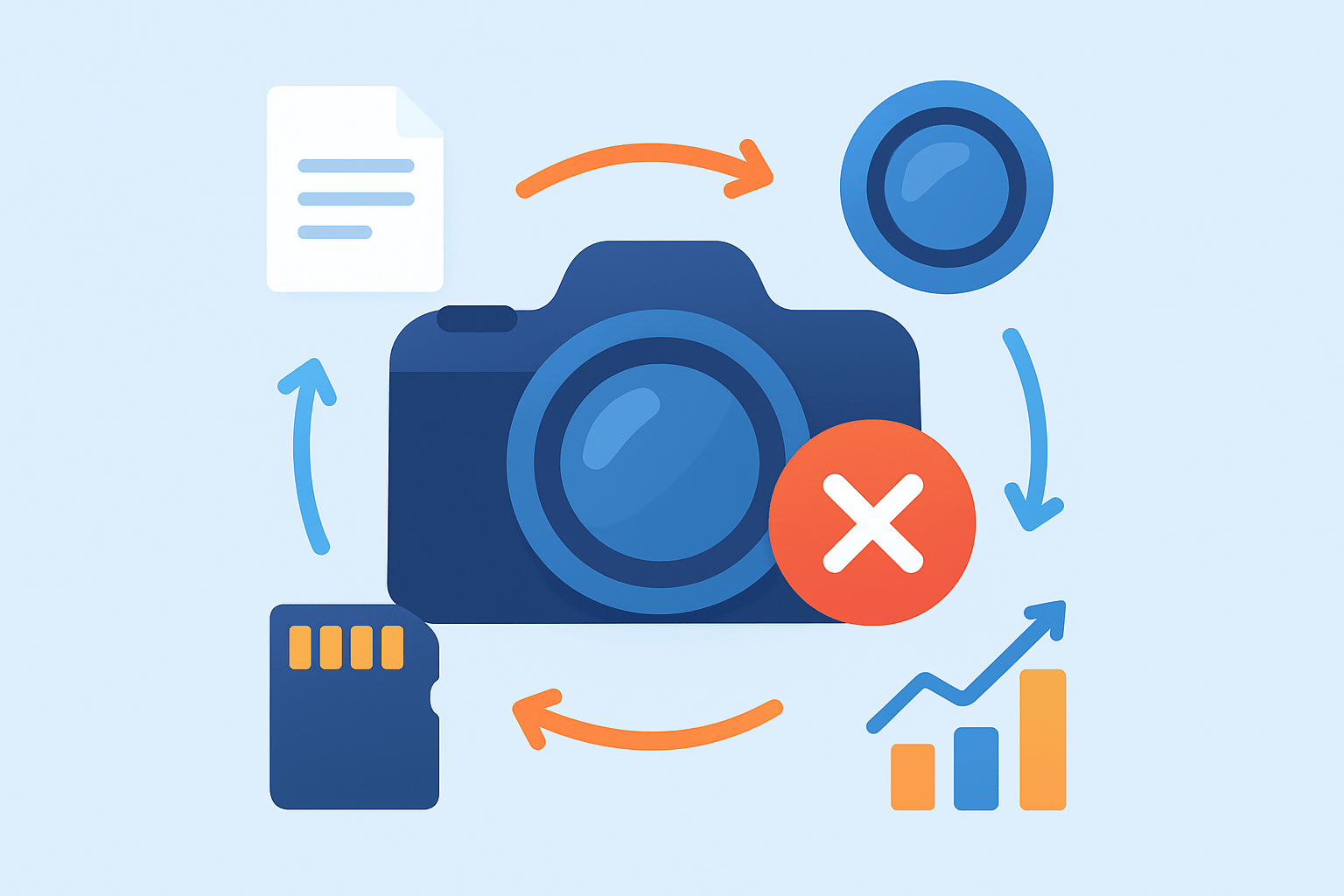
Most Zoom camera failures come from three places: permissions or settings, hardware or connections, and software, drivers, or app conflicts.
If you see a black screen but the camera light is on, another app likely grabbed the webcam first, or Zoom is pointed to a virtual camera. Apps like Teams, Skype, OBS, Snap Camera, or a browser tab with a camera site can hold the device. The fix is usually to close those apps and pick the real webcam in Zoom.
If Zoom says “No camera found” or the camera is missing in settings, the device might be disabled, the driver missing, or the webcam disconnected. External webcams can also be on an unpowered USB hub or a bad port. Start by moving the cable, then check the OS device list for the camera.
If your video is off when you join meetings, it may be a Zoom preference that turns video off by default. Sometimes the host disables participant video for the meeting or for the waiting room. You can turn on video in the meeting or ask the host to allow it.
If video works in other apps but not in Zoom, the OS may be blocking camera access for Zoom specifically. It can also be a Zoom-only conflict, like a virtual camera selected or an old Zoom version. Permissions and source selection are the first things to verify.
If the video is intermittent, frozen, or poor quality, bandwidth or CPU/GPU overload is often the cause. Background tasks, screen recording, or streaming can starve Zoom of resources. Outdated drivers can also cause freezes and dropped frames.
Match your symptom to a starting action so you move fast. Black screen with LED on points to closing other camera apps and choosing the real webcam in Zoom. “No camera found” points to replugging the webcam, checking ports, and ensuring OS permission is on. If you keep asking “why wont my zoom camera work,” jump to the quick checklist below and move through it in order.
Quick troubleshooting checklist — one‑minute fixes to try first
Top 3 fixes that solve most cases: start video inside Zoom, allow camera permission for Zoom, and close other apps that can use the camera. Do these first to save time. Most readers never need more than this.
Now run this one‑minute sequence in order. Stop as soon as your preview shows up and stays stable. If none of these help, move to the deeper checks in the next sections.
1. Click Zoom’s Start/Stop Video button to ensure video is on. You can also use the video toggle shortcut if you know it. Watch the preview or small self-view window.
2. Remove any physical shutter or privacy cover on the lens and check the camera LED. Many laptops and webcams ship with a slider or sticker. Clear the glass and try again.
3. Close and reopen Zoom to reset the camera handshake. Join zoom.us/test to preview your camera without pressure. A clean app restart fixes many device lockups.
4. Restart the computer to release the webcam from any hidden process. Reboots clear driver hiccups and are surprisingly effective. Try Zoom again right after startup.
5. Test the camera in another app like Windows Camera, FaceTime, or QuickTime. If it works there, Zoom or permissions are the likely problem. If it fails, suspect drivers or hardware.
6. Using an external webcam, unplug it and replug it into a different USB port. Avoid USB hubs and plug straight into the computer. If possible, try a different cable.
7. Ask the meeting host whether participant video is allowed. If the host disabled it, your Start Video button will not work. Request permission or have the host change the setting.
8. Close other apps that use webcams, like Teams, Skype, browsers with active camera tabs, OBS, or Snap Camera. Only one app can own the camera at a time. Reopen Zoom afterward.
If your camera still fails after these fast steps, keep going. For more context and screenshots of menus, see Zoom camera issues and then continue below for permissions and hardware checks.
Check permissions, Zoom settings, and camera selection (OS, browser, and Zoom)
On Windows 10/11, open Settings, then Privacy & security, then Camera. Turn on Allow apps to access your camera, and make sure Zoom is allowed in the list. With this off, Zoom can never see your webcam.
On macOS, open System Preferences, then Security & Privacy, then Camera. Unlock the padlock if needed and check Zoom in the list. Restart Zoom after granting access so the change sticks.
On iOS or Android, go to the Zoom app in system settings, open Permissions, and enable Camera. If it was off, relaunch Zoom and test the preview again. A quick reinstall can help on phones if permissions get stuck.
If you use the Zoom Web Client in a browser, click the padlock in the address bar and allow Camera for the site. Then open site settings to pick the correct camera. Confirm the right device inside the browser’s camera menu too.
In the Zoom desktop app, open Settings, then Video, and choose the correct camera from the dropdown. Watch the preview to confirm it is the real webcam. Uncheck “Turn off my video when joining” if you want video on by default.
If Zoom shows a virtual camera like OBS Virtual Camera or Snap Camera, switch back to your actual webcam in the Video source menu. Close the virtual camera app if it keeps taking over. This change alone solves many black-screen cases.
Remember that hosts can block participant video for security or bandwidth. If you see a crossed-out camera and cannot start video, ask the host to enable video for participants. If you are still saying “why wont my zoom camera work,” grab screenshots of your Zoom Video dropdown and your OS camera privacy screen to share with support.
Hardware & connection checks (integrated vs external webcams)
For external webcams, plug the camera directly into a powered USB port on the computer. Avoid unpowered hubs and long extension cables, which can starve the device. Try multiple ports to rule out a weak connector.
Swap the USB cable if your webcam uses a removable one. Test the webcam on a second computer to separate hardware from software issues. If it fails everywhere, the camera itself is likely the problem.
Update webcam firmware if your manufacturer offers a utility. Logitech, Razer, and others ship companion apps that can patch bugs. Firmware updates often fix flicker, focus, and detection problems.
On laptops with integrated cameras, check for a physical privacy shutter or a keyboard camera mute key. Watch the indicator LED to see if the sensor is powered. Many models ship with a tiny slider near the lens barrel.
Some laptops require pressing Fn plus a function key to toggle the camera. If your model has a camera icon on F8, F9, or similar, try that combo. Only check BIOS or UEFI camera settings if you are comfortable and know how to revert.
Look for hardware clues that point away from software. A frayed cable, a wobbly USB port, or no LED power are red flags. If the device never appears in any app or system list, the sensor may have failed.
If your brand needs special drivers or a service pack, install those first. For example, HP owners can follow this clear guide for common laptop fixes at HP laptop camera. Replace the webcam when it is not detected on any machine, has no power LED, or repeatedly fails on multiple systems.
Software updates and advanced fixes (drivers, conflicts, reinstall, tests)
Update Zoom from the profile menu by choosing Check for Updates. Then update your OS to the latest stable version. Many camera APIs are fixed by minor system updates.
On Windows, open Device Manager and look under Cameras or Imaging devices, then update the driver. If Windows says you have the best driver, try the manufacturer’s driver as well. On macOS, camera drivers come via system updates or vendor apps.
If your camera broke right after a driver update, roll back to the previous version. In Device Manager, open the device Properties and use Roll Back Driver if available. Retest in Zoom immediately after the change.
If Zoom still misbehaves, uninstall and reinstall the app. Use Zoom’s clean removal tool if needed to clear leftover files, then install fresh and sign in. You can also uninstall the camera in Device Manager and reboot so the OS re-detects it.
Conflicts are common when multiple apps try to own the webcam. Close Teams, Skype, Discord, browsers with camera tabs open, OBS, and any virtual camera tools. On Windows use Task Manager, and on macOS use Activity Monitor, to quit stragglers.
Run zoom.us/test and note what you see, then test your camera in Windows Camera, FaceTime, or QuickTime. If both fail, it is not a Zoom-only issue. Collect your OS version, Zoom version, camera model, and timestamps to share with support.
Here is sample text you can paste to a host, IT, or support: “My Zoom camera shows a black screen on Windows 11 with a Logitech C920. I tried restarting, checking permissions, reselecting the camera, closing other apps, and reinstalling Zoom. The camera works in the Windows Camera app. Please advise next steps.”
If you still ask “why wont my zoom camera work,” you can compare notes with other fixes at Zoom camera not working. Contact Zoom when the app alone is at fault, the webcam maker when detection or firmware fails, and your IT admin when policies or host settings block video. This path gets you to a solution as fast as possible.
What People Ask Most
why wont my zoom camera work?
Check that your camera is turned on, not covered, and that Zoom has permission to use it in your computer’s privacy settings.
How do I pick the right camera in Zoom?
Open Zoom settings, go to Video, and choose the correct camera from the dropdown while watching the preview to confirm.
What if another app is using my camera?
Close other video apps like Skype or Teams and then restart Zoom, since only one app can use the camera at a time.
Why does my camera work elsewhere but not in Zoom?
Zoom may need permission or an update, so check app permissions and update or reinstall Zoom if needed.
Can restarting my computer fix Zoom camera problems?
Yes, restarting often clears software conflicts and can restore camera access quickly.
Is a covered lens or privacy switch a common cause?
Yes, make sure the lens cap is off and any webcam privacy switch is turned to the open position.
How can I test my camera before a meeting?
Use Zoom’s video settings or the “Start a Test Meeting” feature to check your camera, lighting, and framing before joining.
Final Thoughts on Why Your Zoom Camera Isn’t Working
Think of this guide as your ‘270’ troubleshooting anchor for messy video days. We grouped likely causes into permissions/settings, hardware/connection, and software/driver conflicts, then gave an ordered checklist and deeper checks so you can diagnose what’s wrong fast. That means less guesswork and fewer awkward “can you see me?” moments.
The main payoff is getting you back on camera with minimal fuss while understanding the real cause. Just one realistic caution: if the camera fails everywhere or lacks a power light, it’s probably hardware or an admin policy, not a quick software fix. This is especially helpful for remote workers, teachers, and presenters who need reliable video.
We opened by asking “Why is my Zoom camera not working?” and answered by lining up symptoms, one‑minute fixes, permission checks, hardware diagnostics, and advanced steps so you can self‑diagnose and escalate smartly. You’ll be back on camera sooner than you think, ready for your next meeting.




0 Comments