

Is your GPU the reason your Premiere Pro timeline turns into a slideshow when effects pile up?
Choosing the best video card for Premiere Pro in 2026 can dramatically reduce export times and restore silky‑smooth playback.
In this guide we compare five top graphics cards for Premiere Pro using real‑world benchmarks and user feedback from creators and labs.
We look beyond marketing to measure export speed, timeline responsiveness, and codec behavior across realistic projects.
Our focus is performance, codec and export behavior, VRAM limits, and workflow recommendations you can actually use on set or in the edit bay.
That means testing heavy grading, multicam timelines, long‑GOP footage, and packed effect stacks so you know how a card performs under pressure.
Whether you’re a studio pro pushing 4K and 8K timelines, a mid‑tier creator balancing speed and cost, or a budget editor building a first workstation, this primer is for you.
Each recommendation balances raw power, thermal and power considerations, and practical VRAM needs so you can pick hardware that matches your workflow, not the hype.
We’ll point out the trade‑offs and real gains so you can stop guessing and start editing faster.
Read on to find the best video card for Premiere Pro that fits your project size, codec habits, and pocketbook.
1. RTX 5090 For Premiere Pro

ASUS TUF Gaming GeForce RTX 5090 32GB GDDR7 OC Edition
Extreme 4K and AI performance with massive 32GB GDDR7, factory overclocked speeds, robust cooling and military-grade durability for hardcore gamers and creators.
Check PriceAs a working photographer who edits a lot of video, I look for a GPU that actually speeds up my Premiere Pro workflow, not just benchmarks. The RTX 5090 is the market leader in Premiere Pro tests (Puget Systems, TechRadar) and delivers the fastest export and render speeds, especially for 4K and 8K timelines.
What makes it practical day to day is the 32GB GDDR7 VRAM. That much memory lets you stack GPU‑accelerated effects, multi‑cam sequences, and high‑res timelines without constantly hitting VRAM limits.
The card also includes a 9th‑gen NVENC encoder which improves H.264/HEVC exports. In real projects that means noticeably faster hardware encoding for delivery files and smoother export queues when you’re rendering multiple timelines.
Users report it handles many GPU‑accelerated effects smoothly and stays efficient when properly cooled, though its TDP is high. The physical design is surprisingly compact for the level of power it produces, so it fits mid‑sized cases without forcing a huge chassis upgrade.
If you regularly work in 4K or 8K with heavy grading, stabilization, and layered effects, the RTX 5090 is mostly a no‑compromise choice. Be realistic about your build though: it requires a robust PSU and good cooling to maintain those top speeds.
One practical caveat is availability — demand has been strong, so you may need to wait or shop around. Also keep an eye on driver and Adobe updates, since advanced features like 4:2:2 chroma subsampling support are noted for future updates and can further improve color workflows.
- Industry‑leading encoding/decoding acceleration for Premiere Pro
- 32GB GDDR7 VRAM for large projects and many effects
- 9th‑gen NVENC + future 4:2:2 chroma support
- Compact design relative to its power
- High power consumption; needs robust PSU and cooling
- Availability issues due to demand
2. RTX 5080 For Premiere Pro

NVIDIA GeForce RTX 5080 Founders Edition
High-performance GPU delivering smooth 4K gaming, real-time ray tracing, efficient thermals and advanced AI upscaling for immersive, next-gen visuals.
Check PriceAs a working photographer who edits heavy timelines, the RTX 5080 sits in that sweet spot where you get near‑top performance without breaking the bank. It ranks second in benchmarks and delivers performance very close to the absolute top tier, making it excellent for demanding Premiere Pro tasks.
In practical terms you’ll see strong gains in GPU‑accelerated effects, real‑time playback, preview rendering, and CUDA‑based exports. Its throughput is nearly equal to the previous‑gen flagship in many tasks, so 4K and even 6K timelines with multiple layers and effects feel responsive.
Driver stability and Adobe integration are solid, which matters when deadlines are tight and you can’t babysit crashes. With 16–20+ GB of VRAM available, you have enough headroom for heavy grading, multicam timelines, and stacks of effects without constantly hitting memory limits.
Power and thermals still need attention — plan a capable PSU and cooling — but the card is more power‑efficient than the older flagship generation, so operational costs and heat are better managed. Overall, if you’re a pro wanting high efficiency and reliable Adobe performance without paying for the absolute top model, the RTX 5080 is a very practical choice.
- High CUDA core count for GPU acceleration tasks
- 16–20+ GB VRAM sufficient for 4K/6K workflows
- Efficient for complex effect‑heavy projects and faster exports
- Better power efficiency relative to previous 4090
- Still demands careful power/thermal planning
- Slightly behind 5090 in raw performance
3. RTX 4070 Ti Super For Premiere Pro

ASUS TUF Gaming GeForce RTX 4070 Ti Super OC Edition 16GB GDDR6X
Powerful performance for high-refresh 1440p and capable 4K gaming, 16GB GDDR6X, silent cooling, factory overclocked for esports.
Check PriceAs a working photographer who edits lots of multicam 4K projects, the RTX 4070 Ti Super strikes the sweet spot between speed and value. It’s built for 4K editing and multitasking, giving you snappy timeline playback and responsive scrubbing without the wallet pain of the top‑end cards.
The card’s CUDA acceleration noticeably speeds up H.264 and H.265 encoding/decoding, so exports finish faster than on lower‑tier GPUs. That makes it a solid choice when you’re juggling color grades, Lumetri effects, and several camera angles in one timeline.
With typically 12GB of VRAM, the 4070 Ti Super handles robust 4K workflows comfortably — plenty for most mid‑tier professional projects. Just be mindful that VRAM multiplies quickly with heavy layers and effects, so it’s not a cure‑all for massive timelines.
Another practical win is lower power draw compared with higher‑end RTX cards, which helps with thermals in smaller cases or quieter studio rigs. In short: for editors who want strong real‑world Premiere Pro performance without chasing absolute top performance, this card is a very pragmatic pick.
If you primarily edit 4K multicam, work with many GPU effects, and want quick exports, you’ll be happy with the RTX 4070 Ti Super. If you routinely work in 6K/8K, build enormous multilayer comps, or need maximum VRAM headroom, consider stepping up instead.
- Typically 12GB VRAM
- Efficient CUDA acceleration for effects and exports
- Lower power draw than higher‑end RTX cards
- Excellent 4K playback and timeline responsiveness
- May struggle with high‑end 6K/8K or massive multilayer timelines
- Not ideal for users needing maximum VRAM or ultimate raw power
4. Radeon RX 9070 XT For Premiere Pro

XFX Swift Radeon RX 9070 XT 16GB GDDR6
High-frame-rate RDNA architecture delivering smooth 1440p/4K gameplay, 16GB memory and efficient cooling for uninterrupted sessions.
Check PriceAs a working photographer who cuts a lot of client reels, I appreciate a GPU that speeds exports where it matters. The Radeon RX 9070 XT is excellent for long‑GOP/interframe codecs — specifically 8‑bit HEVC and H.264 — delivering roughly a ~25% advantage versus NVIDIA 50 Series on those codecs. That makes a noticeable difference when you batch‑export many clips or final masters encoded with long‑GOP settings.
In practice that means faster encode/decode cycles for wedding highlights, event recaps, and other projects that use H.264/HEVC delivery presets. It’s particularly advantageous in codec‑heavy workflows where hardware acceleration on those formats is the bottleneck. Users also praise its competitive cost‑effectiveness compared with Intel solutions and older NVIDIA cards, so you get more codec performance per dollar.
There are trade‑offs to accept. Premiere Pro’s GPU acceleration and plugin ecosystem still favor NVIDIA/CUDA, and a few users report occasional workflow compatibility issues inside Premiere’s CUDA‑focused environment. That can translate to needing manual troubleshooting or tweaks to get the most out of certain plugins or GPU‑accelerated effects.
If your projects are primarily long‑GOP H.264/HEVC deliveries and you don’t rely on CUDA‑exclusive plugins, the RX 9070 XT is a very sensible, mostly positive choice — strong codec speedups and solid 4K editing performance. If you need seamless, out‑of‑the‑box CUDA/plugin acceleration across every Adobe feature, be prepared for some setup work or consider that trade‑off.
- Superior long‑GOP codec performance in Premiere Pro
- Competitive VRAM and thermal efficiency
- Good choice if you primarily work with codecs that favor AMD HW acceleration
- Solid general 4K editing performance
- Less established CUDA/Adobe plugin support can limit acceleration benefits
- May require manual troubleshooting or optimization in Premiere
5. RTX 3060 Ti For Premiere Pro

NVIDIA GeForce RTX 3060 Ti Founders Edition 8GB GDDR6 (Renewed)
Refurbished reference-style GPU delivering strong 1080p/1440p performance, 8GB GDDR6, efficient thermals and great value for budget builds.
Check PriceAs a working photographer who edits a lot of event and short-form video, the RTX 3060 Ti is the kind of GPU that quietly gets the job done. It’s the best budget/entry-level option for smooth 1080p–1440p editing and can handle light 4K timelines depending on complexity.
CUDA acceleration here makes a noticeable difference—effects, H.264/HEVC encoding, and exports are faster than anything from the older GTX 10/16 series. You’ll see more stable timeline playback and reasonable export times on simpler projects, which matters when you’re turning around client edits quickly.
Thermals and power are a real selling point for small or medium builds. The card’s low power draw and balanced heat profile let you fit it into compact systems without oversized power supplies or exotic cooling. That’s helpful when your edit rig doubles as a portable workstation for shoots.
Keep in mind the limits: this card has 8GB VRAM, which is fine for 1080p and many 1440p workflows but becomes restrictive for very heavy 4K projects, multilayer multicam timelines, or intense grading with lots of effects. For those workloads you’ll notice longer render times and occasional need for proxies or lower playback resolution.
Overall, the RTX 3060 Ti is a smart, pragmatic choice for photographers and creators who edit mostly HD to moderate 4K work and want reliable Adobe/third‑party plugin support without breaking the bank. It’s not for extreme 8K or massive VFX timelines, but it will speed up everyday editing work and keep your system cool and efficient.
- Great for 1080p–1440p editing
- CUDA boosts effects and H.264/HEVC encoding
- Low power draw and good thermals for small builds
- Reliable Adobe and plugin support
- Only 8GB VRAM — limits heavy 4K/multicam work
- Slower render/export vs RTX 40/50 series
NVIDIA Vs AMD In Premiere Pro
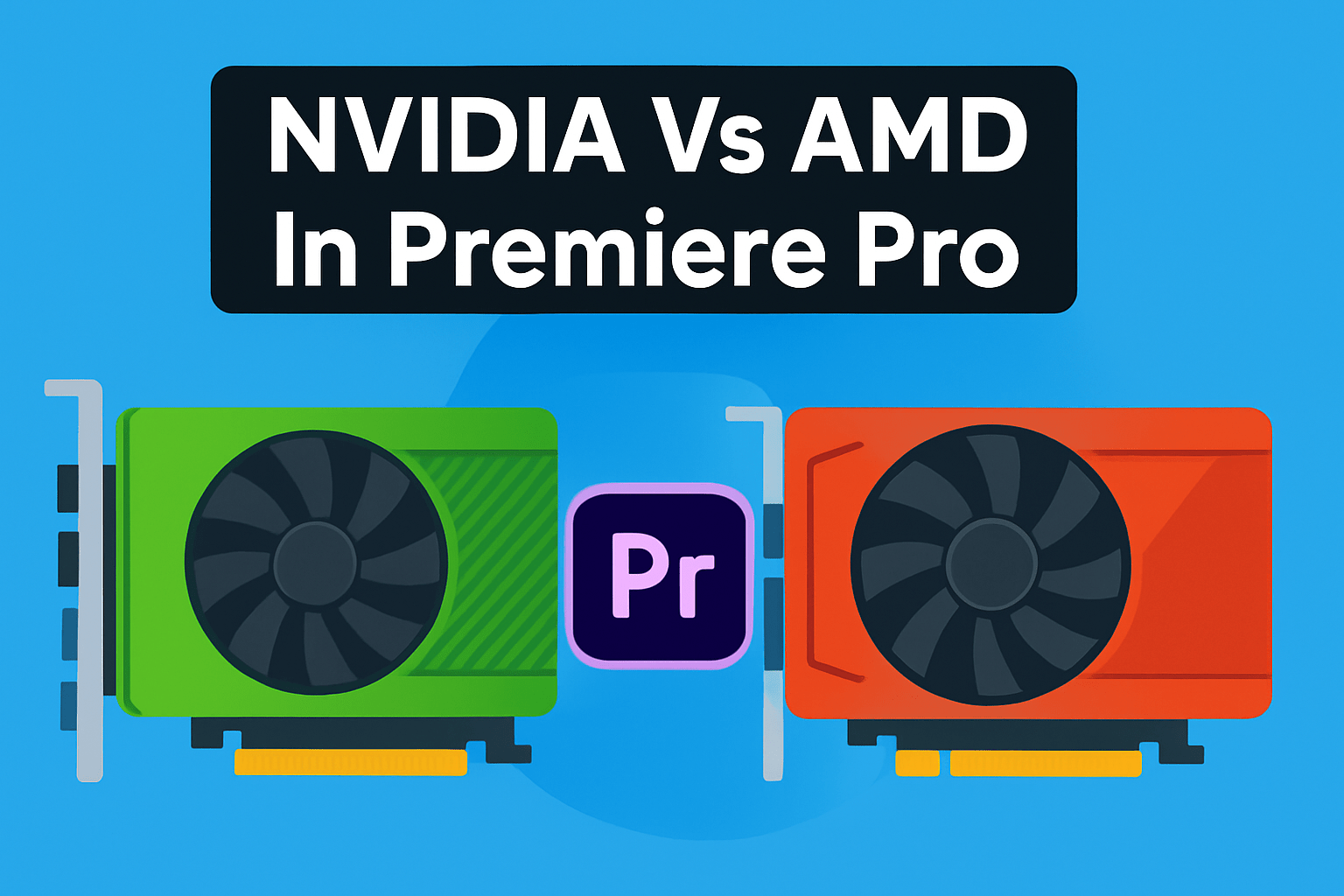
Every time I build a Premiere workstation I weigh NVIDIA vs AMD, and for most editors NVIDIA still wins. Adobe’s Mercury Playback Engine favors CUDA while AMD relies on OpenCL, and that maturity translates into smoother GPU‑accelerated effects and better real‑time playback. NVENC also gives NVIDIA a practical edge—H.264/H.265 exports often finish 20–40% faster than software or other encoders.
What that means on set and in the edit bay is simple: heavy Lumetri grades, Warp Stabilizer passes, multicam sequences and stacked GPU effects behave more predictably on NVIDIA hardware. For straight cuts, basic color work and short timelines you’ll be mostly CPU‑bound, so the GPU choice matters less. But when you push 4K/8K or lots of effects, the difference becomes obvious.
AMD has tightened the gap with RDNA3 and it shines in codec‑specific scenarios. If your footage is predominantly long‑GOP H.264/HEVC — think many mirrorless camera files — certain AMD cards (for example the RX 9070 XT) can be about 25% more efficient in decode/encode workloads. The trade‑off is that Premiere’s CUDA‑centric plugin and driver ecosystem still favors NVIDIA, so AMD users sometimes need to tweak or transcode for flawless playback.
So choose NVIDIA for the least friction: fastest exports, broad plugin support, and rock‑solid performance on complex timelines. Choose AMD if your workflow is heavily long‑GOP codec driven or you need a better price‑to‑performance ratio and are comfortable testing drivers.
Whatever you pick, validate it with your actual media. Enable Mercury GPU Acceleration, update drivers, and run export tests with representative clips before committing to a build. If you hit hiccups, consider proxies or a quick transcode to an intermediate like ProRes or CineForm to keep the edit flowing.
In short, NVIDIA is the safer choice for most Premiere Pro photographers and editors, while AMD can be a smart, codec‑specific alternative when you know your pipeline. Test early, and prioritize VRAM and driver stability for long multi‑layer projects.
GPU Bottlenecks In Premiere Pro
Premiere Pro is largely CPU‑bound for basic edits, but the GPU becomes the bottleneck when you add heavy grading, GPU‑accelerated effects, high‑res footage or multilayer timelines. I’ve watched snappy timelines chug under a few Lumetri layers. As someone who shoots short films and behind‑the‑scenes, I plan timelines with GPU limits in mind.
VRAM adds up fast: a 4K frame needs ≈675MB, an 8K frame ≈2.7GB; multiple layers and effects multiply that quickly. Factor that into GPU decisions.
Stutter often stems from workflow forcing CPU decode — VFR clips or long‑GOP codecs can push decoding into software and kill real‑time playback. When the CPU handles decode, GPU acceleration can’t save you. You can spot this when CPU usage spikes while GPU stays low.
Thermal throttling, a weak PSU or a mismatched CPU/GPU balance will cause drops. A hot or starved GPU can’t sustain real‑time frames.
Diagnose with Task Manager or GPU‑Z during playback and exports. Confirm Mercury GPU Acceleration (CUDA/OpenCL/Metal) in Renderer and that Premiere is using the discrete GPU. If Premiere isn’t using the discrete GPU, Windows or driver settings may need adjustment.
Try workflow fixes before buying hardware: proxies, lower playback resolution and pre‑render complex segments. Use Render and Replace or pre‑rendered intermediates for heavy effects. Even simple proxy presets can restore real‑time scrubbing with complex color grades.
Transcode VFR and long‑GOP clips to a CFR intra‑frame codec like ProRes or CineForm for grading. That shifts decode off the CPU and lets Mercury/GPU do the work. I usually keep an editable ProRes proxy for client reviews to avoid repeated transcodes.
Keep drivers current, clear media cache and close background apps. Test with plugins disabled if acceleration seems broken.
VRAM rules of thumb: 4GB minimum, 12–16GB a solid 4K sweet spot, and 32GB for serious 8K and heavy compositing. If limits persist, optimize proxies and transcodes first; upgrade GPU later. And remember: optimizing workflow often gives bigger gains than doubling GPU budget.
What People Ask Most
Which GPU is best for Adobe Premiere Pro?
High‑end NVIDIA cards tend to lead in Premiere Pro for rendering and export performance. Choose a card based on your resolution, effects workload, VRAM needs, and budget.
Is NVIDIA or AMD better for Premiere Pro?
NVIDIA is generally preferred because its CUDA/NVENC ecosystem is more mature and widely supported in Premiere Pro. AMD can be a good choice for specific codecs or cost efficiency but may require more manual optimization.
Does Premiere Pro use the GPU or the CPU?
Premiere Pro uses both, with basic editing often being CPU‑bound and the GPU accelerating effects, decoding/encoding, and timeline playback. Heavy GPU‑accelerated effects, high‑resolution footage, and exports rely more on the GPU.
How much VRAM do I need for Premiere Pro?
At least 4GB of VRAM is a practical minimum for general use, with more VRAM recommended for high‑resolution footage and heavy compositing. Complex 4K/8K projects and many layered effects will benefit from significantly more VRAM.
Is an RTX card better than a GTX for Premiere Pro?
RTX cards typically offer newer encoder/decoder features and improved performance for modern workloads compared with older GTX models. That said, a GTX can still be adequate for lighter editing tasks and lower resolutions.
Do I need a Quadro/workstation GPU for Premiere Pro?
Most creators do not need a Quadro/workstation GPU; consumer‑grade GPUs usually provide excellent performance in Premiere Pro. Consider a workstation card only if you require certified drivers, ECC memory, or specific enterprise features.
Can I edit 4K video in Premiere Pro with integrated graphics?
Editing 4K with integrated graphics is possible but often limited, especially with effects or multicam timelines. Using proxies, lowering playback resolution, and simpler timelines can help maintain smoother editing.
Conclusion For Best Premiere Pro Video Card
This comparison pulled together real‑world benchmarks and user feedback to give a clear, practical guide for choosing a GPU that matches your Premiere Pro workload and budget.
For those prioritizing absolute export and render speed, the NVIDIA GeForce RTX 5090 stands out, while other cards in the roundup balance near‑top performance, 4K value, codec advantages, or budget entry points.
Rather than chasing raw specs, focus on the resolutions you edit, the intensity of GPU‑accelerated effects, VRAM needs, and how well the card integrates with your software and plugins.
If you want to deepen your editing and system‑building skills, explore more articles on the site for workflow tips, optimization strategies, and real‑world testing insights.
Have questions or want personalized advice? Leave a comment below and we usually reply within a few hours.




0 Comments