
Micro sd card explained — do you know which one fits your phone, camera, or drone?
This guide breaks it down in plain English. You’ll learn what a microSD is, how capacities (SDSC/SDHC/SDXC/SDUC) work, and what speed labels like V30 and A2 really mean.
I’ll show how to pick the right card for 4K video, RAW photos, and game installs. You’ll also get a speed cheat sheet, a quick buy checklist, an annotated card photo, and a simple troubleshooting flowchart.
Short examples and easy tests (H2testw, Blackmagic, SD Formatter) make it simple to check speeds and spot fakes. Read on to find the best microSD for your gear.
What is a microSD card?
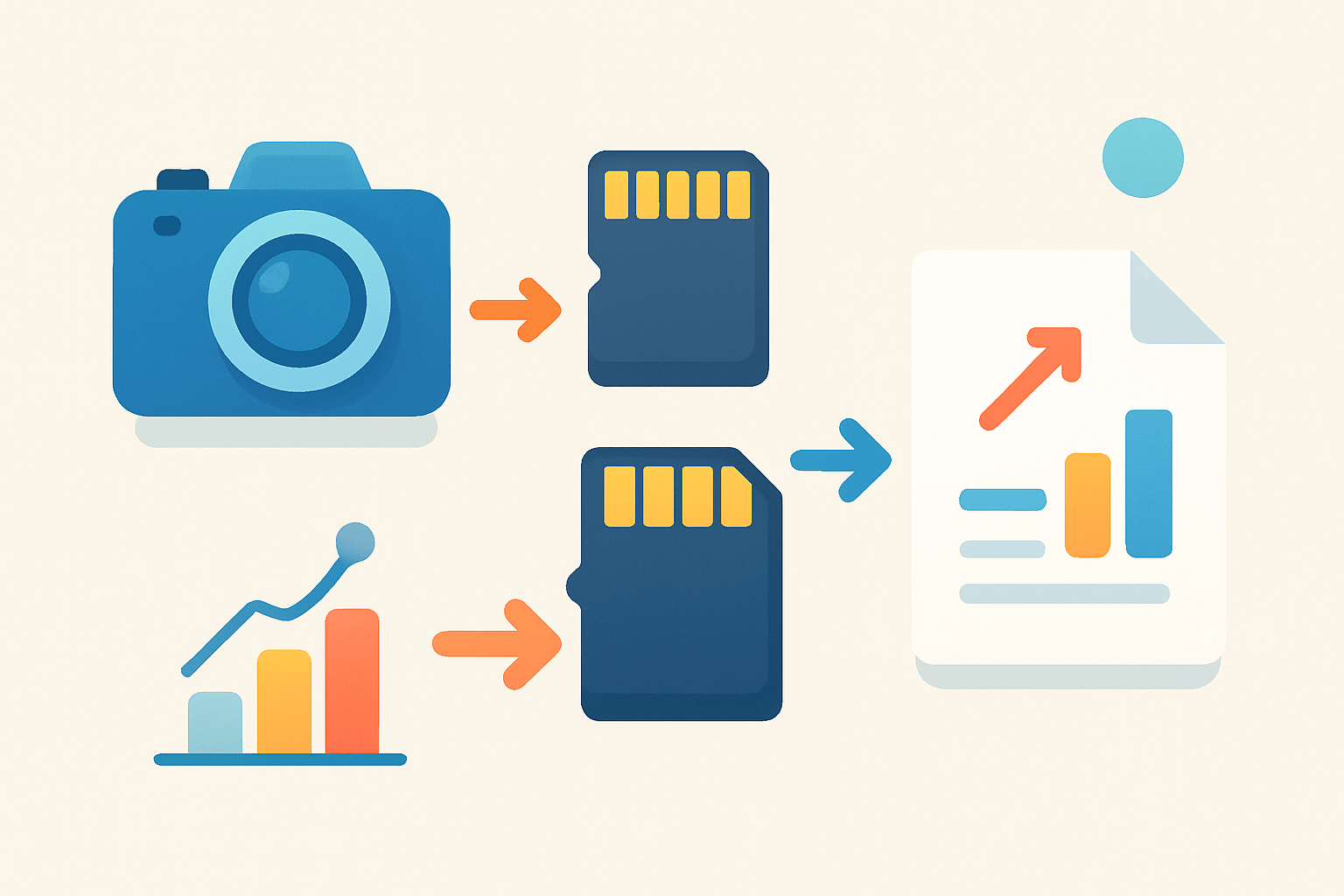
Micro sd card explained in one line: a microSD card is a tiny, removable flash storage card that expands the memory of phones, cameras, drones, and more. If you want micro sd card explained without jargon, think of it as a pocket‑sized, swappable hard drive for your mobile gear.
A microSD card is the smallest member of the Secure Digital family, using the same core technology as full‑size SD and the now‑rare miniSD, just in a smaller shell. It runs on NAND flash memory, which means no moving parts, low power draw, and surprising toughness for its size.
You will see small symbols printed on the label, such as capacity (GB or TB), a number inside a circle for Speed Class, UHS marks like U1 or U3, Video Class like V30, and sometimes A1 or A2 for app performance. We will decode these speed and performance badges in the next section so you can match a card to your camera, console, or phone.
When should you use a microSD card instead of internal storage or an external SSD? MicroSD is cheap, portable, and removable, perfect for lightweight devices and quick swaps in the field. It is slower and usually less durable than SSDs, so it shines as expansion and field storage, not as a permanent archive.
Most people meet microSD through phones, action cameras, drones, and handheld consoles, but the tech traces back to the broader SD card standard. That shared DNA means similar file systems, naming, and markings, even when the card is small enough to lose between your fingers.
Different types and capacity ranges (SDSC / SDHC / SDXC / SDUC)
The four capacity families tell you both how much a card can hold and which file system it expects. SDSC is “standard capacity,” up to 2 GB, and you are unlikely to see it new today except in legacy gear or bundled freebies.
SDHC is “high capacity,” over 2 GB to 32 GB, and it normally uses the FAT32 file system. FAT32 keeps compatibility wide, but it has a 4 GB limit per file, which can be a headache for long videos or large RAW stacks.
SDXC is “extended capacity,” over 32 GB to 2 TB, and it typically uses exFAT by default. exFAT removes the single‑file size limit and is great for 4K footage and long shoots, but some older cameras or readers cannot use SDXC without firmware or OS support.
SDUC is “ultra capacity,” over 2 TB to 128 TB, and it is very new and rare in the wild. You will only run into SDUC in cutting‑edge devices and readers, so always check your manual before buying a monster‑size card.
File system compatibility is the hidden gotcha. A camera that is stuck on FAT32 might not handle SDXC cards or exFAT formatting, and a drone that expects exFAT can choke on an SDHC card formatted in FAT32. If you are unsure, use the device’s format option to let it pick the right layout.
How much space should you buy? For smartphones, 64 to 256 GB is a good balance for photos, offline media, and apps, with A1 or A2 for snappy installs. For action cameras and 4K video, 128 to 512 GB helps avoid card swaps mid‑adventure, and you will want V30 or better to keep the bitrate flowing.
If you shoot RAW photos, 256 GB and up gives breathing room, or you can run multiple smaller cards to spread risk. Drones and long sessions often benefit from 256 to 512 GB, but high‑endurance models in smaller sizes can be smarter for continuous recording and frequent overwrites.
Be alert for counterfeit capacity cards that claim big numbers but fail under testing. We will cover quick verification tools later, and a reputable source or a trusted micro SD cards guide can save you from expensive mistakes.
MicroSD speed and performance explained (Class, UHS, Video, Application classes, read/write)
Speed symbols look confusing until you map them to what they promise. The basic Speed Class numbers, 2, 4, 6, and 10, describe minimum sequential write in MB/s, with Class 10 meaning at least 10 MB/s sustained.
UHS Speed Class adds U1 and U3, again minimum write, where U1 equals 10 MB/s and U3 equals 30 MB/s. Separate from that, the UHS bus version (UHS‑I, UHS‑II, UHS‑III) tells you the interface ceiling, up to about 104 MB/s for UHS‑I, 312 MB/s for UHS‑II, and 624 MB/s for UHS‑III, though many micro cards and hosts are UHS‑I only.
Video Speed Class labels, V6 through V90, matter for continuous video recording and guarantee sustained write at that number. V30 means 30 MB/s sustained, V60 means 60 MB/s, and V90 means 90 MB/s, which helps keep long 4K or 8K clips free of dropped frames.
Application Performance Classes, A1 and A2, deal with random I/O and app launches rather than big file writes. A1 targets around 1500 read and 500 write IOPS, while A2 targets roughly 4000 read and 2000 write IOPS, and A2 can need host support to reach full speed.
How do you read the front of a card? If you see U3, V30, and A2 together, you are looking at a card that can write at least 30 MB/s sustained, with good random performance for apps. If you see only Class 10 with no U3 or V rating, it may be fine for HD video and stills, but risky for high‑bitrate 4K.
Real‑world tasks translate cleanly from the labels. For 4K recording in action cams or mirrorless bodies, V30 (often marked as U3) is the safe minimum, and heavier codecs or 8K push you toward V60 or V90, or even SD Express in niche cases.
For burst RAW photography, you want high sustained and strong peak writes, plus a camera that supports the bus speed you are paying for. In bodies that accept UHS‑II microSD via adapter or native slots, high‑end UHS‑II cards can clear buffers faster and keep bursts rolling.
Smartphones and handheld gaming benefit from A1 or A2, since random reads and writes drive app loads and game installs. Keep in mind that the Nintendo Switch supports only UHS‑I, so faster bus cards bring little benefit beyond top‑tier UHS‑I models.
Testing is simple and worth the time. Use Blackmagic Disk Speed Test on macOS, a Windows tool like CrystalDiskMark for sequential and random numbers, and H2testw or F3 to verify real capacity and catch counterfeits before you trust them with a trip or a client job.
SD Express rides PCIe and NVMe over the SD form factor and promises SSD‑like speeds on a card, but device support is limited today. If you need future‑proof headroom, watch for SD Express in pro bodies and readers as the ecosystem matures.
Speed cheat sheet in plain English: Class 10 is 10 MB/s minimum, fine for Full HD and basic stills. U3 and V30 both map to 30 MB/s sustained, ideal for 4K30/60 and fast photo bursts, while V60 and V90 at 60 and 90 MB/s are built for high‑bitrate 4K/8K and all‑intra codecs; A1 and A2 improve app and game performance with higher random I/O.
If you want a deeper dive on what the symbols mean and how to balance cost versus speed, this concise microSD buying guide pairs well with the testing approach above. Combine label decoding with real benchmarks, and you will pick with confidence.
Choosing the right microSD: compatibility & use cases
Start with compatibility, because the wrong family or file system will ruin a shoot. Check your device manual for the maximum capacity and whether it supports SDHC, SDXC, or SDUC, and confirm if it is limited to UHS‑I or can use UHS‑II.
File system matters as well, especially when crossing between old readers and new cameras. Many cameras format SDHC as FAT32 and SDXC as exFAT, so let the device format the card to avoid single‑file size limits or unreadable media.
For a smartphone used for casual photos, downloads, and some apps, look for microSDXC UHS‑I with A1 or A2, and 64 to 256 GB. You will enjoy smoother app installs and fewer storage warnings after big OS updates.
For a 4K action camera or drone, pick microSDXC UHS‑I with U3 or V30 as a baseline and 128 to 512 GB. If you record long flights or loop video, consider high‑endurance versions designed for constant overwrites.
If you shoot professional video or cinema with high bitrates or all‑intra codecs, step up to V60 or V90, and to UHS‑II when your host supports it. Larger capacities help, but keep backups on set so one card is never a single point of failure.
For Nintendo Switch or similar handhelds, microSDXC UHS‑I is the fit, since the console caps the bus at UHS‑I speeds. Go for A1 or A2 with 128 to 512 GB for a big digital library without long load times.
For Raspberry Pi, IoT devices, or security cameras, endurance matters more than raw speed. Use high‑endurance cards, format with the device, and consider ext4 on a Pi for fewer surprises during long uptime.
Buy slightly above your session needs so you do not fill the card to the brim, which can slow writes and increase risk. V30 and U3 represent a sweet spot for most shooters, while endurance models are worth it for continuous recording or harsh environments.
Quick buy checklist you can act on right now. Choose SDXC for 64 GB and above, and let the device format in exFAT to avoid 4 GB file limits.
Match speed to task: V30 for 4K, V60/V90 for high‑bitrate or 8K, and A1/A2 for phones and consoles. Pick reliability over tiny speed gains by favoring proven brands and the endurance line when you write a lot.
Avoid surprises by checking your device’s UHS support, since many hosts are UHS‑I only. Keep a spare, label your cards, and rotate them so one failure cannot stop your day.
Care, durability, formatting & troubleshooting
MicroSD cards often ship with durability claims like waterproof, temperature‑proof, shock and X‑ray proof. These ratings matter for drones, underwater housings, travel through airport scanners, and outdoor work where heat and vibration add up.
For formatting, use the device’s own format option first so it sets the file system it expects. If you must format on a computer, use the SD Association’s Formatter tool and choose exFAT for SDXC and FAT32 for SDHC, keeping in mind FAT32’s single‑file size limits.
Handle cards by the edges, avoid touching the gold contacts, and always eject before removing to prevent corruption. Use a good reader or the included adapter carefully, and do not force a tight fit in a slot that was not designed for it.
When a card is not recognized, try a different reader or adapter, then try formatting in the original device if the data is not critical. Check your device’s capacity and SD family support to rule out a simple compatibility mismatch.
If files go missing or the device asks to format, stop writing new data immediately to protect what is still recoverable. Clone the card to an image file if you can, then try recovery tools like PhotoRec or Recuva on the clone rather than the original.
To spot fakes, run H2testw on Windows or F3 on macOS and Linux, and compare the tested capacity and speed against what is printed on the label. If numbers are far off, return the card and replace it before any important work.
Extend lifespan by choosing “high endurance” cards for dashcams, security cams, or time‑lapse rigs, where writes never stop. Rotate cards, reformat in‑camera every few shoots, and avoid filling to 100% to keep performance consistent.
Here is a simple what‑to‑do flow when a card looks corrupted. First, stop using the card, then test it read‑only on a computer and clone an image if possible.
Second, verify capacity with H2testw or F3 to rule out a fake or failing media. Third, attempt file recovery on the clone, copy off what you can, and only then reformat the original card in the device you plan to use.
Two quick real‑world examples bring it home. Filming 4K60 on a drone with high wind and long flights demands a V30 card at minimum, ideally a high‑endurance model to survive constant overwrites and heat.
Installing a dozen big games on a Switch benefits most from a fast UHS‑I, A2 microSDXC card, even though the console cannot use UHS‑II speeds. Micro sd card explained the right way helps you choose once and shoot or play without worry.
What People Ask Most
What is a micro SD card?
A micro sd card explained simply is a tiny removable memory card that stores photos, videos, music, and other files for phones, cameras, and gadgets.
How do I use a micro SD card in my phone or camera?
Turn off the device, slide the card into the memory slot or use an adapter, then turn the device back on and follow any on-screen prompts to access it.
Can a micro SD card make my device faster or slower?
A slow card can make file transfers and app loading take longer, but it won’t magically speed up a device that’s already limited by its hardware.
Are micro SD cards safe for storing photos and videos?
They are generally safe, but you should back up important files regularly because cards can be lost, damaged, or fail over time.
Can I move apps and files to a micro SD card?
Many devices let you move photos, videos, and some apps to the card, but check your device settings because support varies by phone or tablet.
How do I choose the right storage size for a micro SD card?
Pick a size based on how many photos, videos, and apps you plan to keep—choose more space if you record lots of video or store large files.
Do micro SD cards wear out or need replacing?
They have a limited number of writes but typically last years with normal use, so replace a card if it starts showing errors and keep backups of important data.
Final Thoughts on microSD cards
A microSD card is the small, flexible workhorse for cameras, phones, and drones—offering cheap, removable storage that keeps your files moving. If you’re deciding between sizes, a 270 GB card sits in the sweet spot for many users who want lots of room without juggling multiple cards.
Remember our opening question about what a microSD card really offers? We broke down the labels, speed classes, and durability tips so you can match speed and capacity to real tasks like 4K drone flights or installing games on a Switch. Still, remember they’re not a substitute for an SSD: they can be slower, wear out with heavy writes, and sometimes trip up older devices that need exFAT support.
Photographers, videographers, and power-phone users will get the most value from smart choices — picking the right class, capacity, and endurance line will keep shoots and installs smooth. Keep what you learned as a quick toolkit for buying, testing, and caring for cards, and you’ll be ready for your next shoot or trip.




0 Comments