
How to edit fat belly in photo online free? Want a quick, natural result you can do right in your browser?
I give a one-sentence quick answer up front, then a clear step-by-step liquify workflow. You’ll also get the best free tools, AI vs manual advice, pro tips, and an export/privacy checklist.
The article includes a before/after slider, 4–6 annotated screenshots, and a short GIF of the liquify strokes so you can follow along. Most edits take 5–20 minutes and look best when kept subtle and respectful.
Read on to learn each step, pick the right free editor for your skill level, and keep edits natural. Let’s get started.
How to edit a fat belly in a photo online — free step-by-step (how to edit fat belly in photo online free)
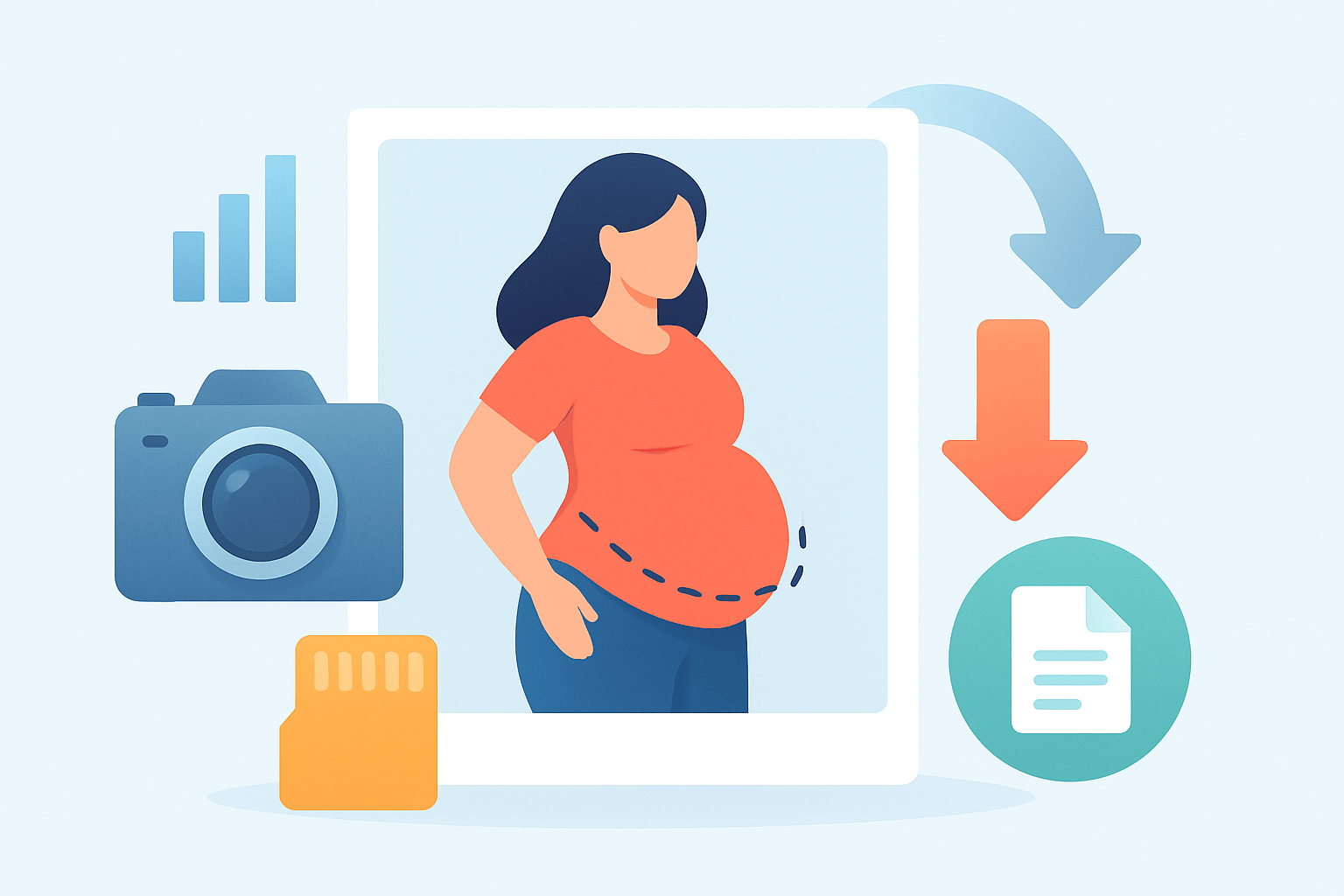
Open your photo in a free web editor that has Liquify or Reshape, push the belly line inward with small strokes on a duplicate layer, mask and blend the edges, then repair textures with healing or clone tools.
This quick workflow shows how to edit fat belly in photo online free without losing realism or texture. You will work non‑destructively, keep lighting natural, and finish with a clean export for web or print.
1. Pick and open the photo. Choose the highest resolution file you have and avoid screenshots. Upload a high‑quality JPEG or PNG to a free photo retouch web editor so you retain detail and clean edges.
2. Duplicate the background and name layers. Create a copy of the base image and label it “Liquify” so your original stays safe. This non‑destructive setup lets you dial back the change or mask only what you want.
3. Zoom to 100% and define the target area. Inspect the belly curve, waistband, and nearby folds at actual size. Make a mental note of where edges need to stay straight, or plan to use a soft mask later to protect them.
4. Use Liquify or Reshape tools. In Photopea, go to Filter then Liquify; in Pixlr, open Liquify under Filters. Start with Forward or Push to nudge the silhouette and use Pucker to slightly contract the belly area for tiny tucks.
Keep settings light to avoid distortions. Make the brush a little smaller than the belly width, and set Strength or Pressure around 10–30%. Work in several gentle passes instead of one big push for a clean, natural curve.
5. Blend with a layer mask. If the entire top layer is edited, add a mask and paint black on areas you want untouched. Feather the mask edge so the new contour transitions smoothly back into the original body and background.
6. Repair stretched clothing or textures. If stripes or seams warp, switch to Clone Stamp or Healing Brush on a new empty layer set to Sample All Layers. Rebuild stretched lines by sampling nearby clean texture and painting gently.
7. Fix lighting with dodge and burn. Shape always looks more natural when you respect light. Lightly dodge highlights on the upper curve and burn the shadow along the waist to keep depth so the belly does not look flat.
8. Compare often and adjust strength. Toggle the edited layer on and off to check realism at 100% and fit-to-screen. If the change looks too strong, lower layer opacity to 70–90% so the edit blends with the original.
9. Save layered and export a final copy. Save a master file as PSD or PEA for future tweaks. Then export a high-quality JPEG around 80–90% for web or PNG if you need transparency, and keep the original dimensions when possible.
This whole edit usually takes 5–20 minutes, depending on your experience and how complex the clothing is. Smaller, smarter moves sell the illusion more than big reshapes, especially on tight or patterned fabrics.
If you plan to share your process, capture visual aids while you work. Grab an original screenshot, a mid‑Liquify view showing brush strokes, a mask view, a texture repair close‑up, and the final frame, and make a short GIF of your liquify strokes.
Include a simple before/after slider to show the subtle change and educate viewers. Label screenshots with exact menu paths like Filter then Liquify and Brush Strength 20% so beginners can follow your steps easily.
Top free online tools to slim a belly (best picks + quick how‑tos)
You can reshape a belly online with several free editors, each strong at different tasks. Some are great for manual Liquify control, while others offer quick one‑click slimming tools for beginners.
Photopea gives you pro-level control in the browser. It mirrors Photoshop’s layout, supports layers and masks, and saves to PSD so you can re‑edit later. The trade‑off is a slightly steeper learning curve for first-timers.
To slim in Photopea, upload your image, duplicate the layer, then go to Filter and Liquify. Use Forward and Pucker in short strokes along the waist, click OK, then retouch clothing with Clone Stamp or Healing on a new layer.
Pixlr E is a friendly option that still includes Liquify in the Filters menu. The interface is lighter and faster for simple tweaks. Advanced healing is limited, but it is perfect for small nudges and quick web edits.
In Pixlr E, upload the photo and arrange your layers. Open Liquify, gently move the waist and belly, apply, then tidy edges with the retouch tools. Watch for bent zippers or belts and fix those with the clone tool after reshaping.
Fotor focuses on ease with body reshape tools. Its interface guides you through slimming with minimal settings, though some features or resolutions may be in a paid tier. For a fast start, try its skinny filter and then refine manually if needed.
In Fotor, go to Edit and find Reshape or Slim. Brush over the waist and belly with a low intensity pass, apply, then smooth transitions so edges do not look cut out. Export at the highest quality it allows for your device.
Lunapic and iPiccy are lightweight choices for basic effects. They do not require signup and run on almost anything, but control is cruder and the tools can push pixels too far if you are not careful.
Upload to Lunapic or iPiccy, then open the Liquify, Bulge, or Pinch effect. Use very small adjustments and several passes, and save between steps so you can revert if a seam or pattern begins to warp.
AI reshape tools are getting faster and smarter. Some newer sites let you paint the belly area and type a short prompt that describes subtle slimming, but watch for watermarks, credit systems, or privacy concerns on upload.
For AI, upload the photo, brush the belly region, and enter a concise prompt that asks for subtle changes only. Generate, then download and refine problem spots manually in Photopea or Pixlr for the best mix of speed and control.
If you are brand new, start with Pixlr E or Fotor for a gentle learning curve. If you want maximum control and layered files, use Photopea. For quick full‑body reshapes on simple clothing, try an AI pass and then clean up edges by hand.
Portraits with plain clothing can handle faster edits and AI reshapes well. Full-body photos with belts, logos, or stripes look best with manual Liquify because you can protect details and keep patterns aligned.
Manual (liquify) vs AI auto-reshape: pros, cons and when to use each
Manual Liquify gives you high control over every pixel you push. It preserves directional fabrics, keeps belts straight, and guards faces and hands with masks, but it takes more time and a little practice to master.
AI auto-reshape is blazing fast and sometimes more natural on full‑body shots because it adjusts the figure globally. It can also hallucinate folds, stretch patterns, or shift shadows, and some services add watermarks or charge credits.
Choose manual Liquify when clothing is patterned, tight, or shiny, or when you need to protect hair, fingers, or jewelry. You can diagnose issues at 100% zoom and fix them immediately with clone or healing after the shape change.
Pick AI when speed is the priority and clothing is simple, matte, and plain. You will still want to verify that background lines remain straight and that lighting on the belly is consistent with the rest of the body.
A hybrid approach works best for many images. Run an AI pass for a gentle overall trim, then open the result in Photopea to fix patterns, restore edges, and dodge and burn shadows so the edit blends naturally.
Use clear, conservative prompts to keep results realistic. Try “Slightly slim the waist and belly (about 10–15%), keep face and hands unchanged, preserve clothing pattern and shadows.” and follow with “Subtle slimming — natural look — do not alter background.”
If your concern is rolls or folds rather than the overall curve, study targeted guides on shaping and texture. A helpful primer on contouring can show you how to get rid of fat rolls without blurring real skin detail.
Always read the terms before uploading intimate photos to any site. Work from higher-resolution originals so both AI and manual tools have clean data to reshape and retouch.
Pro tips for natural-looking belly edits (lighting, clothes, posture & settings)
Start with the camera before the computer when you can. A small torso twist, good posture, and a relaxed breath can already flatter the waist while keeping expression natural.
Clothing choices help the lens be kind. Darker tones, higher waists, and vertical lines draw the eye up and down, while tight, tiny patterns can warp when edited and are harder to fix later.
Change your angle to reshape with perspective. Shooting from slightly above and stepping back with a longer focal length slims lines and reduces lens distortion even before any retouching begins.
Be subtle with edits to avoid the “Photoshop look.” Aim for an 8–20% change in width, preserve shoulder and hip proportions, and always keep the head and hands the same size unless you intend a stylized result.
Light creates shape, so preserve it. After Liquify, use a gentle dodge to bring back upper‑belly highlights and a touch of burn to define the natural shadow under the waistband or along the side waist.
Protect key areas while you push pixels. Add a temporary mask over the face, hands, belt buckles, or jewelry so the online liquify tool cannot distort them when you nudge the belly curve inward.
Work in short strokes with a soft brush and low pressure. Check at 100% zoom to catch texture stretching and also at screen size to judge the overall silhouette, then lower layer opacity to blend the change.
When patterns stretch, repair with clone or content-aware tools instead of more Liquify. Align the direction of stripes or seams by sampling from nearby and painting with short, aligned strokes to preserve fabric logic.
Keep your settings modest to stay invisible. Test Liquify pressure around 10–30% and a brush slightly smaller than the belly width so each pass only nudges the edge, then feather masks around 20–60 px depending on resolution.
Export sharpening should happen after resize, not before. Scale the image to its final output size first, then add a small amount of sharpening so edges look crisp without ringing or halos.
Dedicated apps can speed up this workflow while staying simple. If you want a quick mobile fix with a light touch, try a slimming photo editor and then refine edges in a browser editor for pro polish.
Remember the goal is to support confidence and truth. Small changes that respect anatomy, fabric, and light always outlast big edits that erase texture and depth.
Troubleshooting, common mistakes and export & privacy checklist
Problem: warped background or bent objects near the waist. Fix: mask the subject edge and Liquify only inside the body, or use the Reconstruct tool in Liquify to pull the background back, then clone straight lines to restore geometry.
Problem: stretched clothing patterns after slimming. Fix: repair with Clone Stamp or a content-aware patch and re-sample clean pattern from nearby, painting in the direction of the fabric so stripes and seams remain believable.
Problem: hard seams or halos where the edit meets the original. Fix: increase mask feather, slightly blur the seam on a low-opacity layer, or drop the edit layer’s opacity a few percent until the transition disappears.
Problem: over-smoothed or plasticky skin. Fix: reduce any smoothing filters and reintroduce texture using a subtle high-pass layer blended softly, then lower opacity so pores and fabric grain look real again.
Problem: distorted anatomy like big hands or a stretched face. Fix: create protective masks on those areas before Liquify and use the History or Reconstruct tools to roll back excessive pushes without losing your entire edit.
Problem: flattened look with no depth after reshaping. Fix: add light dodge and burn to restore highlights and shadows, paying attention to the direction of your main light source so the new shape matches the rest of the frame.
Export smart so your work holds up everywhere. First, save a layered master file as PSD or PEA so you can revisit the mask or Liquify pass later without starting over.
Then flatten and export a JPEG at 80–90% quality for the web to keep detail without huge file sizes. Use PNG if the image needs transparency or you are preserving graphics with hard edges.
Resize to the final dimensions before sharpening, and apply just a touch of output sharpening. Check the final file on your phone and desktop, zooming in and out to ensure no lines are bent or textures look smeared.
Mind privacy as you share. Strip EXIF metadata if location or device info is sensitive, and avoid uploading intimate photos to unknown sites without reading terms and understanding storage policies.
Consent matters in every edit. Get permission before retouching or publishing someone else’s photo, and disclose heavy retouching where rules require it, especially in ads, product images, or model portfolios.
Use this guide whenever you need to remember how to edit fat belly in photo online free with a natural finish. With careful Liquify, clean masks, and gentle light shaping, your result will look like the best version of the real moment.
If you want more automated help, you can mix manual edits with simple tools or filters. Some services offer quick trims with one click, and others provide guided sliders labeled Slim Waist or Belly, which can speed up a conservative pass before you refine by hand.
However you choose to work, keep your changes subtle and respectful. Your goal is to preserve the story of the photo while guiding the viewer’s eye with thoughtful, honest retouching.
What People Ask Most
Can I edit a fat belly in a photo online free without installing anything?
Yes, many web-based editors let you make reshaping and retouching changes directly in your browser without downloads. Just upload your photo and use simple tools like reshape and smooth.
Will editing a fat belly in a photo online free look natural?
It can if you make small, subtle adjustments and avoid over-smoothing. Keep proportions and the background consistent to maintain a realistic look.
What tools should beginners use to edit a fat belly in photo online free?
Start with basic tools like crop, warp/reshape, and soft smoothing brushes to make gentle changes. Preview often and undo if it starts to look unnatural.
Can I edit a fat belly in a photo online free without ruining image quality?
Yes, work on a copy of your photo and avoid heavy compression or extreme edits to prevent pixelation. Small, gradual changes preserve detail better.
Are there common mistakes to avoid when I edit a fat belly in a photo online free?
Yes—don’t overdo slimming, ignore background distortion, or use harsh blur, as these make edits obvious. Subtlety and consistency give the best results.
Is it okay to edit body shape in photos for social sharing?
It’s a personal choice, but consider the impact on body image and be honest if edits could mislead others. Responsible editing helps avoid unrealistic expectations.
How long does it take to learn to edit a fat belly in a photo online free?
Basic edits can take just a few minutes, while more natural results may take practice over several sessions. Regular use of simple tools will speed up your skills.
Final Thoughts on How to Edit a Fat Belly in a Photo Online
If you’ve ever wondered whether you can tidy a belly quickly without heavy software, the short answer is yes — and even if you’re working through 270 shots, the free online Liquify/Reshape approach will get you there fast when you work non‑destructively and stay subtle. This guide showed a compact, step‑by‑step workflow plus tool choices, visual aids and masking tips so edits stay believable. You’ll end up with a natural, polished look without spending a dime.
A realistic caution: avoid extreme edits and be careful with patterned clothing or uploads to AI services because they can warp textures or raise privacy flags. This method suits beginners, selfie editors, and portrait photographers who want quick, believable tweaks without a steep learning curve.
We opened with the promise of a quick free route and answered it with step‑by‑step liquify instructions, tool picks, manual vs AI advice, and troubleshooting so you can finish an edit in 5–20 minutes. Try small strokes and steady checks at 100% — you’ll learn fast and keep images that still look like real people.





0 Comments