
How to make a polaroid photo that looks like a real instant print?
This guide shows simple, step-by-step instructions to turn any image into a Polaroid-style print. You will learn how to crop, edit, and place your photo into a template.
We also cover exact export and print settings, paper choices, and cutting and mounting measurements. Plus you get a materials checklist, pro tips, and quick troubleshooting.
Follow these steps and you’ll have a real-feeling Polaroid print to display or gift. Let’s make your photo look instant and timeless.
How to make a Polaroid photo (step-by-step)
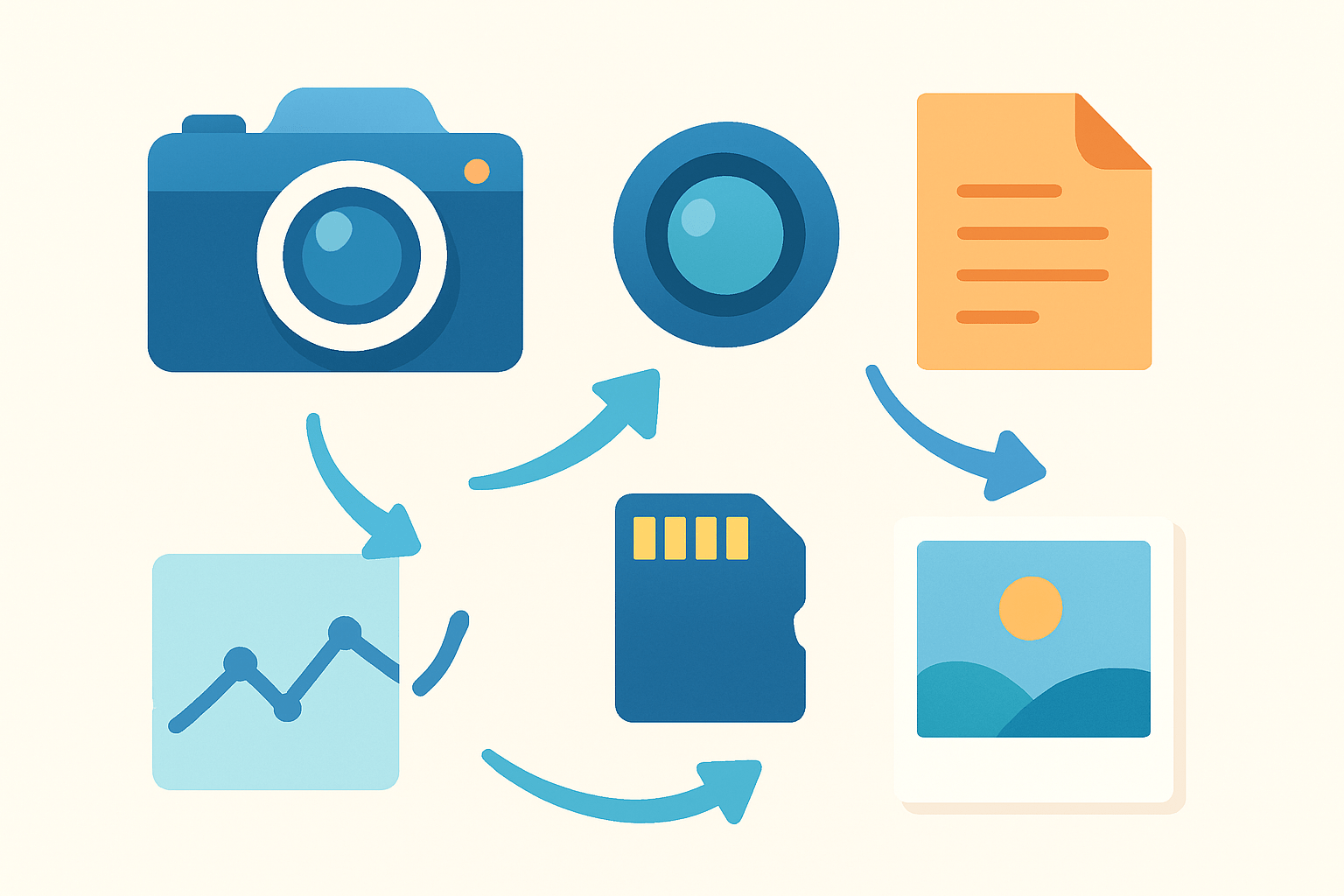
Follow these steps and you will turn any digital image into a Polaroid-style print or a mounted, Polaroid-looking card you can hold, display, or gift.
Step 1. Choose the photo and crop to the Polaroid ratio. Pick a sharp, well-lit image with a simple background so the subject pops inside the small frame. Crop to match your template’s image window, which is usually near-square, and keep the main subject inside the central 70% with a little headroom to avoid cutting off tops of heads.
Step 2. Do basic edits so the photo feels like instant film. Correct exposure, contrast, and color so your image prints cleanly, then apply a gentle film-like fade as described in the Edit section below. Spend two to five minutes here and keep it light so it still looks real.
Step 3. Open a Polaroid template and place the image. Use a Photoshop PSD, a Canva frame, or a blank PNG with a transparent window. If you are new to templates, take a quick look at the Template section in this guide before placing the photo.
Step 4. Create the clipping mask and position your photo. In Photoshop, put your photo above the frame layer and make a clipping mask so it sits inside the window. Resize proportionally and center the subject; add a short caption or date on the bottom strip if you like a personal touch.
Step 5. Export at the correct size and resolution. For print, set the canvas to 3.5 x 4.25 inches at 300 ppi, which equals 1050 x 1275 pixels, in sRGB. Save as a high-quality JPEG (Quality 12 in Photoshop) or a PDF for labs; avoid extra compression so edges stay crisp.
Step 6. Print at home or send to a lab. Choose photo mode, the highest quality, and the right paper type to match your stock. If you plan to cut borders yourself, print on a larger sheet and trim; if you want an easier route, a good lab can do the size for you and keep borders even.
Step 7. Trim and mount for the classic thick border. Cut a window in cardstock or a magnetic sheet and mount your print behind it to mimic the heavier bottom border. A clean cut and a neat adhesive job make your card feel like a true instant photo in the hand.
Checklist before you start: computer, photo editor, Polaroid template, printer or print service, photo paper, cutting mat, metal ruler, X‑acto knife, double-sided tape, and a magnetic sheet or heavyweight cardstock.
If you plan to shoot new pictures for this project, try simple light, clean backgrounds, and expressive moments. For fun seasonal ideas, browse these summer tips and adapt them to your story and setting.
Edit your photo for an authentic Polaroid look
The goal is a gentle, nostalgic tone with soft contrast, a hint of warmth, and subtle grain. You want character without heavy effects so the print still looks natural and timeless.
Start with basic corrections. Adjust exposure until midtones look full but not bright; lift shadows a touch and soften highlights so faces and skies keep detail. Aim for a slight contrast reduction so the image feels less harsh and more film-like.
Set white balance on the warm side. Push temperature by about +3 to +8, and add a hair of magenta if skin goes too green. Keep color balanced and clean, then do a tiny vibrance boost if the shot looks flat after the fade.
Shape the tone with a curve. Add a gentle S-curve for depth, then raise the black point a little so the darkest tones sit at about 5–8% gray. This gives you that familiar faded toe without washing out the whole image.
Add the subtle fade in your preferred tool. In Lightroom or Photoshop Curves, lift the leftmost point slightly and reduce highlights just a hair. Check before and after by toggling the adjustment on and off to make sure it still looks believable.
Introduce grain sparingly. Set grain around 6–15% depending on your editor; keep size small to medium and roughness low so it blends with details. The idea is to feel it in the midtones when you look closely, not to see heavy texture from afar.
Darken edges with a mild vignette. Pull the amount down to about −10 to −20, protect highlights, and keep feathering high so the effect is invisible. This subtle falloff guides the eye to the subject inside the small frame.
Consider a slight desaturation or highlight muting. Pull overall saturation by −5 to −10 if the colors fight the vintage vibe, or lift highlights by a few points to tame the modern digital “sparkle.” Many instant films feel soft and gentle rather than punchy.
For sharpening, keep it modest. Try an Amount around 30–50 with a Radius near 0.7–1.0 and Masking around 30+, so you sharpen edges but leave smooth areas soft. Heavy sharpening can look brittle on small prints.
Use tools that fit your workflow. Lightroom and Photoshop give the best control; Snapseed and VSCO are great on the phone; presets can speed things up. If you want a quick primer, this short guide on how to make your photo look like a Polaroid can jump-start your eye for tone and grain.
If your photo needs a small color mood, try color grading. Push highlights slightly warm, say Hue 20–40 with 5–10% saturation, and cool shadows a touch to balance. Keep the mix subtle so the print still feels true to life.
When you finish, view at 50–100% and also zoom out small to mimic the printed size. If you can read the subject’s expression clearly and the tones feel calm, you are ready to frame it in the template.
Use a Polaroid template (Photoshop PSD or Canva): place, resize & mask your image
You have three easy template options. A Photoshop PSD gives you layered control and a ready-made clipping mask. A Canva Polaroid frame is quick for simple designs. A blank PNG with a cutout window works in almost any app if you prefer to place and align by hand.
Think about final size before you start. For print, work at 3.5 x 4.25 inches at 300 ppi, which equals 1050 x 1275 pixels. For quick web or mobile previews, a 700 x 1000 pixel canvas keeps files small while still looking clean on screen.
Open the PSD and review the layers. You will usually see a frame layer, a window layer, and a “Place Photo Here” layer. Drag your edited image into the document and position it above the image placeholder.
Resize the photo while holding Shift so you keep proportions. Nudge the image so the subject sits well inside the window, with a touch of space at the top and sides. Leave breathing room to mimic how instant film centers the scene.
Create the clipping mask so the image stays within the frame. In Photoshop, place your photo directly above the window shape and choose Create Clipping Mask so only the cutout area shows. If the window is square and your photo is not, adjust size rather than squashing the subject.
Add text if you want a hand-labeled feel. Use a simple handwritten font or write on the bottom margin after printing. A month, a location, or a short phrase adds authenticity and memory value.
When finished, tidy the layers. You can merge visible layers or keep them if you plan to reuse the template later. Name your layers clearly so you can swap images fast for a matching set.
Export for print with consistent color. Choose sRGB, set Quality to maximum for JPEG, and ensure the dimensions remain 3.5 x 4.25 inches at 300 ppi. If your lab supports it, a PDF export also works well for crisp edges and type.
Using Canva is straightforward. Create a custom canvas at 700 x 1000 pixels or at 3.5 x 4.25 inches if that option appears with 300 ppi, upload your edited photo, and drag it into the Polaroid frame element. Export JPG at the highest quality for print or sharing.
Pro tip: build a master template with guides that mark the 1/4-inch borders and the thicker 7/8-inch bottom. You can drop new images in and keep every card consistent without guesswork.
Print Polaroid-style photos at home — paper, resolution & settings
You can print at home with a good inkjet or use a professional lab. Have photo paper on hand, a cutting mat and metal ruler for clean trims, and an ICC profile for your printer if available. A test print saves time and ink.
Follow these technical rules for sharp, accurate output. Print at 300 dpi with a final file of 3.5 x 4.25 inches, which equals 1050 x 1275 pixels. Use the sRGB color profile for most consumer labs, or a printer-specific ICC profile if you manage color precisely at home.
Keep format simple and high quality. A maximum-quality JPEG or a flat PDF with no extra compression is ideal. Avoid enlarging a small image to this size, because instant-style prints are small but still reveal softness.
Choose the right paper for the feel you want. A 200–300 gsm semi-gloss or luster sheet gives a believable instant-photo sheen. A matte sheet softens color and contrast for a deeper vintage vibe.
Set your printer for the best results. Use “Photo” or “Best” quality, select the exact paper type, and turn off “Fit to Page” if you need precise borders. If your printer can’t handle margins well, print on a larger sheet and trim to the exact size.
Do a small test print. Check color warmth, shadow detail, and how the border lines up. Nudge white balance or exposure by a few points if anything drifts, then run the final set.
For a lab, upload the file at the exact dimensions and pick border options if available. Many services can honor sRGB files and preserve your layout if you disable auto-corrections. If you want inspiration or vendor tips, this walkthrough on DIY Polaroid prints is a helpful complement to your workflow.
Remember the definitive print specs: 3.5 x 4.25 inches at 300 dpi equals 1050 x 1275 pixels, in sRGB, saved as a JPEG at maximum quality. Keep those numbers handy on a sticky note near your printer.
Common issues are easy to fix. If colors look too warm or cool, adjust white balance by 200–400 K and reprint a small crop. If you see banding or lines, clean nozzles, update drivers, or print at a higher quality mode.
If the edges of the border look uneven, disable borderless mode and trim manually. For undersaturated prints, add a bit of vibrance and check that you selected the correct paper profile. Small tweaks here keep your set cohesive.
If you are curious about real instant film, treat it gently. Avoid extreme cold, do not shake the print, and let it develop face-down away from bright light as the manufacturer suggests. The same mindset of patience will also improve your digital-to-Polaroid workflow.
Cut, mount & finish: DIY Polaroid frame and magnetic backing
Gather your finishing tools before you cut. You will need a magnetic sheet or heavyweight cardstock, a fresh X‑acto knife, a metal ruler, a cutting mat, and either double-sided tape or a light spray adhesive. A corner-round punch, a soft pencil, and a pen for handwriting complete the kit.
Start by marking the outer card. Draw a rectangle 4.25 x 3.5 inches on your sheet to match the Polaroid footprint. Use a light pencil so marks erase cleanly after you cut.
Lay out the classic borders. Measure a 1/4-inch frame on the top and both sides to guide the window, and plan a thicker 7/8-inch border along the bottom for that familiar instant-photo weight. Keep your ruler steady so lines stay parallel.
Cut the inner window to match your print area. Center it so the thicker bottom space remains, and make multiple light passes with the blade instead of one deep cut. This approach reduces tearing and keeps corner angles crisp.
Print at the exact size or slightly larger if you plan to trim. A tiny oversize lets you mount the photo and slice flush from the back for a factory-clean edge. Dry-fit the print behind the window to confirm alignment before you commit adhesive.
Mount the photo behind the frame. Apply thin strips of double-sided tape around the window edge or use a fine mist of spray adhesive on the frame, not on the photo. Press gently from the center outward to avoid bubbles and warping.
If you want a fridge magnet, use a magnetic sheet as your base. The weight mimics the stiffness of instant film and makes display easy. Cardstock works just as well for albums, collages, and desk frames.
Add finishing touches for character. Round the corners with a punch for a softer, classic feel, or leave them square for a sharper look. Handwrite a date, a place, or a short caption on the bottom strip to complete the illusion.
To age the print slightly, you can distress the edges. Use very light sanding on the frame or a warm, dry tea cloth dab to tone the white. Keep it subtle so the effect feels natural, not forced.
Seal or protect if the print will be handled a lot. A light spray-protectant labeled for photos can add durability without shine. Avoid heavy, wet coatings that can ripple the paper or dull the grain you added in editing.
Work safely and cleanly. Always cut away from your body, use fresh blades, and keep fingers behind the ruler edge. Store finished prints flat under a book overnight if the paper curls so everything sets perfectly.
If your photo looks too small inside the frame after masking, adjust the image size in the template rather than stretching the card window. If borders drift, re-measure from the edges, not from old pencil marks. A metal ruler and calm, light passes are the secret to flawless lines.
By combining careful editing, precise template work, and clean finishing, you now know how to make a Polaroid photo from any image. The small format invites you to tell simple stories, and the hands-on process turns each picture into a keepsake you will want to share and display.
What People Ask Most
How do I make a Polaroid photo?
To learn how to make a polaroid photo, start by loading instant film and framing your shot. Press the shutter and wait for the image to appear.
Can I use a smartphone to make a Polaroid photo?
Yes, you can print smartphone photos onto instant film with a compatible instant printer or use apps to add Polaroid-style borders. This gives you the instant look from digital photos.
What supplies do I need to make a Polaroid photo?
You need an instant camera or instant photo printer, the correct instant film pack, and decent lighting. A simple tripod helps keep shots steady.
How do I get clear, sharp Polaroid photos every time?
Use steady hands or a tripod, good light, and make sure your subject is in focus before you shoot. Avoid moving the camera while the photo develops.
How long does it take for a Polaroid photo to develop?
Most instant photos develop within 1–10 minutes, depending on the film and the temperature. Handle the photo gently while it develops.
Can I edit a Polaroid photo after it develops?
You can’t change the original instant print, but you can scan it and make digital edits to a copy. This keeps the original photo intact.
What common mistakes should beginners avoid when making Polaroid photos?
Avoid touching the front of the photo, shooting in very low light without flash, and bending the film while it develops. These mistakes can ruin the image.
Final Thoughts on Making Polaroid-Style Photos
Making a Polaroid-style print turns a digital image into a small, tactile keepsake with warm, faded charm that invites touch. Whether you print on a 270 gsm cardstock or a lighter photo paper, this guide gives beginners, scrapbookers, and casual photographers a clear, compact workflow for editing, templating, printing, and mounting. It’s a quick bridge between the picture on your screen and something you can hold, share, and display with pride.
Be realistic about color and cropping—instant-style prints usually need softer contrast, a touch of warmth, and a test print. We walked through edits, templates, exact export sizes, printing tips, and the mount so you can recreate the look at home and avoid common pitfalls like off-color prints or sloppy borders.
The core benefit is a simple, repeatable workflow that turns digital photos into warm, tactile keepsakes without needing instant film. Take your time with edits and cuts, and you’ll soon be collecting small prints that make ordinary moments feel more meaningful today.


0 Comments