
What is ai photo editing — and can it make your photos look professional in seconds?
AI photo editing uses machine learning and computer-vision models to analyze and change images automatically. It can remove backgrounds, erase objects, retouch portraits, upscale photos and fill missing areas.
This article explains how AI photo editing works in simple steps and shows the key features to look for in tools. You will also see the benefits, common limits, before/after examples, and practical tips to avoid mistakes.
Whether you are a photographer, creator or ecommerce seller, this guide will help you decide when to use AI and when to edit by hand. Read on to save time and keep full control of your images.
What is AI photo editing?
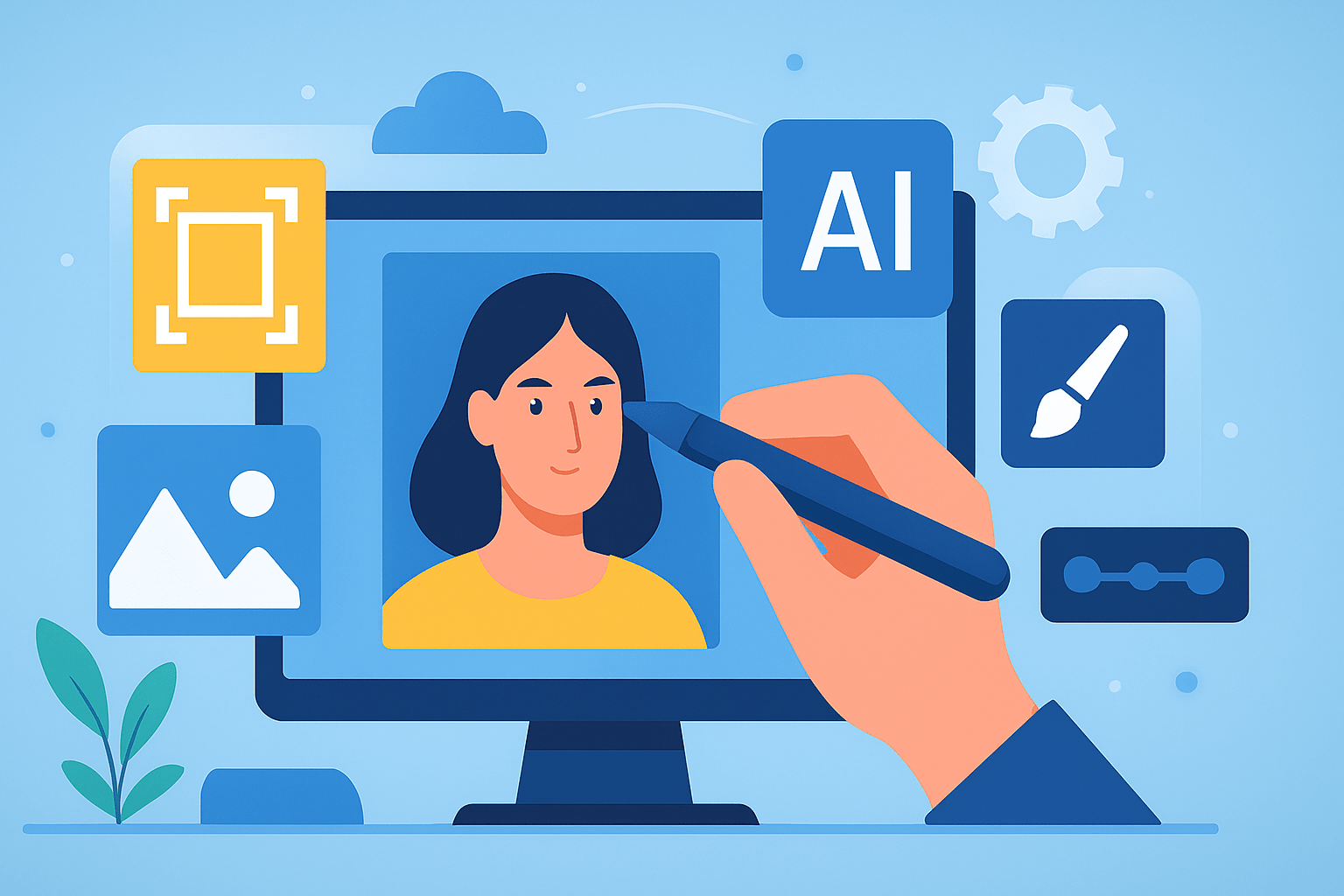
The short answer to what is ai photo editing: it is the use of machine learning and computer‑vision models to automatically analyze and change photos, performing tasks like background removal, object removal, portrait retouching, upscaling, and generative inpainting.
In practice, AI photo editors automate selections, masks, retouching, color correction, exposure balancing, denoising, and super‑resolution. They also enable generative fill to add or extend content, and can swap or rebuild backgrounds in seconds.
Photographers, content creators, and ecommerce teams use these tools to work faster and keep results consistent. Automated photo editing removes much of the repetitive work so you can focus on creative choices.
Here is a quick before/after idea: remove a distracting trash can in seconds with AI, instead of spending ten minutes with a clone stamp and manual masks.
If you want a quick snapshot of today’s options, this roundup of the best AI photo editors is a helpful starting point for comparing features and price.
Caption: Example AI edit—left shows a busy street scene, right shows the object removed and colors balanced. Image: Author mockup.
How does AI photo editing work?
Most tools follow a simple pipeline: the software analyzes the image, understands what is in it, creates masks, performs the requested edit, and blends the result so it looks natural. This is why AI can automate tasks that used to take many careful steps.
First comes image analysis. The model recognizes subjects such as people, sky, product, hair, and background, and it estimates edges, depth, and lighting.
Next is semantic segmentation and subject detection. The system assigns each pixel to a class, like “face,” “skin,” “fabric,” or “background,” and draws a soft mask around each region.
With masks ready, the tool applies model‑driven edits. Inpainting fills missing areas, color mapping adjusts tones, and super‑resolution reconstructs detail when you upscale. Finally, blending and refinement smooth edges, match noise and grain, and keep transitions realistic.
Different model types do different jobs. Segmentation and detection networks find objects and make masks. Enhancement and super‑resolution nets rebuild detail and reduce noise. Generative models such as GANs and diffusion models create new pixels for tasks like generative fill, and transformer models let you guide edits with text prompts.
Here is a common workflow example: automatic background removal and replacement. The tool detects the subject, refines a hair‑safe mask, deletes the old background, then fills or replaces it with a new scene. It matches color and light to the subject, and blends edges so the cutout looks natural.
Compared to traditional manual editing, the old approach asked you to draw selections, feather edges, clone backgrounds, and dodge and burn for hours. AI replaces those steps with semantic understanding and learned inference. It is fast and powerful, but it can also hallucinate details or leave artifacts if the scene is complex.
As models improve, this pipeline gets more reliable and customizable, and the future of editing will likely include even tighter control with less clicking.

Caption: The AI editing pipeline—analysis, segmentation, masks, model‑driven edit, and final blending. Image: Author diagram.
Key AI features in photo editing software
Generative fill and expand let you add or extend content at a semantic level. You can widen a canvas, rebuild cut‑off elements, or conjure a missing sky that matches the scene. For best results, keep masks tight, review seams at 100%, and nudge the prompt toward the lighting you want.
Automatic object removal and background replacement are workhorses for product and portrait work. The model builds a subject mask, erases the distraction or background, and fills the gap with context‑aware pixels or a new backdrop. Always check hair and tricky edges, then refine with a soft brush where needed.
AI‑powered skin smoothing and portrait enhancement target pores, blemishes, and uneven tone while keeping natural texture. Use subtle settings to avoid the plastic look, then sharpen eyes and lips lightly to restore crispness.
AI upscaling, also called super‑resolution, increases image size while trying to reconstruct fine detail. Upscale conservatively, and add only a touch of sharpening to avoid ringing or crunchy edges. This is ideal for older phone photos or small social images you want to print.
Batch processing and workflow automation save huge time on large shoots. Culling suggestions, auto‑tone, and smart presets give you a clean base across hundreds of frames. Shoot RAW and use a consistent profile so batch results match better from image to image.
Scene‑aware light, color, and contrast tools analyze the photo and nudge exposure, white balance, and saturation in one click. Treat these as a starting point, then fine‑tune with curves or HSL to match your style.
Text‑to‑image and AI‑assisted creative tools open new possibilities for concept art, composites, and visual brainstorming. Use them to sketch ideas, then blend parts into real photos to keep a grounded look.

Caption: Portrait retouch—blemish cleanup and skin smoothing, with texture preserved. Image: Author mockup.

Caption: Product photo—AI background removal and a clean white replacement for ecommerce. Image: Author mockup.

Caption: AI upscaling—small phone photo enlarged for a sharp print. Image: Author mockup.
In ecommerce, automatic background replacement speeds up catalog turnarounds while keeping product colors accurate. In wedding work, portrait tools help smooth skin and balance light across mixed venues. For restoration, upscaling and denoise can revive scanned prints and reduce grain while preserving detail.
Together, these features handle the heavy lifting so you can direct the look and feel. The AI takes care of edges and pixels, while you focus on story, light, and mood.
Benefits of using AI photo editors
The biggest gain is speed. Tasks that used to take ten minutes per image—selections, masks, and cleanup—can drop to seconds with automated photo editing.
Consistency across large batches is the next win. AI‑assisted culling, auto‑tone, and preset matching keep hundreds of images aligned with your style in fewer passes.
There is also a lower learning curve for complex edits. Portrait retouching, background removal, and generative fill become approachable, so more creators can produce polished work.
Creative possibilities expand, too. You can prototype ideas, test color grades, or expand scenes with generative fill before committing to a big composite.
Here are a few quick scenarios. An ecommerce team removes and replaces 200 backgrounds in under an hour instead of a full day (example estimate). A wedding photographer culls 2,000 frames in 30 minutes and delivers a first look the same night (example estimate).
Influencers benefit on mobile with fast portrait cleanup and smart color. Commercial shooters can cut delivery times by using AI for first passes, then doing precise finishing where it matters most.
Pick the right tool by matching features to needs: retouching and portrait control, upscaling and restoration, or generative creativity. If you want a quick place to try tools in your browser, explore some online AI photo editors to compare workflows before you commit.
Challenges and limitations of AI photo editing
AI can hallucinate details, especially in tricky areas like hands, hair, and patterned fabrics. It may over‑smooth skin, shift colors, or misread unusual lighting, leaving halos and muddy textures.
There are also creative trade‑offs. Some tools reduce fine control, and sliders can push you toward a generic “AI look” if you are not careful. Keep your intent front and center and use manual touches to guide the final result.
Ethical and legal questions matter, too. You should consider provenance for AI‑generated pixels, avoid deceptive edits in news or awards contexts, and be aware of dataset bias and potential copyright concerns. When in doubt, seek legal guidance and follow your client’s or publication’s policy.
Operationally, subscription costs and black‑box behavior can be frustrating. Cloud uploads raise privacy questions, and model updates can change how a tool behaves from one week to the next.
Mitigate these risks with a solid workflow. Keep originals and RAW files, work non‑destructively with layers, inspect at 100% zoom, and refine masks by hand after the AI pass. Add provenance or edit metadata when a client or platform requires it.
Know when not to rely entirely on AI. For forensic, award, or editorial photos, or for high‑end print retouching where every pixel matters, manual control should lead and AI should assist.

Caption: AI failure example—extra fingers and warped jewelry after a generative fill. Fix by masking the hand and retouching manually with heal/clone. Image: Author mockup.
As you explore what is ai photo editing beyond the hype, build a review habit into your process. A quick zoom check and a few brush strokes often turn a fast AI pass into a production‑ready image.
Glossary, in plain language: Segmentation is how the model labels parts of a photo by type so it can select them. A semantic mask is a soft selection that follows a real object, like hair or sky, with edge awareness.
Inpainting means the model fills missing or removed areas using context from surrounding pixels. A GAN is a generative adversarial network that can synthesize realistic textures and details.
A diffusion model builds an image by iteratively denoising from random noise to a guided result, which helps with generative fill and expansions. Super‑resolution is AI upscaling that tries to reconstruct fine detail when enlarging a photo.
Transformers are models that understand sequences and relationships, enabling text‑guided edits and smarter multimodal tools. Together, these ideas power modern AI photo editors and their rapid, automated photo editing workflows.
What People Ask Most
What is ai photo editing?
AI photo editing is software that uses artificial intelligence to automatically improve or change images, like fixing exposure or removing backgrounds. It speeds up common edits and makes complex tasks easier for beginners.
How can AI photo editing help improve my photos?
AI tools can quickly adjust color, sharpen details, remove blemishes, and replace backgrounds with minimal effort. These automatic fixes help your photos look more polished in less time.
Do I need special skills to use AI photo editing tools?
No, most AI photo editing tools are designed for beginners with one-click options and simple sliders. You can learn basic edits in minutes and refine skills as you go.
Can AI photo editing replace a human photographer or editor?
No, AI helps with routine tasks and speeds up workflows but it can’t fully replace creative judgment or complex retouching by a skilled editor. Professionals still add the final creative touch.
Is AI photo editing safe for personal photos and privacy?
Safety depends on the service you use, so choose reputable tools and check their privacy policies before uploading sensitive images. Always keep backups of originals and review sharing settings.
What common mistakes should beginners avoid with AI photo editing?
Avoid over-editing, relying only on auto fixes, and not saving original files; these lead to unnatural results or loss of image data. Make small changes and review edits at full size.
Are AI photo edits noticeable or natural-looking?
AI edits can look very natural when used subtly and checked closely, but heavy or automatic changes may appear fake. Aim for small, consistent adjustments for the best results.
Final Thoughts on AI Photo Editing
Even if you’re sorting 270 shots from a shoot, AI tools can cut the busywork and keep results steady across a batch. Beyond time savings, they make complex edits approachable for people who aren’t Photoshop experts, so more creators can polish images without a steep learning curve. They won’t replace your taste, but they’ll free up the hours you spent on repetitive masking and cloning.
We started by answering “what is AI photo editing?” and then walked through how those models work, standout features, business uses, and limits to watch. A realistic caution: generative edits can hallucinate or introduce artifacts, so check at 100% and keep RAW originals and non-destructive layers. We also included practical workflows and pro tips so you can apply the tech carefully, not blindly.
That mix makes these tools especially useful for photographers, content creators, and ecommerce sellers who need speed and consistent polish at scale. They’re great for culling, batch retouching, background swaps, and quick concepting, while you keep final creative control. Keep experimenting—the tools will keep improving, and your eye will be what turns automation into memorable images.



0 Comments