
Why isn’t my Google Lens working when I try to scan text or objects?
If you asked “why isn’t my google lens working”, this guide gives fast fixes and clear steps you can try right now.
We cover the common causes: bad internet, missing permissions, outdated apps, and corrupted cache.
Start with a quick 1–2 minute checklist, then follow step‑by‑step Android and iPhone fixes, plus simple tips like cleaning the lens, using good light, and when to contact Google support.
Common Reasons for Google Lens Malfunction
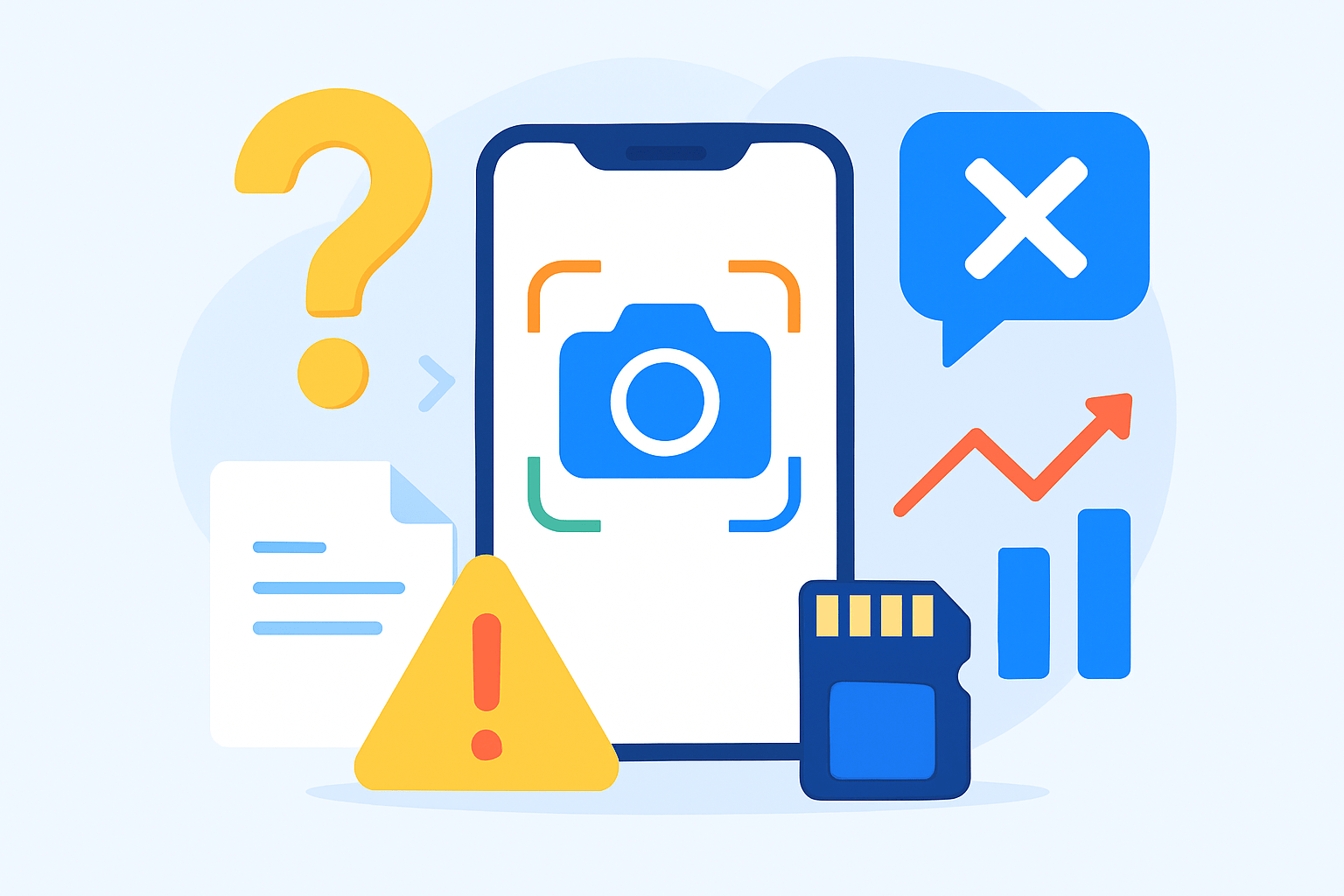
If you are asking “why isn’t my Google Lens working,” the usual culprits are a bad internet connection, missing permissions, outdated apps, or corrupted app data. Less often, the camera itself or a temporary Google outage is the cause.
Connectivity sits at the top of the list because many Lens results are processed in the cloud. Weak Wi‑Fi, blocked mobile data, a VPN, or a captive portal can lead to “No internet” or “Lens stuck loading” messages.
Outdated software is another frequent reason. If the Google app, Google Photos, or Play services are behind, or if your phone’s OS recently updated, Lens can misbehave until you update everything to match.
Permissions matter more than most people realize. Lens needs Camera permission to scan live, Photos or Storage to analyze images you already took, and Location can improve context. Battery saver, Data saver, or background-data limits can silently block requests too.
Sometimes the cache gets corrupted, a recent update is buggy, or Google’s servers have a hiccup. You might see “Camera not available,” crashes, or the app freezing mid-scan on certain devices or beta builds.
Finally, remember the limits of recognition. Very rare species, abstract or custom artwork, torn labels, or low light can make Lens say “We can’t recognize this item.” Clean your camera glass, add light, frame a single subject, and try a different angle or use tools from get info about photos to improve results.
Your one-minute checklist is simple: restart the phone, open the Google app and tap the Lens icon, try another network, confirm Camera permission is on, and accept any pending updates. If that doesn’t fix it, follow the step-by-step checks below in this order: internet, permissions, updates, then cache.
Check your internet connection
Lens often uses cloud recognition, so a flaky connection can look like an app problem. If you wonder “why isn’t my Google Lens working” and results never load, test the network first.
Open a few web pages or stream a short video to confirm you actually have data. Toggle Airplane mode on and off, then switch between Wi‑Fi and mobile data to see if one path works better.
Turn off any VPN or proxy and try again, since some nodes block Google requests. If you are on public Wi‑Fi, sign in to the captive portal page, restart the router at home, or try a different network.
On Android, check if data restrictions are blocking Lens. Go to Settings, Apps, Google, Mobile data and Wi‑Fi, and make sure background data is allowed and Data Saver exceptions are on.
On iPhone, Low Data Mode or Cellular Data settings can starve apps. Open Settings, select Google or Google Photos, and allow Cellular Data; also check the Wi‑Fi network details for Low Data Mode toggles.
If the network was the issue, fix it and test again. Slow internet can make Lens lag, but a complete failure usually means the connection is blocked or unavailable.
Verify the app permissions
Lens cannot scan without the Camera permission. It also needs Photos or Storage access when you use Lens inside Google Photos, and Location can add useful context but is optional.
On Android, open Settings, then Apps, then Google or Google Lens, then Permissions. Allow Camera and Storage or Photos, and if you are using Lens in Google Photos, also confirm Photos has Camera and Storage where applicable.
On iOS, go to Settings, then Google, and turn on Camera; then open Settings, Photos, and give Google or Google Photos access to All Photos or the images you need. Reopen the app after toggling.
If you use a work profile, parental controls, or a managed device, policy rules may block permissions. If the toggles are grayed out, contact your admin, remove the management profile, or reinstall the app to reset prompts.
When permission was the problem, force-close the app, reopen it, and test Lens right away. Most “Google Lens camera not working” reports end here once Camera access is granted.
Update Google Lens or the Google app
Outdated apps can break features after system updates, and the reverse can happen too. If Google Lens is not working or keeps crashing, update the Google app, Google Photos, and on Android, Google Play services.
On Android, open the Play Store, search Google, Google Photos, and Google Lens, and tap Update where available. Also open Google Play services from the Play Store and update, then check Settings, System, System update for OS patches.
On iPhone, open the App Store, check Updates, and update Google and Google Photos. Then go to Settings, General, Software Update, and apply any pending iOS updates.
If you joined a beta program, consider leaving it to avoid new bugs. If updates fail, clear the Play Store cache on Android, free some storage, restart the device, and try again; if needed, reinstall the app.
For a quick walkthrough of common crash fixes, try this short video guide and then return to testing Lens. Once updates land, many users see the “Lens stuck loading” issue disappear.
Clear the app cache
Corrupted cache or data can quietly break Lens features. Clearing cache removes temporary files, while clearing storage or data resets the app and signs you out.
On Android, go to Settings, Apps, Google or Google Lens or Google Photos, then Storage and cache, and tap Clear cache. If nothing changes, use Clear storage or Clear data, knowing you’ll need to sign in again.
If updates or installs are failing, also clear cache for the Play Store and Google Play services, then restart. This often fixes stubborn update loops that indirectly affect Lens.
On iOS, there is no system cache button, so use Offload App in Settings, General, iPhone Storage, Google or Google Photos, or delete and reinstall. This recreates the app’s data and can stop crashes.
If Lens misbehaves inside Google Photos, treat both apps. Clear cache and data for Photos on Android, or reinstall Photos on iOS, then test Lens again from within the Photos viewer.
After clearing cache or data, restart your phone, open the Google app, and tap Lens to test. If you still ask “why isn’t my Google Lens working,” the issue may be deeper than local files.
At this point, escalate smartly. In the Google app, open Settings, Help and feedback, and send a report including your app version, OS version, exact steps to reproduce, and any screenshots of errors like “Camera not available.”
While you wait, try workarounds for urgent tasks. Use Google Photos to copy text from images, the Google Translate app for live translation, or Microsoft Lens and other OCR apps when recognition matters more than identification.
For a compact checklist you can follow end to end, these 9 proven ways mirror the order in this guide. Clean the camera glass, add light, steady your hand, and frame a single object to reduce false negatives.
If none of this helps and the camera fails in other apps too, a hardware issue may be the answer to “why isn’t my Google Lens working.” Book service for the camera module, or use another device to confirm before you repair.
What People Ask Most
Why isn’t my Google Lens working?
Check that Google Lens has camera permission and a stable internet connection, then restart the app or phone.
Why won’t Google Lens read text or translate signs?
Make sure the text is well lit and in focus, and try moving your phone closer or farther until it recognizes the letters.
Why is Google Lens showing blurry or incorrect results?
Clean the camera lens and hold your phone steady, as glare, motion, or low light can confuse Lens.
Can low battery or power saver mode stop Google Lens from working?
Yes, power saver and low battery can limit camera and background services, so turn them off and try again.
Why does Google Lens stop working after an app update?
An update can cause glitches, so update the Google app, clear its cache, or reinstall and then restart your phone.
Is Google Lens available offline and could that be the problem?
Many Lens features need an internet connection, so no Wi‑Fi or mobile data can make it fail.
Why isn’t Google Lens working inside apps like Snapchat or Instagram?
Third-party apps may not support Lens or block camera access, so use the Google app or grant camera permission to the other app.
Final Thoughts on Google Lens Troubleshooting
If you searched “why isn’t my Google Lens working?” and landed on 270, this guide was built to fix that quickly and practically. It walks you through a fast checklist and clear, platform-specific steps — testing connectivity, granting the right permissions, updating apps, and clearing corrupt cache — so Lens can start giving reliable visual answers again. Keep in mind that hardware problems or a Google service outage are realistic limits where user fixes won’t help.
We began with one-minute fixes and then showed how to isolate problems step by step, so you can tell when it’s a network, permission, app, or cache issue. That sequence answers the opening question by making it simple to find whether you can fix it yourself or need to escalate. It’s aimed at everyday Android and iPhone users who want practical, no-nonsense troubleshooting.
Work through the checks in order and most issues will sort out without stress. You’ll be ready to scan, translate, and identify with more confidence going forward, and you’ll know which fixes to try first next time.


0 Comments