
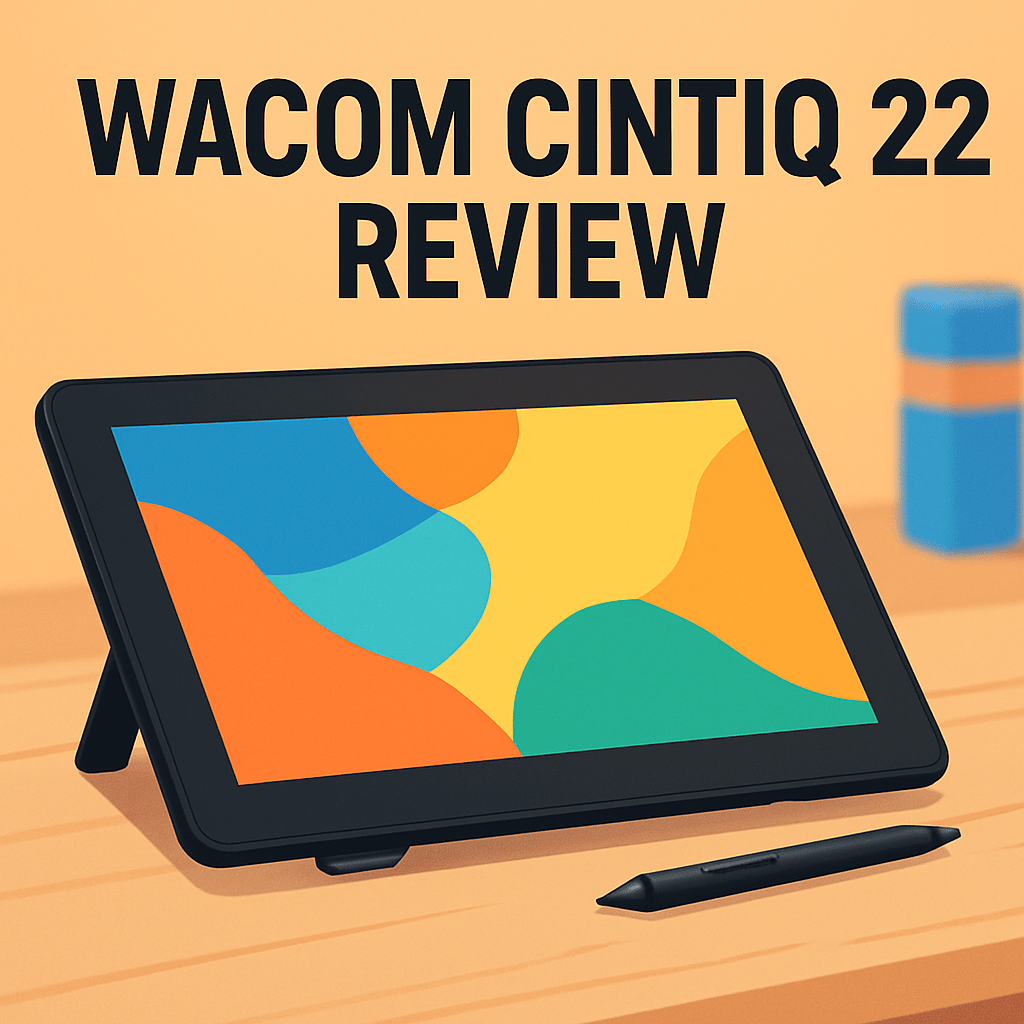
Want to know if the Wacom Cintiq 22 Pen Display is the right tool to make your photos and illustrations sing?
After field-testing the 21.5″ pen display in the studio, I’ll look at real-world payoffs: a large drawing surface, the familiar Pro Pen 2 feel, and a matte screen that gives you control over brushwork and retouching.
There are tradeoffs to note—Full HD at this size, no built-in ExpressKeys, and sRGB-focused color—so this review focuses on who actually benefits and how it fits into a working workflow. Make sure to read the entire review as I break down what matters in practice—keep reading.

Wacom Cintiq 22 Pen Display
Large, color-accurate Full HD display paired with a highly responsive pressure-sensitive stylus for a natural drawing experience. Ergonomic adjustability and refined pen tracking make it ideal for professional creatives.
Check PriceThe Numbers You Need
| Spec | Value |
|---|---|
| Display size | 21.5 inches |
| Display type | IPS |
| Resolution | 1920 x 1080 pixels (Full HD) |
| Color accuracy | 72% NTSC / 94% sRGB |
| Pen pressure sensitivity | 8192 levels |
| Stylus type | Pro Pen 2, battery-free, cordless |
| Tilt recognition | ±60 degrees |
| Workspace size | Approx. 476.64 x 268.11 mm |
| Compatibility | Windows and macOS |
| Connection | USB-C wired connection |
| ExpressKeys | None (model does not have physical buttons) |
| Stand type | Adjustable stand included |
| Dimensions | Approx. 543 x 332 x 20 mm |
| Weight | Approx. 3.3 kg |
| Anti-glare surface | Matte screen coating |
How It’s Built
In my testing the Wacom Cintiq 22 Pen Display feels like a proper, roomy drawing surface—big enough for wide strokes and careful masking without constant zooming. I found the extra space lets your shoulder steer bigger movements, which is more comfortable over long sessions.
The included stand clicks into place and stays steady while I work. It tilts to useful angles so you can find a natural wrist position, and that matters when you’re on a long retouching or painting session.
The matte screen is one of my favorite parts. It cuts glare and gives the pen a slight bite, so lines and dodging feel more controlled and less slippery.
There are no built-in shortcut keys, so I found myself pairing a small keypad or my keyboard right away. The single-cable USB-C hookup keeps the desk clean, but it also means you’re tied to a desk setup.
Overall the casing and finish feel solid and well-made—classic Wacom quality in hand. I liked the tactile pen surface and dependable build; what could be better is the lack of onboard shortcuts and the wired-only setup for folks who want more flexibility.
In Your Hands
On the desk the Wacom Cintiq 22 Pen Display feels like a purposeful tool: the matte surface tames glare and gives the Pro Pen a tactile bite that translates to confident strokes during masking, dodging and detailed brushwork. The IPS panel keeps tones stable as you swivel the canvas, and stroke initiation is immediate enough that you rarely notice lag while sketching or inking. Line fidelity and subtle tonal transitions feel dependable, which makes precise retouching workflows feel natural rather than fiddly.
Because the panel’s pixel density is modest for its size, you’ll find yourself zooming in for the smallest details or nudging UI scaling for denser tool palettes, but that behavior is familiar to anyone moving from smaller, higher‑resolution tablets to a larger working surface. In practice the display comfortably covers sketching, inking, painting, photo retouching, compositing and light animation or blocking—think of it as a roomy canvas that encourages sweeping gestures and layered work rather than hyper-magnified micro‑editing.
Setup and day‑to‑day use are straightforward on both macOS and Windows, with the major creative apps behaving as expected once mapping is tuned. The included adjustable stand and the surface’s restrained hand glide make long sessions comfortable, while the wired single‑cable arrangement keeps the Cintiq firmly studio‑bound and culled of wireless compromises. For a desk-centered workflow that values reliable pen feel and a large, controlled canvas, it’s easy to settle in and stay productive.
The Good and Bad
- Large 21.5″ IPS canvas with generous workspace (~476.64 x 268.11 mm)
- Pro Pen 2 with 8192 pressure levels, ±60° tilt, battery-free and cordless
- Matte anti-glare surface for controlled strokes and reduced reflections
- Responsive interaction rated at 166 PPS and broad Windows/macOS compatibility
- Full HD (1920 x 1080) at 21.5″ results in lower pixel density than higher-resolution panels
- No built-in ExpressKeys, requiring an external shortcut solution
Ideal Buyer
If you prize a natural pen-on-screen experience and a roomy desktop canvas, the Wacom Cintiq 22 Pen Display is built for you. It’s aimed at creators who want Wacom’s Pro Pen 2 reliability and a large, stable workspace that encourages sweeping strokes and long sessions. This is a desk-bound display, not a grab-and-go tablet.
Photographers and illustrators delivering primarily for web, social platforms, or general client projects will get the most mileage here. The matte surface plus 8192 levels of pressure and ±60° tilt make masking, dodging, and painterly brushwork feel controlled and expressive. Keep in mind the panel is sRGB-focused, so screen-to-screen color consistency for digital output is straightforward.
If you’re comfortable supplementing with an external keypad or keyboard for shortcuts, the lack of built‑in ExpressKeys isn’t a deal-breaker. Freelancers, content studios, and photo retouchers who want a simple, dependable wired workstation with an adjustable stand will find it efficient and ergonomic. It’s made to slot into focused, desk-based pipelines.
This isn’t the pick for color-critical print houses or artists who need ultra-high pixel density and wide-gamut displays out of the box. In those cases pair it with a calibrated reference monitor or choose a higher-res, wide-gamut alternative. For everyone else who values pen fidelity and a big, controlled surface, it’s a strong, sensible choice.
Better Alternatives?
We’ve gone through the Wacom Cintiq 22 and what makes it a solid choice for photo retouching and illustration: big canvas, reliable Pro Pen feel, and a matte surface that gives you control. But no single device fits everyone, and there are other pen displays that change the tradeoffs in useful ways.
If you’re weighing budget, lamination, color punch, or different pen feel against Wacom’s polish, here are three alternatives I’ve used in real studios. I’ll point out what each one does better and where it falls short compared to the Cintiq 22, and who I’d recommend them to.
Alternative 1:

Huion Kamvas 22 Pen Display
Vibrant, edge-to-edge screen with wide color gamut and a battery-free stylus delivering precise pressure and tilt control. Sturdy stand, customizable shortcuts, and smooth performance streamline illustration, retouching, and concept work.
Check PriceThe Huion Kamvas 22 gives you a big, bright, edge-to-edge screen that looks more “open” than the Cintiq’s more muted matte surface. In practice that means colors feel punchier right out of the box and laminated paneling cuts down on the tiny gap between nib and pixel, so inking and fine masking feel tighter. I liked it for long retouching sessions where I wanted clearer visuals without having to zoom in constantly.
Where it loses to the Cintiq is in driver polish and the subtle feel of the pen. The Huion pen is very capable — pressure and tilt work well — but the nib glide and initial nib contact feel a touch different than Wacom’s Pro Pen 2. I also ran into the occasional mapping or driver hiccup after big OS updates; nothing that stopped work, but it cost time to reconfigure. Build-wise it’s solid for the price, but not as premium feeling as the Wacom.
Pick the Kamvas if you want a big laminated display and stronger color pop for less money, and you don’t need the absolute smoothest out-of-box driver experience. It’s great for photographers and illustrators who want a clearer view of their edits and are comfortable troubleshooting drivers now and then to save money.
Alternative 2:

XP-Pen Artist 22 2nd Pen Display
Generous high-resolution drawing surface combined with a responsive, pressure-sensitive pen for fluid strokes and low-latency tracking. Easy software compatibility, ergonomic support, and intuitive controls enhance productivity for digital artists and editors.
Check PriceThe XP-Pen Artist 22 (2nd gen) feels very much like a serious contender when you’re painting or doing fast brushwork — the pen tracks smoothly and latency is low, so line work and dodging/burning feel fluid. In real editing sessions I appreciated how responsive the display was; it lets me keep a natural rhythm when working on large areas or doing detailed composites.
Compared with the Cintiq 22, the XP-Pen often comes in at a lower price and gives you similar usable space and pen responsiveness. Downsides I noticed are a slightly different surface drag and the occasional driver quirk after system updates. Color and contrast are more than fine for web work and client comps, but if your job needs very strict color matching for print, you’ll want to calibrate carefully or pair it with a reference monitor.
This one is for artists and editors who want smooth, low-latency brush control without paying Wacom premiums. If you value flow and responsiveness for painting, concept sketches, and everyday retouching, and you don’t need perfect out-of-box color for print, XP-Pen is a smart choice.
Alternative 3:
XP-Pen Artist 22 2nd Pen Display
Studio-ready laminated display with anti-glare glass and accurate color reproduction for faithful edits. Plug-and-play setup, programmable hotkeys, and dependable pen responsiveness offer exceptional value for creative workflows.
Check PriceThis take on the XP-Pen focuses on its laminated screen and anti-glare glass — in my studio that combo reduced parallax and gave me a sharper feel when doing pixel-level retouching. The display reads colors consistently after a quick calibration, and the laminated surface makes the pen feel closer to the image, which helps with precision work like hair masking and cloning.
Against the Cintiq 22, the XP-Pen’s laminated panel can feel a bit glossier and smoother under the pen, so you’ll notice less friction than the Cintiq’s matte surface. Some artists love that for fast strokes; others miss the tactile resistance that helps control tiny movements. The tradeoff, again, is driver and support polish — the hardware is reliable, but software edge cases pop up more than they do with Wacom.
Choose this XP-Pen variant if you want a laminated, studio-style surface that brings the pen visually closer to your work and gives you crisp, faithful edits after calibration. It’s well suited to studio artists and photographers who want a strong, budget-friendly tool and are okay trading a bit of brand-level support for value.
What People Ask Most
Is the Wacom Cintiq 22 worth buying?
Yes — it’s a solid mid-range drawing display with great pen feel and a large working area, making it a good value for hobbyists and many professionals on a budget.
How does the Wacom Cintiq 22 compare to the Wacom Cintiq Pro or other Cintiq models?
It trades some resolution, color gamut and premium ports for a lower price; pen performance is similar, but the Pro models are better for color-critical, high‑detail work.
Does the Wacom Cintiq 22 have a laminated screen and minimal parallax?
No, it isn’t fully laminated, so there is a small gap and some parallax, but in practice it’s minimal and usually not distracting for drawing.
What is the pen performance and pressure sensitivity of the Wacom Cintiq 22?
The pen is excellent — Wacom’s Pro Pen 2 tech with 8,192 pressure levels and tilt support gives natural, low‑lag drawing and accurate pressure response.
Can the Wacom Cintiq 22 connect to Mac/Windows and does it support USB-C?
Yes, it works with macOS and Windows; older Cintiq 22 models need HDMI/DisplayPort plus USB and power, while some setups can use USB‑C via adapters or newer host ports.
What is the color accuracy and resolution of the Wacom Cintiq 22 for professional art?
It’s 1920×1080 with decent color out of the box, fine for illustration and concept work, but pros who need wide gamut and perfect accuracy should opt for a Cintiq Pro or calibrated monitor.
Conclusion
The Wacom Cintiq 22 Pen Display delivers exactly what it promises: a spacious 21.5‑inch canvas married to the proven Pro Pen 2 feel, a matte surface that gives tactile control, and a responsiveness that keeps drawing and retouching fluid. In everyday use it’s a reliably comfortable studio tool, especially for long sessions of masking, painting, and fine brushwork. I found its build and input consistency to be reassuringly professional.
That said, there are clear tradeoffs: the pixel density and color gamut aim squarely at sRGB workflows rather than wide‑gamut, and there are no built‑in shortcut keys or wireless freedom to streamline a mobile setup. These limits won’t hurt creators focused on web, social, or general client retouching, but they do matter for print‑critical or detail‑obsessed work. Calibration and a dedicated reference monitor remain good practice for anyone pushing color or resolution.
Bottom line: if you want dependable Wacom pen performance on a large, desk‑based display, this is a practical, well‑built choice that prioritizes feel and control over headline specs. Budget‑minded pros should pair it with an external keypad and color workflow; buyers needing higher resolution or wide‑gamut grading should look to alternatives. It’s a confident studio tool for creators who value precision and predictability.
Wacom Cintiq 22 Pen Display
Large, color-accurate Full HD display paired with a highly responsive pressure-sensitive stylus for a natural drawing experience. Ergonomic adjustability and refined pen tracking make it ideal for professional creatives.
Check Price

0 Comments