
How to turn flash off and stop your camera or phone from blinding everyone?
This short guide, updated for 2026, gives clear steps for cameras and smartphones. You’ll also get quick troubleshooting and low‑light alternatives.
Follow simple 3‑step fixes, step‑by‑step menus for common brands, and phone screenshots. We explain when to leave the flash off and better lighting options.
Want a fast answer or a deeper how‑to? Scroll on for the quick fix box or read the detailed sections below.
How to Turn Flash Off on a Camera
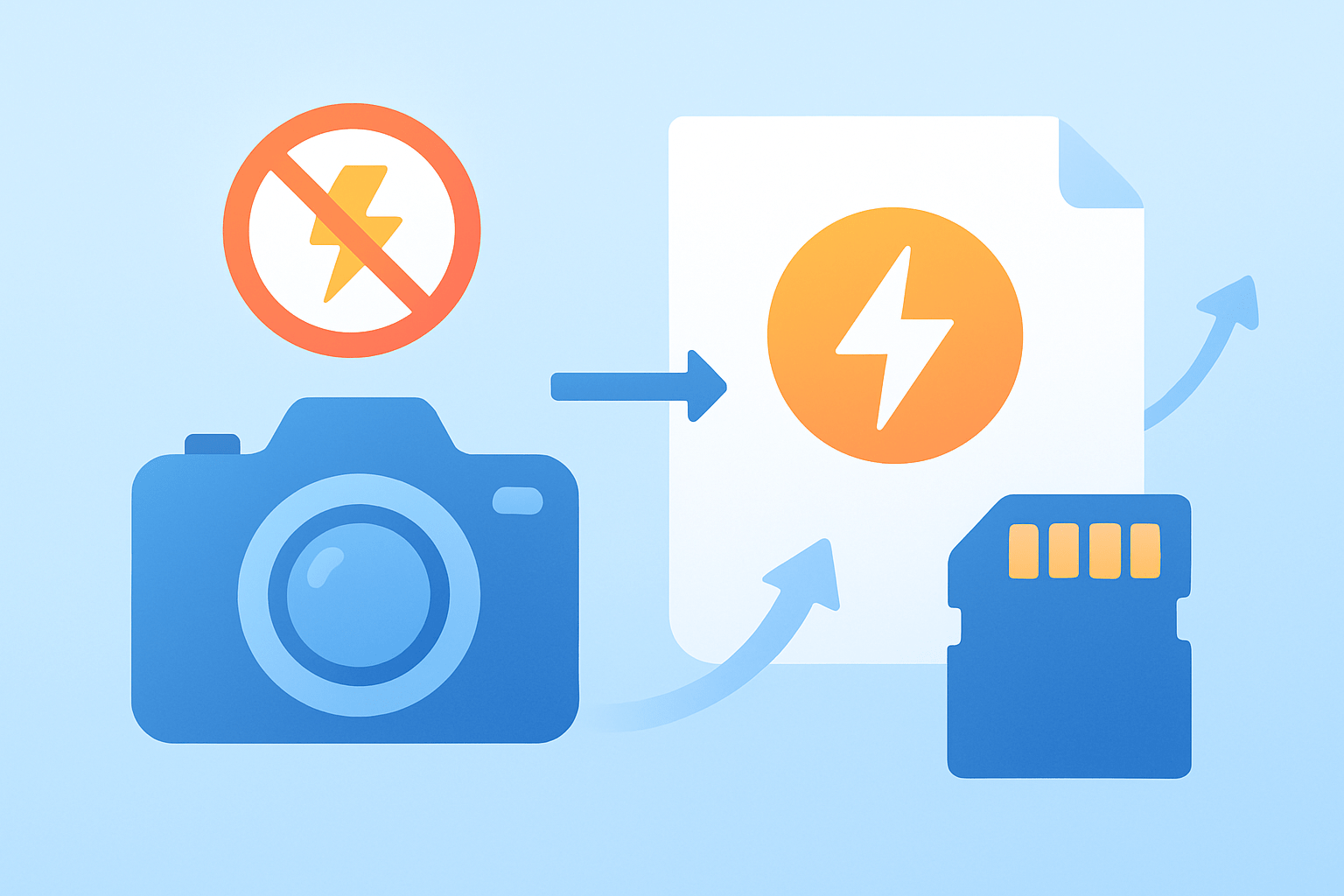
The quickest way to stop your camera from firing is simple: find the lightning‑bolt icon and select the version with a slash through it. If you came here wondering how to turn flash off right now, that icon is the universal “Off.”
Quick fix in three moves: press the physical flash button or open the on‑screen Quick menu, then choose Flash Mode. Pick the lightning bolt with a slash, confirm, and half‑press the shutter to test. If it still pops, detach any external flash and repeat.
On compact point‑and‑shoot cameras, look for a small button with a bolt on the back or top, or tap the on‑screen bolt in the camera app. Press or tap to cycle through Auto, On, and Off until the icon with a slash shows. Some models add “A” for Auto and an eye icon for red‑eye reduction.
On DSLRs or mirrorless bodies with a built‑in pop‑up flash, press the flash button once to wake the flash controls, then use the Q, Fn, or i menu to choose Flash Mode and set it to Off. You can also go through Menu, Flash control, Built‑in flash, and select Off there. Test with a shot to confirm it does not fire.
If your camera has no dedicated flash button, open the main menu and look for Shooting Settings or Exposure, then Flash or Strobe. Set Flash Mode to Off, or choose Flash firing and switch it to Disable. Many cameras let you put Flash Off on a custom Fn button for faster access next time.
Using an external speedlite or hot‑shoe flash changes the rules, because the body may trigger whatever is attached. Turn the flash unit’s power switch to Off, or set its output to 0 if there is no hard power toggle. If you are using wireless control, disable the camera’s commander mode or remove the flash from the hot shoe entirely.
Video and stills are separate: the flash strobe is only for photos, while video uses a continuous lamp or AF assist light. In Movie mode, look for Torch, Movie lamp, or LED light and set it to Off. Also toggle off AF assist beams if they are distracting in low light.
Watch the icons: a plain lightning bolt means the flash is set to fire, and a bolt with “A” means Auto will decide for you. The bolt with a slash means flash is disabled, which is what you want. If you see an eye next to the bolt, that is red‑eye reduction and still counts as “flash on.”
Canon EOS owners should press the flash button or hit Q, open Flash Mode, and choose Disable. Nikon users can tap the lightning button near the prism or press i, pick Flash mode, and set Flash off, then check the top screen or rear display for the slashed bolt.
Sony Alpha shooters can press Fn, open Flash Mode, and pick the slashed bolt, or go through Camera Settings to Flash Mode and choose Off. Panasonic Lumix typically offers Flash in the Q.Menu or Rec settings, where you can set it to Forced Off and save that in a custom mode.
Quick checklist if the flash still fires: remove or power down any external flash or trigger, switch out of Auto scene modes, and reset Flash Mode to Off in the main menu. If the pop‑up is stuck up, power down and gently close it, then restart and test again. As a last resort, reset the camera to defaults and reapply your preferred settings.
How to Disable Flash on Smartphones
Phone cameras split light in two ways, just like dedicated cameras. There is a flash strobe for photos and a torch or flashlight for video, and each has a separate control. Knowing both is the key if you are learning how to turn flash off and keep it off.
On iPhone, open the Camera app and tap the arrow at the top to reveal controls if needed, then tap the lightning bolt and choose Off. If you are in Video, look for the little flashlight icon and turn the torch off separately. Also make sure the system Flashlight in Control Center is off so it does not carry into your clip.
On Android, open the default camera and tap the lightning bolt icon, then select Off or tap until the slashed bolt appears. On Samsung Galaxy, the bolt sits on the top bar and Video has its own torch toggle. On Google Pixel, the bolt is on the top bar or behind a small settings cog, and Night Sight may hide the flash option until you switch modes.
Social apps like Snapchat, Instagram, and TikTok have their own flash buttons that can override system choices. Tap the bolt inside each app to set Off, and check the app’s camera permissions if the toggle is missing. If your phone uses the LED for alerts, turn off Flash alerts or LED flash for notifications in Accessibility to prevent surprise flashes.
If the flash misbehaves, close the app, relaunch it, or restart your phone, then update both the OS and the app. Test with the default Camera app to see if the issue is app‑specific, and reinstall the problem app if needed. For a broader walkthrough across devices, see this guide on how to turn off camera flash and phone flash.
Troubleshooting Flash Settings
If your flash still fires with Off selected, run a quick diagnostic in minutes. First, check for anything in the hot shoe or a trigger that could be commanding the flash. Then confirm you are not in a scene mode that forces flash, and switch to P, A/Av, S/Tv, or M to regain control.
External flashes are the number one culprit because the camera assumes you want them active. Power the speedlite down, remove it from the hot shoe, and test again with a half‑press of the shutter. If the flash is remote, disable the wireless commander or radio channel in the menu so the body stops sending fire signals.
Auto scene modes can quietly re‑enable the strobe, especially Portrait, Night portrait, or Sports. Move into a manual or semi‑auto mode and set Flash firing to Disable in the Shooting or Flash control menu. Check that Auto ISO or Smile/Beauty modes are not toggling a fill flash behind the scenes.
Menu overrides and mechanical issues sometimes hide the cause. Dive into Menu, Flash control, and confirm Built‑in flash is Off, then look at Custom Functions to ensure no “Flash sync” or “Commander” option remains active. If the pop‑up is physically stuck or springs open by itself, power down, gently close it, and seek service if it jams again.
Software bugs do happen, and the symptoms can look like “Flash disabled,” “Charging,” or “Overheat” messages. Restart the camera, reset settings to factory defaults, and update firmware to the latest version to clear corrupted states. Phones can also have app‑level overrides or Accessibility features like LED flash for alerts that mimic a stuck flash, so switch those off before testing.
Tips for Low‑Light Photography Without Flash
Shooting without a strobe is about three simple moves: gather more light, reduce blur, and control noise. Master these and you will know not only how to turn flash off, but how to make beautiful images without it. The camera becomes quieter, more discreet, and more cinematic.
Open your aperture as wide as your lens allows, because every stop doubles the light. A prime like a 35mm or 50mm f/1.8 is a low‑cost, high‑impact upgrade for dim rooms. If depth of field is critical, step down one stop and move closer rather than closing the aperture too far.
Mind your shutter speed by following the reciprocal rule: start around 1 over your focal length for hand‑holding, like 1/50s for a 50mm lens. Turn on image stabilization, brace your elbows, and exhale slowly as you shoot, or use a tripod or mini clamp for long exposures. For moving subjects, nudge the speed up and let ISO rise to keep motion sharp.
Raise ISO when needed and embrace the grain tastefully. Modern sensors handle ISO 1600 to 3200 well, and even 6400 is usable with careful exposure and good noise reduction in post. Shoot RAW to preserve detail, then apply luminance noise reduction and gentle sharpening so the file stays clean.
Shape the existing light instead of blasting it; a small LED panel, a phone screen, or a desk lamp angled into a wall can create lovely bounce. Reflectors, white ceilings, and even a napkin over a lamp can soften contrast in a pinch, while exposure stacking or median stacking helps with static scenes. Learning the basics helps you choose when to add light and when to hold back, and guides like these flash beginner tips will sharpen your judgment even if you prefer to shoot without flash most of the time.
When and Why to Turn Flash Off (and Alternatives)
Some places simply forbid flash, like museums, aquariums, and theaters, and it is polite and often mandatory to keep it off. Beyond rules, the flash can wash away atmosphere in concerts and stage plays, so turning it off preserves the mood. Your images feel truer to the scene and less intrusive to others.
Portraits often look better with ambient light because direct flash flattens features and creates hard shadows. Wildlife and pets can startle or blink in response to a burst, so it is safer and kinder to keep the strobe off outdoors. Reflective spaces such as glass walls, polished cars, and framed art also turn flash into glare and hot spots.
Red‑eye and deep, crisp shadows are classic signs of on‑camera flash pointed straight at a subject. If you see those artifacts, it is a cue to try a softer approach, or at least bounce the light away from the eyes. When in doubt and wondering how to turn flash off, choose Off and build the exposure around the available light.
You do not have to abandon artificial light entirely; you can shape it beautifully. Try bouncing or diffusing an external unit, or put the light on a stand and use off-camera flash techniques to keep the scene natural. Slow‑sync or rear‑curtain sync blends ambient light with a gentle pop, and continuous LEDs or simple reflectors offer quiet control in sensitive spaces.
Avoid blasting a group with naked on‑camera flash unless you have diffusion and a nearby surface to bounce. Do not lean on Auto flash as a crutch, because it tends to fire when the camera sees darkness, not when the photo needs it. Plan your light, keep the flash off when it hurts the story, and your images will feel more intentional and alive.
What People Ask Most
How to turn flash off on my phone?
Open your camera app, tap the flash icon, and choose Off or Disabled to stop the flash from firing. You can also disable the flash in your phone’s quick settings if available.
How to turn flash off on a digital camera?
Press the flash button or go into the camera’s shooting menu and set the flash mode to Off or No Flash. This prevents the flash from popping up or firing automatically.
How to turn flash off when taking close-up or portrait photos?
Switch the flash to Off in the camera app before you shoot to avoid harsh light and red-eye in close shots. Use natural light or a reflector instead for softer results.
Will turning the flash off ruin low-light photos?
No, turning off the flash can still give good results if you use night mode, steady the camera, or increase ambient light. It may require a slower shutter or steadier hands to avoid blur.
How to turn flash off for video recording?
Turn off any video light or flash option in your camera or phone app before you start recording. Many apps have a separate light control for video that you can switch to Off.
Can turning the flash off help with candid photography?
Yes, turning the flash off makes photos less intrusive and helps capture natural expressions without startling people. It’s great for low-key or spontaneous moments.
Why does the flash keep turning on and how do I stop it?
Your camera may be set to Auto flash, which fires in low light; change the flash setting to Off in the app or camera menu to stop it. You can also check any scene or auto modes that override manual flash settings.
Final Thoughts on Turning Off Flash
Whether you’re shooting with an old compact, a DSLR, or a phone like the 270, turning off the flash gives you control over mood, reflections, and how a scene feels. This guide put the fastest fix up front—look for the lightning icon and switch it to Off—and then walked through camera- and phone-specific steps so you can stop unwanted pops. You’ll end up with photos that feel more natural and less flat.
Remember the opening question—how do I stop my camera or phone from firing the flash?—we answered with a quick 3-step cheat, troubleshooting checks, and practical low-light alternatives. Just be aware that avoiding flash often means slower shutters or higher ISO, so you might need a tripod or accept more noise. These tips suit casual shooters, hobbyists, and anyone wanting moodier, truer-to-life images.
Try the quick fix tonight and then explore the alternatives—bounce flash, LEDs, or RAW edits—to see what feels right for your style. You’re set to make more intentional pictures and enjoy the process of learning.




0 Comments