
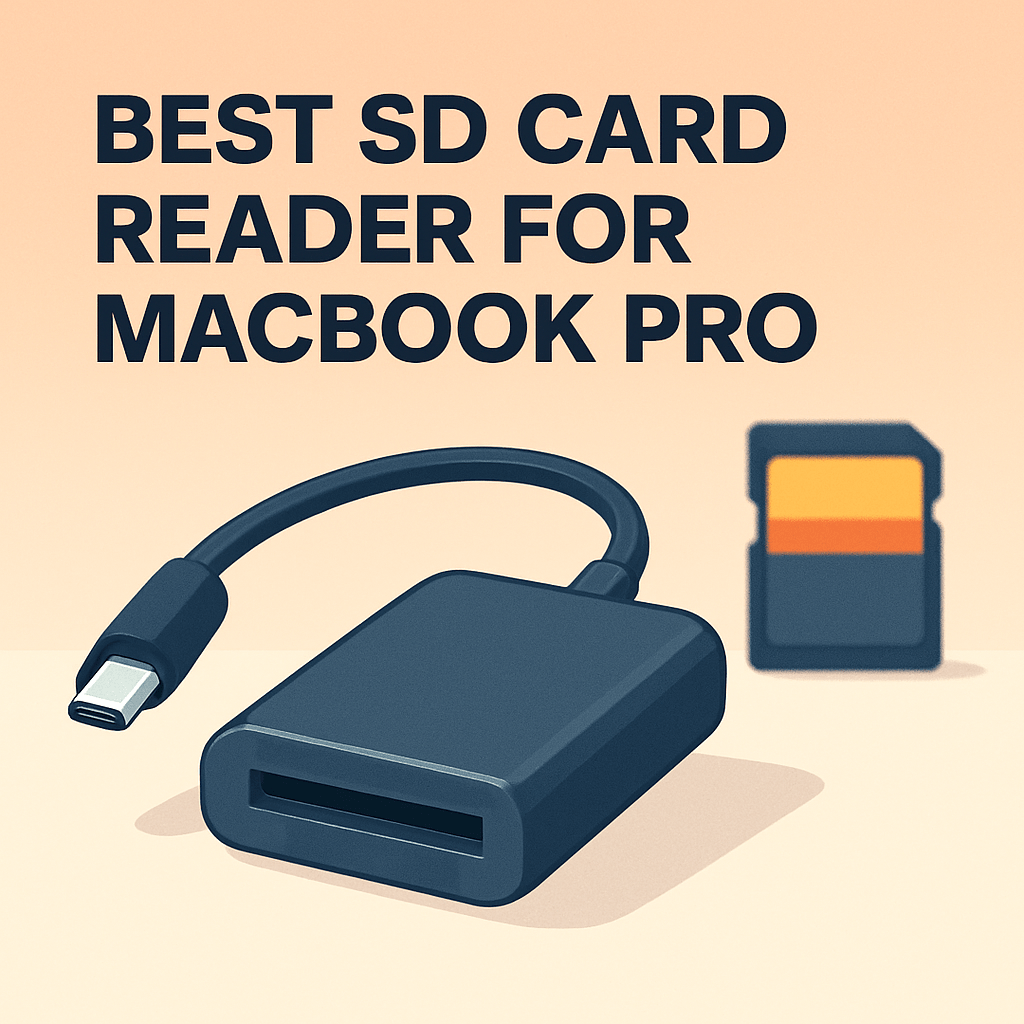
What if a tiny adapter could shave minutes—or even hours—off your editing workflow? For photographers and videographers, every second spent waiting on file transfers is time not spent creating.
This guide helps MacBook Pro users choose the right SD and memory card reader for their needs. It’s written for people who want faster ingests and less fuss. We focus on options that make a measurable difference to editing speed and reliability.
We evaluated options based on real‑world transfer speeds, native USB‑C compatibility with modern MacBook Pros, build quality, and multi‑card versatility. Sustained performance and day‑to‑day reliability mattered more than marketing peak numbers. We also checked macOS and port compatibility across common setups.
Inside you’ll find five recommended readers that span wallet‑friendly picks up to pro‑level CFexpress workflows. Each selection balances speed, compatibility, and portability so you can match a reader to your shooting style. You’ll get clear reasons to choose one reader over another.
Whether your MacBook Pro has a built‑in slot or only USB‑C ports, compatibility will shape your choice. The right reader can simplify backups, accelerate editing, and keep your desk tidy. This guide helps you weigh speed against convenience for your exact setup.
If you’re ready to cut ingest times and streamline your workflow, this primer will point you toward sensible picks. Save time, shoot more, and let your MacBook Pro work the way you expect. Spend more time creating and less time waiting.

Lexar Professional USB 3.2 Type-C Dual-Slot SD/microSD UHS-II Reader LRW470U-RNHNU
1. SanDisk ImageMate Pro Multi-Card Reader

SanDisk ImageMate PRO USB-C Reader/Writer SDDR-A631-GNGNN
High-speed USB-C reader for photographers and creatives — fast transfers, compact design, and broad SD/microSD compatibility.
Check PriceAs a working photographer, I reach for the SanDisk ImageMate Pro when I need a versatile, no-nonsense card reader. It reads CompactFlash, SD (both UHS‑I and UHS‑II) and microSD cards, so it handles everything I shoot with in one small unit.
Performance is solid for day‑to‑day pro work. With UHS‑II cards I see real‑world speeds around 252 MB/s read and 210 MB/s write, which keeps ingest times short for RAWs and ProRes clips. That said, it isn’t the absolute fastest available, but it’s “fast enough” for most photo and video workflows.
The build inspires confidence. At 122 × 58 × 17 mm it’s compact but weighty, so it sits securely on a desk and won’t slide around while swapping cards. The USB 3.2 Gen 1 interface gives reliable sustained transfers and stable performance during long copies.
One practical caveat: the reader uses a USB Type‑A connector. If you’re on a newer MacBook Pro with only USB‑C ports you’ll need a USB‑A → USB‑C adapter. That’s a minor annoyance but easy to solve with a small adapter in your kit.
In short, this is a very good everyday multi‑card reader for pros who want versatility and dependable UHS‑II speeds without chasing the absolute bleeding edge. It’s especially useful if you already have adapters or older USB‑A hubs in your workflow.
- Supports CF, SD (UHS‑I/II) and microSD
- UHS‑II real‑world ~252 MB/s read, 210 MB/s write
- Durable, weighty build; sits securely
- Stable sustained transfer speeds (USB 3.2 Gen 1)
- Uses USB‑A connector — needs adapter
- Speed limited by USB 3.2 Gen 1
2. SanDisk Extreme PRO CFexpress Type B Reader

SanDisk Extreme PRO CFexpress Card Reader SDDR-F451-GNGNN
Blazing-fast CFexpress card reader delivering pro-level transfer speeds for 4K/8K workflows, rugged build, plug-and-play convenience.
Check PriceThe SanDisk Extreme PRO USB 3.1 CFexpress Type B Card Reader is built specifically for CFexpress Type B cards, and that single-minded focus is exactly why I keep one in my kit for high-volume shoots. It uses USB 3.1 Gen 2 (up to 10 Gbps), so you get the bandwidth needed to move large 4K and 8K files without bottlenecking.
SanDisk includes a USB-C cable, which means plug-and-play compatibility with modern MacBook Pros right out of the box. That native USB‑C connection removes the fiddly adapters and keeps transfer chains simple during fast turnarounds.
In real-world use this reader delivers the kind of performance pros expect: extremely fast read/write for large video files and photo sequences. If you shoot CFexpress-based cameras, ingest times are noticeably shorter and your workflow stays fluid from card to edit drive.
Reliability is another standout—users report flawless operation on both Mac and Windows, and I’ve experienced the same: consistent, error-free transfers session after session. The build is compact and robust, so it survives being tossed in a camera bag and still feels solid on the desk.
The tradeoff is obvious: it only supports CFexpress Type B. If your workflow includes SD or microSD cards, this reader won’t help—it’s not universal. But for photographers and videographers investing in CFexpress cards for high-bitrate capture, it’s a practical, high-performance tool.
If you rely on CFexpress Type B for heavy-duty video or burst-photo work and want a no-nonsense, fast, USB-C-ready reader, the SanDisk Extreme PRO is an excellent choice.
- Exceptional speed for 4K/8K workflows
- USB 3.1 Gen 2 — up to 10 Gbps
- USB-C cable included — native MacBook Pro compatibility
- Compact, robust design with reliable transfers
- Only supports CFexpress Type B
- Not suitable for SD or microSD users
3. Lexar Professional Dual Slot USB-C Reader
Lexar Professional USB 3.2 Type-C Dual-Slot SD/microSD UHS-II Reader LRW470U-RNHNU
Dual-slot UHS-II reader with USB 3.2 Type-C for simultaneous SD and microSD transfers, optimized for fast file offloads.
Check PriceAs a working photographer who shoots on location, the Lexar Professional Dual Slot USB-C Reader feels like a practical pocket tool. It has dual slots for SD and microSD and comes with a built-in USB-C cable, so you can plug directly into a modern MacBook Pro without adapters.
Real-world performance is impressive — the outline notes a 15 GB transfer completing in roughly one minute, which tells you this reader can handle heavy photo and video ingest quickly. There’s also an LED transfer indicator, so you get clear feedback during busy card dumps.
It’s small and highly portable, so it tucks into a camera bag or pocket easily. Many users praise it for speed and value, and the reviewer notes “decent build quality,” meaning it stands up to regular field use but isn’t overbuilt like a rugged pro hub.
One thing to mind: the cable is attached. That’s convenient for direct plug-in, but some shooters prefer a detachable cable so you can swap lengths or replace a damaged lead. Also, while build quality is described as decent, it isn’t premium — handle it with the usual care you give lightweight accessories.
In short, if you need a fast, affordable USB-C reader that handles both SD and microSD and you like the simplicity of a single compact unit, this Lexar is a strong choice. If you require a modular setup with replaceable cables or an ultra-rugged chassis, you might look elsewhere.
- Extremely fast for SD (15 GB ≈ 1 min)
- Dual-slot convenience (SD + microSD)
- Native USB-C with attached cable
- Great value for speed
- Attached cable limits flexibility
- Build quality not premium
4. Dodocool DC49 USB-C Hub and Reader

Hiearcool 7-in-1 USB-C Hub with 4K HDMI, 100W PD, SD/TF Card Reader
Versatile 7-in-1 USB-C hub: 4K HDMI, 100W power delivery, multiple ports and card slots to expand laptop connectivity.
Check PriceAs a working photographer I value gear that speeds up my workflow without adding bulk, and the Dodocool DC49 fits that need. It’s a multifunction USB-C hub with SD and microSD slots, extra USB 3.0 ports and USB-C PD pass-through, so you can read cards while charging your MacBook Pro and running peripherals.
Build and feel matter when you’re moving between shoots, and the DC49’s aluminum casing matches MacBook aesthetics and stays lightweight and portable. In real-world use it’s a practical daily driver for ingesting shots and plugging in drives or a mouse without rummaging for dongles.
On performance it’s honest about its limits: transfer speeds are around 104 MB/s, which is perfectly serviceable for offloading JPEGs, RAW shooting sessions, and quick video clips, but it’s not a high‑end UHS‑II ingestion tool. Also note card capacity is model-dependent — supports SD cards up to 128 GB on some models, while other versions go to 512 GB — so double-check the specific unit before you buy.
If you need a tidy, attractive hub that consolidates card reading, USB connectivity, and pass‑through charging for everyday shoots and tethered work, the Dodocool DC49 is a solid, affordable choice. It’s best for photographers who prioritize convenience and extra ports over extreme transfer speeds.
- SD + microSD + USB 3.0 + USB-C PD passthrough
- Aluminum casing that matches MacBook aesthetics
- Compact and lightweight for daily carry
- Real-world transfers around 104 MB/s
- Moderate transfer speeds compared with high-end readers
- Card capacity capped (typically 128 GB; some models 512 GB)
5. Anker USB-C Card Reader

Anker PowerExpand+ USB-C SD 4.0 2-in-1 SD/microSD Card Reader
Compact 2-in-1 SD/microSD reader with USB-C and SD 4.0 speeds for fast transfers and effortless portability.
Check PriceAs a working photographer who often shoots long 4K clips on location, the Anker USB-C Card Reader has become my go-to pocket tool for quick offloads. It supports SD and microSD cards over a native USB-C connection, so it’s plug-and-play with modern MacBook Pros and requires no adapters.
Real-world transfer speeds land around 140–160 MB/s, which is meaningfully faster than many built-in SD slots for video editing. That speed makes it a solid choice when you need to move footage quickly between shoots without investing in a pricier UHS-II or CFexpress reader.
The unit is compact and portable, so it lives in my camera bag without taking up space or weight. For travel and run-and-gun work, that small footprint plus reliable transfers makes it practical for day-long workflows.
There are a couple of practical caveats to be aware of. The included cable is short, which can be awkward with a desktop setup or when your MacBook is elevated on a stand. Also, some SD cards sit quite snugly in the slot; I’ve had to wiggle certain cards to remove them—annoying but not a dealbreaker.
Overall, if you want a budget-friendly, fast, and easy-to-use USB-C reader that beats many internal slots for video editing, the Anker is a very sensible pick. It balances speed, portability, and price for photographers who need reliable daily performance without overpaying.
- Faster than internal SD slot (~140–160 MB/s)
- USB-C plug-and-play
- Compact and portable
- Budget-friendly high performance
- Short cable length
- Snug card fit for some SD cards
MacBook Pro Compatibility Guide
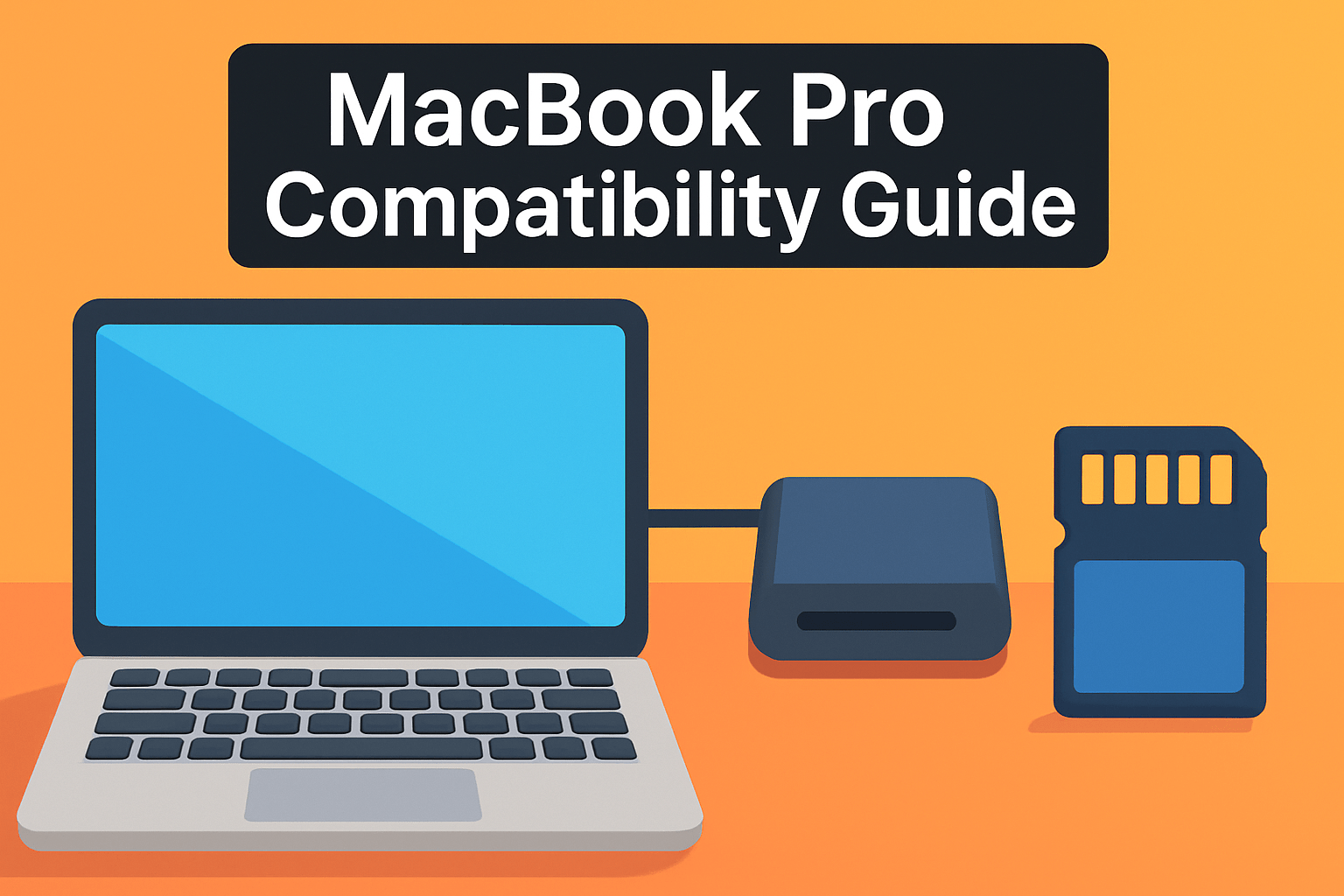
As a working photographer, compatibility is the practical detail that either speeds up your workflow or slows you down at the end of a long shoot. If you own a 14″ or 16″ MacBook Pro (2026 or later), you already have an SDXC slot that will handle UHS-II cards at roughly 200–250 MB/s in real-world transfers. Older MacBook Pros with built-in slots (2011–2015) are limited to UHS‑I speeds around 90–104 MB/s, so expect longer ingest times with high-capacity cards.
MacBook Pros from 2016–2026 removed the slot entirely, which means an external reader is non‑negotiable. For those machines, choose a native USB‑C reader or, for the fastest possible transfers, a Thunderbolt/USB‑C UHS‑II or CFexpress reader. CFexpress shooters should buy a dedicated CFexpress Type B USB‑C reader — it’s the only way to get the full speed out of those cards.
MicroSD users: always use a quality microSD→SD adapter if your reader only has an SD slot. Cheap adapters or loose fits can corrupt transfers. Also check reader specs for maximum supported card capacity; some compact hubs top out at 128 GB while others handle 512 GB and above.
Practical details matter. Attached cables are convenient but limit flexibility and replacement options; detachable cables are easier to replace if damaged. Short cables can be a pain when your ports are tight or you’re using a hub on a tripod-mounted laptop, so keep length and cable orientation in mind.
Most modern readers are plug‑and‑play on macOS, but some older or budget devices may require drivers or firmware updates. Before buying, verify manufacturer macOS compatibility and look for any noted issues with Apple Silicon if you’re on M1–M4 hardware. Finally, if you care about speed, test transfers after purchase — a good UHS‑II or CFexpress reader can cut ingest times dramatically and get you back to editing faster.
Real-World Transfer Speeds
Speed numbers on paper only tell part of the story. On a 2026–2026 MacBook Pro with the built‑in SDXC slot you can expect UHS‑II cards to deliver around 200–250 MB/s in real use, which translates to a 20 GB ingest taking roughly one to two minutes. Swap to a UHS‑I card or an older MacBook and that same job stretches to about three to four minutes because practical UHS‑I throughput sits nearer 90–104 MB/s.
External readers change the equation. A good USB‑C, UHS‑II reader or a dedicated CFexpress reader can match or beat the built‑in slot — many reach 200–300 MB/s in the field — so heavy shooters save real time on large video clips or batch raw jobs. By contrast, bargain USB‑A or ancient USB 2.0 readers choke at ~30–40 MB/s and will turn a quick import into a coffee break.
Remember the weakest link rules: a V90 UHS‑II card is capable of ~300 MB/s but only if the reader and cable can keep up. File sizes matter too: a single 20 GB clip will copy far faster than thousands of small JPEGs because overhead and filesystem chatter kill throughput. System load, card health, and fragmentation also chip away at measured speeds.
My practical approach: match card class to a reader that supports it (UHS‑II cards deserve a UHS‑II reader or CFexpress users a native CFexpress reader), use USB‑C on modern MacBooks, and run a quick benchmark when you first buy gear so you know real transfer times. For pro workflows those faster readers can cut ingest time dramatically — some shooters report 80–90% faster transfers versus slower readers — and that translates straight into more shooting time and less waiting.
What People Ask Most
What is the best SD card reader for MacBook Pro?
The best reader depends on your workflow and the card formats you use; choose one that matches those needs and offers native compatibility with your MacBook Pro ports. Consider build quality and whether you need multi-card support or CFexpress capability for heavier professional work.
Does the MacBook Pro have a built-in SD card reader?
Some MacBook Pro models include a built-in SDXC slot while others do not, so model-specific checking is required. Confirm the presence and supported card standards for your exact machine before relying on an internal slot.
Can I use a USB-C SD card reader with a MacBook Pro?
Yes, USB-C card readers are compatible with MacBook Pros that have USB-C or Thunderbolt ports and typically work plug-and-play. For older third-party hardware, verify macOS compatibility and any required firmware updates.
Which SD card reader offers the fastest transfer speeds for MacBook Pro?
High-end UHS-II readers and dedicated CFexpress readers tend to offer the fastest real-world transfers, especially when paired with native USB-C or Thunderbolt connections. Actual performance depends on the card, reader quality, and the MacBook Pro’s available port bandwidth.
Are UHS-II SD card readers compatible with MacBook Pro?
Yes, UHS-II readers generally work with MacBook Pros and are backward compatible with UHS-I cards. Make sure the reader uses a compatible port and check for any required macOS support from the manufacturer.
Do Thunderbolt 3/4 SD card readers improve performance on MacBook Pro?
Thunderbolt 3 and 4 readers can deliver higher sustained performance with very fast cards and heavy file workflows. The real-world benefit varies based on the reader design, the card’s capabilities, and the MacBook’s available bandwidth.
Are SD card readers compatible with Apple Silicon (M1/M2) MacBook Pro?
Most SD card readers are compatible with Apple Silicon MacBook Pros and offer plug-and-play operation. If a reader requires drivers or firmware, confirm the manufacturer explicitly supports Apple Silicon and the macOS version you run.
Conclusion for MacBook Pro SD Readers
In short, the five readers highlighted give a clear path from budget-friendly options to pro-level CFexpress workflows, helping MacBook Pro users match a reader to their needs.
Focus your choice on the card formats you shoot with, the transfer speeds you require, which MacBook Pro ports you have, and how portable or rugged you need the reader to be.
Real-world transfer performance and macOS compatibility matter more than raw specs, because the right reader will noticeably speed ingest and simplify your workflow.
If you want to sharpen your gear decisions and workflow skills, keep exploring our site for more practical guides and tests that help you shoot and edit more efficiently.
Have questions or specific setup details to share? Leave a comment below and we usually reply within a few hours.




0 Comments