
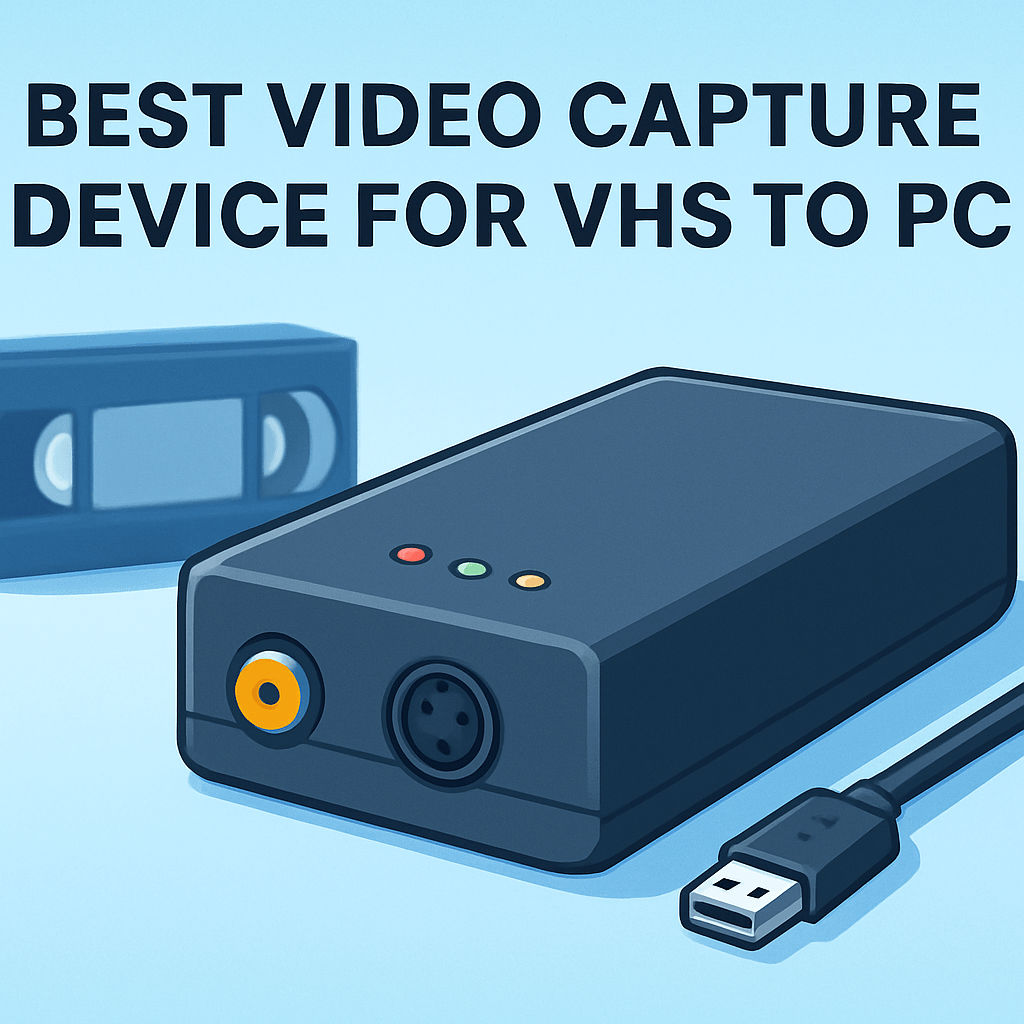
Still staring at a stack of VHS tapes and wondering which one will be the first to refuse to play at your next family gathering?
Every tape holds a sliver of your history — birthday parties, road trips, awkward haircuts — and those magnetic reels are slowly losing ground to time, dust, and decay. This guide walks you through rescuing those memories by converting VHS to files on your PC, with practical, hands-on advice.
We test and compare five VHS-to-PC capture devices across image fidelity, audio reliability, ease of use, and overall value so you can make a confident choice. You’ll get clear pros and cons, guidance for different types of buyers, and a straightforward how-to that takes the mystery out of transfers. We also include smart tips to maximize quality and a short FAQ addressing the common hurdles most people hit.
Expect real-world notes on setup quirks, software compatibility, and the common pitfalls that add time or frustration to digitizing sessions. Across hands-on tests and real user feedback we highlight which options deliver dependable captures and which fall short when it matters, so you’ll be ready to pick a device, start digitizing, and protect those files for the long haul.
1. Elgato Video Capture

USB video capture card RCA-to-USB VHS/VCR/Hi8/MiniDV converter
Easily digitize old tapes and camcorder footage to PC with real-time capture, plug-and-play compatibility, and simple editing workflow.
Check PriceAs a professional photographer who’s digitized hundreds of tapes, I often reach for the Elgato Video Capture as my go-to solution. It’s a top-recommended choice for Windows and Mac, and that cross-platform reliability matters when you move between studio machines and laptops.
Connection is straightforward: RCA and S‑Video inputs are supported, and it even ships with a SCART adapter for European equipment. It’s not limited to VHS — it handles camcorders and DVD players too, so you can consolidate many analog sources with one device.
The bundled software includes an intuitive assistant that walks you through connecting, capturing, trimming, and exporting. The built-in trimming is handy for quick edits, but for deeper color correction or noise reduction you’ll want a third-party editor.
In practice the Elgato produces very faithful transfers with noticeably fewer artifacts and less color loss than budget converters I’ve tried. Audio and video capture are clear and I’ve seen minimal sync issues, which saves time during cleanup.
Compatibility with modern Windows and macOS is solid and driver problems are rare, so long sessions feel stable. The hardware is durable and Elgato provides steady driver support, making this a sensible long-term archival choice.
If you value quality, ease of use, and reliability for family archives or professional projects, this is mostly a good fit. Be aware it costs more than budget options and the included software offers only basic editing functions.
- Excellent transfer fidelity
- User-friendly software
- Multi-platform support (Windows & macOS)
- Durable hardware and steady driver support
- Higher cost than budget options
- Included software offers only basic editing
2. Diamond VC500

Diamond VC500 One Touch VHS-to-Digital converter
One-button transfer transforms legacy tapes into shareable video files, preserving memories with intuitive software and fast processing.
Check PriceAs a photographer who’s digitized hundreds of tapes, the Diamond VC500 is a solid budget-friendly choice that punches above its class. It accepts composite (RCA) and S‑Video inputs and connects over USB 2.0, so you get the flexibility to use better S‑Video connections when available for cleaner luminance/chromatic separation.
Image-wise it performs noticeably better than the cheapest converters and handles interlaced VHS as well as both NTSC and PAL formats, which is handy if you’re working with tapes from different regions or older camcorders. It captures both audio and video, though you should watch for the occasional audio-sync drift during longer transfers.
Software-wise Diamond bundles PowerDirector 12 for editing and DVD burning, which is convenient for straight trimming and disc creation. Many users prefer PowerDirector or VirtualDub over the basic EZ Grabber capture app included, so you have options if you want deeper control.
Compatibility is generally fine across Windows XP through Windows 10, and setup is straightforward for most hobbyists. That said, occasional driver and plug-and-play problems have been reported after some OS updates, so keep your drivers handy and test a short clip before committing to long real-time transfers.
If you’re a hobbyist or budget-conscious user aiming for reliable, DVD-capable editing without spending a fortune, the Diamond VC500 is a sensible pick. It’s not perfect for archival-grade work, but it’s a practical balance of quality, ease, and cost.
- Good value for performance
- Includes PowerDirector 12 for editing/DVD burning
- Simple setup with broad format support (NTSC/PAL, interlaced)
- Better image quality than cheaper converters
- Occasional driver/compatibility problems
- Bundled capture app is basic
3. UCEC Video Capture Pro

UCEC CAM NOVA USB 3.0 HDMI capture card 4K/1080p
Capture high-resolution gameplay or streaming feeds at 4K/1080p, low-latency USB 3.0 input, optimized for smooth recording.
Check PriceThe UCEC Video Capture Pro is a compact, affordable USB capture device that takes composite (RCA) input and outputs to your computer. It supports both Windows and Mac, so it’s easy to plug into most desktops and laptops.
In real-world use it’s a no-frills tool for quick digitizing. It does what it promises, but expect output that can be blurry or fuzzy and show color inaccuracies.
Keep in mind the device ships with only basic software, so you’ll likely need a separate video editor for trimming and color correction. Audio quality and sync can be inconsistent, so plan to monitor recordings and correct sync in post when necessary.
This unit isn’t built for heavy, continuous use. It’s lightweight and compact, but it can overheat if you run long sessions. That makes it ill-suited for batch archiving or professional restoration work.
As a photographer who cares about color and detail, I’d recommend the UCEC only if you have a small handful of tapes and a tight budget. It’s great for casual preservation and quick transfers. If you need faithful color, reliable audio sync, or long transfer sessions, you’ll want a more robust solution.
- Very affordable and simple to set up.
- Cross-platform support.
- Good for quick preservation tasks.
- Compact form factor.
- Quality issues (blurriness, color inaccuracies).
- Prone to overheating and not suited for heavy use.
4. Digitnow Video Capture Converter
USB video capture card RCA-to-USB VHS/VCR/Hi8/MiniDV converter
Convert analog audio and composite video to editable digital files, supporting multiple tape formats and easy drag-and-drop export.
Check PriceDigitnow’s Video Capture Converter is a practical, budget-friendly option if you want to digitize tapes without spending much. It accepts RCA, S‑Video and even SCART (via the included adapter), so it hooks up to a wide range of VCRs and players without drama.
Setup is straightforward and largely plug-and-play on Windows. The device’s bundled capture utility is basic, but it gets the job done for one-off transfers and quick archiving tasks.
Image and audio quality are decent for the price, though they won’t match higher-end capture solutions. Expect captures that are acceptable for casual viewing and family archives, but not for professional restoration or archival-grade results.
Mac support is present but limited and inconsistent, so this converter is best paired with a Windows workstation. If you’re a Mac user you should be prepared to try alternative software or accept possible driver issues.
If you plan to do any real editing or color correction you’ll likely switch to a third-party editor after capture. The Digitnow box handles the input and recording reliably, but advanced features and fidelity are where it shows its budget roots.
Bottom line: for Windows users who need an inexpensive, no-frills device to convert occasional VHS tapes, Digitnow is a sensible pick. If you need high fidelity, consistent Mac support, or advanced capture controls, look higher up the price ladder.
- Affordable for casual use
- RCA, S‑Video and SCART inputs
- Broad Windows compatibility
- Straightforward setup
- Lower audio/video fidelity than premium devices
- Inconsistent Mac support
5. Portta PETVPS2 VHS to Digital Converter

Portta VHS-to-Digital converter with remote
Transfer tapes without a PC using one-touch conversion, remote control, and direct USB storage for effortless archiving.
Check PriceAs a photographer who’s transferred hours of tape, I appreciate the Portta PETVPS2 for what it is: a low-cost USB capture device with composite (RCA) input that’s Windows-friendly and offers limited Mac support. It’s straightforward hardware aimed at getting family tapes onto a PC without fuss.
In daily use the PETVPS2 is genuinely plug-and-play, requiring minimal configuration — ideal when you just want a simple, fast setup. The USB output is convenient for laptops and desktops, but remember it relies on your computer and editor for any real cleanup or enhancement since it lacks advanced built-in features.
Image quality is acceptable for casual viewing, though you should expect some softness and color loss compared with pricier units. It does capture both audio and video, but audio sync can vary and there’s no hardware passthrough to fix timing issues on the device itself. If you plan to do heavy restoration or need archival-grade fidelity, this isn’t the tool for that job.
All told, Portta PETVPS2 is a practical choice for occasional transfers and household archives where budget matters more than perfection. It’s easy to use, cheap, and gets the job done for casual home-video preservation, provided you’re prepared to do any serious corrections in your editing software and accept modest compromises in color and sharpness.
- Very affordable
- Plug-and-play, easy to use
- USB output — convenient for laptops/desktops
- Windows-friendly compatibility
- Softer image and color inaccuracies
- No advanced capture or audio features
Step-by-Step VHS-to-Digital Guide
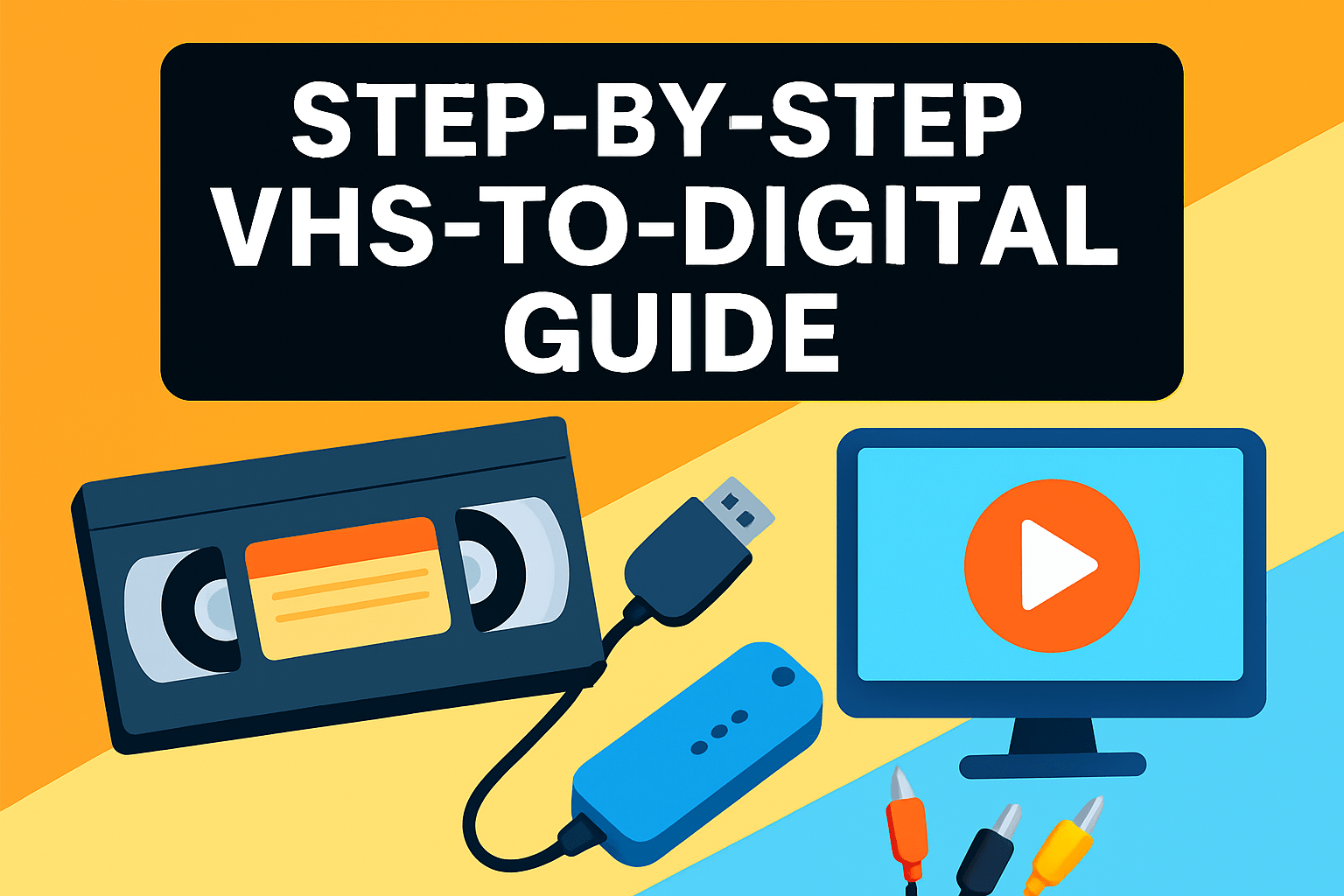
Start by setting up an organized workspace. Transfers run in real time, so clear a surface, gather your gear, and plan for the time it will take. Treat the session like a shoot: being prepared saves headaches later.
Gather a working VCR, your capture device (USB or dedicated converter), the correct RCA or S‑Video cables, a computer with ample free storage, and the capture software. Keep cables and adapters close at hand so you don’t interrupt a transfer mid-tape. A charged laptop or steady power source helps avoid unexpected shutdowns.
Inspect each tape before you begin. Look for mold, dirt, or visible damage and clean gently with a microfiber cloth and isopropyl alcohol; never use water or soap. If the magnetic tape is torn you can use splicing tape, but expect some loss where the repair is made.
Connect the VCR output (composite RCA or S‑Video) to the capture device, then plug the capture device into your computer via USB. Power everything on in sequence—VCR, capture device, then computer—to establish a stable signal. Double-check connections if you see no picture in the capture app.
Install and launch the capture software that ships with your device. Configure the capture settings to standard VHS resolution (typically 720×480 for NTSC) and enable audio so you don’t miss soundtrack or dialogue. Adjust any basic options your software offers before committing to a full tape.
Rewind the tape to the intended start point, press play on the VCR, and hit record in the capture software at the same time. Monitor the playback for tracking issues, signal dropouts, or audio sync problems — transfers are live, so staying attentive matters. Pause or stop to fix problems rather than letting errors propagate through a long capture.
When you finish, stop the capture and save the file in a common format such as MP4 or AVI. Immediately copy the file to at least one external drive or cloud storage to protect your new digital master. Treat the original capture as the archival source and don’t edit that file directly.
If you want to refine the footage, open a copy in a video editor to trim, correct exposure and color, stabilize shaky segments, or apply noise reduction. Small adjustments make old tapes look much better, though they can’t undo severe physical tape degradation. Work on duplicates so you always keep the untouched capture safe.
Tips for Best-Quality Transfers
As a photographer who’s digitized stacks of family tapes, I tell clients to start at the source. Use a high-quality, well-serviced VCR whenever possible. Better playback hardware reduces tracking errors, jitter and color drift, and that steadier signal makes everything downstream easier.
When you have the choice, prefer S‑Video over composite RCA. S‑Video keeps luminance and chrominance separate so fine detail and color stay cleaner. Composite works, but expect softer edges and more color bleed.
Clean your VCR heads and inspect tapes before capture. Even small dust or debris shows up as noise and color problems on the finished file. Regular maintenance and gentle tape checks pay off in noticeably better transfers.
Don’t skimp on the capture hardware and software. The cheapest converters often add artifacts, dropped frames and inconsistent color, which no amount of editing can reliably fix. A modest investment in a reputable device saves time and preserves more of the original look.
Remember that transfers run in real time, so plan accordingly and be patient. Always perform a short test capture to confirm tracking and audio sync are stable before committing hours of tape. Solve any issues early to avoid redoing long recordings.
Check tape condition and skip obvious blanks or heavily damaged sections. Fast‑forwarding and noting where the usable footage begins saves you capture time and disk space. Prioritizing the good sections keeps the job efficient.
Name files clearly and back them up immediately after capture. Use descriptive filenames with dates and brief content notes so clips are easy to find later. Keep at least two copies, and store one off‑site or in the cloud for safety.
Use gentle post-capture adjustments—subtle color correction, modest noise reduction and careful trimming—to improve the final result. These tools help, but they won’t revive severely degraded tape. Avoid aggressive filters; over-processing often introduces new artifacts you don’t want.
What People Ask Most
What is the best video capture device for converting VHS tapes to a PC?
The best device depends on your priorities like image fidelity, ease of use, and budget. Look for a reputable maker with reliable drivers and intuitive capture software to make transfers smoother.
Do I need a capture card or can I use a USB capture device to transfer VHS to my computer?
USB capture devices are a common and practical way to transfer VHS to a computer and work well for most users. Internal capture cards are another option but are not required unless you have very specific workflow needs.
How do I connect a VCR to a PC to capture VHS video?
Connect the VCR’s audio and video outputs to the inputs on your capture device using composite or S‑Video and RCA cables, then plug the capture device into your computer and run the capture software. Power on the VCR and device and start recording from the software when the tape plays.
What capture device works with composite and S‑Video outputs from a VCR?
Any capture device listing composite (RCA) and S‑Video inputs will accept those signals from a VCR. Check compatibility and operating system support before buying to ensure it works with your computer.
What software should I use with a VHS-to-PC capture device?
Use the capture software included with the device or a third‑party capture program that reliably records and exports common video files. For edits, choose a simple editor that can trim and adjust color or audio as needed.
Can USB capture devices preserve VHS video quality when digitizing to PC?
USB capture devices can faithfully reproduce whatever quality exists on the tape, but they cannot restore severe tape degradation. For best results, use clean playback equipment and a well‑maintained VCR during capture.
What cables and settings are required to convert VHS tapes to digital files on a PC?
You will need composite RCA or S‑Video plus audio cables to connect the VCR to the capture device and the appropriate capture software on your computer. Configure the software to record the incoming video and audio and ensure you have enough storage before starting the transfer.
Conclusion for Best VHS-to-PC Capture
To wrap up, if you want reliable, higher-fidelity transfers and smoother software support, the Elgato and Diamond VC500 options are the safer picks, while UCEC, Digitnow, and Portta serve well as low-cost, occasional solutions.
Follow the step-by-step guide and the quality tips in this article to get the best results from whichever device you choose, and remember to make multiple backups of every digitized file.
For families, hobbyists, or archivists focused on long-term preservation, investing a bit more in a proven capture solution pays off; casual users with just a few tapes can achieve acceptable results with budget devices.
If you’d like to deepen your skills and confidence with transfers, take a look through more how-to content on the site to explore workflows, troubleshooting, and editing tips that match your setup.
Please leave a comment with your questions or your own transfer experiences — we usually reply within a few hours and are happy to help fine-tune your process.


0 Comments