
How to divide a picture into 4 equal parts? This short guide shows simple steps for Word, Photoshop, online tools, and code.
You will get step-by-step instructions, screenshots, and tested tips to keep image quality. It includes short, runnable code examples for OpenCV and MATLAB.
I also explain rounding rules, DPI for printing, and a quick decision tip for which method to use. Follow the checklist so your four files are named, sized, and exported correctly.
Work on a copy of your photo and follow the steps below to split it into four equal parts. Ready? Let’s get started.
Step-by-step on splitting a photo into quarters in Word
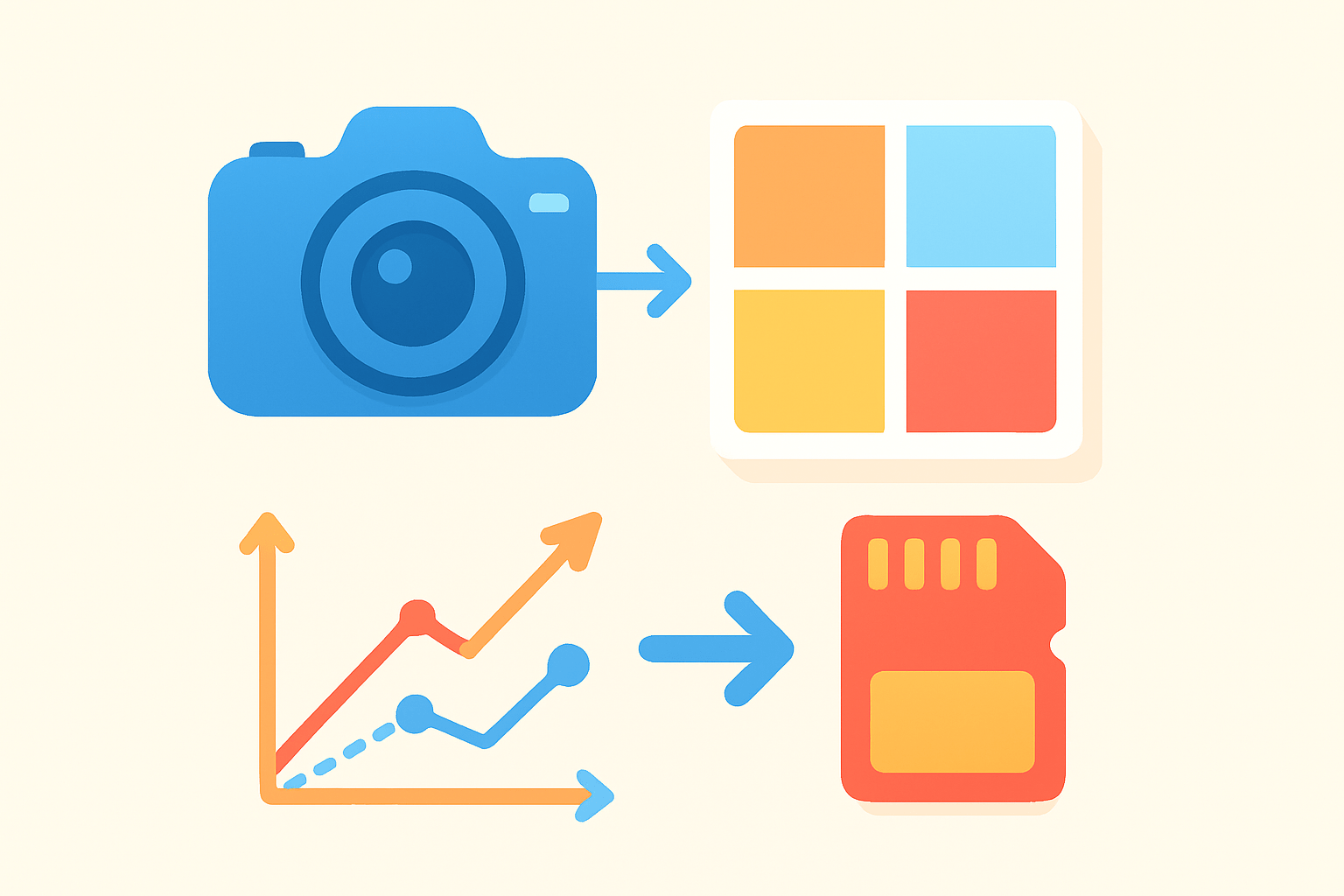
If you’re asking how to divide a picture into 4 equal parts, Word offers a quick, non‑technical path. The one‑line answer is this: make four copies and crop each one to a different quadrant.
Word is everywhere and good for basic desktop work. Use it when you need quick tiles for a doc or printout, and switch to a real editor when you need pixel perfection.
Method A — Duplicate and Crop is the fastest. Insert your picture with Insert, then Pictures, and place it on the page. Select it and press Ctrl+C, Ctrl+V three times so you now have four identical copies.
Click each copy, go to Picture Format, then Crop, and drag the black handles so only the top-left quarter shows for the first one. While cropping, you can drag the image inside the frame to position the content precisely if the subject isn’t centered.
Repeat for the top-right, bottom-left, and bottom-right copies. Right‑click each cropped copy and choose Save as Picture to export your four tiles. For best quality, open File, Options, Advanced, Image Size and Quality, and tick Do not compress images in file before you start.
If you capture screenshots for your notes, show the original image, the crop handles on the top-left quadrant, and the final saved file. Use clear alt text like Word crop handles showing top-left crop so anyone can follow it.
Common pitfalls include softening from Word’s compression and less precise crops than an editor that works in pixels. Word’s measurements are in inches, so if you need an exact pixel result, confirm the DPI and export size.
If your goal is printing tiles on letter paper, you can also split and then print each part at the target size. This keeps scaling predictable across the four sheets.
Method B — 2×2 table masking feels tidy. Insert a 2×2 table, set cell padding and margins to zero, and size each cell to the needed inches. Place the same picture into each cell and crop or reposition each copy so it shows one unique quarter.
Remove the table borders so you only see the images. Right‑click each cell’s picture and Save as Picture to export the four tiles as separate files.
Result: you’ll have four equal quadrant images ready to drop into documents or print. Always work on a copy so your original stays untouched.
Using the Crop and Slice tools in Photoshop to split images
For precise work, Photoshop is the best way to compute exact midpoints and lock everything to the pixel. The core idea is simple: split by width/2 and height/2 using guides, then slice or crop.
Start by checking the image size at Image, Image Size, and note the width and height in pixels. This tells you exactly what each quadrant should be.
Create guides with View, New Guide Layout, set Columns to 2, Rows to 2, and Gutter to 0. This instantly places a perfect 2×2 grid over your photo, and it works the same in recent versions.
If one dimension is odd, you have one extra pixel to place. Decide whether the extra pixel goes to the right or bottom, or let Photoshop center the guide at 50% to split as evenly as possible.
Now make slices. Choose the Slice Tool from the Crop tool group, open the panel menu, and Generate Slices from Guides to get four slices. Switch to the Slice Select Tool, click each slice, and name it so you control file names later.
A fast alternative uses selections. With the Rectangular Marquee Tool, snap to guides, select each quadrant, and either Duplicate the selection into a new document or use Image, Crop to isolate it, then undo and repeat for each tile.
Your screenshots might show the New Guide Layout dialog, the guides over the image, slices with blue outlines, and the Slice Options naming dialog. Use alt text like Photoshop New Guide Layout dialog showing 2×2 grid so the images are accessible.
This workflow is consistent, quick, and accurate. If you want a short walkthrough, this Photoshop tutorial also illustrates the same steps clearly.
Result: you’ll produce four pixel-perfect tiles with zero resampling. Keep a copy of your original layer or document so you can redo the split without quality loss.
Exporting sliced images from Photoshop
The classic way is File, Export, Save for Web (Legacy), pick JPEG or PNG, and check All Slices. Click Save, choose an output folder, and if you don’t want an HTML file, set the format to Images Only.
Export As works well too. Go to File, Export, Export As, select your format, and confirm that all slices or selected slices are included, then export to a clean folder.
If your tiles come from separate layers, try File, Generate, Image Assets by naming layers with extensions. Photoshop will create files automatically as you edit.
Rename slices first with the Slice Select Tool and Slice Options so exported filenames are meaningful, like quad_tl.jpg and quad_tr.jpg. This saves renaming later.
For web use, convert to sRGB, pick JPEG quality around 70–90, or PNG‑24 if you need transparency. For print, set the desired ppi in Image Size and export losslessly if quality is critical.
Common pitfalls include exporting only the document rather than all slices, or getting an unexpected HTML file. Result: a folder with four clean images that match your slices exactly.
How to split an image evenly into multiple parts online
When you need speed and no installs, online tools are handy. Photopea runs fully in the browser, while quick utilities like Split image online, ILoveIMG Crop, and IMGonline splitters turn a single image into a 2×2 grid fast, and Canva can mimic this with grids.
The basic flow is the same across tools. Upload or drag your picture in, set rows to 2 and columns to 2, and preview the split lines if the site allows.
Pick your output format and quality, then download the result, which often arrives as a ZIP. Open the archive and you’ll see four tiles named in order.
Think about privacy before you upload family photos or client work. Prefer client‑side editors like Photopea for sensitive images, and check file size limits and auto‑delete policies on server tools.
Most sites accept JPEG, PNG, and GIF. TIFF and camera RAW files are less common, so convert those locally first for best results.
In practice, Photopea offers editor‑level control with guides and slices, while simple splitters are faster for one‑off tasks. Result: four even tiles without touching desktop software.
Dividing images into sub-images using MATLAB and OpenCV discussions
Automation shines when you need to process many images the same way. The algorithm is simple: read the file, get width and height, compute midpoints, slice each quadrant by row and column ranges, and write four outputs.
Python + OpenCV example (copy, paste, run):
import cv2
img = cv2.imread(“input.jpg”)
h, w = img.shape[:2]
w2, h2 = w // 2, h // 2
tl = img[0:h2, 0:w2]
tr = img[0:h2, w2:w]
bl = img[h2:h, 0:w2]
br = img[h2:h, w2:w]
cv2.imwrite(“quad_tl.jpg”, tl); cv2.imwrite(“quad_tr.jpg”, tr)
cv2.imwrite(“quad_bl.jpg”, bl); cv2.imwrite(“quad_br.jpg”, br)
MATLAB example is just as direct:
I = imread(“input.jpg”);
[h, w, ~] = size(I);
w2 = floor(w/2); h2 = floor(h/2);
imwrite(I(1:h2, 1:w2, :), “quad_tl.jpg”);
imwrite(I(1:h2, w2+1:w, :), “quad_tr.jpg”);
imwrite(I(h2+1:h, 1:w2, :), “quad_bl.jpg”);
imwrite(I(h2+1:h, w2+1:w, :), “quad_br.jpg”);
If you prefer Java, use BufferedImage.getSubimage(x, y, w, h) and ImageIO.write for each region. On the command line, ImageMagick can do it with magick input.jpg -crop 2×2@ +repage +adjoin quad_%d.jpg.
Odd dimensions need one extra pixel to land somewhere. Using integer division places the extra pixel to the right and bottom, so bottom-right often ends up one pixel larger, which is fine for most uses.
Be mindful of color channels and profiles. OpenCV loads images as BGR by default, so convert to RGB if you mix with PIL or display with Matplotlib.
Very large photos can be heavy in memory. Consider tiling or streaming reads, or use PIL to offload conversions before slicing.
Here is the pixel math in practice. If your image is 4000×3000 px, each quadrant is 2000×1500 px, because 4000/2 = 2000 and 3000/2 = 1500.
If you plan to print the tiles, match inches to DPI before splitting. For a 300 ppi print, a 2000×1500 px quadrant prints at about 6.67×5 inches.
Use clear, consistent names so you never mix tiles. A simple scheme is image_quad1_tl.jpg, image_quad2_tr.jpg, image_quad3_bl.jpg, and image_quad4_br.jpg.
Which method should you use? Word is fastest for simple documents, Photoshop is best for pixel-perfect control, online tools are great for quick jobs, and scripts win for batch processing.
Common pitfalls are easy to avoid once you know them. Watch for quality loss in Word, rounding mistakes that swap tile sizes, forgotten slice exports, and privacy risks when uploading images.
All of these paths answer the same need: how to divide a picture into 4 equal parts without guesswork. Pick the tool that fits your project, and always keep an untouched copy of your original.
What People Ask Most
What is the easiest way to divide a picture into 4 equal parts?
Open the image in an editor, turn on a grid or guides, then crop or slice at the halfway points horizontally and vertically. This gives four equal sections quickly and accurately.
Can I divide a picture into 4 equal parts without special software?
Yes, you can use free online split tools or simple programs with crop tools, or even print and cut along the midlines. Many phone apps also have grid or split features for this task.
How do I make sure each part is exactly the same size when dividing a picture into 4 equal parts?
Set guides at 50% of the image width and 50% of the image height, then crop or slice along those lines. Using numeric inputs or rulers ensures the parts are identical.
What are common mistakes when people try to divide a picture into 4 equal parts?
People often forget to account for borders, lose track of aspect ratio, or eyeball cuts instead of using guides. These errors cause uneven pieces or unwanted cropping of important details.
How can I use the four parts after I divide a picture into 4 equal parts?
You can post them as a tiled social media grid, print them as separate panels, or rearrange them for creative collage layouts. Make sure resolution is high enough for your use.
Will dividing a picture into 4 equal parts reduce its quality?
Dividing itself doesn’t lower quality, but resizing or saving repeatedly in compressed formats can. Save originals and use lossless formats if you plan more edits.
Can I reassemble the four parts back into the original image later?
Yes, you can stitch the four parts back together if you keep the exact original edges and alignment. Keeping the original file makes reassembly easiest.
Final Thoughts on Splitting a Photo into Four Equal Parts
If you came wondering how to divide a picture into 4 equal parts, you now have clear, repeatable routes — from a quick Word duplicate-and-crop to pixel-perfect Photoshop slices and scriptable OpenCV snippets. Even a 270-px thumbnail follows the same midpoint math, so the technique scales. This guide is aimed at quick desktop users who want simple results and photographers/designers who need exact control.
Across the methods you’ll get consistent, named quadrants ready for saving or printing, which removes guesswork and speeds up workflows. Be realistic about quality and rounding: Word can compress or resample images, and odd pixel dimensions mean one slice may end up a pixel larger unless you choose a rounding rule.
We began by promising an easy way to split any photo into four even pieces, and the step-by-step screenshots, code snippets, and export tips delivered that answer. Pick the approach that fits your tools and comfort level, and you’ll be splitting neat, even grids with confidence going forward.




0 Comments