
How to get sd card into computer? This short guide shows simple, safe steps you can follow right now.
You’ll learn what to grab: built‑in slots, microSD adapters, and USB‑A/USB‑C card readers. The article starts with a quick checklist and a one‑line quick answer.
We walk through inserting the card, using external readers, and opening files on Windows, macOS, Chromebook, and Linux. Expect clear, numbered steps and helpful photos.
If the card does not show up we cover easy troubleshooting, OS tips, and when to get pro help. Read on for practical warnings like “don’t force” and “backup before formatting.”
What You Need to Connect an SD Card to a Computer
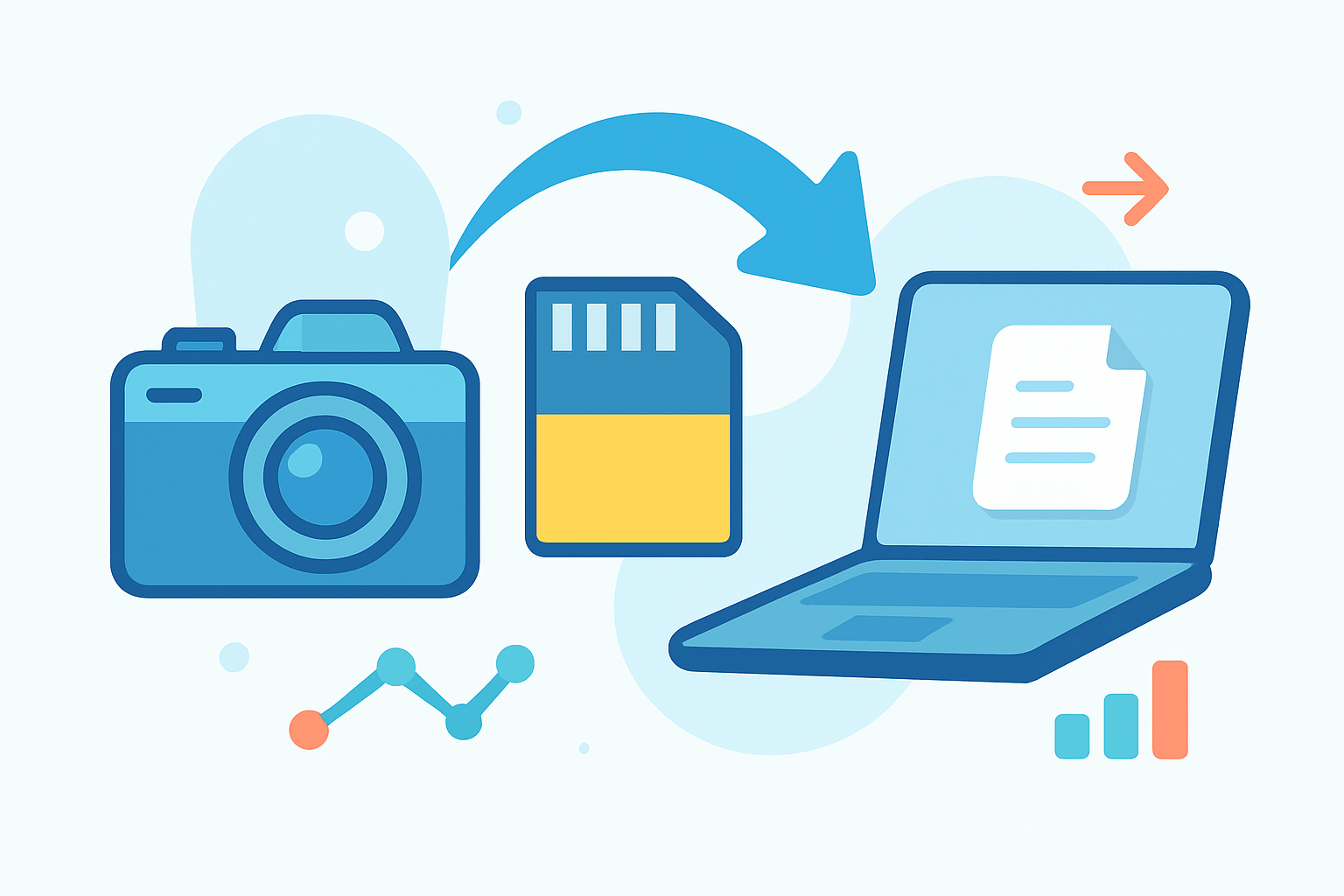
Quick answer: how to get sd card into computer is simple—match your card and slot, orient the notched corner correctly, insert until it seats or clicks, then look for the new drive in your file manager.
Know your card first. Full‑size SD cards are bigger; microSD cards need an adapter to fit most laptop slots. SD, SDHC, and SDXC tell you capacity and file system; many 64 GB and larger cards use exFAT, which older systems may need an update to read.
Common ways to connect include a built‑in SD slot on a laptop, a USB‑A or USB‑C external card reader, a microSD‑to‑SD adapter, or a direct USB cable from your camera. Phones and tablets can use an OTG adapter or a USB‑C reader to view the card.
Windows and macOS usually mount cards automatically, though some older versions need exFAT support. Macs read SD and SDXC just fine; see Apple’s guidance on using an SD or SDXC card with Mac. Certain proprietary readers may need a driver from the maker.
Before inserting, do a quick check. Make sure the write‑protect switch on the card’s left edge is not locked, and confirm the gold contacts are clean and undamaged. What to grab: 1) your SD or microSD card, 2) a compatible reader or adapter, 3) a free USB‑A/USB‑C port or cable, 4) a lint‑free cloth to wipe dust.
How to Insert an SD Card into Your Computer
This is the fastest path when you want to insert SD card into laptop or desktop. Identify your card and slot, orient the label and notch to match the icon, insert gently, then check File Explorer or Finder for the new drive.
1. Identify your card type and the slot orientation. Look for the tiny corner notch and the slot’s icon; match them so the contacts face the right way. If the slot is unclear, check your device manual or look for a diagram near the slot.
2. For a full‑size SD in a built‑in slot, place the label face up on most laptops and slide in slowly until it sits flush or clicks. Do not wiggle or bend the card; steady, even pressure is best. If you’re unsure about alignment, this short guide to insert an SD card shows typical orientations.
3. For a microSD card, slide it into an SD adapter with the gold contacts going in first. Insert the adapter into the computer’s SD slot as if it were a full‑size card. Keep the write‑protect tab on the adapter in the unlocked position if you plan to copy files.
4. For an external reader, insert the card into the reader until it seats, then plug the reader into a USB‑A or USB‑C port. You can also plug the reader in first and then add the card; both orders usually work. Prefer a USB‑C or blue USB‑3 port for faster transfers.
5. Confirm detection by watching for a notification and by opening File Explorer on Windows or Finder on macOS. The SD card will appear as a removable drive or volume. If nothing shows, reinsert the card or try another port.
Do not force the card; misalignment can damage the slot. Check write‑protect if you cannot copy files, and never pull the card mid‑transfer. Eject safely when done to prevent corruption.
How to Use an External SD Card Reader
Readers come in many styles: single‑slot, multi‑format hubs, USB‑A, USB‑C, and fast UHS‑II readers with extra pin rows. Choose UHS‑II if you shoot high‑bitrate video or burst photos and want top speeds. A compact USB‑C reader is best for modern laptops and tablets.
Using one is simple. Connect the reader to an open port, insert the SD or microSD (in its adapter), and wait for the LED to blink or the drive to mount. Then open your file manager and browse the card.
For big transfers, plug into a USB‑3 or USB‑C port and avoid unpowered hubs. A powered hub helps when multiple devices are attached. Very cheap readers can cause errors or slowdowns, so pick a reputable brand.
Mobile access is easy with a USB‑C reader or an OTG adapter on Android tablets and phones, and Chromebooks mount cards in the Files app. If you need a refresher on basic laptop steps, here’s a quick guide to using an SD card on a laptop. The same flow applies: connect, insert, wait, and open files.
How to Access Files on an SD Card
On Windows, open File Explorer, click This PC, and look for a new removable drive with your card’s label. You can copy and paste, drag and drop, or import with the Photos app. For safety, copy first instead of move so the original remains on the card as a backup.
On macOS, your card appears in Finder under Locations as a new volume. You can import photos in the Photos app via File then Import, or copy files directly in Finder. If the card is present but grayed out, use Disk Utility to Mount, then try again.
Chromebooks show the card in the Files app, and most Linux systems mount it under /media or /run/media. If it does not appear, advanced users can check lsblk and dmesg to confirm the device and mount it manually. Once you learn how to get sd card into computer, opening files becomes the easy part.
Know the file system. FAT32 is widely compatible but limits single files to 4 GB; exFAT handles large files across Windows, macOS, and modern Linux. NTFS is fine for Windows, but macOS can be read‑only without extra software, so exFAT is a safer cross‑platform choice.
Troubleshooting SD Card Not Detected
Start with quick checks. Reseat the card, try a different USB port, and test another reader or computer. Clean the gold contacts gently and make sure the write‑protect switch is off.
On Windows, open Device Manager to update or reinstall the reader driver. Then open Disk Management to assign a drive letter or see if the card shows as unallocated, and use chkdsk to fix file system errors.
On macOS, open Disk Utility and click Mount or run First Aid on the card. If nothing helps, reset SMC/NVRAM and retest with another reader.
On Linux, check dmesg and lsblk to confirm the device is detected, then mount it. If the card shows as RAW or asks to format, try making an image backup and use recovery tools before you format.
Backup before formatting to avoid data loss. Slow speeds usually mean a USB‑2 port or a low‑quality reader, so move to USB‑3 and a UHS reader. If the card is bent, cracked, or stuck in a slot, stop and seek pro help rather than pulling hard.
What People Ask Most
How do I get an SD card into a computer?
If your computer has a built-in SD slot, gently push the card in until it clicks, otherwise use a USB SD card reader or an adapter to plug it into a USB port.
What should I do if my computer doesn’t have an SD card slot?
Use a cheap USB SD card reader or a microSD-to-SD adapter and plug it into a USB port to access the card.
Will my computer read my SD card right away?
Most computers will recognize the SD card automatically, but you may need to unlock the card or install a driver in rare cases.
How do I transfer photos or files from an SD card to my computer?
Open File Explorer (Windows) or Finder (Mac), find the SD card drive, then drag and drop the files to a folder on your computer.
Can I damage my SD card by inserting it the wrong way?
Yes, forcing it can bend pins or damage the slot, so check the correct orientation and insert gently without using force.
Do I need to safely eject the SD card from my computer?
Yes, always use the safe eject or unmount option to avoid corrupting files or losing data.
Why does my computer say the SD card is corrupted?
Corruption can happen from removing the card while transferring files or from a failing card; try another reader, run a repair tool, or copy what you can off the card quickly.
Final Thoughts on Connecting SD Cards to Your Computer
Whether you’re copying vacation photos or moving big video files, using an SD card is still one of the easiest ways to shift data between gadgets — and even if a model number like 270 shows up during troubleshooting, the steps are the same. Photographers, students, and anyone juggling multiple devices will find the process quick and dependable. This piece gave simple, practical steps so you don’t have to guess which slot, adapter, or reader to use.
Remember not to force cards or yank them during transfers; that’s the most common slip that causes data loss. The opening question—how to quickly and safely insert an SD card—got a clear walk‑through: identifying card type, choosing the right reader, inserting correctly, and basic troubleshooting when a drive doesn’t appear. It’s aimed at people who want straightforward, step‑by‑step help rather than dense tech talk.
With habits like checking the lock switch, using a USB‑3 reader for big files, and copying before deleting, you’ll be moving files with more confidence and fewer headaches. Keep exploring and you’ll get even faster and safer at it.


0 Comments