
How to organize scanned photos so you can find any memory in seconds? This short guide for 2026 shows simple steps and tools you can use right away.
You’ll learn to consolidate every scan into one hub, then sort by year, event and tags for easy searching. You will also learn clear file naming, how to remove duplicates, and cloud backup using the 3-2-1 rule.
Each main section gives a why, practical steps, tools and a quick checklist. The article includes sample folder trees and a downloadable cheat-sheet you can copy.
Work in small batches and follow the checklists to avoid overwhelm. By the end you’ll have a tidy, searchable and safe photo archive to share and protect.
Consolidate Your Photos in One Location
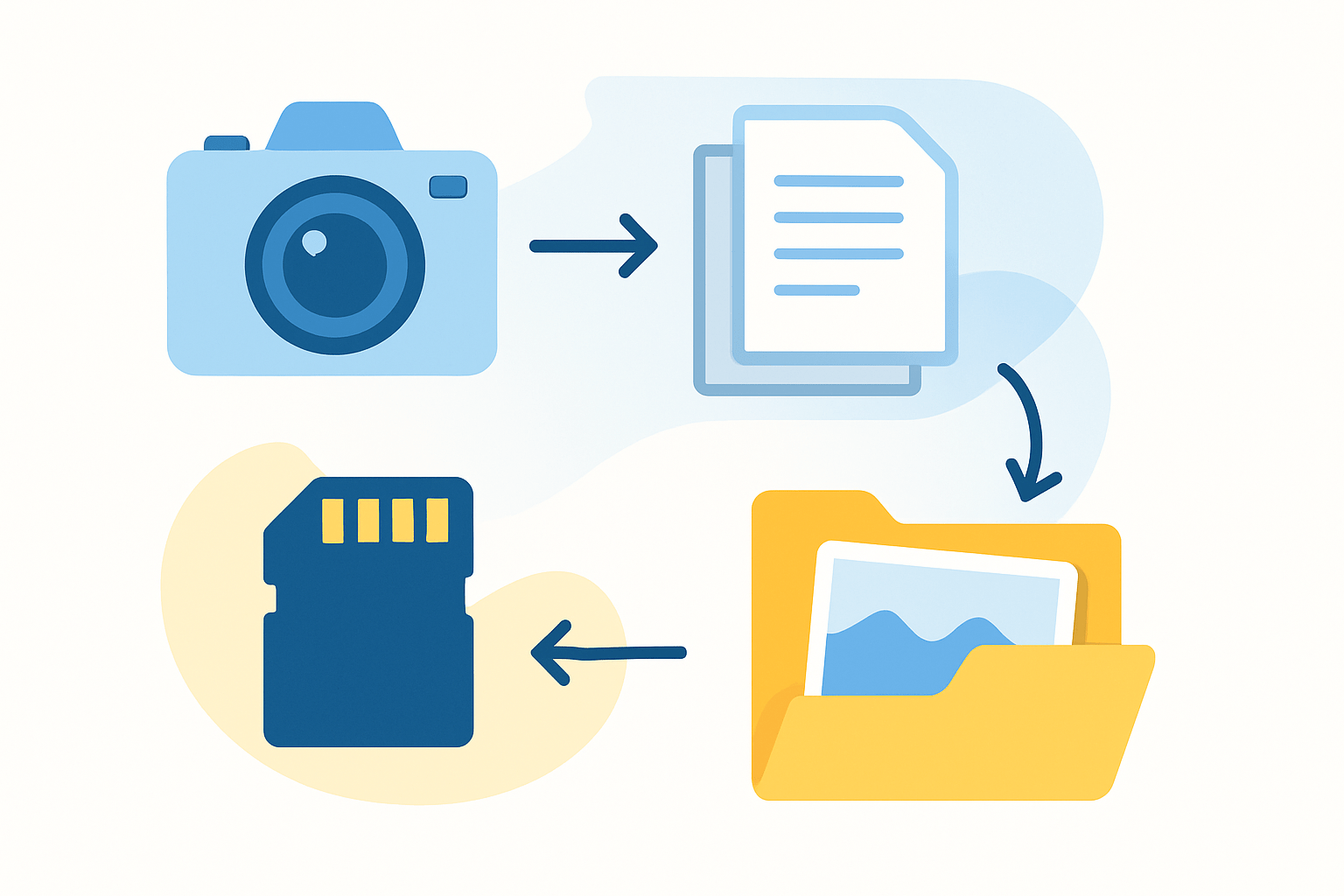
A single photo hub is the foundation of a calm, organized archive. It stops files from living in ten places, makes deduping faster, and keeps backup simple.
Start by listing every source you have. Check the scanner’s output folder, phone camera folders, old laptops, hard drives, USB sticks, CDs, DVDs, cloud accounts like Google Photos, iCloud, and Dropbox, and even email attachments.
Export originals when you can, not downscaled versions. If a site asks about quality, always choose full‑resolution or original quality to keep your scans pristine.
Create one master folder on a single drive and keep it consistent. A simple structure is Photos_Scans/Masters, Photos_Scans/Working, Photos_Scans/Exports, and Photos_Scans/Temp.
Put every untouched scan in Masters and treat that folder as read‑only. Never overwrite or edit anything in Masters, because it is your negative-equivalent.
As you gather files, label each scan batch so you remember where it came from. Use names like Batch_2026-10-01_Run01 and include the batch ID in a small spreadsheet.
That spreadsheet can be simple. Track batch ID, source device or album, scanner settings, approximate date range, and any notes about issues or family names.
Plan storage before you move everything. A 300 dpi JPEG of a print is often 2–10 MB, while a 600 dpi TIFF can be 15–50 MB, and high‑res film scans can be much larger.
Multiply your average file size by your number of photos to estimate total GB. Add a 30–50% buffer so you do not run out of space mid‑project.
Use an SSD for active work because it is fast and quiet. Keep the big archive on a large HDD or a NAS, and choose exFAT for cross‑platform use or APFS/NTFS if you are single‑platform.
Use quick helpers to find stashes of photos. Everything on Windows and Spotlight or Finder smart searches on Mac work well, and Google Takeout helps you pull originals from Google Photos.
Here is your Quick Start Checklist in one breath: Gather sources, Consolidate into Masters, Scan by batch, Import to hub, Dedupe, Organize folders, Name files, Add tags and metadata, Back up.
For scanning, keep it simple and intentional. Prints look great at 300–600 dpi, while slides and negatives prefer 2400–4000 ppi; save archival masters as TIFF or high‑quality JPEG and embed sRGB for sharing or Adobe RGB/ProPhoto for editing.
Handle originals with care so you do not scan dust and scratches into your history. Use cotton gloves, a soft brush or compressed air, and avoid sticky notes or tape on photos.
Build trust with a small, clear example. A tiny sample tree might look like Photos_Scans/Masters/1995/1995-07-04_IndependenceDay with files like 19950704_IndependenceDay_001.tif and 19950704_IndependenceDay_002.tif.
Keep momentum by using a one‑page cheat‑sheet for your rules and shortcuts, plus a simple CSV spreadsheet for batches. These light guardrails keep the whole process repeatable.
How to Organize Scanned Photos (By Year, Event & Tags) — step‑by‑step
There are three classic ways to sort: by time, by event, or by people. The best answer for how to organize scanned photos is a hybrid that uses all three without getting complicated.
Use a chronological top layer to keep everything predictable. A friendly template is Photos/Scans/Masters/YYYY/YYYY-MM-DD_EventName, and it sorts naturally without any special software.
For example, you might use Photos/Scans/Masters/1995/1995-07-04_IndependenceDay. That folder name tells you the when and the what at a glance.
If dates are fuzzy, group by decade and then year to keep order without guessing too much. Try Photos/Scans/Masters/1950s/1957/1957_Summer or use a decade folder like Photos/Scans/Masters/1950s/1950s_FamilyTrips.
When exact days are unknown, do not force it. A path like Photos/Scans/Masters/1990s/1992/1992_SchoolDays is still useful and honest.
Keep event folder names short and clean. Start with an ISO date (YYYY-MM-DD), add a crisp title, and avoid symbols like ampersands and slashes that can break systems.
Use tags to cut across folders when you need a faster search. Add keywords for people, places, and themes such as Grandpa, Paris, and Christmas, and apply them consistently.
Lean on face recognition and light AI to speed up people tagging, but check results by hand. If you want a boost, explore AI photo tools that can cluster similar shots and suggest names.
Preserve true dates in EXIF when you know them, especially DateTimeOriginal. For unknowns, use decade or year tags and keep an Unknown folder that you revisit during family story time.
Multi‑day events are easy to keep tidy. Either make subfolders per day or put a date range in the event name like 1995-06-01_to_1995-06-03_Wedding.
When a batch has mixed topics, land it in a ToSort folder inside Working. Dedupe and add basic metadata there, then move files to their final homes.
Create simple house rules and stick to them. Limit folder depth to three or four levels, use ISO dates, keep names short, and tag people and places before you edit anything.
If you have 1,000 prints in boxes, scan in batches of 100, place them into Masters/Year folders, and name by date and event. Add people tags during a nightly 15‑minute session, then verify backups before you celebrate.
If you scanned years ago on different machines, pull everything into your hub, run a dedupe pass, and standardize your folders and filenames. Add tags later so you do not stall on perfection.
Take breaks and involve your family to identify faces and stories. This keeps energy high and turns a chore into a shared memory project.
Quick checklist: choose a hybrid folder plan, use ISO‑date event names, tag people and places, keep an Unknown bucket for later, and sort mixed batches in ToSort before filing.
Name Files According to Folder and Sequence
Filenames are the portable context that travel with each photo. A consistent pattern lets you find things quickly, even if catalog software changes or a database breaks.
Pick one template and stick with it. A friendly option is YYYYMMDD_Event_###.ext, such as 19950704_IndependenceDay_001.jpg for the first image in that set.
If your timestamps are accurate, the time‑based pattern is strong. Use YYYYMMDD_HHMMSS.ext, for example 19950704_101523.jpg, which sorts exactly as the day unfolded.
For undated prints, be clear and safe. A pattern like 1950s_unknown_001.tif explains what you know and still keeps files in a stable order.
Apply a few basic rules across the board. Use ISO dates, underscores or hyphens, lowercase for simplicity, pad numbers like 001, and avoid special characters that cause sync errors.
Make the master and edits easy to tell apart without thinking. Add _master to the archival file and add _edit_v1 or _edit_final to copies so you never overwrite history.
Rename in batches to save time and reduce mistakes. Lightroom Classic, Adobe Bridge, Bulk Rename Utility on Windows, Finder or Automator on Mac, and ExifTool for power users all work well.
Here is an advanced tip, but test it on a small set first: exiftool -r -P -d %Y%m%d_%H%M%S%%-c.%%e -FileName
If you use a catalog like Lightroom or Apple Photos, always rename inside the app or update the catalog after renaming. This prevents broken links and lost edits.
Think of your folder plus sequence as your safety net. 1995/1995-07-04_IndependenceDay with files 19950704_IndependenceDay_001.tif to 19950704_IndependenceDay_120.tif tells a clear story even if metadata goes missing.
Quick checklist: choose one template, keep lowercase and padded numbers, separate masters from edits, do safe batch renames, and update catalogs after you rename.
Remove Duplicates and Clean Up Scans
Duplicates creep in during years of scanning, sharing, and exporting. Cleaning them out makes your archive smaller, faster, and kinder to your future self.
Start with exact duplicates because they are easy and safe. Hash‑based tools compare file fingerprints and find the same image regardless of filename.
Great choices for exact matches include fdupes, rmlint, dupeGuru in files mode, and Duplicate Cleaner. They are quick and give you a clear list of identical items.
Then handle near or visual duplicates like different crops or edits. Use tools such as dupeGuru Picture Edition, Visual Similarity Duplicate Image Finder, Gemini 2 on Mac, or VisiPics for perceptual matches.
Be cautious with any cleanup. Move suspects into a Duplicates_Quarantine folder, log the old paths in a CSV, and wait 30 days before permanent deletion so you can recover if needed.
When choosing which copy to keep, prefer the highest resolution or least compressed file. If two are equal, keep the one with better metadata and the sharper or better‑exposed image.
Do light restoration on the masters for clarity. Rotate, straighten, crop, and make minor color fixes, but keep edits minimal so the master remains a faithful record.
For heavy restoration like dust removal or severe color repair, create edited copies. Lightroom, Photoshop, GIMP, and Vivid‑Pix are solid tools for this deeper work.
Run edits in small test batches and save presets to stay consistent. Name edited outputs with a suffix such as _edit_v1 so your master file stays untouched.
If time is tight or the collection is huge, consider trusted help. An experienced organizing service can scan, dedupe, and standardize files while following your rules.
Be ruthless about clutter but conservative about deletion. Confirm backups first, then prune duplicates slowly over a few sessions.
Quick checklist: exact‑match dedupe first, visual dedupe second, quarantine before deleting, keep the best quality with intact metadata, and split masters from heavy edits.
Back Up Photos in the Cloud (Use the 3‑2‑1 rule)
Your scanned photos deserve protection that lasts decades. The 3‑2‑1 rule means three copies on two types of media with one offsite, which maps perfectly to a photo hub and cloud backup.
Decide what must always be protected. That list includes your Masters, your Lightroom or Photos catalog files, any XMP sidecars, your batch inventory spreadsheet, and valuable edited outputs.
Pick cloud services that match your workflow. Backblaze is great for whole‑disk unlimited backup, Google Drive or Google Photos are convenient but watch storage caps, iCloud Photos is seamless for Apple users, Amazon Photos is strong value for Prime members, and S3 or Glacier suit very large archives if you can handle the setup.
Build a simple flow and let it run. Keep your primary Masters on an external drive, put a second copy on a separate drive or NAS, and add a cloud backup as your offsite copy.
Protect privacy with encryption and good account hygiene. Use client‑side tools like Cryptomator or service‑side encryption plus two‑factor authentication for peace of mind.
Set automatic, incremental backups so you do not have to remember. Throttle bandwidth if your connection is busy and schedule big uploads overnight.
Test restores on a schedule, not just in emergencies. Each month or quarter, restore five random master files and confirm they open, match checksums, and keep metadata.
Budget by doing a quick size estimate. If you have 5,000 scans at an average of 15 MB each, you have about 75 GB, which is a small plan on many services and affordable yearly.
For giant libraries, seed locally first and upload incrementally. Some providers let you mail a drive for the first backup, which saves days of upload time.
Share with intention and clear labels. Make shared albums for family with view‑only permissions and avoid posting public links to folders that include private data.
If you want more structure, a concise professional’s guide can help you audit your setup and close gaps. It is a smart way to double‑check your 3‑2‑1 plan.
Quick checklist: keep three copies, store on two media, hold one offsite, encrypt and schedule automatic backups, and test restores before deleting anything.
As you finish, remember that how to organize scanned photos is really about small consistent steps. Your system will outlast trends if you keep it simple, verified, and regularly backed up.
What People Ask Most
How do I get started with how to organize scanned photos?
Begin by collecting all scans in one place, then sort them into simple groups like year or event before you rename and back them up.
What is a good file naming method when organizing scanned photos?
Use a short, consistent format with the date and a few descriptive words so files are easy to search and understand.
Should I use folders by year, event, or person when I organize scanned photos?
Choose the system that makes sense for you, like year first and then event, so you can quickly find images without overcomplicating folders.
Can tagging or keywords help when organizing scanned photos?
Yes, tags and keywords make photos searchable across folders and are especially helpful for identifying people, places, or themes.
How can I find and remove duplicates when organizing scanned photos?
Use a duplicate-finder or visually compare similar files to delete extra copies and keep only the best scan.
How often should I back up my organized scanned photos?
Keep at least two backups and update them whenever you add or reorganize photos to avoid losing memories.
Is it safe to store organized scanned photos in the cloud?
Cloud storage is generally safe and convenient if you use a reputable service and enable strong passwords and two-factor authentication.
Final Thoughts on Scanned Photo Organization
If you ever wondered where all your family photos really live, this plan turns scattered files into a single dependable archive so you can find and enjoy images without the hunt. You don’t need to start with extreme settings— even a modest 270 dpi capture will get you a consistent hub you can sort, name, and back up; higher‑res masters are an option later. The article walked through consolidation, folder and filename rules, dedupe, basic cleanup, and a 3‑2‑1 backup workflow so you know which step comes next.
Be realistic: cleaning and restoring scans takes time, and never delete originals until you’ve verified backups and tested a restore. This approach helps families, memory keepers, and solo photographers most—anyone who wants reliable access and long‑term protection for their pictures. Take it one small batch at a time, keep a simple checklist to celebrate progress, and you’ll reach a tidy, resilient library that future you will thank.



0 Comments