
What apps do photographers use in 2026 to capture great photos, edit like a pro, and deliver to clients?
This guide breaks down the must-have app categories. We cover capture, RAW editing, retouching, culling, backup, client delivery, and social tools.
You’ll see top app picks for mobile and desktop. We compare Lightroom vs Capture One, subscription vs one-time options, and give quick starter stacks.
Read on for real workflows, pro tips, and easy recommendations for hobbyists, creators, and studio pros. Whether you shoot on a phone or in a studio, this article will point you to the right tools.
what apps do photographers use
What apps do photographers use? (Essential apps by task)
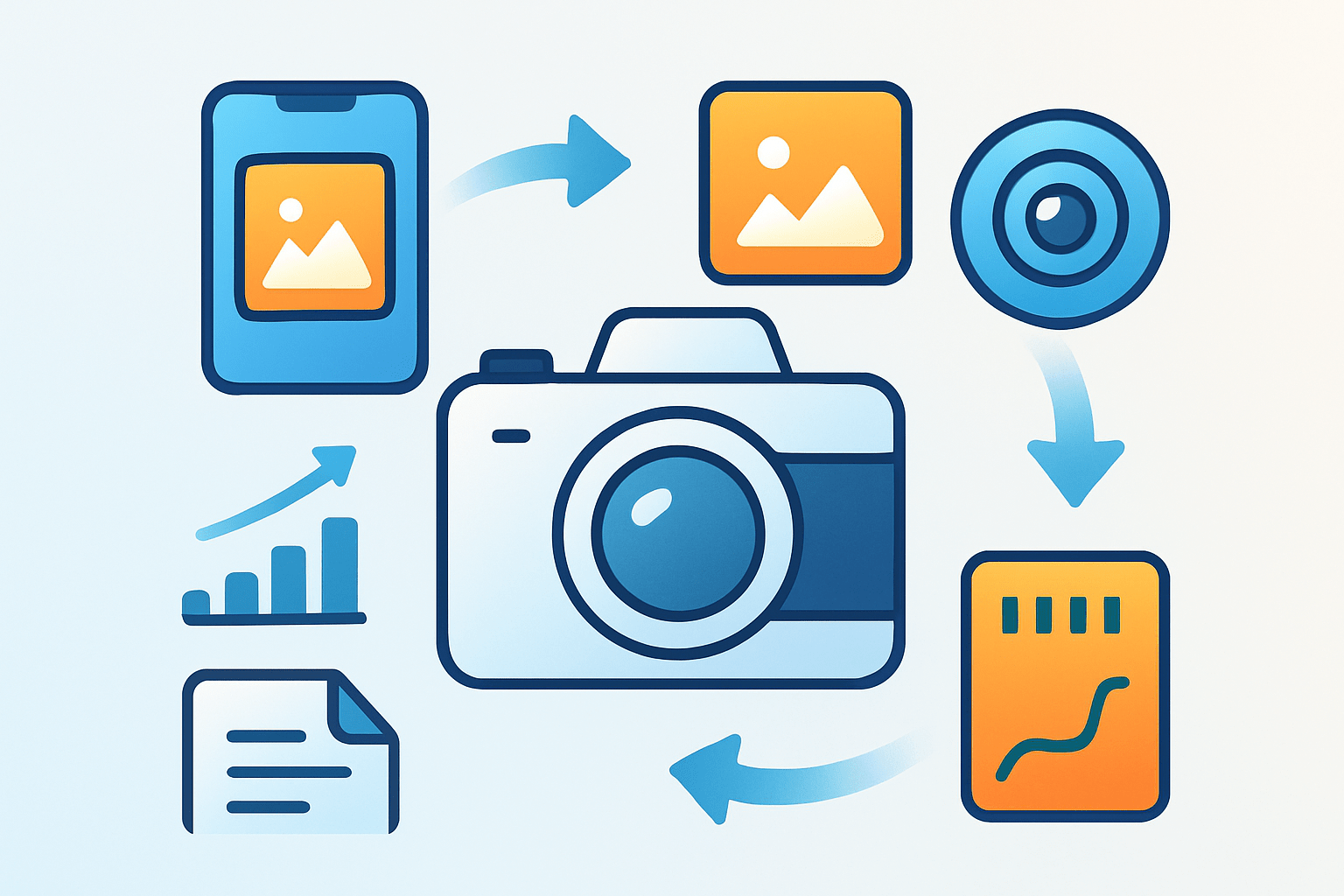
If you ask what apps do photographers use, the honest answer is a small toolkit that covers every step. You need capture, raw editing, retouching, culling and organization, backup, client delivery, and a few business and marketing helpers.
For capture, Halide (iOS, subscription from about $12/year) or Open Camera (Android, free) give manual controls and RAW. They beat stock camera apps when you want control over ISO, shutter, and focus.
For raw editing and catalog work, Adobe Lightroom (iOS/Android/macOS/Windows, subscription from $9.99/month) and Capture One (macOS/Windows, subscription from about $24/month) are the standards. They handle RAW files, presets, keywords, and synced edits across devices.
For advanced retouching, Adobe Photoshop (macOS/Windows, part of Adobe Photography Plan) is king for layers and compositing. Pixelmator Pro (macOS, one‑time about $49.99) and Luminar Neo (macOS/Windows, subscription from about $59/year or lifetime license) bring powerful AI tools and friendlier pricing.
For quick mobile edits and free options, Snapseed (iOS/Android, free) and VSCO (iOS/Android, membership around $29–$59/year) offer fast fixes and tasteful looks. They are perfect for travel, casual shooting, and social posts.
For culling, Photo Mechanic (macOS/Windows, from about $139 one‑time) is built for speed. Wedding and event photographers trim thousands of files in minutes and add metadata in one pass.
For backup and sync, Google Photos (iOS/Android/Web, Google One from $1.99/month), Backblaze (macOS/Windows, about $9/month per computer), and Lightroom cloud (included with subscription) handle safety. Automation matters because drives fail and deadlines do not.
For client delivery and galleries, Pixieset (Web/iOS, from about $10/month), PicDrop (Web, from about $10/month), and ShootProof (Web, from about $10/month) look polished and track downloads. Clients expect simple links, password protection, and print options.
For business and contracts, HoneyBook (Web/iOS/Android, from about $16/month) and Studio Ninja (Web, from about $24/month) manage bookings, invoices, and signatures. They save hours after the shoot is done.
If you want quick picks, a beginner hobbyist on mobile can pair Snapseed with Google Photos. That combo gives powerful edits and automatic backups with zero friction.
A travel or Instagram creator can use Lightroom Mobile for RAW edits, VSCO for a signature look, and Canva (iOS/Android/Web, Pro from about $12.99/month) for story crops and text. This stack keeps posts consistent and fast.
A wedding or event pro will fly with Photo Mechanic to cull, Lightroom to batch color, Photoshop to retouch hero shots, and Pixieset to deliver. It is a proven pipeline under pressure.
A studio or commercial pro often chooses Capture One for tethered color accuracy, Photoshop for composites, Backblaze for offsite safety, and PicDrop for client proofing. It is reliable on set and in post.
If you are exploring phone tools, this guide to apps for mobile photography is a nice companion. It helps you fill gaps without overloading your home screen.
Best photo editing apps: desktop vs mobile (practical comparison)
Adobe Lightroom Classic (macOS/Windows, $9.99–$19.99/month) is built for catalogs, presets, and consistent color. Enthusiasts and pros use it for large libraries and repeatable looks, with optional cloud sync via the Lightroom ecosystem.
Adobe Photoshop (macOS/Windows, included in the Photography Plan) brings layers, masks, and compositing. It is the pro choice for advanced retouching and graphics, with a deep action and plugin system.
Capture One (macOS/Windows, from about $24/month) is praised for tethering, color tools, and reliability on set. Studio and commercial photographers love its film‑back support and session workflow.
Luminar Neo (macOS/Windows, from about $59/year or lifetime) adds AI sky swaps, portrait cleanup, and relighting. It suits beginners who want fast results and pros who need quick style tools beside a main editor.
Affinity Photo (macOS/Windows/iPadOS, one‑time about $69.99 or Universal license) is a powerful Photoshop alternative. It fits budget‑minded editors who need layers, RAW, and no subscription.
Pixelmator Pro and Photomator (macOS/iOS/iPadOS, one‑time about $49.99 or modest subscription on mobile) are Mac‑centric and friendly. They suit beginners and hybrid creators who want clean design and solid RAW tools.
Lightroom Mobile (iOS/Android, free tier with premium features or included with Adobe plan) handles RAW capture, edits, and cloud sync. It is ideal for creators who move between phone, tablet, and desktop.
Snapseed (iOS/Android, free) offers pro‑level tools like Curves, Brush, and Healing. Beginners love the simplicity, while pros use it for quick field fixes.
VSCO (iOS/Android, subscription around $29–$59/year) focuses on tasteful film‑style presets and a creator community. It is perfect for cohesive styles and mood boards.
Photoshop Express and PicsArt (iOS/Android, free with premium) add one‑tap enhancements, overlays, and design extras. They help with fast social content and playful edits.
When you compare editors, look for RAW support, layer capability, batch processing, good presets and profiles, tethering support, reliable cloud sync, and parity between mobile and desktop. If you check these boxes, your workflow will scale with your goals.
Subscriptions give constant updates, cloud features, and better integrations, while one‑time apps can be cheaper over time. Third‑party presets and plugins matter too, because they speed your style and expand what is possible in a few clicks.
If you want a broader market view, this roundup of the best photo editing software can help you compare your short list. It pairs well with hands‑on trials so you see what fits your files.
Capture, organization, backup and delivery apps (workflow building blocks)
Capture apps change what your phone camera can do. Halide (iOS, from about $12/year) and Open Camera (Android, free) unlock manual controls and RAW, while 1998 Cam (iOS/Android, free with premium) gives a stylized film look for creative posts.
Tether apps from camera makers help with studio shoots because you can preview on a laptop or tablet. They are essential when clients are on set and color and focus must be perfect.
For culling and ingest, Photo Mechanic (macOS/Windows, from about $139 one‑time) and FastRawViewer (macOS/Windows, one‑time about $25) are built for speed. Fast decisions save hours on weddings and events where you import thousands of frames.
For organization and cataloging, Lightroom Classic (desktop) uses local catalogs with powerful keywords and color labels, while Lightroom cloud keeps libraries synced across devices. Both write XMP metadata so ratings and edits can travel with your files.
For backup and archive, follow a 3‑2‑1 rule: three copies, two types of media, one offsite. Use Backblaze (about $9/month) for offsite, cloud sync via Google Photos, Dropbox (iOS/Android/macOS/Windows, from about $9.99/month), or OneDrive (iOS/Android/macOS/Windows, included with Microsoft 365) for working files, plus an external drive for the master catalog.
For client delivery and proofing, Pixieset, PicDrop, and ShootProof offer passworded galleries, download limits, and print fulfillment. Contracts and invoices can live in gallery links, which makes client handoff clean and traceable.
To see how pros connect the dots, this overview of photography tools shows the bigger picture. Add pieces gradually so your process stays simple and stable.
How to choose the right app: platform, skill level and budget
Start by asking what device you use most, because platform decides half your stack. iPhone and iPad users get great options like Photomator and Halide, while Android users should lean on Open Camera, Snapseed, and Lightroom Mobile.
Think about your files next. If you shoot RAW often, choose apps with strong RAW engines like Lightroom, Capture One, or Photomator, but if you shoot mostly JPG, Snapseed or VSCO can be enough.
Decide if you need layers and compositing, which points you to Photoshop, Affinity, or Pixelmator Pro. If you do not, a lighter editor will be faster and cheaper.
Pick a pricing model that fits your budget. Subscriptions give you cloud sync and new features, while one‑time apps are great if you do not need constant updates.
For simple and free, start with Snapseed plus Google Photos. For enthusiasts across devices, Lightroom with a handful of VSCO presets keeps you consistent and fast.
For pros in studio or weddings, choose Capture One or Lightroom Classic for base edits, add Photoshop for retouching, and use Photo Mechanic if culling speed is mission‑critical. This is the stack most teams rely on when money is on the line.
Pro tips, workflows and must-have integrations (practical advice to include)
Here is a simple wedding workflow that scales. Tether or capture to cards, cull fast in Photo Mechanic, batch color in Lightroom, retouch hero images in Photoshop, export with web and print presets, deliver via Pixieset, and let Backblaze run overnight.
Here is a mobile creator workflow that stays light. Capture RAW with Halide, do global edits in Lightroom Mobile, apply a signature look in VSCO, and finish crops and text in Canva for every social format.
Always shoot RAW when possible, because it expands what your editor can recover. Keep a few export presets for web, print, and client review so you never guess sizes or color spaces.
Use presets and profiles to speed up, but tune them per image to avoid a one‑click look. Automate boring tasks with Photoshop actions, Lightroom batch exports, and Shortcuts on iOS to save real time.
Mind color management by calibrating your monitor and embedding profiles on export. This prevents surprises when clients print or view on different screens.
Set a backup cadence you can keep, like nightly local clones and weekly offsite sync. When someone asks what apps do photographers use to stay safe, the answer is consistent backups as much as clever editors.
Round out the stack with business and marketing integrations. HoneyBook or Studio Ninja handle bookings and contracts, gallery tools like PicDrop manage client proofing, and Instagram with Later (iOS/Android/Web, from about $16/month) schedules posts so you publish on time.
As you test, keep asking what apps do photographers use to solve your exact bottleneck. Start lean, add only what earns its place, and let your workflow grow with your skills.
What People Ask Most
What apps do photographers use for basic photo editing?
Photographers often use mobile editors like Adobe Lightroom Mobile or Snapseed to quickly adjust exposure, color, and crop on the go.
What apps do photographers use to organize and back up their images?
Many use cloud services and catalog apps such as Google Photos, Dropbox, or Lightroom to tag, sort, and automatically back up photos.
What apps do photographers use to remove blemishes or distractions?
Retouching apps like Photoshop Express or TouchRetouch let you remove spots and unwanted objects with a few simple taps.
What apps do photographers use to share proofs and get client feedback?
Photographers use gallery and proofing apps such as Pixieset or simple cloud folders to share images and collect client selections and comments.
What apps do photographers use on a phone versus a computer?
Phones run fast, mobile-friendly apps for quick edits and sharing, while computers run more powerful editors for detailed retouching and batch work.
How do apps photographers use help beginners save time?
Preset filters, batch editing, and automatic organization in apps speed up workflows and help beginners achieve consistent results fast.
Do what apps do photographers use need to be paid to be useful?
Free apps cover most beginner needs, but paid versions add advanced tools, better export options, and cloud storage as you grow.
Final Thoughts on what apps do photographers use
This guide gave you a practical map of the apps photographers reach for — from capture and RAW processing to delivery and business tools. Think of it as a 270-degree sweep of the modern workflow: quick mobile fixes, desktop powerhouses, and the delivery and backup steps that keep images safe. The core benefit is simple — you’ll spend less time managing files and more time making pictures that matter.
A realistic caution: some top apps come with subscriptions or a learning curve, so budget time and money for the tools you pick. This approach suits mobile creators wanting fast edits, event photographers needing speed and cull-tools, and studio pros who demand color accuracy and tethering. Match platform, skill level, and budget as we showed, and you’ll end up with a workflow that actually helps you hit creative goals.
You came in asking which apps pros use; now you have clear picks, trade-offs, and sample workflows to try. Tinker with one setup, keep backups, and enjoy watching your photos get better with each edit.




0 Comments