
What is exfat sd card? Do you need it for 4K video or big RAW files?
This article answers that in plain language. You will get a simple definition and see why exFAT replaces FAT32 for large files and SDXC/SDUC cards.
You will also learn which cameras, phones, and computers support exFAT. I will explain the pros and cons and when to pick exFAT, FAT32, or NTFS.
Finally, follow easy steps to format, protect, and recover exFAT SD cards, plus real-world examples and a one-page cheat sheet. Read on for fast, practical advice for photographers and videographers.
What is an exFAT SD Card?
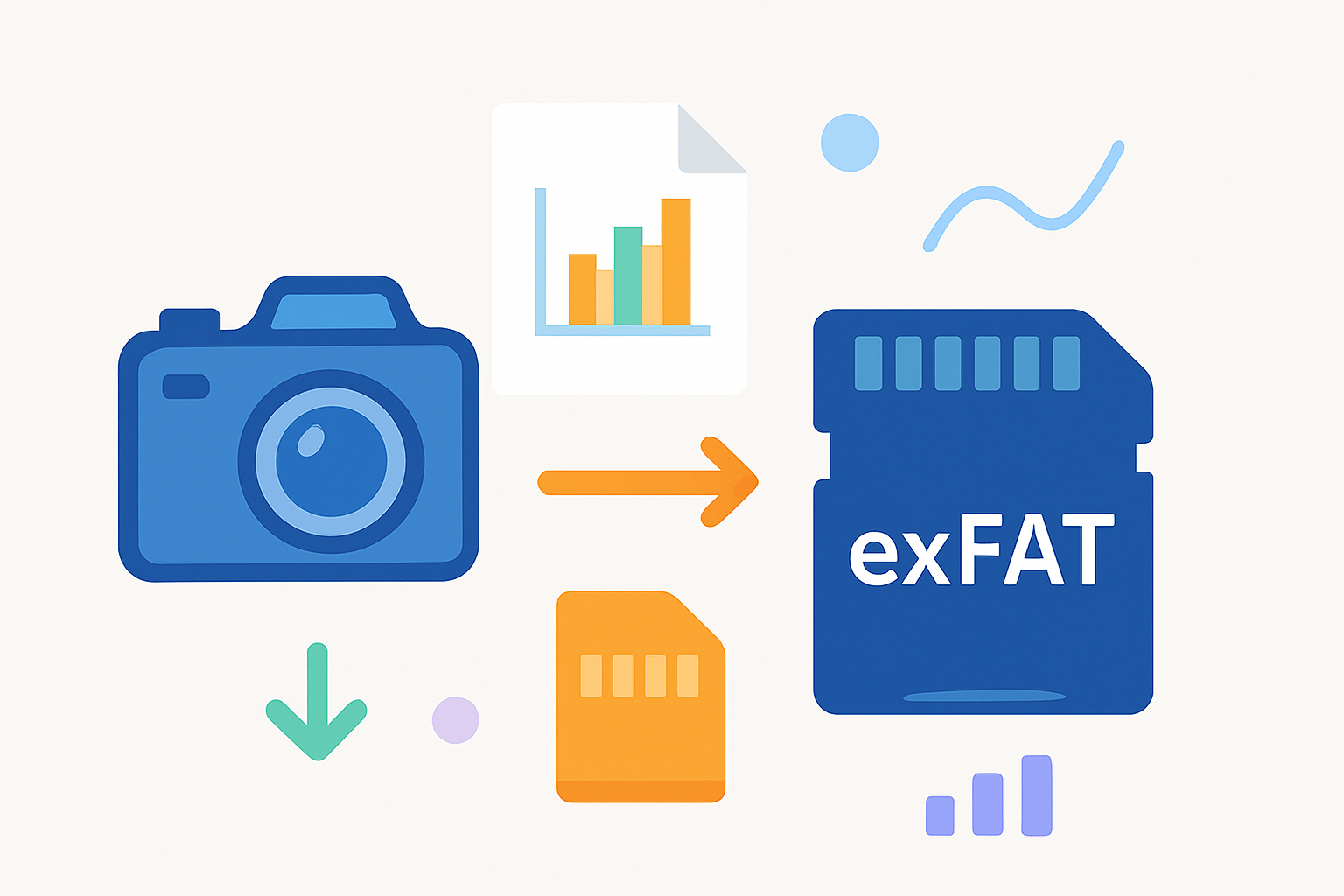
When people ask what is exfat sd card, they want a clear, simple answer they can trust on a busy shoot. An exFAT SD card is an SD or microSD card formatted with Microsoft’s exFAT (Extended File Allocation Table) file system. It is built to handle big files and big capacities that modern cameras and drones create.
exFAT exists because the older FAT32 format has a hard 4 GB per‑file limit that breaks long video clips and large RAW workflows. exFAT uses 64‑bit addressing and a lean design to remove that limit and scale to very large volumes. You can read more technical background in the exFAT file system overview.
Its core traits are simple but powerful for creators. exFAT is optimized for flash storage, uses lightweight metadata, and omits journaling to keep overhead low. The lack of journaling means faster writes and less wear, which helps during long, continuous recording sessions.
In real shoots, this matters a lot. exFAT lets you store long 4K and 8K clips, big time‑lapse files, multi‑hour interviews, and huge bursts of RAW images without hitting the 4 GB wall. “If your camera or drone needs to write files over 4 GB continuously, an exFAT-formatted SD card is usually required.”
Imagine recording 4K 10‑bit All‑Intra at a high bitrate for a full concert. A single take can exceed many gigabytes, and exFAT keeps the file intact and the workflow simple. Many cameras still split very long files for safety, but with exFAT it is not forced by the file system.
Photographers benefit too, especially with high‑resolution bodies and medium‑format systems. Bursts of large RAW files and stitched panoramas pile up quickly, and exFAT smooths the way on 64 GB, 128 GB, and 256 GB SDXC cards. It is a quiet upgrade that removes unnecessary limits in the background.
If you add visuals to a guide or brief, show a simple “FAT32 4 GB cap vs exFAT large file” diagram and a sample SD label marked “exFAT.” Use alt text like “exFAT formatted SDXC card” and “FAT32 vs exFAT file size limit” so the graphics remain accessible and searchable.
Why exFAT is used for SDXC/SDUC and large files
SD standards and exFAT go hand in hand for big capacities. SDXC and SDUC cards, which start above 32 GB and climb into multi‑terabyte territory, are commonly formatted with exFAT by design. Most SDXC and SDUC cards you buy arrive exFAT‑ready so you can shoot large files immediately.
exFAT uses 64‑bit fields, which pushes theoretical file sizes into the realm of exabytes. That is far beyond anything you will put in a camera today. The key takeaway is simple: exFAT removes the 4 GB file cap and makes large, contiguous files normal and reliable on removable media.
Practical limits are different from theoretical ones, and that matters when you plan a production. Your camera firmware, the SD card controller, and the operating system can set lower, real‑world caps on file length and card size. Always check device support notes before buying a very high‑capacity card.
Performance with large files is where exFAT shines. The format allows larger allocation units and less bookkeeping while writing big, continuous data streams. You avoid the forced 4 GB splitting that plagues FAT32, and you reduce overhead that can cause dropped frames in long video captures.
That is why exFAT is the default choice for continuous video, long time‑lapse sequences, drone flights, and extended live recordings. It also helps with big image sequences from high‑resolution cameras where each RAW file can be very large. Your files stay clean and easy to copy, archive, and review.
There is a trade‑off that you should respect in the field. exFAT has no journaling, so it can be more vulnerable to corruption if power is cut during a write. Stop the recording before powering off, avoid pulling the card while the access light is blinking, and use high‑quality cards to reduce risk.
The SD Association’s guidance and industry practice explain why SDXC usually arrives in exFAT. For a concise context on how the standard pairs with the format, see SDXC and exFAT for background before you invest in new cards.
Compatibility and cross‑platform/device support
On computers, exFAT support is now broad and convenient. Modern Windows and macOS versions include exFAT out of the box, and most current Linux distributions support it through the kernel and user tools. Android and iPadOS also read and write exFAT on many devices, though you should check version specifics.
Across devices, support is strong but not universal. Newer cameras, drones, action cams, TVs, and game consoles often recognize exFAT, especially when they advertise SDXC or SDUC compatibility. Older models and some budget devices might only understand FAT32, or they may need an update to read exFAT cards.
Gaps usually come from firmware choices and old licensing concerns. Some vendors limited embedded firmware to the smallest, simplest drivers to save space and cost. Others avoided exFAT in earlier years because of royalties, then later added support once licensing and open implementations improved.
Confirmation is easy once you know where to look. Camera and drone manuals list supported file systems near the storage or media section and often show examples of how a card will be formatted in‑camera. If your device formats a 64 GB or larger card to exFAT, you are good to go.
On desktop systems, check the card’s properties in your disk utility. Windows Explorer shows “File system: exFAT,” macOS Finder’s Get Info panel displays the format name, and Linux tools show it in Disks or with mount output. These checks take seconds and prevent surprises on set.
If a device refuses to read an exFAT card, a few quick remedies help. Update the device firmware, try a different card reader, or install the latest drivers on your computer. As a temporary fallback, reformat to FAT32 if your files will stay under 4 GB, but remember this step wipes the card.
For a plain‑English refresher on platform support and what makes exFAT appealing for shared media, skim this overview on why exFAT is useful before you commit your workflow. When publishing guides, add a simple compatibility matrix graphic and a small “device not reading exFAT?” flowchart with alt text like “exFAT compatibility matrix for cameras and OSes.”
Pros and cons — When to choose exFAT vs FAT32 or NTFS
exFAT brings the balance most photographers want on removable media. It supports very large files, keeps metadata light, and performs well on flash storage. It is also widely recognized by modern devices, which keeps your cards flexible across cameras, drones, and computers.
There are downsides to weigh with real jobs. exFAT offers no journaling and fewer native security controls than desktop file systems, so a sudden power loss can be riskier. Older or very simple devices may not support it, which can force a fallback to FAT32 for legacy compatibility.
Against FAT32, the difference is straightforward. exFAT lifts the 4 GB per‑file limit and scales to big volumes with less hassle, while FAT32 remains the lowest common denominator for older gear. If you shoot anything that crosses 4 GB, exFAT is the safer choice.
Against NTFS, the gap is about purpose. NTFS has journaling, permissions, and desktop security features, but most cameras and TVs do not write to NTFS, and journaling can add overhead on flash media. For SD cards in cameras, NTFS rarely makes sense, while exFAT fits naturally.
At a glance, choose exFAT when you use SDXC or SDUC cards above 32 GB and you expect files bigger than 4 GB. Typical examples include 4K and 8K video, long time‑lapses, and RAW bursts on modern mirrorless and DSLR bodies.
Choose FAT32 if you must work with an older camera, a legacy recorder, or small capacity cards, and your files will stay under 4 GB. It is the safe fallback when compatibility is the top concern and long clips are not in the plan.
Choose NTFS for external hard drives used mainly with Windows when you need journaling or permissions. It is a desktop choice for backup drives, not a capture format for cameras or drones.
Here are quick, real‑world picks that mirror field use. For a Sony A7S III capturing 4K/120 All‑Intra to SD, use a UHS‑II V90 SDXC card formatted as exFAT, or switch to CFexpress Type A if your codec requires it. For a DJI Mini 3 Pro recording 4K continuous, use a V30 microSDXC card in exFAT to avoid clip breaks.
If you shoot high‑resolution stills with a Nikon Z7 II and burst RAW to a fast UHS‑II card, exFAT on a 128 GB or 256 GB SDXC card gives headroom and smooth transfers. These choices keep cards interchangeable across modern bodies and laptops without size‑related surprises.
How to format, use, protect and recover exFAT SD cards — practical checklist for photographers
Start by formatting in‑camera whenever the card will live in that body. The camera chooses the allocation and metadata it expects, which reduces write hiccups and avoids strange directory structures. A fresh in‑camera format before a job is a small step that prevents big headaches.
On Windows, insert the card, open File Explorer, right‑click the card, and choose Format. Pick exFAT, use Quick Format for speed, and confirm the label so you can identify the card later. Disk Management offers deeper control if you need to remove odd partitions left by other devices.
On macOS, open Disk Utility, select the card, and click Erase, then choose exFAT. If the Scheme option appears, use Master Boot Record for the broadest device compatibility unless your camera’s manual says otherwise. Give the card a clear name and eject it safely when done.
On Linux, use Disks or GParted for a simple graphical path, or run mkfs.exfat from exfatprogs on the command line. Keep the default allocation unit unless your camera guidance says to change it. After formatting, mount read‑only once to verify the file system before heading out.
The SD Association’s official SD Formatter is a great universal option. It sets sane defaults for SDXC cards and cleans up oddities that other tools can leave behind. If you document the process, include screenshots with alt text such as “Windows Format to exFAT,” “Disk Utility exFAT erase,” and “SD Formatter exFAT settings.”
Quick vs full format is a trade of time vs checks. Quick is fine for routine reuse, while full format can scan for bad areas on a new or suspicious card. If a card ever behaves oddly, a full format and a controlled test shoot can build trust again.
Allocation unit size influences speed and space. Default sizes are usually best, but larger units can help with long video files by reducing overhead. If you store thousands of tiny files, smaller units reduce wasted space, though this is rare on camera cards.
Pick cards for sustained speed, not just peaks. exFAT does not make a slow card fast, so match your codec to a speed class like U3, V30, V60, or V90, and prefer brands you trust. Check your camera’s manual for the exact sustained write rate you need.
Build a backup rhythm you never skip. Copy cards to two separate places as soon as practical, rotate cards between shoots, and label them so you can track usage and retire aging media. Treat SD cards like film rolls you must safeguard, not like tiny hard drives to fill to the brim.
Handle cards gently and keep the file system clean. Always eject safely before removal, avoid filling a card to 100%, and never reformat a card that holds the only copy of your work. Buy from reputable sources, and test capacity and speed on arrival to rule out fakes.
Card not recognized? Try these five quick steps in order: try another reader or USB port, test the card on a different computer, update the camera or recorder firmware, check the card in the device’s format menu, and if you must reformat, back up first and format in‑camera to exFAT.
If you see file‑system errors, stop writing to the card immediately. Make a sector‑by‑sector image with a tool like ddrescue, attempt read‑only recovery with software such as PhotoRec or a commercial utility, and call a professional if the data is critical. exFAT lacks journaling, so acting early improves your odds.
When a camera does not recognize an otherwise healthy card, firmware is often the fix. Install the latest updates from the manufacturer, then reformat the card in that device so the directory layout matches its expectations. Keep a small reader in your bag so you can test cards on a laptop on location.
Pack a few small, essential habits around your cards. Carry spare SD and microSD cards, keep a compact USB‑C reader for phones and laptops, and test new cards with a short real‑world shoot before paid work. Maintain a simple one‑page cheat sheet listing which camera needs which card type, speed class, and exFAT format.
With these steps, you will know not just what is exfat sd card, but exactly how to put it to work on set. Use clear labels, clean formats, and sensible backups, and your cards will disappear into the background while your images take the stage. exFAT was built for this kind of modern, file‑heavy workflow, and that is why it has become the default for SDXC and SDUC media.
What People Ask Most
What is exfat sd card?
An exfat SD card uses the exFAT file system to store files and lets you handle very large files and modern storage needs.
Why should I choose an exFAT SD card over FAT32?
exFAT supports much larger files and card sizes, so it’s better for video, high-resolution photos, and big backups.
Will my phone or camera read an exFAT SD card?
Many newer phones and cameras support exFAT, but older devices may only work with FAT32, so check compatibility first.
Can I format an SD card to exFAT on my computer?
Yes, both Windows and Mac include tools that let you format an SD card to exFAT quickly and easily.
Does using exFAT make my SD card faster or last longer?
No, exFAT changes how files are organized but doesn’t automatically improve speed or durability of the card.
What common mistakes should I avoid with exFAT SD cards?
Don’t format to exFAT without checking device support, and always back up your data before formatting or switching file systems.
Can I share an exFAT SD card between Windows and Mac without problems?
Yes, exFAT is supported by both Windows and Mac, making it easy to move large files between the two systems.
Final Thoughts on exFAT SD Cards
If you’re packing 270 photos or a long 4K clip, exFAT prevents the old 4 GB cut-off and lets your device write big continuous files without forced splits. For photographers and videographers who handle large RAW files or extended video, its biggest payoff is fewer workflow headaches and simpler file management across modern devices.
A practical caution: because exFAT skips journaling to keep things fast, abrupt power loss or careless handling can raise the risk of corruption, so treat cards like fragile work gear. We answered the opening hook—what is exfat sd card—by defining it, explaining why SDXC/SDUC use it, outlining compatibility trade-offs, and giving clear formatting, backup and recovery steps.
Used with the right card speed and a solid backup routine, it gives you the freedom to shoot longer and edit faster. Keep testing gear, carry spares, and you’ll be ready for whatever the next shoot brings.



0 Comments