
Why is my Samsung not reading my SD card? It is a common and annoying problem that can hide photos, music, and apps.
This guide explains the most likely causes and clear symptoms to watch for. You will get quick checks, step‑by‑step fixes, and simple tests to try now.
We cover Safe Mode, testing the card on a PC, chkdsk and diskpart commands, formatting options, and how to inspect the card for damage. You’ll also learn when the issue is the card and when it is the phone.
Back up any files you can before you start. Follow the steps in order to reduce data loss and decide whether to fix or replace the card.
Why is my Samsung not reading my SD card?
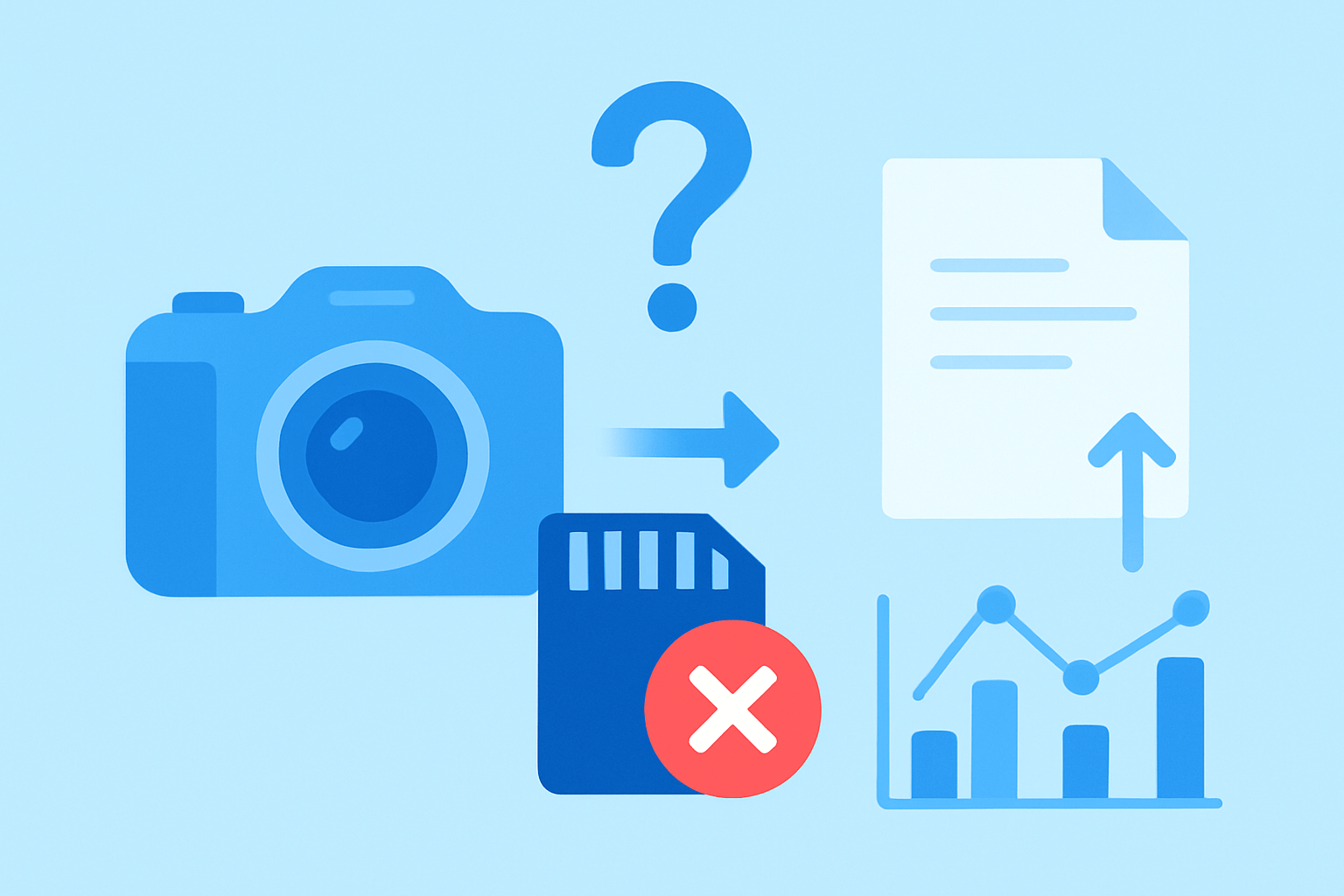
If you are wondering why is my samsung not reading my sd card, start with the most common causes. A corrupted file system or bad sectors on the card can stop Android from mounting it, even if the card looks fine.
The phone may not recognize the card because it was formatted to an unsupported file system such as NTFS, or because it is encrypted by another device. When the format does not match what Samsung expects, the card stays unmounted.
Physical problems are also frequent. Dirty, bent, or worn contacts, a cracked card, or a slightly warped SIM/SD tray can break the connection and make the phone show errors.
Compatibility matters with older devices. Some older Galaxy models do not support SDXC or very large capacities, so a 256 GB or 512 GB card might never mount on those phones.
Write protection can block access too. A full-size SD adapter with the lock switch on, or software read-only flags, will make the card appear present but unusable.
Occasionally the issue is software. A firmware bug or a third‑party app can interfere with storage services, causing mounting loops or sudden unmounts during use.
Counterfeit or low-quality cards are a hidden trap. These cards often work at first but fail under load, corrupting photos and then refusing to mount.
Common symptoms help you diagnose fast. You might see “SD card error,” the SD card missing in Storage settings, the card working on a PC but not on the phone, or the phone repeatedly mounting and unmounting the card.
A quick decision guide can save time. If the card fails in multiple devices, the card is the problem; if it works on a PC but not the phone, look at compatibility, the slot, or software on the phone.
Start simple before doing deep fixes. You can also review Samsung’s own advice for an SD card not detected situation to compare symptoms with your device.
When you see “SD card corrupted Samsung,” stop shooting or saving files. Continued use can destroy data that is still recoverable.
By the end of this guide, you will know exactly how to test, fix, or safely replace the card. You will also know when the answer to why is my samsung not reading my sd card points to the phone rather than the card itself.
How to troubleshoot when your device doesn’t detect an SD card
Before you do anything, back up any files you can still access. If the card mounts intermittently, copy photos and videos immediately to cloud or a PC and stop using the card.
Step 1: Power off your phone, then remove and reinsert the microSD card. Use the SIM eject tool to open the tray, align the card with the contacts facing down in the correct orientation, and reseat it gently before closing the tray.
This step fixes many alignment issues. A slightly misaligned or loose card can cause random unmounts and read errors.
Step 2: Force restart the phone to refresh system services. On most Galaxy devices, hold the Volume Down and Power buttons together for about 10–15 seconds until the phone restarts.
If your model uses a different button combo, hold Power until the restart prompt appears. A forced reboot clears temporary glitches that may block storage mounting.
Step 3: Open Settings and check Storage. On many phones, go to Settings > Battery and device care > Storage, or Settings > Storage, then look for Mount SD card or any error message and try to mount manually.
If you see prompts to set up the card, follow them and note any warnings. If there is no SD card section at all, keep going with the next steps.
Step 4: Open My Files or your File Manager and look for the SD card area. If it is missing or shows a specific error, take a screenshot to refer to later and to share with support.
My Files sometimes shows “corrupted” or “unsupported” messages that reveal the underlying issue. A screenshot of the My Files or Storage screen will help you track changes as you test.
Step 5: Boot into Safe mode to rule out third‑party app interference. Long-press the Power button, long-press Power off, and tap Safe mode; alternatively, power off and hold Volume Down during boot until Safe mode appears on the screen.
If the SD card mounts in Safe mode, uninstall recent or suspicious apps, cleaners, boosters, or antivirus tools that might control storage. Take a photo of the Safe mode boot screen if you need to prove the difference later.
Step 6: Remove any case, magnetic mount, or accessory that touches the tray. Inspect the SIM/SD tray and slot for dust, lint, or slight warping, and clean gently if needed.
A tight case can bend the tray just enough to break contact during movement. Make sure the tray sits flush without resistance.
Step 7: Check if the card was formatted as internal or adoptable storage on another device. Cards formatted as internal are encrypted to that device and will appear unreadable elsewhere, including on a PC.
If your phone previously used the card as internal storage and you reset or changed phones, the data may be locked. In that case, only the original device can decrypt it when working properly.
Step 8: Install the latest system updates. Go to Settings > Software update > Download and install, then reboot after updates apply.
Firmware updates often include storage compatibility fixes and stability patches. Sometimes that is all it takes to stop mounting loops on SD card not detected Samsung cases.
If these steps do not fix the problem, escalate to testing the card on another device or a PC. You can compare your results to Samsung’s official steps as you go.
If you still need to ask why is my samsung not reading my sd card after these checks, the next section will help you isolate whether the card or the phone is to blame. Keep your card usage minimal until you complete the tests to protect your data.
Test the card with another device
The quickest way to diagnose is to try the card elsewhere. Use another Android phone or tablet that supports the same capacity and file system.
If you do not have another phone, use a microSD-to-SD adapter and a card reader with a Windows PC or a Mac. Insert the card and watch for any prompts or errors.
On Windows, check File Explorer for a new drive. If it does not appear, open Disk Management by pressing Win+X and choosing Disk Management to see if the card shows as unallocated or RAW.
If the drive appears with a letter but errors, run the command chkdsk X: /f /r, replacing X with the actual letter. This scans for file system errors and bad sectors and attempts repairs.
If the card is visible but has no drive letter, right-click it in Disk Management and assign a letter. If you see “write-protected,” check the adapter’s lock switch and clear software read-only by using diskpart, then typing list disk, select disk N, and attributes disk clear readonly.
On a Mac, open Disk Utility and see if the card mounts. If it does not, select the card and run First Aid to verify and repair the file system.
On Linux, advanced users can run lsblk to confirm the device and check dmesg logs for I/O errors. If recovery is required, create an image with dd or use ddrescue before attempting fsck or copying files.
Interpret the results before proceeding. If the card works on a PC or another phone, your Galaxy likely has a compatibility, software, or slot problem; if it fails everywhere, the card is likely corrupted or physically damaged.
When the card shows as RAW or unallocated, do not format if you need the data. Try recovery tools like Recuva, PhotoRec/TestDisk, or Disk Drill, and whenever possible, recover from an image rather than the original card.
Take a screenshot of Disk Management when the card is listed as RAW or unallocated. That image will guide you or a technician through the right next steps.
Format the card
Formatting is a last resort if you need a clean, working card more than you need the data still on it. Formatting erases your files, so back up or attempt recovery first and stop using the card to prevent further damage.
On a Samsung phone, go to Settings > Battery and device care > Storage, tap the SD card, and choose Format to use it as portable storage. This is the best choice if you want to move the card between devices.
Some models also offer Format as internal or adoptable storage. This encrypts and ties the card to the phone, which can improve app performance but makes the card unreadable on other devices and after a factory reset.
If you prefer to format on Windows, right-click the card in File Explorer and choose Format. Use exFAT for cards larger than 32 GB, or FAT32 for older devices and maximum compatibility.
Windows often does not offer FAT32 for cards above 32 GB. If you truly need FAT32 for an older phone, you can use advanced tools or commands, but exFAT is recommended for most modern Galaxy devices.
The SD Association’s SD Card Formatter is also an excellent choice for repairing SD metadata. It aligns partitions properly and follows SD specifications better than a generic quick format.
Before a full format, try a repair pass. On Windows, run chkdsk X: /f /r to fix logical errors and map out weak sectors if possible.
If the card shows as unallocated in Disk Management, delete all partitions and create a new primary partition. Then format it to exFAT and reinsert it into the phone.
For stubborn cases, use diskpart. Open a Command Prompt as administrator, type diskpart, then list disk, select disk N for your card, clean, create partition primary, and format fs=exfat quick, followed by assign.
If you get write-protected errors, in diskpart run attributes disk clear readonly and try again. If that fails, the card’s controller may be locked or failing.
After formatting, put the card back in the Samsung and check Settings > Storage to Mount the card. Copy a few test photos or shoot a burst to confirm stable writes and reads.
If the card was formatted on a PC and your phone still will not read it, format it again on the phone itself. Some models are picky and prefer a phone-created partition table.
If formatting fails or stalls repeatedly, suspect hardware failure or a counterfeit capacity card. At that point, replace the card and consider professional recovery if the data matters.
If you need more context while formatting or testing, review Samsung’s additional troubleshooting tips to compare behaviors and messages with your model. Use these steps together to resolve format SD card Samsung errors effectively.
Inspect the SD card for any damage (hardware & replacement guidance)
A careful visual check can reveal the problem in seconds. Look for bent or cracked plastic, chipped edges, scratched or discolored gold contacts, or any burn marks on the label side.
Inspect the full-size SD adapter if you used one, and make sure the lock switch is not set to protect. Check the SIM/SD tray for bent pins, dirt, or a warped edge that prevents a flat fit.
Clean the slot by gently blowing compressed air at a low angle. Clean the card’s contacts with a soft lint-free cloth or a barely dampened swab with isopropyl alcohol, then let it dry completely before reinserting.
A pencil eraser can polish lightly oxidized contacts if used gently. Avoid water, metal tools, or rough scraping, and work on a non-static surface to reduce ESD risk.
If the tray is stuck, do not pry with sharp objects. Use the SIM tool straight in the hole; if it will not eject, visit a technician or service center rather than forcing it.
If the card fails in multiple devices or shows visible damage, replace it and try to recover from backups or with recovery software. If the card works elsewhere but not in your phone, have the phone’s slot inspected or contact Samsung support.
Buy your replacement from reputable brands like SanDisk, Samsung, Kingston, or Lexar, and use authorized sellers to avoid counterfeits. Choose the correct type and speed class such as UHS‑I U3 for 4K video or A1/A2 for app storage, and SDXC for 64 GB and above.
Consider taking a photo that shows the correct insertion orientation and any worn contacts for your records. Never rely on just one card for critical shoots; keep cloud or PC backups to prevent future SD card corrupted Samsung moments.
These checks close the loop on why is my samsung not reading my sd card by ruling out physical faults. With good habits and proper care, your next card should perform reliably for years.
What People Ask Most
Why is my Samsung not reading my SD card?
This can happen if the card is dirty, not fully inserted, or corrupted. Try removing and cleaning the card, reinserting it, restarting your phone, and testing the card in another device.
Could a dirty or damaged SD card be the problem?
Yes, dirt or visible damage on the metal contacts can stop your phone from reading the card. Gently clean the contacts with a soft, dry cloth and try again.
Will restarting my Samsung fix the SD card issue?
Often a restart can resolve temporary glitches and let the phone detect the card. If that doesn’t work, try removing and reinserting the card or testing it in another device.
How can I tell if my phone recognizes the SD card?
Check your phone’s storage or notification area for the card, or open settings and look for external storage. If it doesn’t appear, the card may be unreadable or not inserted correctly.
Will formatting the SD card fix it and will I lose my files?
Formatting can make a corrupted card usable again, but it will erase all data on the card. Back up any important files before formatting.
Can the SD card adapter or lock switch cause problems?
Yes, a faulty adapter or an SD card with the write-protect switch on can prevent proper reading. Try a different adapter or check the switch position to rule this out.
Could a software issue on my Samsung stop it from reading the SD card?
Yes, outdated software or app permissions can block card access. Make sure your phone is updated and check storage permissions for any apps that need the card.
Final Thoughts on SD card issues
If you were wondering “Why is my Samsung not reading my SD card?”, this guide gives a 270 look at the issue, walking you through checks, testing on other devices, safe formatting, and a hardware inspection so you can quickly narrow the cause. It’s meant to turn guesswork into practical steps so you can decide whether to recover data, reformat, or replace the card.
Following the step-by-step checks and PC tests will usually tell you whether the card or the phone is at fault, and it explains the exact commands and paths you’ll need to try. Be realistic: cards can fail suddenly and formatting or recovery can erase data, so always back up what you can and stop using a questionable card to avoid more corruption.
We started with the simple question that likely brought you here, and you now have clear diagnostics, repair tips, and replacement guidance tailored for Samsung users. Take these methods at your own pace and know that a little caution and the right steps will get you past most SD card headaches and onto better, more reliable storage setups.



0 Comments