
Want to look like a pro on camera without hauling extra gear? Choosing a laptop with a great built-in webcam can simplify your setup and upgrade your live streams. Imagine crisp color and steady exposure from the laptop you already carry.
This guide helps you pick the best laptop for webcam streaming. We focus on excellent built-in webcams and real streaming suitability. You’ll find five top picks plus software recommendations, hands-on setup tips, and a concise FAQ to answer common questions.
We focused on the elements that change how you look and perform live. Camera quality and image processing, portability and battery life, raw performance, and software compatibility were our core criteria.
We considered real-world use, not just lab numbers. That means low-light handling, framing, and whether a laptop keeps streams stable under load were part of the evaluation.
Whether you’re a remote professional, hobbyist streamer, or a creator on the move, the right laptop can make your video look sharper and more polished. Often that means fewer accessories and less setup time.
Read on to discover five thoughtfully selected laptops and practical tweaks that lift basic webcam footage into a channel-ready image. Along the way we’ll point out software that plays nicely with each machine and share tips to squeeze the best video quality from your setup. By the end you’ll know which trade-offs to accept and which laptop fits your workflow and budget.
1. HP Dragonfly G4 for Streaming

HP Dragonfly G4 13.5
Ultralight convertible with vibrant display, responsive pen support, stellar battery life, and smooth multitasking for commuting professionals.
Check PriceAs a photographer who streams, the HP Dragonfly G4 immediately stands out for its 5MP webcam that delivers a true 1440p image. That extra resolution gives noticeably sharper detail than the usual 1080p laptop cameras, which matters when you want skin tones and textures to look natural on stream.
The camera benefits from advanced image processing, so colors stay vibrant and faces remain clear even in less‑than‑ideal office or home lighting. Do note, however, that in very low light the performance can dip — it handles most situations well, but it’s not magic.
The 3:2 aspect‑ratio screen is a real boon for composition and framing. You get more vertical space for head‑and‑shoulders framing, app windows, or overlay elements without feeling cramped.
On the road this machine performs like a champ: fast CPU responsiveness and long battery life mean you can run conferencing or streaming sessions without constant tethering to power. The lightweight, durable premium build also makes it a favorite for frequent travelers who need reliable video quality on the go.
The biggest practical limitation is the built‑in bezel webcam — the angle and framing are fixed compared to a separate, adjustable camera. If you require precise camera placement or exotic framing, that restriction may be a dealbreaker.
Overall, the Dragonfly G4 is an excellent choice for professionals and traveling streamers who value image quality, portability, and battery endurance, provided you can live with the fixed webcam position and occasional low‑light limitations.
- 5MP webcam delivering 1440p image
- 3:2 screen ratio for extra vertical space
- Fast performance and long battery life
- Lightweight, durable premium build
- Built‑in bezel webcam; angle not adjustable
- Can struggle in very low lighting
2. MacBook Pro 14 (M4, 2026) for Streaming
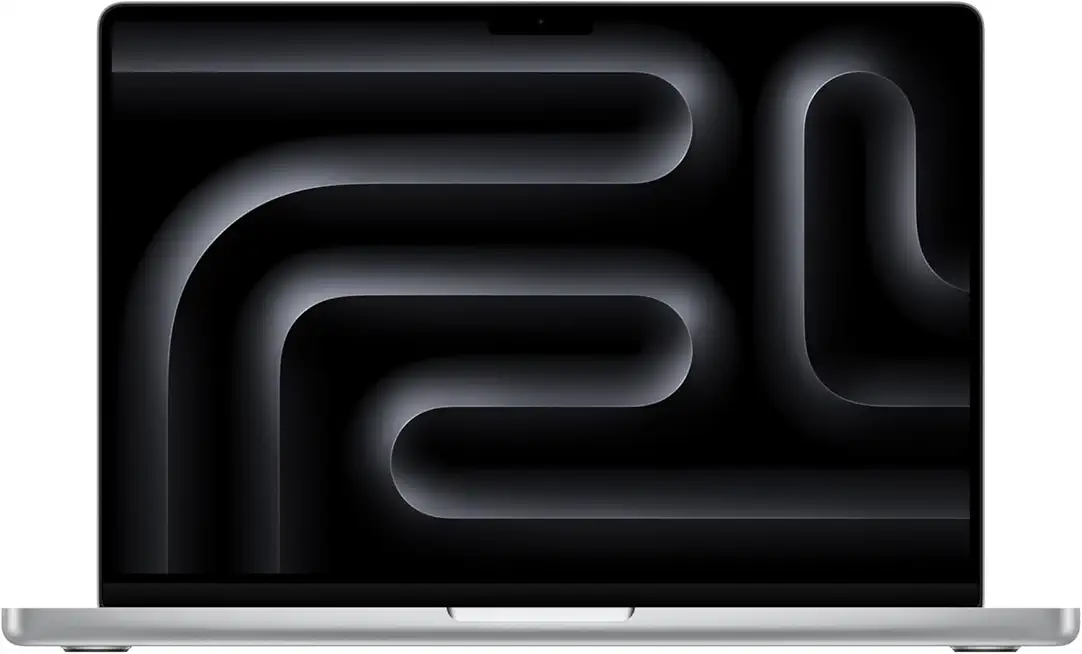
Apple MacBook Pro (2026) M4 Pro 14.2
Top-tier creative workstation offering blazing rendering speed, whisper-quiet cooling, stunning color fidelity, and ample storage for heavy media workflows.
Check PriceAs a photographer who streams behind-the-scenes edits and talks through workflows, the MacBook Pro 14 (M4, 2026) stands out for its built‑in 1080p webcam that actually delivers usable, color‑accurate footage without immediately reaching for an external camera. Apple’s image processing combined with the M4 chip produces sharp, true-to-tone images that make skin tones and color-critical content look reliable on camera.
The M4’s performance means you can stream, run scenes in OBS or Streamlabs, and scrub through ProRes footage with far less risk of stutter or dropped frames. For creators who both shoot and stream, that combination of webcam quality plus editing horsepower simplifies a mobile workflow—no extra capture rig necessary for many use cases.
macOS integration is another practical advantage: the webcam and popular streaming/conferencing apps behave smoothly together, so you spend less time fighting drivers or virtual camera quirks. Apple’s processing also helps in low‑light and backlit situations, improving exposure and keeping streams watchable when your lighting isn’t perfect.
That said, the webcam is fixed in the bezel, so you won’t get flexible framing or creative camera angles without an external solution. Also, if your needs are limited to occasional video calls or simple streams, the MacBook Pro’s camera and performance may be more capability (and cost) than you really need.
- Outstanding 1080p webcam with excellent color and detail
- M4 chip handles streaming, multitasking, and editing smoothly
- Image processing improves low‑light and backlit scenes
- Sleek design and long battery life
- Webcam fixed in bezel; angle/position not adjustable
- High price may be unnecessary for basic streaming
3. Microsoft Surface Go 4 for Streaming

Microsoft Surface Go 4 10.5
Pocketable tablet-perfect for students: quick web browsing, note-taking with attachable keyboard, and all-day portability.
Check PriceAs a photographer who streams on the go, the Surface Go 4 immediately appeals for its mix of image quality and portability. Its 8MP webcam is capable of 1080p video and produces crisp, sharp images that punch above what you expect from such a compact device.
The camera holds up well in both well‑lit and dim environments, giving you usable color and detail without constantly chasing exposure. That reliability makes it great for quick vlogs, on‑location interviews, and impromptu streaming when you don’t have a full lighting kit.
What really sets the Surface Go 4 apart is the tablet/laptop versatility. I often use it in tablet mode for handheld framing or with a simple stand for desktop streaming — the lightweight design and long battery life mean I can stream from locations where lugging a heavier laptop would be impractical.
Where it doesn’t excel is in heavy production work. The smaller screen and lower processing power mean demanding streaming software and multi‑source live productions may push the device too hard. Also, the webcam is fixed in the bezel, so you’re limited to the built‑in angle and framing unless you add external gear.
For content creators who value mobility, clean image quality straight out of the camera, and long runtime, the Surface Go 4 is a strong, mostly portable streaming companion. If you need multi‑scene production or higher GPU horsepower, consider a larger machine — but for quick, high‑quality webcam streaming on the move, it’s hard to beat.
- 8MP webcam delivers crisp 1080p video
- Portable tablet functionality for varied shooting
- Consistent image quality with good color and detail
- Long battery life for extended sessions
- Webcam fixed in bezel; angle not adjustable
- Smaller screen and lower processing power for heavy streaming
4. HP Chromebook Plus 14 for Streaming
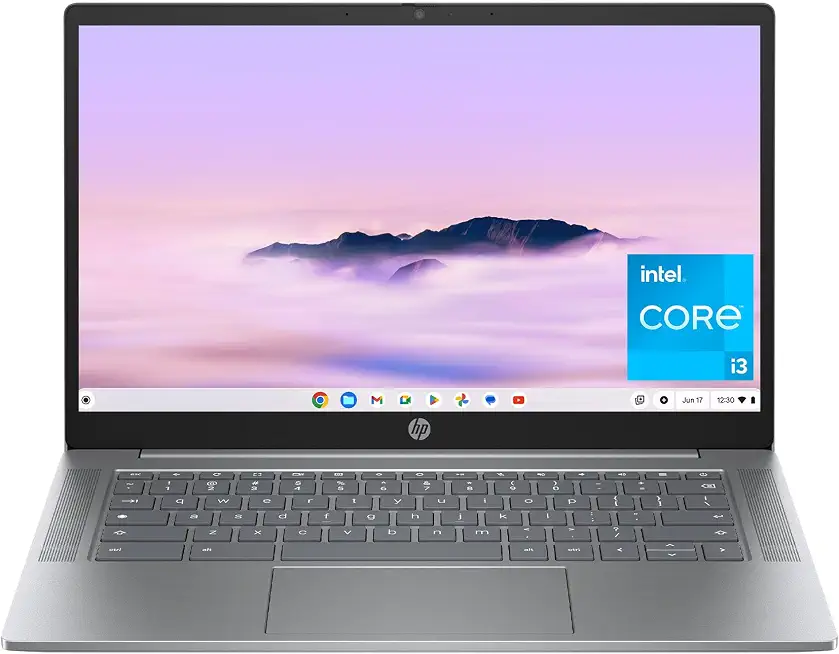
HP Chromebook Plus 14
Affordable cloud-first laptop with instant boot, long battery, crisp screen, and smooth everyday productivity for students and families.
Check PriceAs a photographer who spends hours framing faces and chasing natural color, the HP Chromebook Plus 14 surprised me with its 8MP webcam that delivers true 1080p video. The image comes through sharp and clear with surprisingly good color reproduction, which means less time correcting white balance and more time interacting with viewers.
ChromeOS is refreshingly simple and reliable, so setup is quick — ideal for students or casual streamers who want a solid webcam experience without wrestling with drivers or complex settings. Battery life is long enough for extended sessions, so you can stream or record away from a power outlet without constant anxiety about running out of juice.
That said, the webcam is fixed in the bezel, so you’re limited in how you frame yourself; small adjustments require laptop position changes or an external tripod. Also bear in mind ChromeOS restricts some specialized streaming apps and plugins, so if you need advanced OBS setups or studio‑grade software, this Chromebook may feel limiting.
Overall, if your priority is an affordable, portable machine with a reliable, high‑quality built‑in camera and excellent battery endurance, the HP Chromebook Plus 14 is a very good pick. If you’re a hobbyist streamer, student teacher, or anyone who wants clean 1080p video with minimal fuss, it’s a practical choice — but pros who need deep software flexibility or adjustable camera mounting may want to look elsewhere.
- 8MP webcam — excellent 1080p video
- ChromeOS is easy to use and reliable
- Sharp, clear image with good color reproduction
- Long battery life for extended sessions
- Built-in bezel webcam; angle not adjustable
- ChromeOS limits software compatibility for specialized streaming apps
5. Razer Blade 16 for Streaming

Razer Blade 14 (2026) AMD Ryzen AI 9 365 - GeForce RTX 5060 - 14
Extreme gaming powerhouse with ultra-smooth visuals, rapid load times, advanced cooling, and big storage for competitive play and content creation.
Check PriceAs a photographer who streams edits and runs live tutorials, the Razer Blade 16 stands out for its very good built‑in 1080p webcam. The image is sharp and color‑accurate enough for on‑the‑fly demonstrations and client calls, so you can reliably show work without an external camera for many situations. That clarity makes it practical for content creation where quick setup matters.
Under the hood, the laptop’s powerful CPU and GPU mean I can run OBS, Streamlabs, and my editing software at the same time without stuttering. Multitasking during a live session—screen shares, overlays, and encoding—remains smooth, which is critical when teaching techniques or doing live color grading. For anyone who streams and also needs real workstation power, that hardware balance is a big plus.
The Razer’s premium build and sleek design give a professional feel on camera and in client meetings. It’s built like a high‑end tool, which matters when you want gear that reflects your brand. The combination of a quality webcam and a stylish chassis makes it well suited for gaming streamers who also produce polished creative content.
Keep in mind the webcam is built into the bezel, so framing and angle are fixed. In dim lighting the camera’s performance can drop compared with dedicated webcams or larger sensors, so you’ll still want good lighting for the best results. Overall, if you value internal power and a solid webcam with minimal fuss, the Razer Blade 16 is a strong choice.
- High‑quality 1080p webcam — sharp, clear images
- Powerful CPU/GPU for smooth multitasking and streaming
- Consistent camera quality with good color accuracy
- Premium build and sleek design
- Built‑in bezel webcam — angle not adjustable
- Camera can suffer in very low lighting
Webcam Software and Features
As a photographer I treat software like a lens — it frames, colors, and ultimately defines the viewer’s experience. The right webcam app can correct color, remove distractions, and add polish that a stock feed simply can’t. Pick software that matches your creative goals and your laptop’s power.
OBS Studio is the workhorse most pros start with. It’s free, cross‑platform, and supports scenes, multiple sources, filters, LUTs, audio mixing and plugins like NDI for multi‑camera setups. The control is excellent, but it takes time to learn and to build clean scenes.
Streamlabs and Prism Live Studio trade some of that complexity for speed and convenience. They come with animated overlays, alerts, chat widgets and a virtual‑camera output so you can push a branded feed into Zoom or Teams quickly. These are great when you want polished visuals without building everything from scratch.
ManyCam is useful when you need fast background removal, picture‑in‑picture, or to mix several inputs without fuss. Bandicam is the tool I reach for when I want low‑overhead, high‑quality local recordings up to 4K for later color grading and edit work.
For broadcast‑grade shows, Wirecast and vMix offer live switching, instant replay, and advanced audio tools. They deliver excellent results but demand serious CPU/GPU horsepower and a steeper learning curve.
Virtual camera support is a hidden superpower. Feeding your OBS or Streamlabs output as a webcam into conferencing apps keeps your color grading, overlays, and framing consistent across meetings. Always test compatibility and grant camera permissions before going live.
Check OS compatibility and watch system impact. Use hardware encoders (NVENC, Quick Sync, VideoToolbox) where possible to offload CPU and prevent dropped frames. OBS tends to be lighter; studio apps will push your laptop much harder.
From a practical standpoint, build a few scenes: talking head, screen share, and interview. Lock white balance, apply gentle color correction or a LUT, and keep overlays minimal so the viewer’s eye stays on your face.
Do test recordings, verify bitrate against your upload speed, and use wired networking. Small technical checks save awkward live moments and keep your streams looking — and sounding — professional.
Tips to Improve Stream Quality
As a photographer I treat webcams like tiny studio cameras. Pick at least a 1080p model and prefer a larger sensor for cleaner low‑light results — candidates I trust include the Elgato Facecam MK.2, Logitech C920 and Insta360 Link. If your laptop camera is fixed, raise the screen to eye level or mount a small external webcam.
Lighting will make or break your image. Put a soft, diffused key light in front, slightly above eye level, and add a fill or reflector to soften shadows. Natural light can be beautiful when it hits you from the front or side, but avoid strong backlight unless you add a rim light for separation.
Compose like a portrait: head and shoulders with a touch of headroom keeps you centered and natural. Keep the background tidy or use software blur or a simple backdrop to avoid distractions. A subtle backlight or wall lamp can add depth and stop you blending into the scene.
Good audio matters more than most people expect. Use a USB mic or an XLR interface rather than the built‑in laptop mic, place it close but off‑axis to reduce plosives, and enable noise suppression in OBS or your streaming app. Check gain and speak at your normal volume during tests.
Match resolution and bitrate to your upload speed; 720p or 1080p at 30–60fps is a sensible target. Enable hardware encoding (NVENC, QuickSync or VideoToolbox) to keep the CPU free, and use wired Ethernet when possible. Always run a private test stream to catch frame drops, audio sync issues and resource bottlenecks.
Polish your look with simple overlays, clean scene transitions and timely alerts to keep viewers engaged. Try portrait mode or AI auto‑framing if your camera supports it, and use a virtual camera to bring that same look into meetings. Reproducible setup beats last‑minute tinkering—consistency is what viewers notice.
What People Ask Most
What are the best laptops for streaming with a webcam?
Choose a laptop that pairs a high-quality built-in webcam with good image processing, reliable performance, and long battery life. Portability and software compatibility are also important to match your streaming workflow.
What specs do I need for webcam streaming on a laptop?
You want a capable processor, enough memory, and sufficient storage to run your streaming software and multitask smoothly. A dedicated GPU helps for heavier encoding or gaming while streaming, and a stable network connection is essential.
Can I stream with a laptop’s built‑in webcam or do I need an external webcam?
Built-in webcams are fine for many casual and professional uses and offer convenience with minimal setup. An external webcam provides more flexibility with positioning, larger sensors, and often better low-light performance when higher quality is needed.
Is a dedicated GPU necessary for webcam streaming?
A dedicated GPU is not required for basic webcam streaming and conferencing. It becomes beneficial when running demanding streaming software, playing games while streaming, or encoding multiple video sources.
What software should I use for webcam streaming on a laptop?
Popular options include OBS and Streamlabs for streaming, with ManyCam and Prism Live Studio offering easier entry and Wirecast or vMix for more advanced studio features. Pick software based on the features you need, operating system compatibility, and how much system resources it uses.
How can I improve my laptop’s webcam quality for streaming?
Prioritize good, diffused lighting and tidy composition to make the most of any camera. Use software settings and filters for exposure or background treatments, and pair with an external microphone for better overall production quality.
Are MacBooks good for webcam streaming?
MacBooks are often favored for strong image processing and smooth integration with macOS streaming and conferencing apps. They can be a solid choice for creators who value color accuracy and stable performance in their workflows.
Conclusion for Webcam Streaming Laptops
Whether you prioritize webcam image quality, portability, sustained performance, battery life, or app compatibility, this roundup was designed to help you weigh those trade-offs and choose a laptop that fits your streaming and video‑call needs.
Match a laptop to your workflow and budget, then use the recommended software options and practical tips—lighting, audio, bitrate, and testing—to get the most from the built‑in camera and avoid common performance pitfalls.
If you want to sharpen your streaming skills and production value, explore more guides and how‑tos on the site to learn setups, software workflows, and practical tweaks that make a noticeable difference.
Have questions or want advice tailored to your setup? Leave a comment below and we usually reply within a few hours to help you get your stream looking and sounding its best.


0 Comments