
Tired of hunting for a scanner that actually plays nice with your Mac? This quick guide compares five Mac-friendly scanners and covers software, scanning tips, and FAQs to help you shop confidently.
Compatibility with modern macOS is the single most important factor. Drivers, 64-bit support, and native app integration can make the difference between a smooth setup and a frustrating afternoon.
Beyond basic compatibility, hardware features shape how you use a scanner. We’ll look at ADF and duplex feeding for bulk jobs, flatbeds for photos and artwork, and portability for on-the-go scanning.
Connectivity matters too. Wireless, USB, and direct-to-cloud options affect speed, convenience, and where files land on your Mac.
Speed and image quality are other decisive factors, depending on whether you process invoices or preserve family photos. Throughout the guide we highlight practical tips and Mac-friendly software choices so you can pick the right scanner for your workflow.
If you rely on OCR, pay attention to software support and export formats. Some Mac apps excel at searchable PDFs and batch processing, while others offer simple, fast scanning for everyday use.
Finally, consider how and where scanned files live — local folders, cloud storage, or integrated apps can change your workflow. Use this guide to get clear recommendations, scanning tips, and compatibility notes so you can choose the best scanner for your Mac.
1. Epson WorkForce ES-580W Scanner
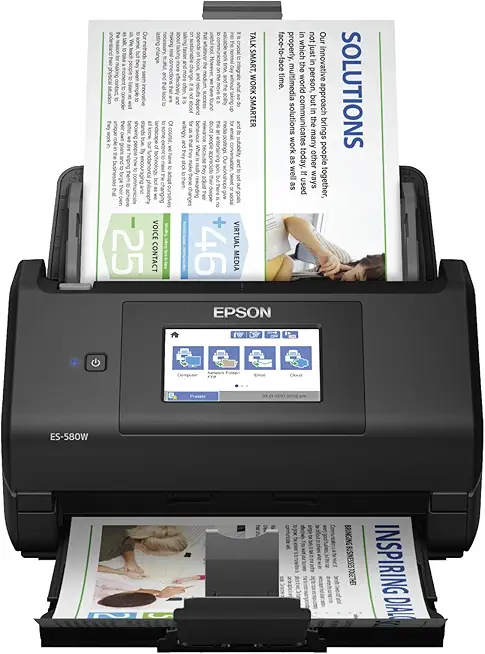
Epson WorkForce ES-580W scanner 100-sheet ADF duplex touchscreen
Fast high-volume duplex scanning with large ADF and intuitive touchscreen for efficient document workflows.
Check PriceAs a photographer who also juggles invoices, release forms and client records, the Epson WorkForce ES-580W is the kind of workhorse that keeps a small studio organized. It has a 100-sheet Auto Document Feeder (ADF) and true duplex scanning in one pass, so long stacks of double-sided contracts or receipts are done quickly and without babysitting.
Speed is a real advantage here: 35 ppm (70 ipm duplex) will chew through batch jobs much faster than a flatbed. The 4.3″ touchscreen and Epson ScanSmart software make routing scans to email, cloud services or searchable PDFs surprisingly straightforward once you’ve set up your favorite workflows.
Two features I found especially useful are wireless/cloud scanning and USB direct-to-drive scanning. You can push documents to mobile devices or to cloud storage, or scan straight to a USB stick without a computer—handy when you need quick archives or client packets on the go.
That said, be aware of a couple practical caveats. Wireless setup can be finicky for some users, and there have been occasional Mac driver or compatibility hiccups, so allow time for driver updates or a wired fallback during initial setup. Advanced workflows with third‑party tools may take a moderate learning curve.
Overall, if your primary need is high-volume, double-sided scanning with flexible connectivity and reliable OCR for searchable PDFs, the ES-580W is a strong pick for home offices and small businesses. It’s built for throughput rather than occasional flatbed photo work, and rewards a bit of setup time with fast, efficient scanning.
- 100-sheet ADF; fast duplex (35 ppm / 70 ipm)
- Wireless, USB and direct-to-cloud/USB drive options
- Intuitive 4.3″ touchscreen
- Reliable OCR for searchable PDFs (Epson ScanSmart)
- Wireless setup can be problematic
- Occasional Mac driver/compatibility hiccups
2. Canon ImageFORMULA R40 Scanner

Canon imageFORMULA R40 duplex scanner
Reliable duplex scanning with crisp image capture and easy PDF creation for home or small office.
Check PriceAs a photographer who also handles a lot of client paperwork, I appreciate a scanner that simply gets through large batches without fuss. The Canon imageFORMULA R40 is built for that kind of daily, high-volume work—solid, dependable and fast.
It features a 100-page ADF and true duplex scanning, rated at 45 ppm / 90 ipm. That kind of throughput makes it easy to convert legal folders, contracts or multi-page invoices into searchable archives in one go, which saves time when you’ve got a backlog.
Scan quality is surprisingly good for both text and images; the outline notes accurate color and high-quality results. For anyone who needs legible OCR-ready text combined with decent photo color, this is a strong performer without needing a separate flatbed.
Canon’s simple software and reliable integration with Macs and document-management systems mean setup is straightforward and day-to-day operation is smooth. If you depend on macOS workflows, you’ll value that predictable compatibility.
It’s not a travel scanner, though. The R40 has a bulky footprint and lacks built-in wireless connectivity, so it’s best suited to a dedicated office or studio where space and a wired connection aren’t problems. If you prioritize speed, durability and a serious ADF over portability or Wi‑Fi, this is a very solid choice.
- 100-page ADF for big batches
- 45 ppm / 90 ipm duplex speed
- High-quality scans with accurate color
- Easy Mac setup and durable build
- Bulky footprint
- No built-in wireless connectivity
3. Fujitsu ScanSnap iX1500 Scanner

Fujitsu ScanSnap iX1500 duplex touchscreen scanner
Smart touchscreen interface and rapid duplex scanning streamline digitizing, organizing, and cloud syncing.
Check PriceAs a photographer who also manages a lot of paperwork, I appreciate the Fujitsu ScanSnap iX1500 for its sensible balance between document efficiency and Mac-friendly software. The bundled ScanSnap Home app is genuinely well-integrated with macOS and connects smoothly to cloud and productivity apps like DEVONthink and Evernote, which saves time when archiving shoots or client contracts.
The iX1500’s compact desktop design and reliable document handling make it a great daily driver for mixed workloads. Its ADF supports duplex scanning, so multi-page reports and receipts feed through without constant babysitting.
For light photo archival the iX1500 is acceptable — colors and detail are fine for reference scans and simple archives, but it won’t replace a dedicated flatbed when you need museum-grade fidelity. If your priority is high-resolution color-accurate photo scans, you’ll notice the limits here.
Setup on modern Macs is quick and mostly hassle-free; driver issues are minimal compared with older models, so you can get scanning fast and integrate into your workflow. That reliability paired with compact size makes it easy to keep on a crowded desk or a small studio workstation.
Where it shows its office roots is ADF capacity: it’s smaller than some office-grade machines, so very large batches require more frequent reloads. Still, for photographers and small business owners who scan receipts, business cards, contracts and occasional images, the iX1500 offers a strong, Mac-centric solution that emphasizes workflow over bulk throughput.
- Excellent Mac/cloud integration (DEVONthink, Evernote)
- Handles receipts, business cards and multipage reports efficiently
- Compact and reliable for daily use
- Quick setup with minimal driver issues on modern Macs
- Photo scanning not as high-resolution/color-accurate as dedicated photo scanners
- Smaller ADF capacity than some office-grade models
4. Brother DS-640 Scanner

Brother DS-640 mobile scanner
Compact, bus-powered portability for on-the-go single-pass scanning and quick PDF creation.
Check PriceThe Brother DS-640 is a lightweight, compact portable scanner built for on-the-go work. It offers a plug-and-play setup and reliable operation on macOS, so you can get straight to scanning without wrestling with drivers. It scans clear, legible documents, receipts and notes, which is exactly what I need when digitizing shoot receipts or location release forms.
Its real strengths are portability and simplicity. The unit is truly pocketable and fits in a bag, making it ideal for students, freelancers and mobile professionals who don’t have a dedicated office setup. The minimal software overhead means fewer distractions and faster turnaround when I need a quick scan between shoots.
Expect decent speed for its size and price, but don’t expect office-grade throughput. This isn’t meant for high-volume batch scanning or double-sided automated jobs. It also lacks wireless connectivity, duplex scanning and high-resolution photo modes, so it’s not the right choice if you need color-critical photo scans or large multi-page archives.
If you need a simple, affordable scanner to capture contracts, receipts, notes and occasional documents while traveling, the DS-640 is a smart, practical pick. If your workflow demands duplex scans, wireless convenience, or high-fidelity photo capture, you’ll want a different tool. For quick, reliable portable scanning on a Mac, however, this device delivers exactly what it promises.
- Affordable and truly portable
- Plug-and-play on macOS
- Easy to use with minimal software
- Decent speed for its size; fits in a bag
- Too slow for high-volume batch scanning
- No wireless, duplex, or high-res photo modes
5. Epson Perfection V19 II Flatbed

Epson Perfection V19 II flatbed scanner
High-resolution flatbed scanning for photos and documents with easy color restoration and software tools.
Check PriceAs a photographer who often digitizes prints, negatives and delicate originals, the Epson Perfection V19 II Flatbed is one of those tools that quietly gets the job done. It offers up to 4,800 dpi resolution, which captures fine detail in photos and artwork without needing a specialized film scanner.
The flatbed design is a real advantage for anything that won’t lie flat in an ADF — books, magazines, fragile documents and even small 3D objects can be scanned without risk of damage. That flexibility makes it useful for digitizing portfolios, archival prints and mixed-media pieces where contact with rollers would be disastrous.
On the workflow side it creates searchable PDFs and can scan directly into Microsoft Office apps, so scanned images and documents are easy to catalog and reuse. It’s positioned as an affordable flatbed option, so you get strong image quality for the price rather than a premium, pro-level scanner.
Do note the trade-offs: flatbeds are inherently slower than sheet-fed machines and require you to place each item manually, so this isn’t the best choice if you have large stacks of documents to process. There’s no ADF, so multi-page document jobs become tedious compared with an automatic feeder.
In short, if your priority is high-fidelity scans of photos, artwork or bound material and you value gentle handling and image detail, the V19 II is a practical, budget-friendly choice. If you need high-volume, duplex document throughput, look elsewhere.
- 4,800 dpi for high-detail scans
- Handles books, magazines and 3D objects
- Creates searchable PDFs; Office integration
- Strong value for scan quality
- Slow compared with sheet-fed models
- No ADF — manual placement for each scan
Software and Compatibility
Mac scanners are only as useful as the software that drives them. Since macOS moved to 64‑bit apps (Catalina and later), older 32‑bit drivers no longer work, so check manufacturer sites for updated drivers — Epson moved users from the legacy Epson Scan to Epson Scan 2 for modern macOS. If a vendor hasn’t released a 64‑bit driver, you’ll run into trouble unless you use a third‑party bridge.
Always download the latest Mac software from the maker’s site before you start a big job. Apple’s Image Capture and Preview are surprisingly capable for quick scans and basic edits, and macOS prefers Image Capture–style drivers; if your scanner doesn’t show up there, reinstall drivers or try a universal tool like VueScan.
If you want deeper integration and automation, favor scanners with good bundled apps. Fujitsu’s ScanSnap Home is a standout on Macs, working neatly with DEVONthink, Evernote and cloud services, which saves a lot of time when organizing receipts, business cards and multi‑page reports.
For OCR and heavy PDF work, I lean on ABBYY FineReader for top‑tier text recognition and Adobe Acrobat Pro for editing. PDFScanner is a lightweight, fast option that plays well with Spotlight and Apple Silicon, so it’s great for everyday use without the Acrobat price tag.
VueScan is the rescue tool when manufacturers lag behind on Apple Silicon or Big Sur+ support — it often keeps older hardware usable and supports many scanners that otherwise go dark. Also remember macOS Continuity Camera: for quick, high‑quality single‑page captures your iPhone can act as a scanner right into Notes, Preview or Finder.
Finally, think long term: use searchable PDFs where possible, prefer PDF/A for archiving, and verify your chosen workflow (driver, app, cloud) on your Mac before you commit to a large scanning project.
Mac Document Scanning Tips
As a photographer I treat scanning like capturing a second exposure of the original. Use a flatbed for prints, negatives or anything fragile — the glass preserves detail and prevents feed damage. Sheet‑feed scanners and ADFs are fast for multi‑page documents, but avoid them for treasured photos.
Set resolution thoughtfully. For everyday text choose 150 dpi to keep file sizes small. For OCR or archival images bump to 300 dpi or higher, and for high‑fidelity photo scans aim for 600–4,800 dpi depending on printer size and crop needs.
Color mode matters. Pick Black & White or Grayscale for plain text to shrink files. Use Color for photos, highlights or any document where hue matters. I also recommend scanning a color target or reference strip occasionally to check accuracy.
Use the Mac’s native tools for quick jobs. Preview and Image Capture are fast and reliable for single pages and basic tweaks. For heavy OCR, searchable PDFs and batch workflows consider ABBYY FineReader, PDFScanner or the ScanSnap software on Fujitsu units.
Keep originals flat and the scanner glass clean to reduce shadows and dust spots. For stitched or angled pages enable deskew and perspective correction in your software. If the scanner’s ADF is misbehaving, flip to flatbed mode for the sensitive pages instead of forcing them through.
File management is part of scanning. Name files by date and document type, and organize folders by project. When you need long‑term preservation save as PDF/A where supported to avoid future compatibility headaches.
If a scanner vanishes from Image Capture reboot both devices and check USB or Wi‑Fi connections. macOS now requires 64‑bit drivers, so always download the latest Mac drivers or use universal tools like VueScan if the manufacturer hasn’t updated their software.
What People Ask Most
What is the best scanner for Mac?
There’s no single best model because the right scanner depends on whether you need high-volume duplex, portability, or high-fidelity flatbed scans. Choose a scanner that offers reliable macOS drivers, the connectivity you need, and software features like OCR and cloud integration.
Which scanners are compatible with Mac?
Most modern scanners from major manufacturers are compatible if they provide up-to-date macOS drivers or work with native Image Capture support. Always check the manufacturer’s website for current driver support and official macOS compatibility before buying.
What is the best portable scanner for Mac?
For mobile scanning, pick a compact, bus-powered model that is explicitly supported on macOS and offers plug-and-play operation. Portability and simple software integration matter more than advanced photo features for on-the-go use.
What is the best flatbed scanner for Mac?
A flatbed scanner that delivers high detail and accurate color is best for photos, artwork, and books. Look for one with solid Mac software support and features that handle delicate or thick items safely.
How do I connect and install a scanner on a Mac?
Connect the scanner via USB or set it up on your Wi‑Fi network, then download and install the latest macOS drivers and software from the manufacturer. Verify the device appears in Image Capture or Printers & Scanners and use native apps for quick scans.
Can I scan documents on a Mac without a standalone scanner?
Yes — you can use Continuity Camera with an iPhone or iPad to import scans directly into built-in Mac apps, or use an all‑in‑one printer that includes scanning. These options work well for occasional scanning without a dedicated scanner.
Do wireless scanners work with Mac and how do I set them up?
Many wireless scanners work with Mac, but setup usually involves connecting the scanner to your network and installing the manufacturer’s macOS software. If wireless setup is problematic, try a USB connection and update drivers or consult the manufacturer’s support resources.
Conclusion for Best Scanners for Mac
Choosing the right Mac-friendly scanner comes down to matching features to your workflow: high-volume duplex and cloud options for busy home offices, rugged speed for daily office use, tight Mac integration for mixed-document workflows, true portability for on-the-go needs, or a flatbed for photos and fragile items.
The models covered each excel in different roles, so prioritize the attributes that matter most—ADF and duplex for batch jobs, reliable Mac software and drivers for seamless integration, wireless or USB connectivity for convenience, and flatbed capability for image fidelity.
Keep scanning ergonomics in mind too: think about paper handling, software OCR and file management so your scanned files stay searchable and organized without extra friction.
If you want to sharpen your scanning and workflow skills, explore more of our site’s how‑tos and buying guides to learn practical tips and comparisons tailored to Mac users.
Have a question about your setup or want a recommendation for a specific use case? Leave a comment below and we usually reply within a few hours.


0 Comments