
How to print big face pictures that stay sharp and look great up close?
This short guide gives a clear step-by-step workflow from file to final print. You will learn how to pick high-resolution photos, check pixel dimensions, and calculate the right DPI for your final size.
We also cover retouching and safe upscaling, tiled printing for extra-large cutouts, and how to choose printers and paper. Plus easy proofing, mounting tips, quick rules of thumb, and a printable checklist to send to your lab.
Follow these simple steps to avoid common mistakes and get professional results. Ready to make a big, sharp face print? Let’s get started.
How to Print Big Face Pictures: A Step-by-Step Guide
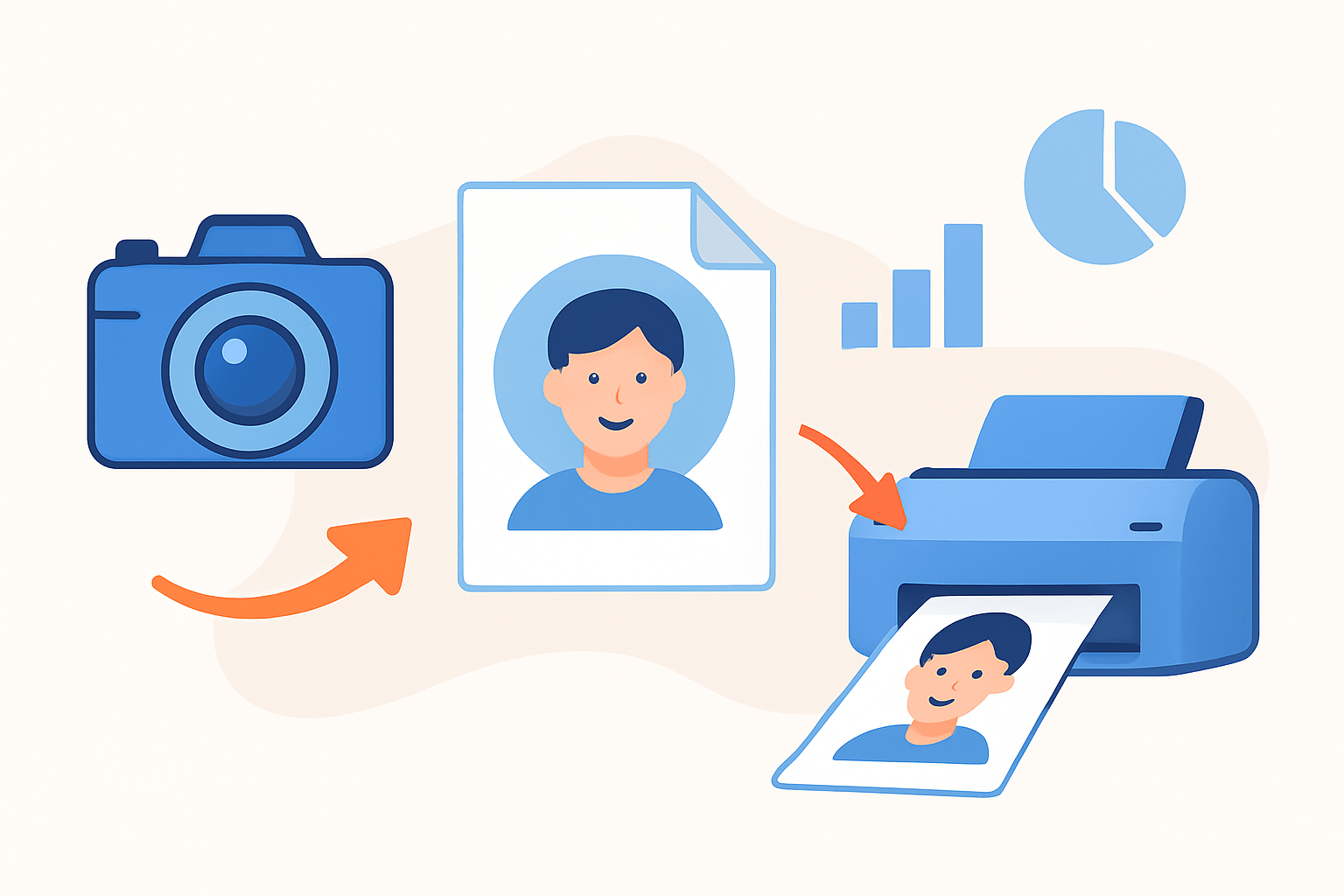
If you want to know how to print big face pictures without fuzzy edges or weird colors, follow this simple workflow. It takes you from file to final print with fewer surprises.
1. Decide the final use and size. Wall art, event cutout, or a prop all have different needs, and viewing distance sets how sharp it must be.
2. Find the best source file you can. Use the original RAW or the first-generation high‑quality JPEG, not a social media download.
3. Check pixel dimensions and do the math: pixels = inches × DPI. For example, 30 inches at 200 DPI needs 6000 pixels; 40 inches at 150 DPI needs 6000 pixels.
4. Crop with care. Center the face, keep a little headroom, and avoid extreme tight crops that throw away precious pixels.
5. Retouch lightly. Balance exposure, remove small blemishes, and apply gentle noise reduction so skin looks clean but still real.
6. Resize only if needed. For small boosts, use Photoshop’s Preserve Details 2.0 or Bicubic Smoother; for larger jumps, try AI tools like Topaz Gigapixel or ON1 Resize and keep texture natural.
7. Prepare the file for print. Convert color and profile as your lab instructs, export as TIFF/PSD/PDF, include crop marks, and add 0.125–0.25 inch bleed on all sides.
8. Choose the printing method and media. A wide‑format lab is easiest for one‑piece results, while tiled home printing works for budget big heads; for paper options, explore ideas for large photo prints.
9. Proof before you commit. Soft proof with the lab’s ICC profile, print a small test tile of the face area at full scale, then print the final and mount or finish as needed.
Pro tip: Reshoot instead of upscaling if you need more than 250–300% enlargement or if skin pores blur at 100% view.
Pro tip: Use a 0.125–0.25 inch bleed and include crop marks to make trimming clean and safe.
Pro tip: Request a hard proof when skin tones are critical or the print is expensive and time‑sensitive.
Follow these steps and you’ll master how to print big face pictures that look crisp, flattering, and true to color.
Selecting High-Resolution Photos for Big Face Prints
High resolution means pixel dimensions, not just megapixels on a box. A 6000×4000 pixel image gives you real size to work with; a compressed 12 MP download may not.
RAW or the original camera JPEG is best because it keeps detail and color depth. Avoid screenshots and social-media copies, which are compressed and resized.
Faces need gentle perspective, so avoid wide angles that stretch noses and cheeks. A portrait focal length around 70–105mm (full-frame equivalent) keeps features natural.
Give the face breathing room in frame. Leave a little space above the head and around the sides so you can crop without losing pixels.
If you can reshoot, use RAW, low ISO, and a tripod for maximum sharpness. Pick your lens’s sweet spot, often around f/5.6–f/8, and light the face softly to keep texture but avoid harsh shadows.
Check suitability in minutes. Open the file, note the pixel width and height, then divide by your target DPI to see the maximum print size you can get.
For example, 6000 pixels wide at 150 DPI gives you 40 inches; 3000 pixels at 150 DPI gives 20 inches. For props viewed up close use 180–300 DPI, wall art at normal distance is fine at 150–200 DPI, and very large pieces viewed far away can run at 100–150 DPI.
Watch for red flags like heavy cropping, visible JPEG blocks, or banding in gradients. If you see those at 100% view, consider a different file or reshoot.
Great selection is the foundation of how to print big face pictures with confidence. Start with the cleanest pixels you can find and everything else gets easier.
Optimizing Image Resolution and DPI
DPI is the print density, while pixel dimensions are the raw data. The farther you view a print, the lower the DPI you can use without losing perceived sharpness.
Use the formula pixels = inches × DPI to plan. In reverse, inches = pixels ÷ DPI to find your maximum size at a given resolution.
Here are practical examples for common sizes. A 24-inch print at 200 DPI needs 4800 pixels; a 36-inch print at 150 DPI needs 5400 pixels; a 48-inch print at 150 DPI needs 7200 pixels.
One worked example: if your image is 4000 pixels wide, 4000 ÷ 200 = 20 inches, and 4000 ÷ 150 = 26.7 inches. Choose the DPI based on how close people will view the face.
For upscaling, reduce noise first, then enlarge, then add output sharpening. In Photoshop, go to Image > Image Size and pick Preserve Details 2.0 or Bicubic Smoother, and with AI tools like Topaz Gigapixel or ON1 Resize try to keep enlargement under 200–300% for natural skin texture; learn more techniques to enlarge photographs without plastic skin.
Manage color from the start. Edit in a wide-gamut space like Adobe RGB or ProPhoto, calibrate your monitor with an X‑Rite or Datacolor device, soft proof using the printer’s ICC profile, and convert to CMYK only if the shop asks for it.
Export smart and safe. TIFF 16‑bit with LZW or ZIP is ideal, PSD works for complex layers, and high‑quality JPEG (10–12) is fine when the lab requests it; embed the profile, add crop marks, and include a 0.125–0.25 inch bleed.
This preparation keeps detail accurate and colors steady, which is vital when learning how to print big face pictures that look professional.
Using Tiled Printing for Extra Large Images
Tiled printing is great when you don’t have access to a wide-format printer. It’s perfect for big heads, parade signs, or last‑minute event props.
Use tools like PosteRazor, Rasterbator, Acrobat, or Photoshop’s tile printing. Set the final physical size, pick your paper size, choose overlap, then output a PDF or print directly.
For clean seams, use an overlap of 0.2–0.5 inches and label pages before trimming. Always print a single test tile at 100% to check sharpness and skin tone.
Trim margins, align overlaps, and tape from the back so seams stay invisible. Mount the assembled print to foam core with a light, even spray of adhesive and smooth it with a squeegee.
For cutouts, reinforce with foam core or gatorboard and attach a handle or dowel with hot glue or gaffer tape. Consider a thin laminate for durability, and cut edges with a sharp blade and metal ruler on a cutting mat.
Work with spray adhesives in a ventilated area and wear a mask if needed. Keep fingers clean, and test tape on a scrap to avoid surface tearing.
With a bit of care, tiled printing can look seamless and professional, especially for playful big face props at events.
Choosing the Right Printer and Paper for Large Format Prints
You can print at home with a wide‑format inkjet, use a local shop, or order from an online lab. Home printing offers control, shops offer guidance and quick turnarounds, and labs deliver convenience and consistent quality.
Pick media for the job. Portraits shine on glossy or luster photo paper, while fine‑art faces glow on cotton rag or canvas; event cutouts do best on heavyweight card, foam core, coroplast, or vinyl for outdoor displays.
Pigment inks last longer and resist fading, which matters for keepsakes and gallery work. For props handled often or used outside, ask for lamination or a UV topcoat.
Tell your printer everything up front: final dimensions, bleed and crop marks, file type with embedded profile, target DPI at print size, paper and finish choice, and a request for a hard proof plus a paper swatch. For more prep strategies, study tips on enlarging photos for printing so files arrive press‑ready.
Mount carefully with spray adhesive or a professional dry‑mount. Cut with a sharp blade and metal ruler, and store rolled prints in large tubes while keeping mounted pieces flat and protected.
With the right pairing of printer and paper, you’ll know exactly how to print big face pictures that wow on delivery day.
What People Ask Most
How to print big face pictures without losing detail?
Start with the largest, highest-quality photo you have and use simple editing to sharpen and resize before printing.
What is the easiest way to learn how to print big face pictures at home?
Use a basic photo editor to resize and preview the image, then do a small test print to check quality and colors.
Can I print big face pictures from my phone photos?
Yes, if the photo is high resolution; transfer the original file and avoid saving multiple compressed copies first.
Do I need special paper or materials when printing big face pictures?
Photo paper or canvas both work well; choose one based on whether you want glossy, vibrant colors or a softer, textured look.
How can I crop a face so it looks good when printed large?
Frame the face so the eyes are clearly visible and leave extra space around the head for trimming or framing.
Are there common mistakes people make when learning how to print big face pictures?
Yes — using low-resolution images, over-compressing files, and skipping a test print are frequent issues to avoid.
Should I use a professional print shop to print big face pictures?
A print shop can give better color accuracy and larger sizes, so consider it for very large or display-quality prints.
Final Thoughts on Printing Big Face Pictures
If you followed the step-by-step workflow — from choosing your source file to proofing and mounting — you can consistently produce oversized face prints that still look natural and detailed; for close-view portraits aim around 270 DPI as a solid in-between target. Those core steps give you a repeatable process instead of guesswork.
The real benefit is predictable quality: you’re trading worry for control so the final piece reads like a true portrait, not a blown-up blur. One caution: don’t expect miracle fixes from extreme upscaling—reshoot when source files are too small or visibly compressed. This guide helps portrait photographers, event planners, and DIY prop makers most, but anyone wanting large, true-to-life faces will get value.
Remember that opening question about getting sharp, compelling big-face prints? We answered it with practical checks, DPI math, tiling options, and printer/paper choices so you’ll know when to reshoot, upscale, or tile. Go ahead and experiment—the next oversized portrait you make will likely surprise you in the best way.




0 Comments