
Tired of looking washed out on video calls while everyone else seems sharp and well lit? What if the monitor on your desk is the missing link between mediocre calls and professional presence? The right display can upgrade camera framing, mic pickup, color rendering, and overall presence—day after day.
This guide highlights five top monitors for video conferencing in 2026 and practical setups for modern workspaces. Selections focus on real‑world performance instead of headline specs or marketing blurbs. We compare webcam clarity, mic and speaker quality, ergonomics, connectivity, software features, and the practical pros and cons you’ll notice every day.
Tiny details change how you look and how you sound. Sensor quality, field of view, lens design, and low‑light performance shape your image. Mic arrays, echo cancellation, beamforming, ergonomics, and privacy controls determine clarity, background rejection, and peace of mind.
Some monitors aim to be all‑in‑one conferencing hubs while others prioritize color accuracy and multimedia performance for creators. This roundup weighs single‑cable convenience, hub features, and real usability so you can match a monitor to your workflow and budget. Read on for clear verdicts, pairing advice, and simple recommendations to make your next call look and sound like it was produced—every time.
1. Dell UltraSharp U3224KB for Conferencing

Dell UltraSharp U3224KB 31.5-inch 6K LED Monitor with Webcam
Immersive 6K clarity on a 31.5-inch panel, integrated webcam, color-accurate visuals and ergonomic adjustments for professional creators and hybrid meetings.
Check PriceAs a photographer, I immediately notice how the Dell UltraSharp U3224KB treats image quality like a priority rather than an afterthought. Its 6K canvas (up to 6144 x 3456) gives you insane pixel density for multitasking and for checking fine details during screen shares. That extra resolution also makes window layout and reference images crisp without scaling artifacts.
Color fidelity matters in client calls and reviews, and this monitor delivers with 99% DCI‑P3 and 100% Rec.709. Skin tones and product colors render predictably, so what you see in a video call closely matches your edits. For creatives who split time between color work and frequent conferencing, that consistency is a huge time saver.
The built‑in 4K HDR webcam uses a Sony STARVIS CMOS sensor, so low‑light performance and detail beat typical laptop cams. I appreciate the AI auto‑tracking that keeps you centered and the adjustable FOV options (65°, 75°, 90°) for tighter headshots or wider room context. The circular housing tilts up and down, and a physical privacy shutter gives quick security when you’re done.
Audio is serviceable—speakers are decent for everyday calls, but not for critical listening. Dual mics with background‑noise rejection are helpful, yet serious podcasters will still prefer dedicated gear. Finally, this monitor sits in a high executive‑tier price band, so it’s best for professionals who need top display fidelity plus an excellent built‑in conferencing camera.
- Superb 4K HDR webcam with Sony STARVIS sensor and AI tracking.
- 6K resolution (6144 x 3456) with 99% DCI‑P3, 100% Rec.709 color.
- Physical privacy shutter.
- Adjustable FOV (65°, 75°, 90°) and tilt-able circular webcam housing.
- High executive-tier price.
- Built-in speakers/mics may lack depth versus dedicated devices.
2. LG 27UK850-W 4K Monitor

LG 27UK850-W 27-inch 4K UHD IPS Monitor USB-C HDR10 FreeSync
Vibrant 4K IPS display with USB-C power and HDR10; smooth motion via adaptive sync, ideal for designers and multimedia enthusiasts.
Check PriceAs a photographer who spends hours critiquing screens, the LG 27UK850-W stands out as a practical 27″ 4K IPS display that brings sharp, accurate color to video calls and content work. The panel’s 4K resolution gives you room to view multiple windows and still maintain crisp detail, which helps when sharing high-resolution images or detailed documents during a conference.
USB‑C single-cable connection is a major convenience for remote work. It simplifies setup, carries video and power, and keeps your desk tidy—ideal when you want to connect a laptop and a camera or external webcam without a mess of cables.
HDR10 support elevates contrast and makes skin tones and backgrounds look more lifelike on calls. That dynamic range is useful when lighting conditions vary, though remember this monitor isn’t a camera; it only displays what your webcam captures.
The adjustable stand (tilt, height, pivot) matters more than most users expect. Proper ergonomic positioning ensures your external webcam can be placed at eye level and your posture stays neutral during long meetings.
Practically speaking, the 27UK850-W balances screen quality with convenience features for everyday professional use. If you already own a reliable external webcam and need a color-accurate, uncluttered workstation for video conferencing and editing, this is mostly a win.
However, it’s not ideal if you need an all‑in‑one conferencing solution since there’s no built-in webcam or microphone. Some users also report ordinary brightness in very bright rooms, so consider room lighting before buying.
- 4K display with strong color and HDR support
- USB‑C connectivity for single-cable workflows
- Ergonomic stand (tilt, height, pivot)
- Reliable image quality for calls and content work
- No built-in webcam or microphone
- Ordinary brightness for very bright rooms
3. Dell P2418HZM Conferencing Monitor

Dell P2418HZM 24-inch Full HD Video Conference Monitor with Speakers
All-in-one conferencing solution: Full HD screen, built-in speakers and camera for clear meetings, plug-and-play simplicity for home and office.
Check PriceAs a photographer who spends hours framing faces and chasing natural light, I appreciate what the Dell P2418HZM brings to video calls. It’s built as an all‑in‑one conferencing tool aimed at office and remote workers, so setup is simple and predictable.
The integrated 2MP webcam supports Windows Hello, which makes logging in fast and secure. Image quality won’t blow you away like a high‑end 4K sensor, but the webcam is reliable for daily meetings and keeps skin tones reasonable under normal office lighting.
Audio performance is a practical highlight: the noise‑cancelling microphone does a good job of filtering background noise, so voices stay clear even when the household is noisy. For client calls or interviews, that kind of mic clarity matters more than speaker theatrics.
Physically the monitor is comfortable to use—Dell’s ergonomic stand gets the camera closer to eye level and reduces neck strain during long sessions. The IPS panel delivers good image quality and wide viewing angles, so collaborators see consistent color and contrast from different positions.
If you care about multimedia or very bright rooms, be aware of trade‑offs: the design feels a bit dated and the screen has noticeably lower brightness and resolution compared with newer 4K/HDR options. Also, there’s no USB‑C port, which limits single‑cable workflows and charging convenience for modern laptops.
In short, the P2418HZM is a sensible, productivity‑first conferencing monitor. Choose it if you want an integrated webcam/mic with solid ergonomics and dependable day‑to‑day performance; look elsewhere if you need top‑tier brightness, resolution, or USB‑C convenience.
- Built‑in 2MP webcam with Windows Hello
- Effective noise‑cancelling microphone
- Comfortable ergonomic stand
- IPS panel with good image quality and wide viewing angles
- Lower brightness and resolution vs newer 4K/HDR monitors
- No USB‑C port, limiting connectivity options
4. Apple Studio Display 5K Retina

Apple Studio Display Standard Glass Tilt-Adjustable Stand
Crisp glass surface with tilt-adjustable support, engineered for seamless desktop integration and premium ergonomics.
Check PriceAs a photographer, the Apple Studio Display immediately reads like a tool built for visual work and high-end conferencing. Its 5K Retina panel at 5120 x 2880 and P3 wide color gamut delivers the kind of resolution and color fidelity you need for accurate image review and lifelike video calls.
The built-in 12MP ultra-wide camera with Center Stage ML tracking makes framing effortless; it keeps you centered without fiddling with angles. That camera paired with the three-mic array provides clear voice pickup and effective noise management so your calls sound as professional as they look.
Audio is another strong suit: six built-in speakers give surprisingly full, room-filling sound that reduces the need for external speakers during client calls or collaborative reviews. Between the display, camera, mics, and speakers, Apple has essentially merged studio-level presentation with an excellent conferencing setup.
This monitor really shines for Mac users and creative professionals who want a single display that handles color-critical work and top-tier video conferencing. If you regularly review photos, edit video, or present visuals to clients, the Studio Display feels purpose-built.
That said, the unit carries a very high price and can be overkill if your primary need is casual video calls. It’s also mainly optimized for macOS, so Windows users may not get the seamless integration that makes the Studio Display sing.
- 5K Retina (5120 x 2880) with P3 wide color
- 12MP ultra‑wide camera with Center Stage ML tracking
- Three‑mic array — outstanding voice capture
- Six built‑in speakers — high‑quality audio
- Very high price
- Optimized for macOS; less ideal for Windows users
5. Samsung M8 Smart 4K Monitor

Samsung M8 M80D 32-inch 4K UHD Smart Monitor LS32DM801UNXZA USB-C SlimFit Camera Speakers
Smart 4K display with integrated camera and speakers, USB-C connectivity and streaming apps for versatile entertainment and productivity.
Check PriceAs a photographer who spends hours framing faces and judging color, the Samsung M8 Smart Monitor stands out as a versatile 32″ 4K UHD display that balances lifestyle and conferencing needs. Its panel delivers vibrant colors and plenty of real estate for multi‑window work, so your shot framing and gallery reviews look satisfying on a large canvas.
The monitor ships with a magnetic 1080p SlimFit webcam that snaps on and tilts for quick framing adjustments. The camera is practical for daily meetings and streams a clean 1080p image, though it won’t rival higher‑end 4K webcams in detail or low‑light performance.
Connectivity is a strong suit. USB‑C Power Delivery and multiple video inputs simplify single‑cable workflows and reduce desk clutter. For creatives who move between laptops and streaming setups, that simplicity saves time and keeps your setup clean.
Samsung also built useful lifestyle features into the M8. Alexa voice control and smart multimedia functions make it a living‑room friendly screen as well as a work monitor. The built‑in microphone is effective for calls, and an optional camera cover gives you a physical privacy option when the camera isn’t in use.
In short, the M8 is a great pick if you want a smart, large 4K display with a convenient attachable webcam and strong connectivity. If your priority is the absolute best webcam image for professional streaming or low‑light portraiture, you might prefer a monitor with a higher‑end built‑in sensor or a dedicated external 4K camera.
- Magnetic 1080p SlimFit webcam with tilt and privacy cover
- Smart assistant (Alexa) and multimedia features
- Good 4K display with vibrant colors
- USB‑C Power Delivery simplifies setup
- Webcam not top-tier vs 4K webcams
- Some limitations in webcam adjustability
Ensuring High-Quality Built-In Webcam Video
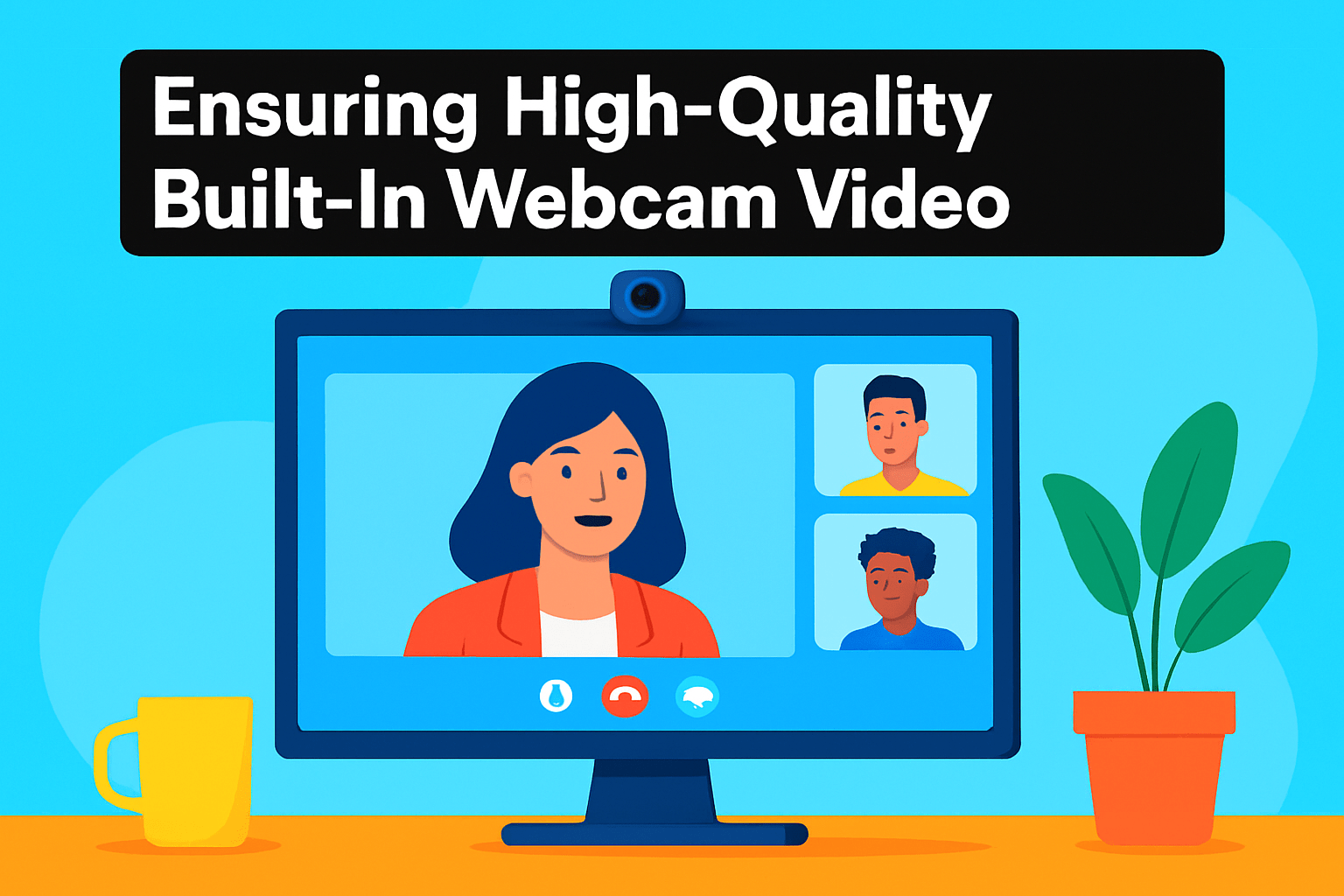
Treat a built‑in webcam much like a portrait lens. I frame people the way I would in a headshot: eye level, a little space above the head, and shoulders included for context. Choose a monitor FOV that matches your intent — a tighter 65° for interview‑style calls, 90° when you want more environmental context — and resist the temptation to sit too close unless you want a strong face‑first perspective.
Sensor and lens quality make the biggest difference once framing is solved. Bigger, modern sensors (Sony STARVIS–type, multi‑element lenses) hold detail and reduce noise in dim rooms, so if your monitor offers a 4K or high‑quality 2K camera you’ll get a cleaner image and more forgiving crop in software. Expect cheaper 1080p modules to soften at the edges and struggle in mixed lighting.
Lighting is where most people win or lose a call. Use a soft, diffuse key light slightly above the camera to create natural catchlights and avoid overhead fluorescents that cast harsh shadows. If your monitor has an adjustable ring or built‑in light, set it to match room color temperature and use a neutral fill from the screen or a small reflector to soften contrast.
White balance and exposure should be tamed in the companion app when available. Auto modes are convenient but can hunt in mixed light; lock exposure or set manual white balance for consistent skin tones. Firmware and driver updates often improve auto‑exposure behavior, so keep software current.
Audio and privacy deserve equal thought. Built‑in mic arrays with echo cancellation are great for general calls, but switch to a headset or external mic for podcasts or client recordings. When the camera isn’t needed, use the physical shutter — it’s the simplest, most reliable privacy tool.
Finally, think about background and depth. Give yourself a few feet between you and the wall for a sense of separation and gentle background blur. A tidy, softly lit backdrop communicates professionalism just as surely as a crisp image sensor.
Connectivity Options for Video Conferencing Monitors
When I’m on location or in the studio, the last thing I want is cable chaos during a client call. Prioritize monitors that offer USB‑C (Alt Mode) with power delivery so a single cable carries video, audio and charges your laptop. For most photographers and freelancers, 65W is fine, but if you run a beefy laptop or tethered capture sessions, look for 90–140W PD so your machine stays topped up while you work and present.
For pure video bandwidth and higher‑resolution displays, DisplayPort still matters. DP (or HDMI 2.1 on newer panels) supports 4K at higher refresh rates and preserves color fidelity during screen sharing. If you use multiple monitors, DisplayPort MST or daisy‑chain capability simplifies your desk and avoids extra GPU ports.
Ethernet on a monitor is a small feature that pays off. Wired network access dramatically reduces latency and dropouts during long calls or live critiques. If your studio Wi‑Fi is shared with cameras and lights, plug into RJ45 for rock‑solid conferencing.
Built‑in USB hubs are lifesavers for quick webcam, keyboard and card‑reader connections. Front or side quick‑access ports make swapping an external webcam or a client’s SD card painless between takes. Check whether the monitor supports KVM switching if you regularly jump between a desktop and a laptop; it keeps one keyboard and mouse working across devices without unplugging anything.
Audio matters too. Integrated speakers are convenient, but bring a wired headset for critical calls to avoid echo and background noise. Bluetooth is handy for wireless headsets and remotes, but don’t rely on it for critical streams—wired gives the lowest latency.
Finally, think future‑proof: look for USB4/Thunderbolt or DP 1.4+ and firmware support from the manufacturer. Those specs keep your monitor useful as cameras, laptops and collaboration tools evolve.
What People Ask Most
What is the best monitor for video conferencing?
The best monitor depends on your priorities such as webcam and microphone quality, color accuracy, ergonomics, and connectivity. Choose a model that balances the features you need for reliable calls with the display and audio performance you expect.
What monitor features are important for video conferencing?
Look for a quality webcam and sensor, a multi‑mic array with noise rejection, and comfortable ergonomics to keep the camera at eye level. Good connectivity like USB‑C, Ethernet, and a privacy shutter or cover are also valuable.
Do monitors come with built-in webcams for video conferencing?
Yes, many monitors include integrated webcams or attachable camera modules while others omit a camera entirely. Options range from basic HD webcams to higher‑end models with wide‑angle lenses, tracking, and privacy shutters.
Is a 4K monitor necessary for video conferencing?
A 4K display is not strictly necessary for typical video calls, but it can provide sharper windows and better multitasking if you also do content work. For most users, camera and audio quality have a bigger impact on call experience than display resolution alone.
Are ultrawide monitors good for video conferencing?
Ultrawide monitors offer extra screen space for managing multiple apps and participants, but they can make camera framing and layout more complex. They work well if you need the additional workspace and can position the camera so participants remain well framed.
What size monitor is best for video conferencing?
Choose a size that fits your desk and viewing distance while allowing the camera to sit at eye level. Larger screens help with multitasking and visibility in group calls, while more compact displays suit smaller workspaces.
Can I use multiple monitors for video conferencing?
Yes, multiple monitors are commonly used to keep a call on one screen while working on another, and many setups support KVM or easy input switching. Place the monitor with the camera closest to your face for the most natural on‑camera presence.
Conclusion for Best Monitor for Video Conferencing
Choosing the right video‑conferencing monitor in 2026 comes down to priorities: display fidelity, webcam and mic quality, ergonomics, and the connectivity that fits your workflow.
High‑end displays deliver superior color and resolution for creative work, while purpose‑built conferencing monitors focus on mics, cameras, and convenience features like privacy shutters and auto‑framing.
Expect trade‑offs between picture quality, audio depth, and built‑in webcam performance, so consider whether you value studio‑grade visuals or an all‑in‑one communications setup more.
Connectivity and ergonomics matter just as much as image or audio — USB‑C power and hubs, Ethernet, KVM switching, and an adjustable stand can simplify multi‑device setups and long days of meetings.
Match the monitor to your use: choose color accuracy and high resolution for content creation, pick conferencing‑focused models for frequent calls, or aim for a balanced option if you do both.
If you want to refine your setup and skills further, explore more guides and reviews on our site to stay current and improve your video presence.
Have questions or want personalized advice? Leave a comment below — we usually reply within a few hours.



0 Comments