
What if your camera’s best work never looks as good on paper?
In 2026, printer technology has evolved, but choosing the right machine still separates a gorgeous gallery print from a flat, lifeless copy. This roundup distills that complexity into the five best printers for professional photos — machines we vetted for color fidelity, detail, and archival performance.
Whether you’re a commercial photographer, fine-art printmaker, or an enthusiastic semi-pro building a portfolio, your output needs to hold up under scrutiny. We focus on printers that deliver consistent color, deep tonal range, and the media flexibility that gallery and client work demand. We also consider studio size, budget, and workflow so you can find a match that fits your practice.
Beyond lab specs, this guide leans on hands-on testing and real-world user feedback to show how these printers perform under pressure. You’ll get clear pros and cons, plus practical guidance on calibration, paper selection, and maintenance to keep results repeatable. Read on to discover the best printer for professional photos in 2026 and the workflow tweaks that make a print sing.

T6997 maintenance waste ink tank compatible with Epson SureColor P6000 P7000 P8000 P9000 P7570 P9570 T3475 T5475 T3470
1. Canon imagePROGRAF PRO-310 Review
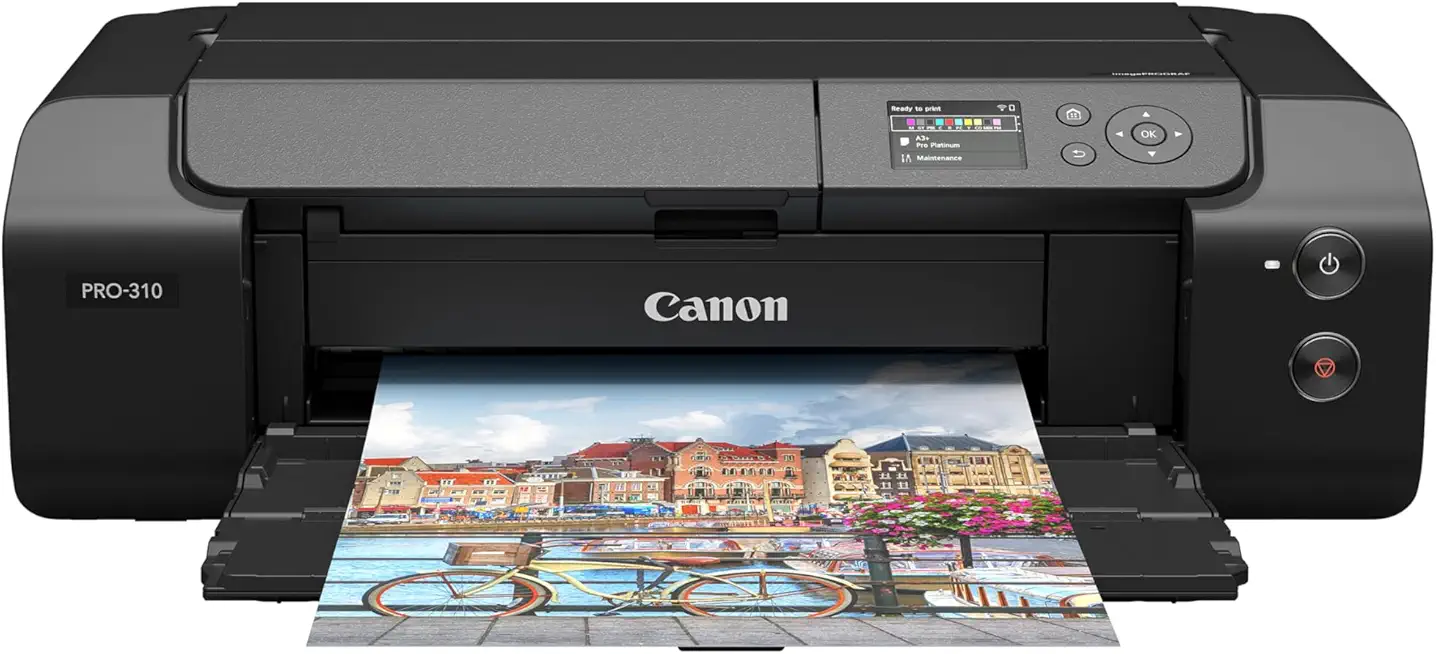
Canon imagePROGRAF PRO-310 13-inch photo printer
Museum-quality color accuracy and fine detail for small-format prints; compact, professional-grade output for photographers and studios.
Check PriceAs a working photographer, the Canon imagePROGRAF PRO-310 feels like a studio-grade tool in a compact A3+ footprint. It uses a pigment-based 10-color Lucia Pro II ink set with Chroma Optimizer, which translates to gallery-quality output and archival longevity that clients expect from fine-art prints.
Image quality is the headline: prints show spectacular color accuracy, very rich blacks and deep detail that hold up on close inspection. The printer handles a wide range of media — borderless printing works on matte, glossy, semi-gloss, luster and fine-art papers — so I can switch from wedding portfolios to textured fine-art prints without missing a beat.
Media handling is also practical for a small studio: rear and horizontal feeders make thick and panoramic papers manageable, and users report the overall handling is valued by fine-art photographers. Keep in mind it’s a pigment printer, so it’s slower than dye-based options and prints aren’t touch-dry immediately; that’s the trade-off for the archival durability and color stability.
If you prioritize print quality and longevity over blazing speed or all-in-one features, the PRO-310 is a strong choice. It’s reasonably fast for its pigment-printer class, and the creative flexibility from borderless printing on more media types is a real advantage for portfolios and gallery work.
- Outstanding color accuracy and detail with very rich blacks.
- Versatile media handling supporting various paper types including fine art.
- Borderless printing on matte and fine-art media expands creative options.
- Reasonably fast for a high-quality pigment-based printer.
- Slower than dye-based printers.
- Prints are not dry to touch immediately after printing.
2. Epson EcoTank ET-8550 Review

Epson EcoTank Photo ET-8550 wide-format all-in-one printer
Refillable ink system delivers ultra-low-cost photo printing, scanning and copying with vibrant color and wide-format capability.
Check PriceAs a working photographer I appreciate the Epson EcoTank ET-8550 as a practical A3+ photo/document printer that balances image punch with economy. It uses a six-ink system combining pigment and dye inks, and in my tests it produced vibrant, finely detailed photos—especially on glossy paper—where colors really “pop.” The large tilting touchscreen makes everyday operation and quick adjustments easy, which matters when you’re running client proofs between shoots.
The refillable EcoTank ink tanks are the standout for me: very low running costs and large ink bottles mean far fewer interruptions for cartridge swaps, which is ideal for hobbyists and semi-pros doing moderate print runs. Media handling is thoughtful too—the printer supports up to A3+ and can take thick and fine-art materials via rear or manual feeders, so you’re not limited to thin photo paper when producing gallery prints or test strips.
That said, be realistic about maintenance and setup. The initial setup uses a lot of ink, and the unit needs regular cleaning to keep heads in top condition, so plan for that upkeep if you want consistently great results. Also, borderless printing is somewhat limited by media choice and it’s not the absolute fastest option if you’re churning high volumes, but for color punch, low running costs, and flexible media support it’s an excellent choice for semi-pro workflows and ambitious hobbyists.
- High photo print quality with vivid colors and fine details.
- Very low running costs due to EcoTank refillable system.
- Good media versatility, including fine art and thick papers.
- User-friendly touchscreen and connectivity.
- Initial ink setup consumes a lot of ink.
- Requires regular cleaning and maintenance.
3. Epson SureColor P700 Review

Epson SureColor P700 13-inch printer
Precision inkjet prints with expanded color gamut and smooth tonal transitions for gallery-quality photographic reproductions.
Check PriceThe Epson SureColor P700 is a professional-grade A3+ photo printer built around UltraChrome PRO10 pigment inks and a 10-channel PrecisionCore print head, so it’s designed to deliver a very wide color gamut and fantastic fine detail. In real-world studio use it produces outstanding prints with vibrant colors and very smooth gradations, making it ideal for portfolio pieces and gallery-ready work.
What I appreciate most as a photographer is the media flexibility: it supports roll media and takes thick substrates up to 1.5 mm, so you can print everything from posters to textured fine-art sheets without hunting for a specialty press. Black-and-white reproduction is especially reliable and consistent, which matters when clients want neutral, deep-tone silver-look prints.
Two practical caveats: the P700 uses a lot of ink during initial setup, and pigment inks mean you’ll want to plan for higher running costs per print compared with consumer dye systems. Also, out-of-the-box color may need a quick calibration to match your monitor perfectly — once profiled, though, the results are impressively stable.
If you’re an enthusiast photographer or fine-art printer who needs professional pigment permanence, strong B&W capability, and broad media support in a relatively compact footprint, the P700 is a very compelling choice. Just budget for setup ink and a short calibration session to get the absolute best color fidelity.
- Impeccable print quality with vibrant colors and fine detail
- Supports roll media and thick media up to 1.5 mm
- Reliable, consistent black-and-white output
- Compact footprint for studio use
- High ink consumption during initial setup
- Relatively high ink cost per print; calibration recommended
4. Canon imagePROGRAF PRO-1100 Review

Canon imagePROGRAF PRO-1100 17-inch photo printer
Large-format archival prints with exceptional detail and rich color, ideal for professionals seeking gallery-standard output.
Check PriceIf you need large, gallery-ready prints, the Canon imagePROGRAF PRO-1100 is a printer I’d recommend looking at closely. It’s a larger-format pigment printer that handles up to 17″ and uses a 12-color Lucia Pro II ink set, which already tells you it’s built for color fidelity and archival stability.
In practice the PRO-1100 delivers outstanding color depth and sharp detail at big sizes — think deep, neutral blacks and rich, accurate hues that hold up in gallery lighting. Users consistently praise its archival quality; prints feel like they’ll last, which matters when you’re selling work or producing exhibition pieces.
Media support is another strong suit: the printer accepts a wide range of paper types and sizes, including fine-art stock and banner media, so it’s flexible for portfolios, limited-edition prints, or display banners. Workflow is improved by automatic media detection and feeding, plus better connectivity, so you waste less time fiddling with media settings.
The trade-offs are real, though. It runs slower in the highest-quality modes and uses a lot of ink, so per-print costs and throughput aren’t ideal for high-volume jobs. That said, most photographers I know accept those limits because the final output quality is worth it for gallery and archival work.
Bottom line: if you’re a professional or advanced photographer who prioritizes large-format, archival, color-accurate prints and can accommodate its size and running costs, the PRO-1100 is a compelling choice. If you need fast, low-cost prints in high quantities, look elsewhere.
- Exceptional color gamut with rich blacks and vivid colors.
- Supports diverse media types including fine art and banners.
- High resolution and precise detail reproduction.
- Automatic media detection and feeding for improved workflow.
- Slow print speeds in highest-quality modes.
- High ink consumption and running costs.
5. Epson SureColor P9570 44-Inch Review
T6997 maintenance waste ink tank compatible with Epson SureColor P6000 P7000 P8000 P9000 P7570 P9570 T3475 T5475 T3470
High-capacity replacement waste ink reservoir that prevents overflow, ensuring reliable maintenance and extended printer uptime.
Check PriceAs a working photographer who prints large gallery pieces, the Epson SureColor P9570 44-inch has become my go-to when I need jaw-dropping, museum-quality output. It uses UltraChrome PRO12 pigment inks and delivers extraordinary print quality and color fidelity on large fine-art prints and canvases, which makes landscapes and high-end portrait work sing at scale.
The printer’s automated media handling and rotary cutter speed up production and reduce manual trimming, so you can run longer print jobs with less fuss. Borderless output is a real plus for gallery-style presentation and saves time when mounting or stretching canvases.
That said, there are practical caveats you need to plan for. Users report paper-feed problems when using third-party/non-Epson media, so I stick to manufacturer-recommended stock for my critical runs. The unit is expensive and has a large footprint, so it’s best suited to studios or print labs rather than casual users or photographers working from cramped spaces.
In short, if you’re a fine art photographer, printmaker, or studio needing extremely large, color-accurate prints, the P9570 is mostly an excellent tool that rewards careful workflow choices. But expect to invest in space, proper papers, and a controlled environment to get consistently flawless results.
- Superb print quality on prints up to 44″ wide.
- Wide color gamut and deep blacks with UltraChrome PRO12 inks.
- Automated media feed and rotary cutter boost productivity.
- Borderless printing for gallery-style output.
- Frequent paper-feed issues with non-Epson papers.
- Expensive and large footprint, not for casual users.
Color Calibration for Accurate Prints
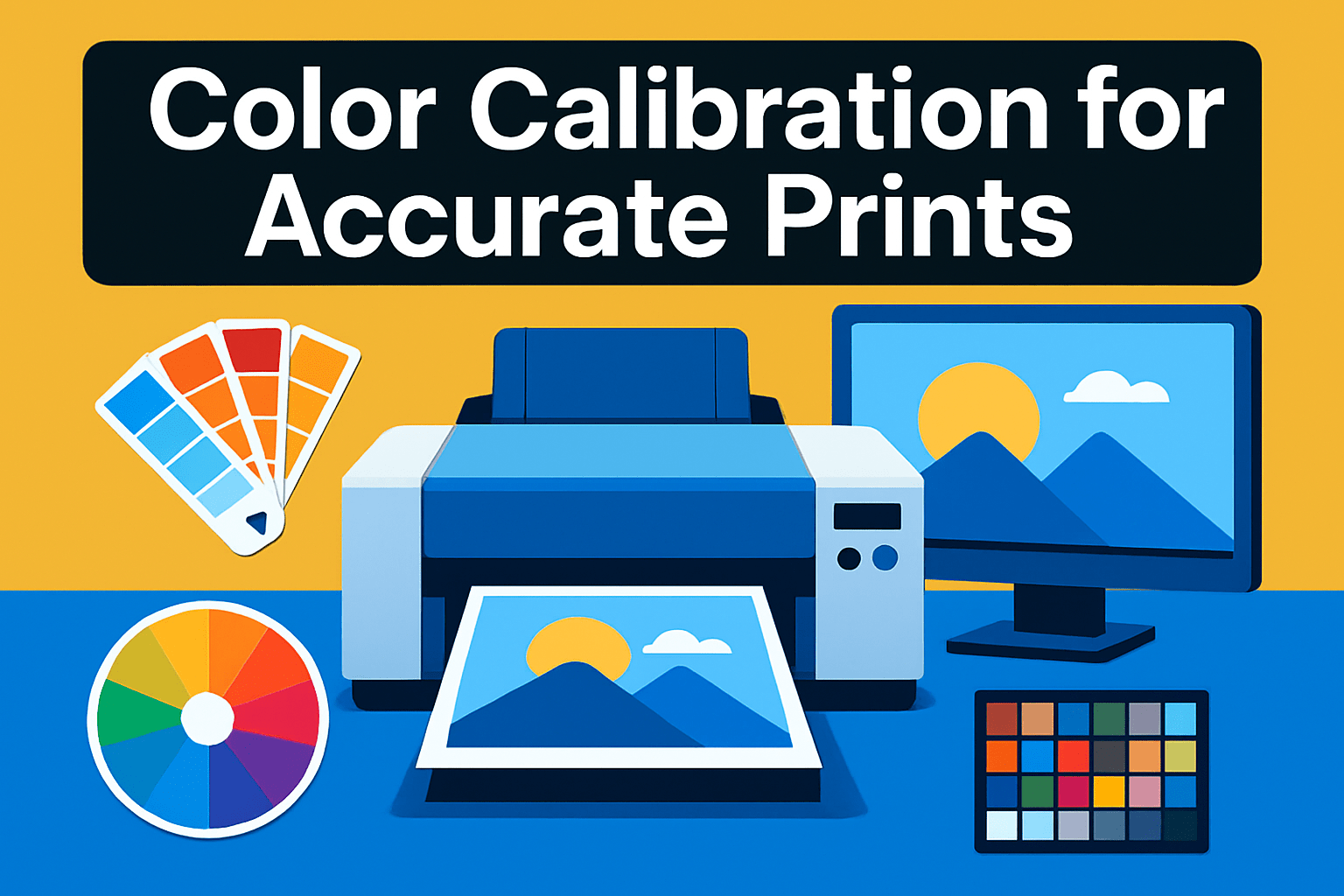
Getting a print to match what you see on-screen is part science and part patience. Devices drift with age, inks and papers change between batches, and room conditions nudge color and contrast—so calibration isn’t optional if you want predictable, gallery-ready results.
Start with your monitor. I use a colorimeter and profiling software to set the white point to 6500K, gamma to 2.2 and brightness around 120 nits. Recalibrating every 2–4 weeks keeps edits faithful to prints, especially when you’re under deadline or working in different seasons.
Printer calibration can be manual or automatic. A manual route uses test patches and visual adjustments; automatic systems print and scan targets for precise ICC base profiles. Either way, follow up by applying ICC profiles made for the exact printer, ink set and paper you’ll be using.
Paper matters more than most realize. Always create profiles using the same paper stock and finish as your final run. I keep a dedicated sheet of my preferred paper for profiling so I’m comparing like with like every time.
Environmental factors force more frequent checks. Humidity and temperature swings can shift color and drying behavior, so recalibrate after big seasonal changes or if you move gear between rooms.
Maintenance goes hand-in-hand with calibration. Clean heads regularly and recalibrate after replacing cartridges or print heads. For heavy production, monthly calibration is sensible; for occasional use, quarterly will usually suffice.
Some practical tricks save paper and time. Use Photoshop’s Gamut Warning to catch problem colors before printing. Hard-proof with small pattern prints to test profiles and printer settings before committing to full runs.
Finally, keep a tiny control strip from each critical print and file the results. Over months you’ll see trends and correct them early—keeping clients and galleries happy with consistent, accurate output.
Choosing the Right Paper for Pro Prints
Paper choice is where a print really earns its keep. I’ve seen technically perfect files ruined by the wrong stock, and modest images lifted by the right surface. Think of paper as part of the image — it changes contrast, color perception, and how viewers physically interact with the work.
Start with finish. Gloss gives punch and sharpness, but picks up fingerprints and glare. Matte and fine-art rag papers mute contrast and add a tactile quality that suits black-and-white and gallery work. Luster or satin is the sweet spot for portraits and event work — colors still pop but reflections are minimized.
Weight and feel matter more than you think. Heavier sheets (260gsm and up) lie flat, feel substantial, and photograph better for portfolio shots. Thinner papers can curl and feel cheap, even if the color is fine. If you want a premium presentation, don’t skimp on weight.
Always match paper to your ink family. Pigment inks behave differently than dye-based inks. Pigment favors matte and fine-art rag surfaces for archival prints, while dye inks often sparkle on glossy stocks. Using the wrong combo will give you unexpected color shifts and reduced longevity.
Texture is a creative choice. Smooth papers preserve every micro-detail. Linen or textured cotton softens edges and adds character. For portraits I lean toward subtle texture; for landscapes I choose smooth or semi-gloss to keep maximum detail.
Make test prints. Always. Run a sequence of small proofs for color, density, and how shadows resolve. Use the exact paper you’ll deliver, because ICC profiles and printer calibration are paper-specific. One test sheet saved me from reprinting an entire client run more than once.
Finally, think archival and handling. Pick acid-free, lignin-free papers for gallery work and client orders. Choose luster or matte for pieces that will be handled often to hide fingerprints. Small choices here protect your work and the relationship with your clients.
What People Ask Most
What printer do professional photographers use for photo printing?
Professional photographers typically choose dedicated photo printers that prioritize color fidelity and media flexibility. These models often use pigment-based inks and support a range of fine-art and heavyweight papers.
Which printers produce the highest-quality professional photo prints?
The highest-quality prints usually come from professional-level inkjet printers with multi-ink systems and precise media handling. These printers focus on accurate color, fine detail, and archival permanence rather than multifunction convenience.
What features should I look for in a printer for professional photos?
Seek accurate color reproduction, reliable paper feeding, and compatibility with the paper types you plan to use. Strong color-management support and stable, archival inks are also important for consistent results.
Is an inkjet or dye-sublimation printer better for professional photo prints?
Inkjet printers are generally preferred for fine-art and gallery work because of their broader media options and color capabilities, while dye-sublimation can suit specific high-throughput or consumer-oriented needs. Choose based on the finish, durability, and workflow requirements of your projects.
Can I achieve gallery-quality photo prints at home with a consumer printer?
You can get excellent at-home results when you pair the right printer with proper paper and careful color management. Consistent calibration and using archival-quality papers will greatly improve the longevity and appearance of your prints.
How important is color accuracy and wide color gamut in a professional photo printer?
Color accuracy and a wide gamut are critical for faithfully reproducing your images and meeting professional standards. Regular calibration and correct profiling help maintain consistent, predictable color across prints.
What paper and ink combinations deliver the best results for professional photo printing?
Match paper finish to the image and viewing context—glossy or luster for vivid color, matte or textured for fine art and B&W—and choose inks recommended for that paper type. Prioritize archival, acid-free papers and inks suited to your desired longevity and appearance.
Conclusion on Best Professional Photo Printers
Choosing the right pro photo printer comes down to balancing print quality, media support, running costs, physical footprint and the time you’re prepared to spend on maintenance.
Calibration and careful paper selection are the simple levers that turn a good printer into consistently professional output.
Always run small test prints and match your printer, ink set and paper to the intended use—portfolio, gallery or client work—before committing to long runs.
Factor workflow needs such as speed, roll or sheet support and studio space into your decision so the printer fits your practice, not the other way around.
If you want to deepen your printing skills and workflow know‑how, explore more articles on our site to build confidence and refine techniques.
Please share your questions or experiences in the comments below—we usually reply within a few hours and welcome discussions about setup, paper choices and calibration tips.




0 Comments