
How to use ipad as camera monitor — ever thought your iPad could replace a pricey field monitor?
This short guide gives a clear, fast answer and a simple workflow you can follow. It covers wired and wireless setups, the gear you need, and the best apps.
Start with a fail-safe setup (HDMI → capture dongle → iPad + monitoring app) and then dive into power, mounting, latency, and troubleshooting. You will also get app picks for different cameras and budgets.
Follow the quick start to get live video on your iPad in minutes, or read the full sections for pro tips and gear lists. Ready to set up your iPad as a camera monitor? Let’s get started.
How to use iPad as camera monitor (quick answer + workflow)
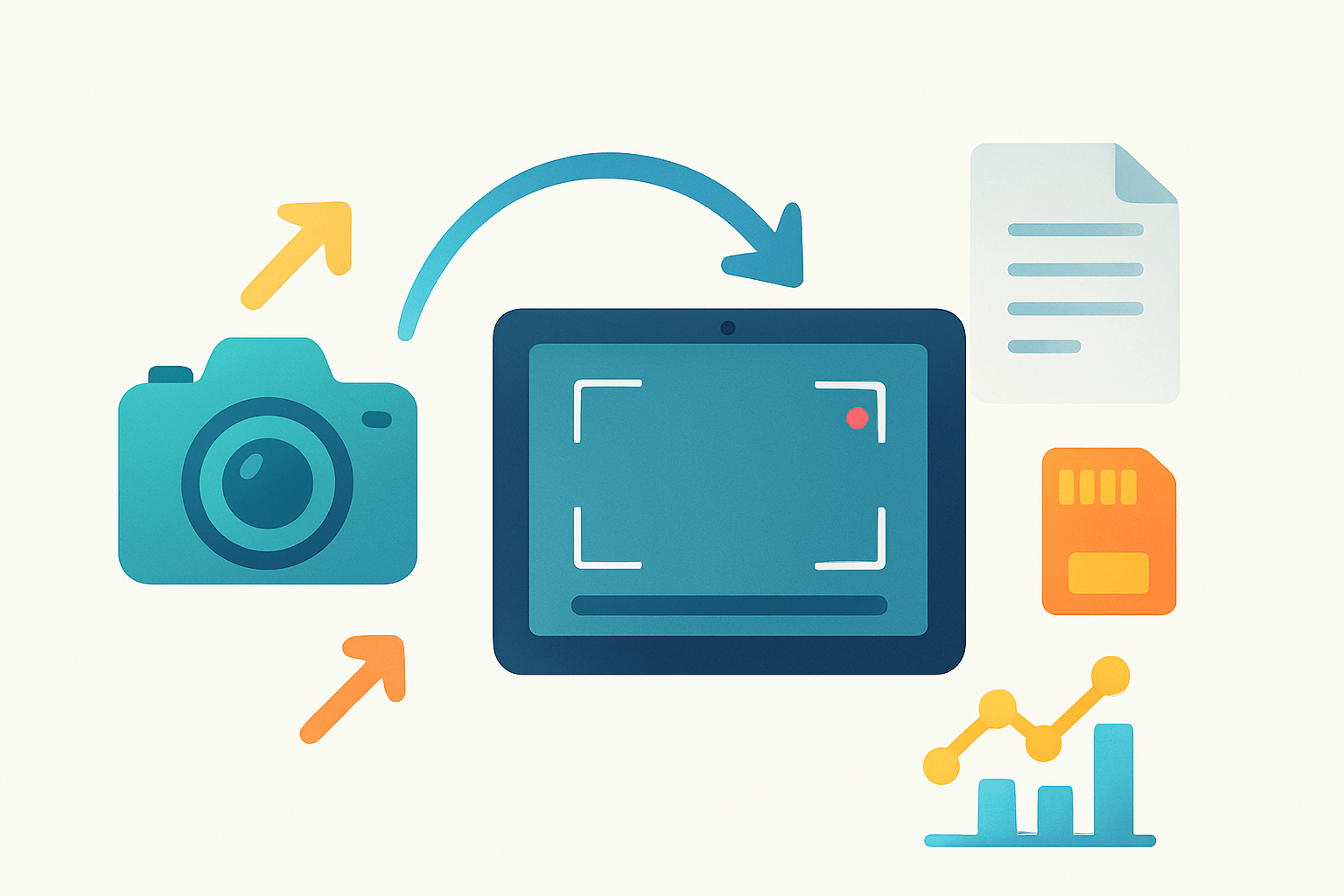
Yes, you can use an iPad as a camera monitor. The two proven paths are wired through HDMI into a USB video capture device that the iPad sees as a camera, or wireless through your camera maker’s app, a dedicated transmitter and app, or a point‑to‑point Wi‑Fi link. Pick the route that matches your shoot, latency needs, and budget.
If you came here to learn how to use iPad as camera monitor, the fastest path is HDMI out of the camera into a UVC capture card, into a USB‑C iPad running a monitoring app. That gives you the most reliable picture with the least lag for the money. Wireless is great when you need freedom to move or multiple people on set need the feed.
Start by checking your iPad model and iPadOS version because this determines what hardware and apps will work. Decide if wired or wireless suits your job, your rig, and your tolerance for latency. Gather the right cable for your camera’s HDMI port, a capture dongle or wireless transmitter, and a way to power both the iPad and any accessories.
Install a monitoring app that matches your approach, then connect the camera and open the app to select the source. Calibrate the iPad display by setting a sensible brightness, loading a LUT if you shoot log, and turning on focus and exposure tools like peaking, zebras, and false color. Finally, test latency, exposure, and any remote controls before you roll.
Typical working builds are simple. A DSLR with clean HDMI goes into an Elgato Cam Link 4K or Magewell capture device, into a USB‑C iPad running a monitoring app like Orion or a similar UVC viewer. A Canon or Sony mirrorless can connect over Wi‑Fi using the manufacturer’s app or a CamRanger for more reliable wireless control and preview. For quick mirroring with a phone camera, you can mirror an iPhone to your iPad using AirPlay for a basic webcam‑style view.
Make sure your camera outputs a clean HDMI signal with overlays off, or the iPad will show icons and menus you don’t want. Some cameras only output a lower‑resolution preview while recording internally, so check if the live HDMI matches your project resolution and frame rate. If your capture device sees nothing, you might have an HDMI handshake issue or an HDCP lock, so toggle the output resolution or try a different cable.
When you need a deeper dive into both wired capture and wireless transmitters, this concise overview pairs well with this wireless and wired resource. Use it to sanity‑check your parts list and to plan for range, latency, and mounting before shoot day. The goal is a clean, stable image first, and fancy features second.
Hardware requirements for iPad camera monitor setup
Your iPad model sets the ground rules. USB‑C iPads running iPadOS 17 or later can accept UVC video from many HDMI capture cards, which makes wired setups easy and inexpensive. Lightning iPads are far more limited and often push you toward wireless or dedicated HDMI‑to‑iOS hardware.
Look at your camera’s outputs next. Most mirrorless and DSLRs have micro, mini, or full‑size HDMI, while cinema cameras may offer SDI. Whatever the port, you need a clean HDMI output with info displays disabled, and you should match project frame rate and color space to avoid extra processing.
HDMI‑to‑USB capture dongles are the simplest wired bridge. Devices like Elgato Cam Link 4K and Magewell USB Capture HDMI present the video as a UVC source the iPad can see, with solid color fidelity and predictable latency. The tradeoffs are cables to manage and the need to power both the iPad and sometimes the capture device.
External wireless video transmitters give you freedom to move. Systems like Accsoon CineView, Hollyland Mars, or Teradek send an HDMI signal to receivers and iOS viewing apps with varying latency and range. Pro systems like Teradek Bolt can be near zero‑delay, while budget Wi‑Fi based kits are fine for framing and focus pulls with a bit more lag.
Camera‑specific solutions can be great for stills and mixed shoots. CamRanger combines a small hardware bridge with a robust iPad app for reliable preview and deep control of exposure and focus on many Canon, Nikon, Fuji, and Sony bodies. Manufacturer apps can work too, but they can be slower, less stable, or limited in control, depending on the model.
If your camera only has SDI, use an SDI‑to‑HDMI converter to feed consumer capture cards and iPads. Many compact converters can run from the same battery as your camera or transmitter, which keeps the rig tidy. Be mindful of added power draw and cabling when you stack converters and captures.
Power is the hidden cost of reliability. A USB‑C iPad benefits from a pass‑through hub that delivers Power Delivery while hosting the capture device, or from a high‑output PD bank riding the rig. Some capture dongles draw more current than the iPad can provide, so a powered hub or a capture with external power keeps frames smooth.
Plan your mounting so the iPad is safe and usable. A SmallRig clamp, an iPad cage, or a stand‑mount plate lets you attach the tablet to a tripod, light stand, or cart without stressing ports. Keep cables short, add strain relief, and check weight balance if you mount the iPad to a camera or gimbal.
Round out the kit with the right cables and comfort items. Get full‑spec HDMI that matches your camera’s port, a short run for the rig and a longer run for studio, a USB‑C hub with PD, and for older iPads the Apple Lightning to USB 3 Camera Adapter with power injection. A sun hood or anti‑glare film helps outdoors, and a small arm or stand makes framing easy; for a broader buying checklist, this field monitor guide is a handy cross‑check.
Wireless vs wired solutions for iPad camera monitoring
Wired is the benchmark for stability and color accuracy because there is no RF interference to fight. It usually offers the lowest latency short of zero‑delay pro links, which helps for critical focus, live direction, and motion work. The downside is cables can snag, limit movement, and add setup time.
Wired advantages are clear: predictable image quality, minimal lag, and strong reliability when power is managed. The tradeoffs are mobility and the need to manage cable runs and hubs, especially when you also need to charge the iPad. For small crews or a one‑person band, wired can still be the fastest route to a dependable picture.
Wireless shines when you need to move, hand the screen to a director, or keep the camera light for gimbal work. Flexibility comes with higher latency, potential interference in busy environments, and the need to coordinate channels if more than one transmitter is on set. The better the RF link and antennas, the more consistent the experience becomes.
Use wired or pro wireless for studio and live broadcast, where a dropped frame can cost you. Run‑and‑gun documentary often benefits from CamRanger or FieldMonitor‑style Wi‑Fi control that balances mobility and battery life. On gimbals or steadicams, a lightweight wireless transmitter or a phone viewer keeps your hands free and your rig balanced.
Make wireless work in your favor by choosing 5 GHz and keeping channels clear of crowded Wi‑Fi. A dedicated travel router or point‑to‑point access point reduces client chatter and stabilizes the link, and many apps let you choose a lower‑resolution preview to cut latency while recording high‑quality in camera. Always test your location for interference, packet loss, and effective range before talent arrives.
A hybrid approach is often best. Run a short wired HDMI to a compact transmitter so you can pop between near‑zero lag at the camera and roaming preview on the iPad farther away. For a quick latency test, clap your hands on camera and count frames between clap and visual on the iPad to confirm whether your setup is focus‑puller ready or director‑monitor good.
Connecting your iPad via USB‑C or adapters (step‑by‑step, plus troubleshooting)
Start with the camera powered and set to clean HDMI, then connect an HDMI cable to a USB capture dongle. Plug that capture device into the iPad’s USB‑C port directly, or through a powered USB‑C hub if the dongle draws a lot of current, and launch your monitoring app to select the UVC source and match frame rate and resolution.
If the iPad needs power during long takes, use a hub with Power Delivery so the iPad charges while hosting the capture device. Mount the iPad safely, secure the cables with a small loop to ease strain, and confirm audio if you need to monitor sound over HDMI.
USB video class support on recent iPadOS versions makes many capture devices plug‑and‑play inside compatible apps. Not every dongle is equal, so favor respected brands and check that your app lists UVC input support on your iPad model. Lightning iPads can sometimes work with the Apple Lightning to USB 3 Camera Adapter and powered capture, but wireless or dedicated HDMI‑to‑iOS hardware is usually a better fit there.
If you see no signal, confirm your camera is set to output from HDMI while recording and that overlays are off. Set the camera to a basic 1080p mode first, and toggle between 60, 30, and 24 fps if the capture device does not lock; some dongles do not accept higher frame rates at higher resolutions.
If the app doesn’t detect the capture device, try another app to rule out software. Re‑seat the hub, try a powered hub if you are not using one, and check that your capture is truly UVC compatible because some “streaming sticks” need custom drivers that iPadOS cannot use.
If the picture is the wrong size or looks squashed, set the camera to output 16:9 1080p instead of a weird live‑view mode. Avoid interlaced outputs, and match progressive frame rates like 23.98p, 24p, 25p, or 29.97p as supported by the capture device and your app.
If you get stuttering or black frames, shorten the HDMI cable, swap the cable for a certified one, and make sure both iPad and capture device are getting stable power. Keep your app and camera firmware updated, and disable any power‑saving features on the iPad that could throttle USB bandwidth, like aggressive low‑power modes.
Recommended apps for iPad camera monitoring: Monitor+, CamRanger, FieldMonitor (and others)
The app is where your monitoring tools live, so choose one that supports your camera and hardware. Look for features like focus peaking, false color, zebras, waveform, LUT loading for log profiles, and reliable remote control if you need to change exposure or pull focus. Recording the feed on the iPad can be useful for quick reviews, but it is not a replacement for camera‑quality recording.
Monitor+ is popular for deep camera control and pro overlays, especially with select Sony bodies over Wi‑Fi or USB. It brings focus aids, LUTs, and scopes that make an iPad feel like a field monitor, and it pairs well with workflows that keep latency low enough for confident focus. If you plan an HDMI‑to‑capture route, verify app compatibility on your specific iPad and iPadOS version before shoot day.
FieldMonitor focuses on wireless control and preview for a broad range of Canon, Nikon, Panasonic, and Fuji cameras. It presents helpful overlays and supports exposure and focus adjustments, which is ideal for tabletop, portrait, and location stills with live view. Latency depends on the camera’s Wi‑Fi, but the app’s feature set makes it a dependable tethering companion.
CamRanger combines dedicated hardware with one of the most mature iPad apps for tethered control. The hardware creates its own network and handles the camera link, which improves reliability and extends range compared to many camera‑only Wi‑Fi modes. For studio and high‑stakes shoots, this stability is often worth the extra box on your rig.
Blackmagic users have special options. The Blackmagic Control app can manage settings and trigger recording on supported cameras over Bluetooth or network, and the company’s ecosystem integrates cleanly with pro workflows. If you shoot on a Pocket Cinema Camera, this route is as smooth as it gets from iPad to camera.
Orion is a favorite for direct HDMI capture into iPadOS 17+ on USB‑C iPads. It treats your capture dongle as a video source, then layers essential monitoring tools on top with low fuss. If you want the simplest wired monitor experience, this is often the shortest line from HDMI to iPad.
Continuity and AirPlay based workarounds let you mirror an iPhone’s camera view to your iPad for quick checks. This is not the same as a clean HDMI feed, but it can solve simple framing or client‑preview needs when there is no other gear. Expect higher latency and fewer monitoring tools than dedicated apps.
Match your needs to the feature set instead of chasing every bell and whistle. If your camera supports remote aperture, shutter, and ISO changes, prioritize reliable control and a clean UI. If you shoot log, put LUTs and waveform at the top of your list so exposure and color judgment stay consistent.
For cinematographers who want a “real monitor” feel on set, pair a solid capture device with an app like Orion and add an app that talks to your camera for start/stop if needed. This gives you scopes, LUTs, and the lowest practical lag for precise focus. It also scales well when you add a wireless transmitter later.
Photographers who tether can lean into CamRanger or FieldMonitor for robust control and fast review. If you already have a Wi‑Fi tether routine, you can augment it with solutions like tethered photography workflows that mirror the computer or camera view to the iPad for clients. The key is a stable link and an app that supports your exact body.
For casual or quick setups where you only need framing and basic exposure checks, phone mirroring or a lightweight manufacturer app can be enough. Keep expectations realistic around lag and color on these simpler paths. Your iPad becomes a helpful second set of eyes rather than a focus‑critical tool.
Secure any app that offers remote control. Use strong passwords, change default network names, and isolate the iPad and camera link from public Wi‑Fi. A dedicated router or the access point built into your hardware is the safest option on busy sets.
Here is a practical example for a wedding shooter. A small mirrorless with clean HDMI feeds a compact capture dongle into a USB‑C iPad on a stand by the altar, with LUT and zebras for consistent skin tones. When mobility is crucial, switch to a wireless transmitter so the officiant and planner can view the ceremony without crowding you.
An indie filmmaker can run an Orion‑style wired monitor for the operator and add a wireless transmitter so the director’s iPad gets the same view. Set false color for exposure on log footage and load a creative LUT so everyone sees something close to the final grade. Keep a short HDMI lead and a PD power bank in the rig so you can go handheld without drama.
A live‑streamer can send the camera’s HDMI to a capture dongle and into the iPad, then monitor audio and framing while a second device handles chat. Keep frame rate locked at 30 for smoother bandwidth on consumer gear. When moving around, switch to a robust wireless link and test for interference before going live.
No matter which path you choose, the flow is the same: clean signal in, dependable link, and the right app features for your work. That is the heart of how to use iPad as camera monitor with confidence. Build once, test hard, and the iPad becomes a monitor you can trust on any set.
What People Ask Most
How to use iPad as camera monitor?
Install a camera‑monitoring app on your iPad and on your camera or computer, then connect them with the app using Wi‑Fi or a cable to view the live feed.
Do I need extra apps to use my iPad as a camera monitor?
Yes, most setups require a companion app on the iPad to receive the camera feed and show focus, exposure, and framing tools.
Can I use an iPad as a camera monitor wirelessly?
Yes, many apps let you connect wirelessly over the same Wi‑Fi network, though wireless setups can have slight lag compared to cables.
Is it easy to set up an iPad as a camera monitor for beginners?
Yes, basic setup is simple: download the app, pair devices, and select the camera feed, with on‑screen controls for common adjustments.
What are the main benefits of using an iPad as a camera monitor?
An iPad gives a larger, portable touchscreen for better composition, focus checking, and remote control compared to a small camera display.
What common mistakes should I avoid when using an iPad as a camera monitor?
Avoid low battery, weak Wi‑Fi, unsecured mounts, and forgetting to match frame rates or preview settings between devices.
Can I use my iPad as a monitor for live streaming or recording?
Yes, you can monitor while streaming or recording, but make sure the app supports your workflow and watch for latency during live broadcasts.
Final Thoughts on Using an iPad as a Camera Monitor
Even if you started with 270 as a shorthand search, the takeaways are simple. Yes — you can use an iPad as a camera monitor, wired or wireless, to get a larger, more flexible view of framing, exposure, and focus. That portability and instant feedback are the core benefit you can put to work across shoots big and small.
Realistically, watch for compatibility and power: not every camera gives a clean HDMI feed and wireless links can add latency or dropouts, so test your setup before a gig. Wedding shooters, indie filmmakers, livestreamers, and run‑and‑gun photographers will get the most out of this workflow, because they’ll trade bulk for responsiveness and easier monitoring on the fly.
We opened by asking whether an iPad could replace a dedicated monitor — and the guide gave you a fail‑safe HDMI→capture→Monitor+ path plus wireless alternatives, hardware tips, and app picks to match your needs. You’ve now got the quick start steps, a hardware checklist, and troubleshooting notes to build a reliable setup. Try the combo that fits your workflow and enjoy sharper, more confident shooting ahead.


0 Comments