
Want to stream heart‑pounding action live without lugging a camera crew or sacrificing picture quality? Whether you’re shredding down a mountain, paddling big surf, or hosting a travel Q&A, your gear needs to keep up. The right compact action camera can deliver stabilized, cinematic-looking streams from remote locations and on the move.
This guide puts five GoPro models head‑to‑head for live streaming and evaluates them in real-world scenarios. We examine reliability, connectivity, image quality, stabilization, battery life, and value rather than just specs on paper. You’ll also get a clear walk-through of the practical setup steps, basic streaming workflows, and the accessories that truly matter.
Choosing the best GoPro for live streaming is about priorities, not just pixels; seamless connection can matter more than ultra-high resolution for a live audience. We’ll weigh the trade-offs so you can decide whether to favor longer run time, better stabilization, or a smaller footprint for mounting. Expect real-world tips for outdoor action, travel vlogging, and casual chats, with examples of typical streaming pain points and how to avoid them.
By the end you’ll know which camera and setup fit your workflow and budget, and which accessories to invest in first. We also highlight quick pre‑stream checks so you don’t lose viewers to avoidable technical hiccups. Ready to stop guessing and start streaming like a pro? Let’s dive in.
1. GoPro Hero 13 Black

GoPro HERO13 Black
Capture buttery-smooth 5.3K footage with advanced stabilization, exceptional low-light performance, and rugged waterproof design for cinematic adventure content.
Check PriceAs a photographer who streams action and outdoor work, the GoPro Hero 13 Black stands out for its dependable live performance. Users report easy setup through the GoPro app with stable connections and minimal lag, which in practice means fewer dropped frames and a smoother viewer experience during fast-moving shoots.
The camera’s image stabilization, HyperSmooth 4.0, keeps handheld and helmet-mounted footage watchable even in rough conditions, so you can focus on composition rather than correcting wobble in post. Auto-detected Lens Mods and ND filters help you adapt quickly to changing light, making it practical when you switch from bright trails to shaded runs without missing the shot.
Battery life has been improved over previous models, allowing longer streaming sessions in the field, and the built-in GPS is a real plus for tagging locations and adding useful metadata to your streams. The magnetic mount is a photographer’s little time-saver — quick to attach, easy to reposition, and secure for live events where speed matters.
Keep in mind the Hero 13 Black can run warm during extended live streams, which may require short breaks or external cooling in very long broadcasts. The interface offers many advanced options but can feel complex if you’re new to GoPro’s ecosystem; plan a few test streams to get comfortable before going live to an audience.
- Excellent image stabilization (HyperSmooth 4.0)
- Auto-detected Lens Mods and ND filters
- Built-in GPS for location tagging
- Magnetic mount for quick, secure attachment
- Can get warm during extended live streams
- Interface can be complex for beginners
2. GoPro Hero 12 Black

GoPro HERO12 Black
Record stunning 5.3K and 4K video with hyper-smooth stabilization, improved battery life, intuitive controls, and reliable performance for creators on the move.
Check PriceAs a photographer who streams action and travel, the GoPro Hero 12 Black stands out for its 5.3K video quality at 60 fps — that extra resolution gives you clean, detailed live footage that holds up even when viewers pause or you crop the frame. Hypersmooth 4.0 stabilization keeps things steady during high-impact activities, so you spend less time fighting shake and more time composing the shot.
The body is durable and waterproof to 33 feet, which means you can mount it on a helmet, boat, or surfboard without worrying about weather or splashes disrupting a live feed. The touchscreen interface is intuitive and easy to navigate, so changing settings mid-stream or checking framing on the fly is fast and painless.
In practice this camera is ideal for enthusiasts and professionals who need high-quality, stable live streaming for sports, travel, and a variety of outdoor activities. Be mindful that it can be a bit bulky if you really need the smallest, lightest kit, and battery life can limit very long streaming sessions unless you plan for external power.
If you want dependable image quality and rock-solid stabilization in rough conditions, the Hero 12 Black is mostly a solid choice — just plan for power and consider whether the size fits your mounting needs. For live streamers who prioritize crisp video and stable motion over absolute compactness, this camera will serve you very well.
- 5.3K video at 60 fps
- Hypersmooth 4.0 stabilization
- Durable and waterproof up to 33 feet
- Intuitive touchscreen interface
- Can be a bit bulky for compact needs
- Battery life can limit very long streams
3. GoPro Hero 11 Black

GoPro HERO11 Black
Shoot ultra-wide 5.3K footage with pro-level image processing, durable waterproof construction, effortless editing features, and versatile mounting options for action-packed shoots.
Check PriceThe Hero 11 Black’s standout feature is its 8:7 aspect‑ratio image sensor, which lets you crop losslessly into 4K portrait, landscape, or square frames without sacrificing detail. As a photographer I love how that flexibility removes the need for multiple shots or awkward framing when streaming to different platforms.
Under the hood it shoots 5.3K at 60 fps for sharp live feeds, 4K at 120 fps for silky slow‑motion capture, and 2.7K at 240 fps when you want extreme slow motion highlights. Those frame‑rate options give you room to tailor bitrate and motion clarity depending on your stream’s bandwidth and creative goals.
Stabilization on the Hero 11 is excellent — it’s repeatedly praised for top‑notch image stabilization that keeps handheld or action streams watchable and professional. Combine that with the high‑resolution sensor and you get clean, well‑composed video in good light that translates well to an audience watching on phones or desktop.
Value is another real plus; the Hero 11 is often viewed as a smart buy because it balances features and price, making it a versatile main camera for content creators and vloggers who switch between platforms and formats. If you want one camera that can serve portrait socials and widescreen streams, it’s a solid pick.
Two practical caveats: it performs best in well‑lit conditions, with weaker low‑light results than some alternatives, and the body can feel a bit heavy during long handheld sessions. If you regularly stream in dim venues or need the lightest possible kit, factor those trade‑offs into your choice.
- 8:7 sensor — lossless cropping
- 5.3K @ 60 fps; 4K @ 120 fps; 2.7K @ 240 fps
- Top-notch image stabilization
- Good value
- Weaker low-light performance
- Can be a bit heavy
4. GoPro Hero 10 Black

GoPro HERO10 Black Renewed with 64GB SD card and extra battery
Refurbished high-performance action camera with a fast processor; includes 64GB memory card and spare battery for extended shooting sessions on the go.
Check PriceThe GoPro Hero 10 Black is a solid choice if your priority is high-quality live streaming with rock-steady footage. It delivers excellent video quality and advanced stabilization, with Hypersmooth 4.0 standing out as a real benefit when you’re moving or shooting action.
Its 5.3K video at 60 fps gives you clean, detailed streams that hold up well when viewers pause or when you need to extract stills later. The intuitive touchscreen interface makes it quick to change settings between takes or when adjusting on the fly during a live session.
Built to handle adventure, the Hero 10 is durable and waterproof up to 33 feet, so you can stream from wet, dusty, or bumpy environments without worrying about immediate damage. That toughness makes it a dependable on-location tool for sports, travel, and outdoor creators who need reliability as much as image quality.
There are trade-offs to be aware of though. The camera can feel bulky if you need the absolute smallest setup, and battery life can limit very long streaming sessions, so plan for shorter bursts or have spare power ready. Overall, for enthusiasts and professionals seeking high-quality, stable live streaming for sports, travel, and adventure, the Hero 10 Black is mostly a very good fit.
- 5.3K video at 60 fps.
- Hypersmooth 4.0 stabilization.
- Durable and waterproof up to 33 feet.
- Intuitive touchscreen interface.
- Can be bulky for those needing a compact solution.
- Battery life can limit very long streaming sessions.
5. GoPro Hero Entry-Level Model

GoPro HERO 4K 12MP touchscreen
Intuitive touchscreen interface for easy framing; capture crisp 12MP photos and smooth 4K video in a compact, rugged package built for adventure.
Check PriceThis entry-level GoPro is a smart pick if you’re just getting into live streaming or working with a tight budget. It’s recommended for beginners and budget buyers, offering a simple and reliable live streaming experience without a lot of fuss.
For streaming performance you get 1080p resolution at 60 fps, which delivers smooth, watchable video for everyday adventures and social streams. That 60 fps option keeps motion looking natural during action or handheld setups, and it’s forgiving on bandwidth compared with 4K streams.
Build and usability are where this camera shines for casual use. It’s sturdy and compact, with a waterproof design suitable for water sports and outdoor shoots — rated waterproof up to 33 feet. The simple touchscreen interface and voice control make it easy to start and manage streams when you’re on the move or have your hands full.
Keep expectations realistic: this model lacks advanced features like 4K recording and enhanced stabilization, so it won’t replace a higher-end GoPro for professional work. If your needs are casual vlogging, quick outdoor streams, or a reliable backup camera, this entry-level Hero is mostly a good fit. But if you require top-tier stabilization or ultra-high-resolution streams, consider stepping up.
- 1080p at 60 fps
- Sturdy, compact build; waterproof up to 33 feet
- Simple touchscreen interface
- Voice control for hands-free use
- Lacks 4K recording
- No enhanced stabilization; too basic for pro needs
Set Up Live Streaming in GoPro App
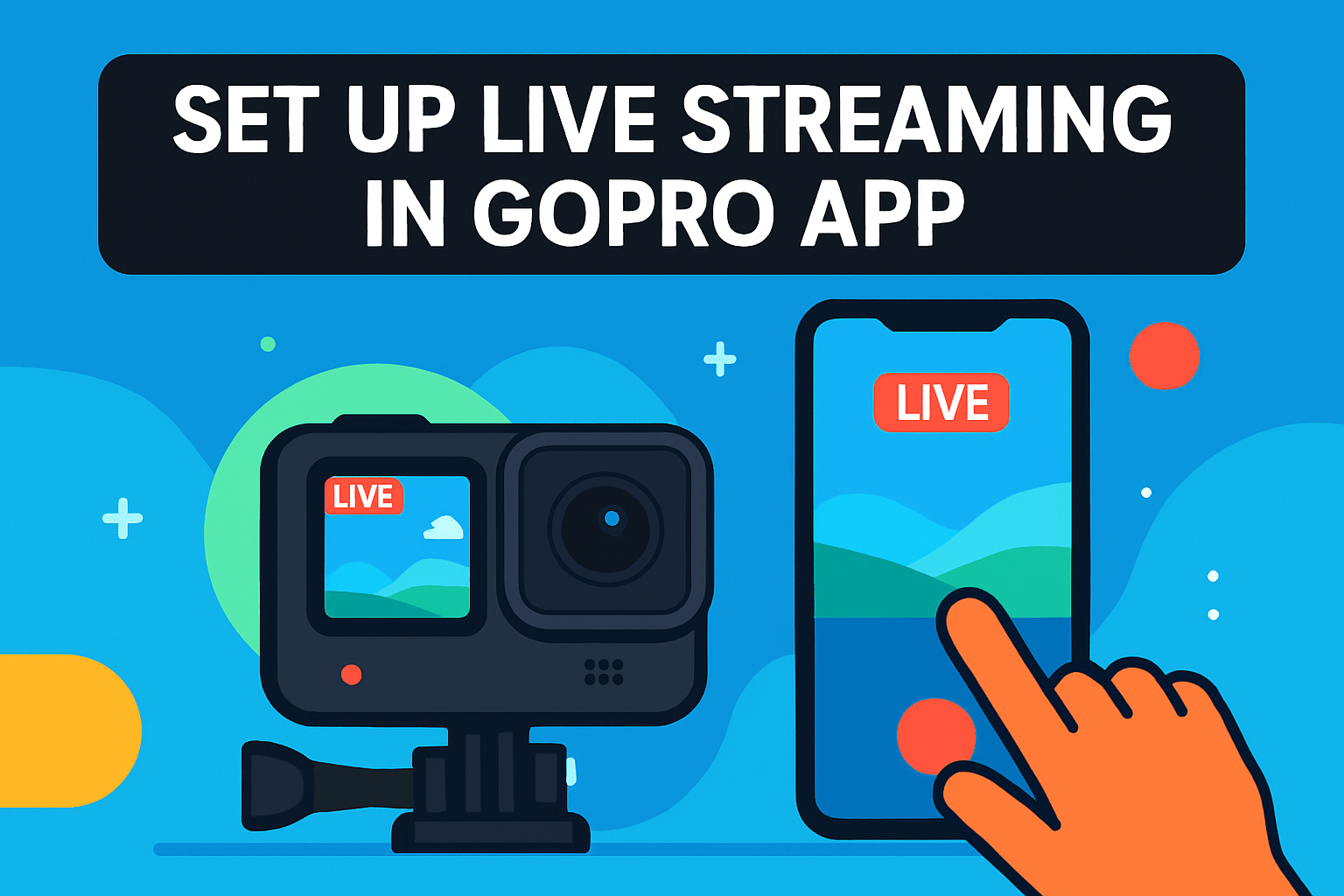
Setting up a live stream in the GoPro app is one of those jobs that feels fiddly the first time, but becomes second nature after a couple of runs. First, make sure your camera is supported (HERO7 Black or newer), the GoPro app is updated, and you’ve got an active GoPro subscription and a reliable internet source—Wi‑Fi or a phone hotspot. I always keep the camera within range of the router or hotspot; even a few meters and a wall can introduce hiccups.
Open the app, tap the camera icon to pair, and confirm the live preview. From there swipe past the photo and video modes to “Set Up Live.” Choose your platform—Facebook, YouTube, Twitch—or select Other/RTMP if you’re sending straight to a streaming server. For social platforms you’ll sign in and grant access; for RTMP paste the RTMP URL plus stream key into the app. A small but crucial tip: the RTMP URL should end with “/” and the stream key must follow with no spaces.
Before you hit Go Live, take a moment to set visibility, title, description, and resolution. Pick 1080p only if your connection can sustain it; otherwise 720p or 480p will give you a steadier stream. Decide whether to save the broadcast to the SD card—but be sure the card has ample free space, otherwise recording can stop mid‑stream.
Battery and connectivity are the usual troublemakers. Live streaming chews battery, so use a power bank or keep the GoPro plugged in. If audio needs to be muted quickly, remember the app doesn’t offer a mute button—plug in a mic adapter and leave it empty to silence the feed.
Finally, always run a short test before going live to check framing, stabilization, and bitrate. I schedule a private test on YouTube or use the insecure RTMP option in weak-signal areas when needed; it can sometimes improve stability. With a quick checklist and a dry run, your live stream will feel a lot more professional and a lot less stressful.
Stream Your GoPro to YouTube
Streaming your GoPro to YouTube is straightforward, but the little details make the difference between a rough test and a polished live broadcast. First, verify your YouTube channel and enable live streaming in YouTube Studio — this can take a day if Google asks for account verification, so do it well ahead of time.
Grab your RTMP URL and stream key from YouTube Studio (Live Streaming → Stream Settings). In the GoPro app choose “Other/RTMP” and paste the RTMP URL and stream key exactly as instructed — the URL should end with “/” and the stream key follows directly after with no spaces.
Resolution choice matters: aim for 1080p if your upload is steady, drop to 720p or 480p if you’re on a hotspot. Lowering resolution can prevent buffering and keeps your stream stable during action shots or variable signal conditions.
Schedule your event in YouTube Studio to build an audience and use the test stream feature to check bitrate and latency before you go live. Enable DVR, ultra-low latency, or auto-start/stop depending on your format; these options help with viewer interaction and smoother starts.
Real-world logistics are crucial. Keep the GoPro within range of your hotspot or Wi‑Fi, and have a power bank or constant power source because live streaming eats battery fast. Also make sure your microSD card has plenty of free space if you want to save the stream locally.
Audio quirks: the GoPro app doesn’t have a mute toggle — if you need silence, plug in a mic adapter but leave the mic disconnected. For weak signals some users find the “RTMP insecure ingest” option more reliable; try it only if standard RTMP drops frequently.
During the stream monitor the YouTube Studio dashboard for chat and stream health. A quick test, a stable connection, and a charged camera will keep your live stream looking and feeling professional — even when you’re out in the field capturing action.
What People Ask Most
Which GoPro is best for live streaming?
That depends on your priorities: some models emphasize outdoor reliability and battery life while others focus on higher resolution and advanced stabilization. Choose a model that matches your shooting style and budget for the best results.
Can you live stream with a GoPro?
Yes, many recent GoPro models support live streaming using the GoPro app and a subscription, along with a stable internet connection. Pairing the camera with the app is required to start a live preview and broadcast.
How do I live stream with a GoPro to YouTube?
Enable live streaming on your YouTube channel, copy the RTMP URL and stream key from YouTube Studio, and select Other/RTMP in the GoPro app to paste them. Configure your title, visibility, and recording options in the app and then start the stream.
Can a GoPro live stream without a smartphone?
No, the GoPro app is used to pair and configure the camera for live streaming, so a smartphone or similar device with the app is required. If you lack Wi‑Fi you can use a mobile hotspot, but the camera must stay within range of that connection.
How do I live stream from a GoPro using RTMP?
In the GoPro app choose Other/RTMP and paste your RTMP URL followed by the stream key, taking care to format them correctly. In weak-signal situations some users opt for the insecure RTMP ingest option to improve connectivity.
What settings should I use for live streaming with a GoPro?
Select resolution and bitrate appropriate for your available bandwidth, set visibility and metadata like title and description, and choose whether to save the stream to the SD card. If you experience buffering, lower the resolution and check your internet connection.
What accessories do I need to live stream with a GoPro?
Bring a reliable power source, sufficient microSD storage, secure mounts, and a mic adapter if you need external audio options. Also have a smartphone for the GoPro app and a hotspot or Wi‑Fi to ensure a stable connection.
Conclusion for Best GoPro for Live Streaming
We covered the strengths and trade-offs of five GoPro models and walked through the GoPro app, YouTube/RTMP workflows, recommended settings, and the accessories that make reliable live streaming possible.
Before you go live, test camera pairing, network strength, SD card space, and power options to avoid mid-broadcast interruptions.
Choose gear and settings that match your priorities—whether that’s stabilization and image quality, longer battery life, or a tighter budget—and plan around those trade-offs.
If you want to sharpen your live-streaming skills, read more articles on the site for practical tips, deeper workflows, and real-world troubleshooting advice.
Have a question or want feedback on your setup? Leave a comment below and we usually reply within a few hours.



0 Comments