
What is a photo stick — and can it really save your photos in one click? Short answer: it’s a plug-and-play USB device with simple software that scans and backs up your photos and videos from phones and computers.
This article explains how a Photo Stick works with Windows, macOS, Android, and iPhone, and it points out common limits like cloud-only images (iCloud/Google Photos). We also cover connectors (USB‑C, Lightning, USB‑A) and when you might need an adapter.
You will get step-by-step instructions, a buyer’s checklist for capacity and speed, and a clear Photo Stick vs flash drive comparison to help you decide. Plus quick tips for backups, duplicate handling, and basic troubleshooting so your memories stay safe.
By the end you’ll know if a Photo Stick fits your needs and how to use one safely and easily. Let’s get started.
What is a Photo Stick?
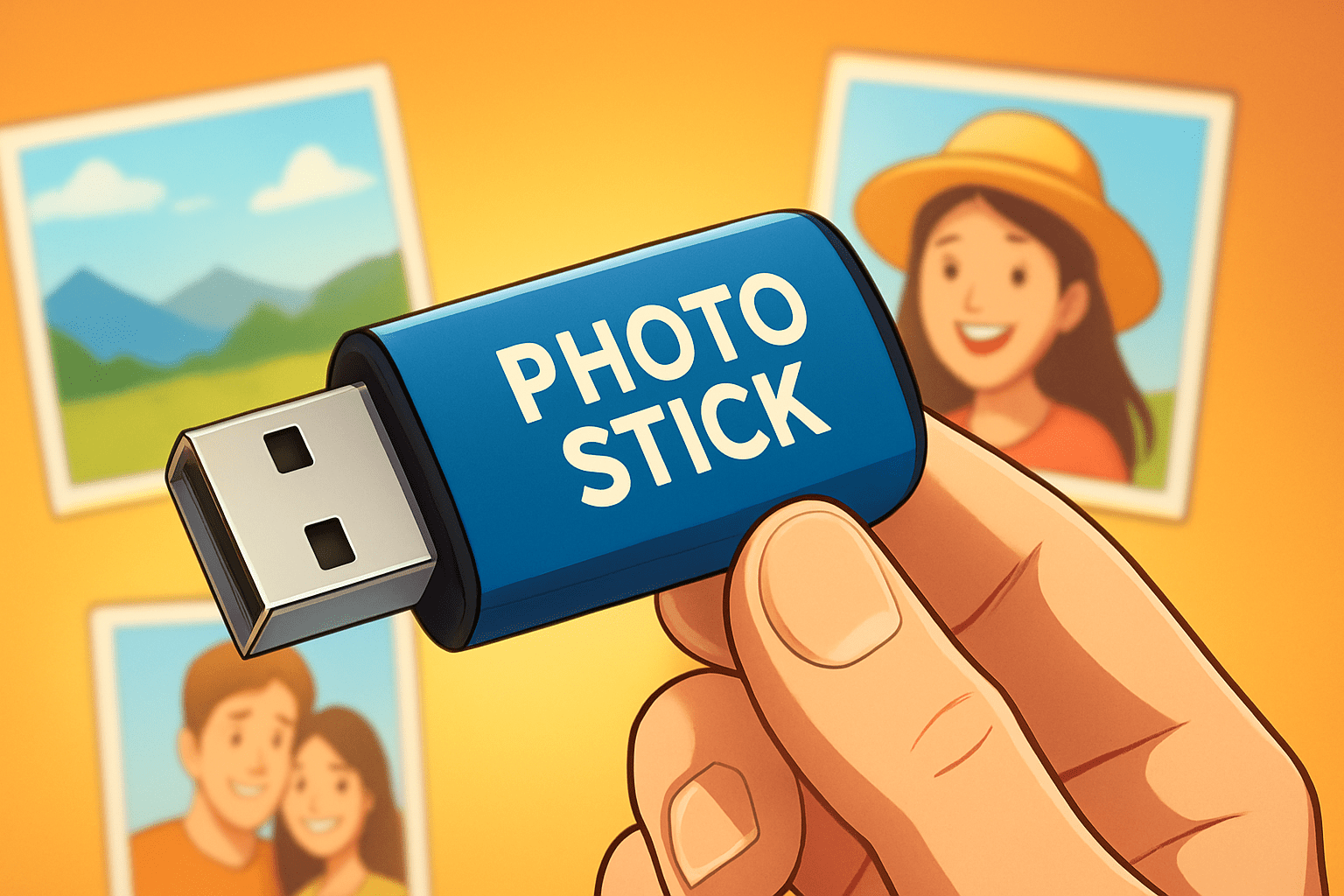
A Photo Stick is a plug-and-play USB storage device bundled with simple software that automatically finds and backs up your photos and videos from phones and computers. In plain English, it gathers your memories with one click so you don’t have to hunt for folders.
Under the shell is a standard flash drive paired with an app that knows what to look for. You’ll usually see USB-A or USB-C on one end, sometimes a Lightning tip for iPhone, and capacities from 32GB to 1TB. The software scans for images and videos and copies them to the stick’s internal memory.
Its main jobs are straightforward. It scans for common photo and video types, backs them up with a single click, skips duplicates it has already stored, and sorts files into simple date-based folders. The result is a clean copy of your media that you can carry or move to another device.
People often ask what is a photo stick compared with a generic flash drive. The difference is the software and the workflow: the Photo Stick automates discovery and backup, while a regular drive expects you to manually find and drag files yourself.
It shines in everyday situations like freeing space on a phone, making a quick family archive, traveling without internet, or moving photos to a new computer in a pinch. It’s also handy for older relatives who want a simple, consistent button to press when new pictures pile up.
There are limits to set expectations. It is not a cloud service, it doesn’t sync across devices on its own, and it isn’t a full replacement for a robust backup plan. iCloud Photos and Google Photos can keep originals in the cloud, so you may need to download them to the phone before the Photo Stick can grab them.
For context, you may see models like ThePhotoStick, PhotoStick Omni, or SanDisk’s iXpand-style devices. I’ve used a mix of these in my kit; if you want to see an example of the all-in-one approach, look at ThePhotoStick Omni for reference without reading it as a must-buy.
How Photo Stick Works with Phones and Computers
Compatibility today is broad but worth checking. Windows 10 and 11, and macOS from High Sierra onward, work well with exFAT-formatted sticks, while Android phones need USB OTG support and iPhones need a Lightning connector or Apple’s adapter plus the vendor’s iOS app.
Physically, you’ll find USB-A for older PCs, USB-C for modern laptops and Androids, and Lightning for iPhone. Many sticks include multi-connector housings or a short cable, and adapters solve odd port mixes, but a direct port usually gives the most reliable connection and speed.
On Windows or macOS, the flow is simple: plug in, open the bundled app from the drive, choose Backup, and let it run. When it completes, safely eject, then spot-check a few photos and videos on the stick to confirm they open as expected.
On Android, enable OTG if needed, grant file permissions when prompted, open the vendor’s app or use the Files app, and start the backup. When it finishes, disconnect using the on-screen eject button if available, then open a few images on the stick to verify the copies.
On iPhone, remember the iCloud Photos caveat: if your phone uses “Optimize iPhone Storage,” many originals may be cloud-only. Open Photos, download the albums you want to back up so the full files are local, then use a Lightning-enabled Photo Stick or the maker’s iOS app to run the backup.
The bundled software typically scans for JPEG, HEIC, PNG, GIF, BMP images and MP4 or MOV videos, and often many RAW formats such as CR2, CR3, NEF, ARW, and DNG. It creates dated folders, logs what it has copied, and avoids true duplicates, but it usually won’t mirror edits across devices or capture app-only media locked inside third-party sandboxes.
For file systems, exFAT is the safest bet across Windows, macOS, and Android because it handles large files without the 4GB limit of FAT32. NTFS can be read-only on macOS without extra software, and APFS is Apple-only, so exFAT keeps life easy; just know that reformatting a stick erases everything on it.
If the app won’t open on macOS, Control-click and choose Open to bypass Gatekeeper once, then approve permissions. On Windows, try another USB port, accept driver prompts, and check Device Manager if the stick doesn’t appear; on Android, ensure OTG is enabled and the app has storage permissions.
If you want a walkthrough with screenshots and impressions of how these tools behave, this PhotoStick review is a helpful independent perspective. You’ll see the typical folder structure, the duplicate-skip behavior, and what to expect in a first run.
How to Choose the Right Photo Stick for Your Needs
Start with capacity because it dictates how far you can go before offloading to a computer. A typical phone JPEG is about 3–5MB, many RAW files are 20–50MB each, and 4K video ranges widely but often lands around 10–25GB per hour depending on codec and frame rate.
As a rule of thumb, 32–64GB suits casual users with a few thousand photos, 128–256GB fits most families or travelers, and 512GB–1TB is a safer bet for hobbyists shooting RAW or anyone with years of mixed photos and 4K clips. If you bounce between phones and a camera, plan for your largest files first and add a cushion.
Speed matters when libraries grow. USB 2.0 can feel slow, while USB 3.0/3.1/3.2 sticks dramatically cut transfer time for big folders or video clips, especially when your computer’s port also supports USB 3.
Match connectors to your devices to avoid dongle pain. USB-C is ideal for modern laptops and Android phones, USB-A keeps older PCs covered, and Lightning or a certified adapter is essential for iPhones; multi-connector models are the easiest if you move between ecosystems.
Check the software feature set, because this is where a Photo Stick earns its keep. Look for automatic scanning, duplicate detection, simple restore, and a companion mobile app if you plan to back up from a phone regularly.
If you carry personal or client work, insist on security. Some sticks add app-based passwords or hardware encryption, which is worth it if you lose the device or often travel; if not included, encrypt the backup on your computer after copying.
Build quality and warranty are easy to overlook but important in daily use. A solid housing, snug connectors, and a vendor with clear return and support policies will save you headaches the first time something doesn’t mount.
Price per gigabyte is where regular flash drives win, but the Photo Stick’s value is the time you don’t spend searching folders. If you’re comfortable managing files manually, a standard drive can be enough; if you want one click and less risk of missing hidden photos, the software premium is justified.
Here are practical pairings that work well. A family backup plan might be a 256GB USB-C Photo Stick with USB 3 and duplicate detection, while a traveler could pick a 128GB multi-connector model to free phone space nightly without Wi‑Fi.
Hobbyist photographers should look at 512GB or 1TB with fast USB 3.x speeds because RAWs and 4K footage add up quickly. If budget is tight, one smaller Photo Stick for phone images plus a separate external SSD for finished edits is a balanced, cost-effective setup.
Photo Stick vs Flash Drive
Both devices look similar, but the purpose differs. A Photo Stick wraps software around a flash drive to automate discovery and backup, while a regular flash drive is a blank container that relies on you to find, sort, and copy everything.
Functionality also diverges. The Photo Stick scans for image and video types, prevents duplicate clutter, and creates lightweight organization so your copy is ready to browse, whereas a flash drive will do exactly what you drag onto it and nothing more.
Performance depends on the USB standard and the drive’s flash memory, not the label on the shell. Reliability is similar too, because both use consumer flash memory, which isn’t a forever archive; use multiple copies and remember the 3‑2‑1 rule—three copies, on two kinds of storage, with one offsite.
When it comes to value, flash drives usually win on cost per gigabyte, and you can read more basics about them here: USB flash drives. Photo Sticks cost more because they include backup software and, in some cases, a mobile app tuned for non-technical users.
Choose a Photo Stick if you want one-click peace of mind and minimal setup. Choose a flash drive if you prefer full manual control, lower cost, or you’re building your own workflow with other tools.
Consider alternatives too. Cloud storage keeps an offsite copy and offers easy sharing but needs internet and monthly payments, while external HDDs or SSDs are fast and affordable for large libraries but aren’t as pocketable as a stick.
Here are three real scenarios to guide the decision. A traveler on a two-week trip carries a 128GB Photo Stick and offloads each night in the hotel, freeing phone space without relying on hotel Wi‑Fi.
A parent with years of mixed photos uses a 256GB stick to make a quick first pass, then copies that master to a desktop and an external drive for the second and third copies. A hobbyist shooting RAW chooses a 1TB, USB 3.x Photo Stick for field backups, then mirrors to an SSD at home and keeps a cloud copy for offsite safety.
Tips for Using a Photo Stick Efficiently
Prepare your devices before the first run. Free some space, charge your phone or laptop, and if you use iCloud Photos or Google Photos, make sure your originals are downloaded locally so the stick can see them.
During backup, plug into a direct USB port on your computer instead of an unpowered hub. Use a USB 3 port if available, avoid disconnecting until the app confirms it’s done, and always eject before removing.
After a successful copy, manage your storage with intention. Let the built-in duplicate detection do its work, but before deleting anything from your phone, open files on the stick to confirm they play and display correctly.
If you keep multiple sticks, label them by date or event and rotate them like mini-archives. Organizing by year and month makes it simple to find a trip or a child’s birthday years later without digging through everything.
Keep security in mind if your stick leaves the house. Enable app passwords or device encryption when available, consider keeping a second copy offsite or in the cloud, and avoid storing highly sensitive documents on an unencrypted stick.
If the stick isn’t recognized on your PC, try a different USB port and cable, check Device Manager for driver issues, and restart the machine. If a phone shows no photos, verify OTG support on Android, grant file permissions, or download cloud-only items to local storage first.
Slow transfers often trace back to older ports or large video files. Switch to a USB 3 port, try another cable, close heavy apps, and check that the stick is formatted exFAT to avoid the 4GB file-size limit of FAT32 when copying long clips.
Photographers should budget extra capacity for RAWs and video. A smooth workflow is to offload from the camera to a laptop, cull and tag, then run a Photo Stick pass for an additional copy before leaving a location.
Test your backups periodically by opening a few random files and playing back a video end-to-end. Keep the stick’s software and phone app updated, and if your model supports firmware updates, apply them when the vendor recommends.
Most Photo Sticks support JPEG, HEIC, PNG, GIF, BMP for images and MP4, MOV for video, along with common RAW types like CR2, CR3, NEF, ARW, and DNG. Some brand-new or brand-specific RAW formats may require exporting to DNG or JPEG first, and Live Photos may save as a still plus a short video depending on the app.
For quick expectations, 1GB over USB 2.0 usually takes about 40–60 seconds, while USB 3.0 can move that in roughly 8–12 seconds depending on the stick and port. A 100GB backup can range from 15 to 30 minutes on a fast USB 3.x path, and much longer on USB 2.0.
Capacity translates roughly like this: 32GB holds around 6,000–9,000 typical phone photos, 128GB fits about 25,000–40,000, and 512GB handles 100,000+ JPEGs, with RAW and 4K video reducing those numbers significantly. Leave breathing room so you’re not forced to clean house in the field.
Never reformat a stick unless you have a verified copy elsewhere, because it erases everything instantly. Remember that many cloud libraries keep originals off the device by default, and the safest answer to what is a photo stick in a backup plan is “one part of a 3‑2‑1 strategy,” not the only copy.
If you want extra verification or cleanup, use trusted utilities like dupeGuru for duplicates and HashCheck or RapidCRC for checksums, but only download tools from reputable sources. With a simple routine, a Photo Stick is a compact, low-stress way to protect your memories—and now you can confidently explain to anyone asking what is a photo stick and why it belongs in their bag.
What People Ask Most
What is a photo stick?
A photo stick is a small device that automatically backs up photos and videos from your phone or computer to its built-in storage.
How does a photo stick work?
It scans your device for pictures and copies them to the stick without needing complicated setup or software skills.
Can a photo stick work with both phones and computers?
Yes, many photo sticks connect to phones and computers via USB or compatible ports and transfer files easily.
Is a photo stick safe for my pictures?
A photo stick keeps files separate from your device for extra protection, but you should still keep additional backups and use password features if available.
Will a photo stick delete photos from my device?
Most photo sticks only copy files and do not delete originals unless you explicitly use a cleanup option.
What’s a common mistake when using a photo stick?
A common mistake is not verifying that files copied correctly before deleting the originals from your phone or computer.
Why use a photo stick instead of only cloud storage?
A photo stick gives you offline control and fast local backups without needing internet, making it a simple extra copy of your photos.
Final Thoughts on Photo Sticks
If you’ve ever worried about losing memories or freeing up space, a Photo Stick makes that worry simpler—think of it as a tidy, one‑click snapshot of your camera roll, where even a small library of about 270 photos can be safely stowed. It bundles hardware and easy software so you get automatic scanning, duplicate skipping, and a portable archive without wrestling with folders. Just remember it isn’t a full replacement for a multi‑location backup—cloud‑only or optimized photos and accidental reformatting are realistic pitfalls to watch for.
For parents, travelers, and casual shooters it’s a quick, low‑stress way to protect memories; hobbyists will appreciate larger capacities and photographers should use it as one copy among many. We answered the opening question by explaining what it does, how to use it across devices, and when a stick makes sense versus other options. You’re set to keep shooting with a bit more peace of mind.


0 Comments